 blenderVfxMaster


Maze Generator Pro
Choose an algorithm and a shape, then build a maze around the space you need. You can change the paths, rooms, walls, floors and materials rather than stopping at a rectangular grid. Once it looks right, check that the route works too.
Cover illustration. The screenshots and previews below are labelled separately.
A few maze layouts
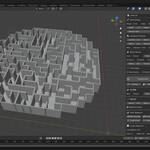
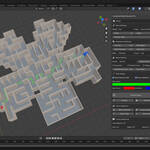
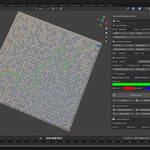
Three layouts with different shapes and geometry.

RESULT · View full size ↗
See the whole layout
The overhead view makes the footprint and path density easy to see, with the generation controls alongside it.

RESULT · View full size ↗
Build a different kind of space
This raised layout shows another direction for the maze geometry, rather than just another colour scheme.
RESULT · View full size ↗
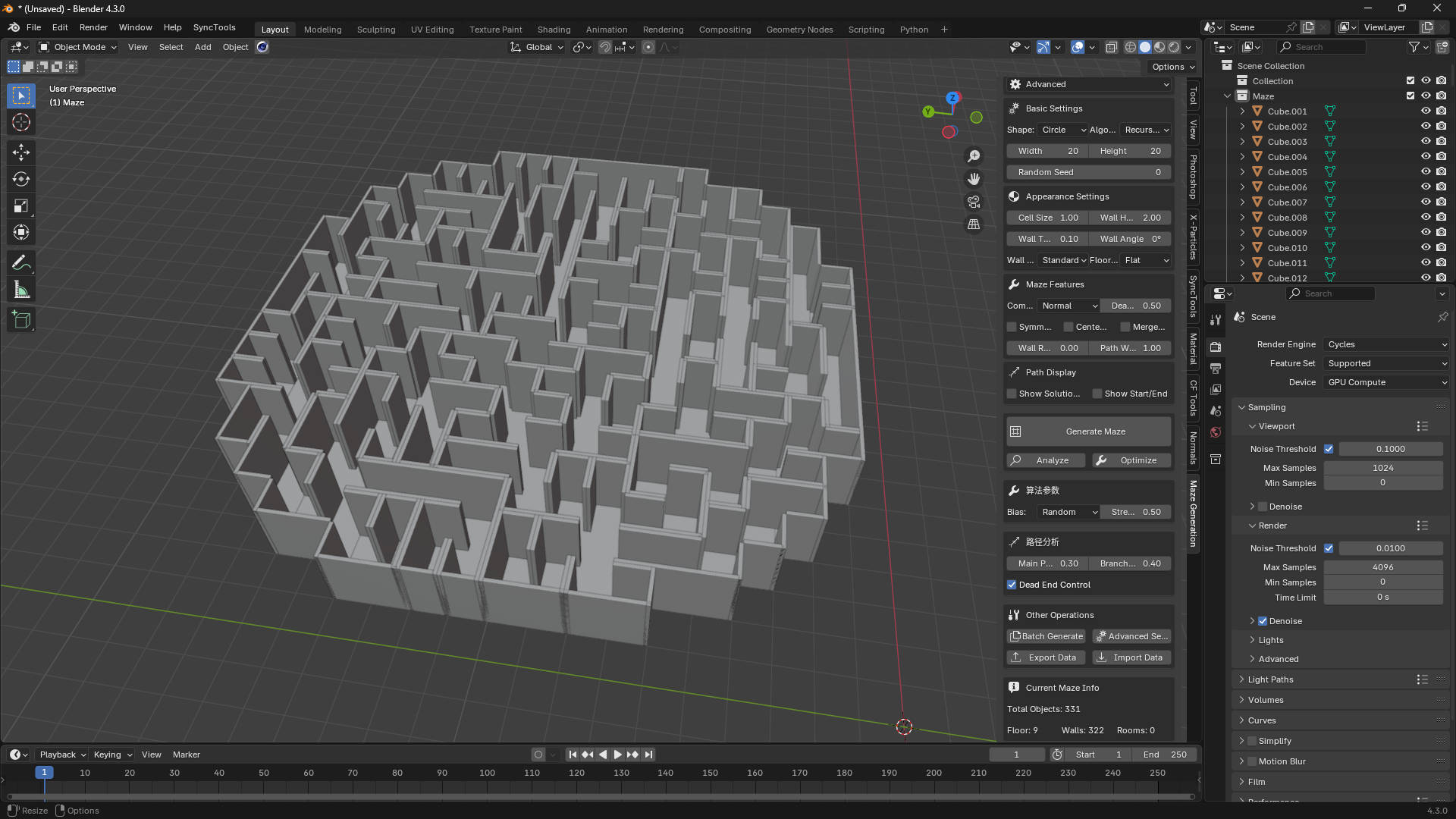
Use a circular boundary
The rounded footprint changes how the passages fit together. Check the route as well as the overall shape.
Ways to change the maze
Here’s what you can do with it.
Try a different algorithm
Choose from recursive backtracking, Kruskal, Prim, Wilson, Eller, Binary Tree, Sidewinder, Growing Tree and the other available algorithms. Different approaches give you different starting structures.
Change the outer shape
Build around a rectangle, circle, ellipse, triangle, diamond, polygon, star, heart, cross, ring or an L/T shape, with more boundary options available. The outline changes the space your passages have to work with.
Shape the paths and rooms
Adjust complexity, symmetry, rooms, central paths, edge circuits and loops. Check the connections and entrance/exit positions as you go.
Explore weights and difficulty
Weighted generation, heat-map/flow tools, path analysis and difficulty controls help you explore a layout. You still need to check connectivity and playability for the project you’re making.
Build the walls and floors
Choose wall and floor styles, wall angles and thickness, then set materials and colours. Show the solution path and start/end markers when you need to explain the route.
Make and organise variants
Use batch generation to explore multiple mazes. Maze data can also be imported and exported as JSON, so keep the data with the geometry it belongs to.
Set practical generation limits
Use merged geometry, quality settings, memory controls, timeouts and iteration limits to suit the job. There isn’t one performance setting that fits every maze or machine.
Where to set it up
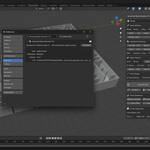
BLENDER PREFERENCES · View full size ↗
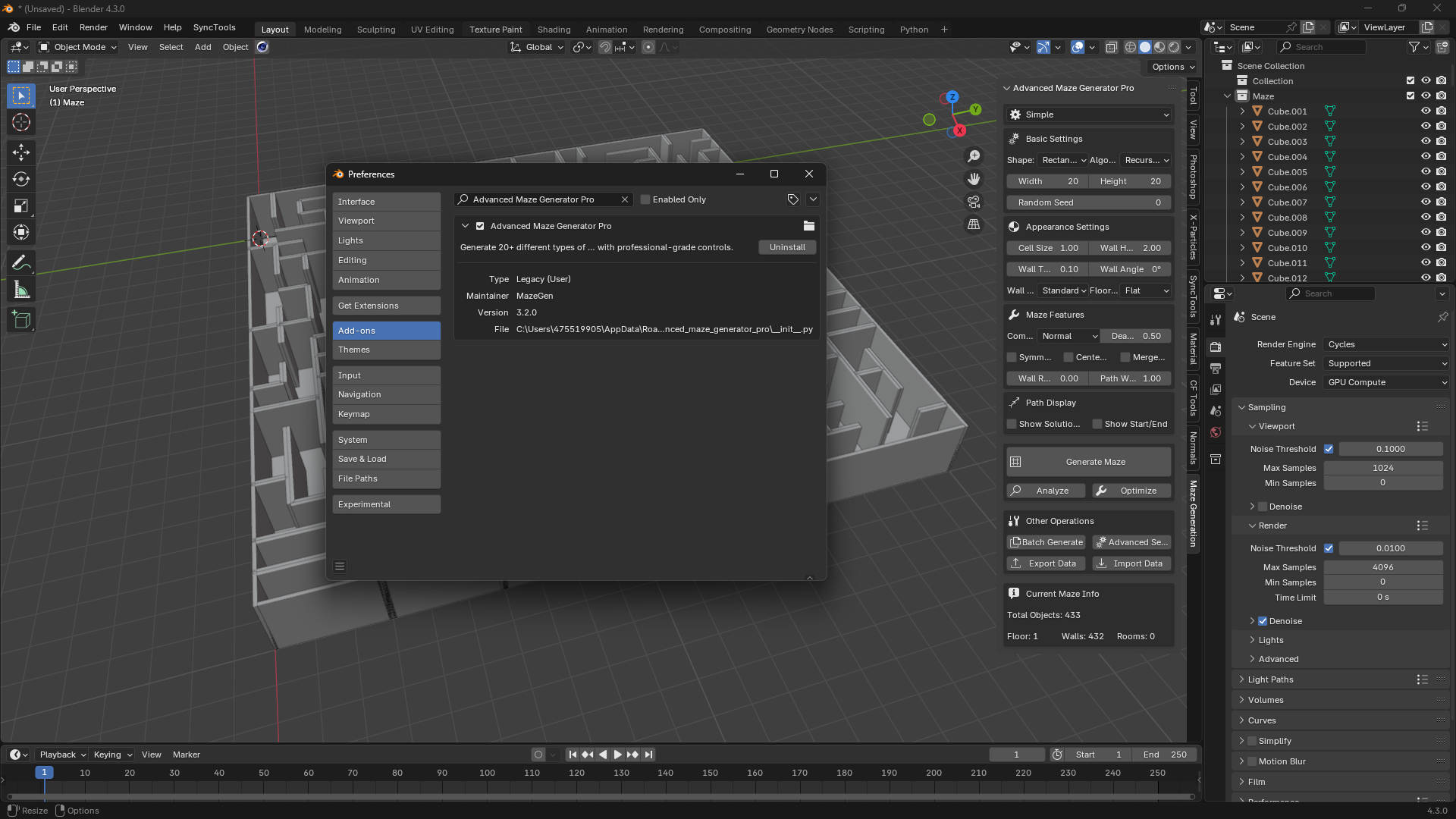
The add-on in Preferences
The setup capture shows the installed add-on and maze workspace. The three examples above show the generated layouts.
Build and check a layout
-
01
Pick an algorithm and an outer shape.
-
02
Set the size, walls, floors and path options.
-
03
Generate the maze and check the connections.
-
04
Adjust rooms, loops, materials and route markers.
-
05
Keep the variants you want and prepare them for your project.
Before you use the result
- Blender 3.0 or newer.
- Check passage connectivity and the entrance/exit before using a layout.
- Suitable projects include levels, puzzles, educational examples, architectural layouts, procedural art and physical models.
Can I use something other than a rectangle?
Yes. Choose from the available shapes, then set the dimensions and geometry controls for that layout.
Does a finished-looking maze mean it’s ready?
Not necessarily. Walk through the route and check connections, entry points and usable passage widths for your project.