Advanced Zoom
 Patrik Capka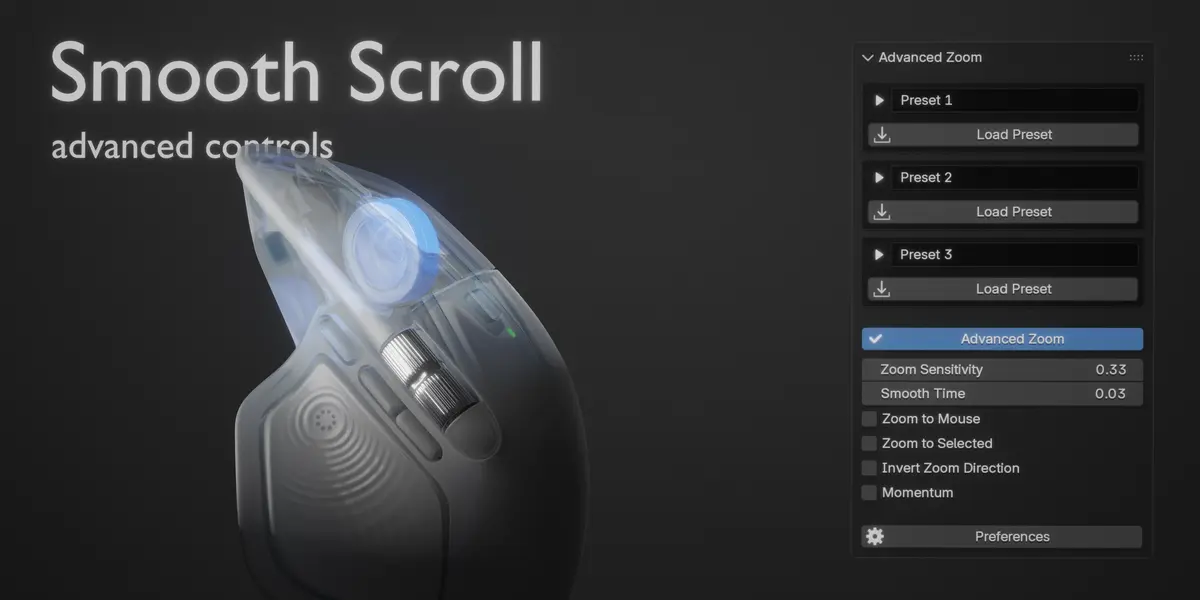
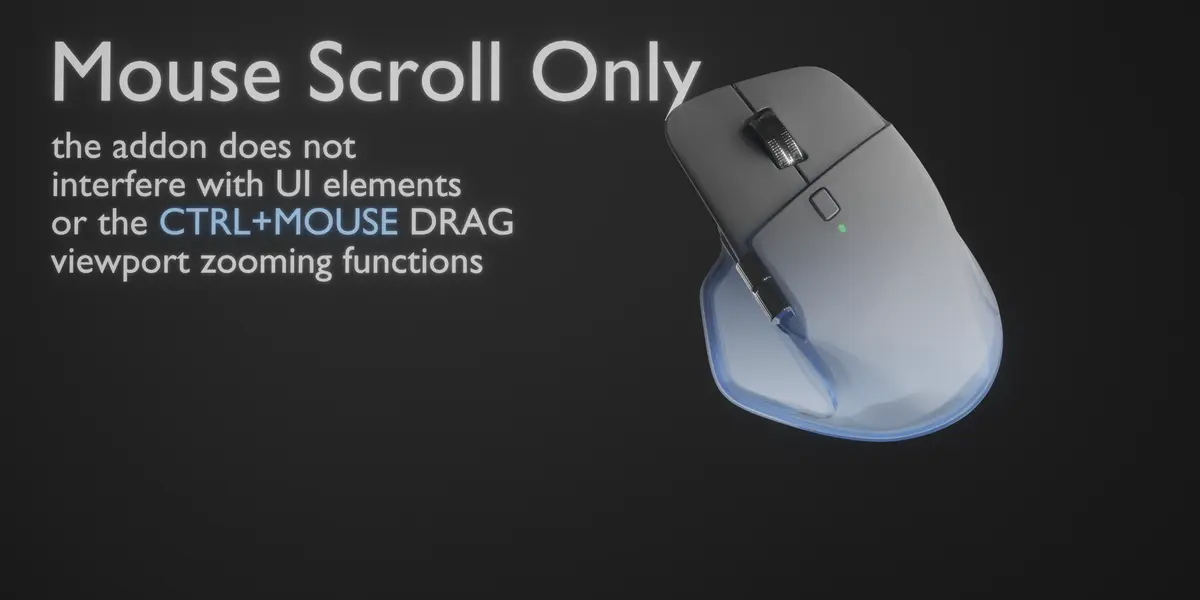
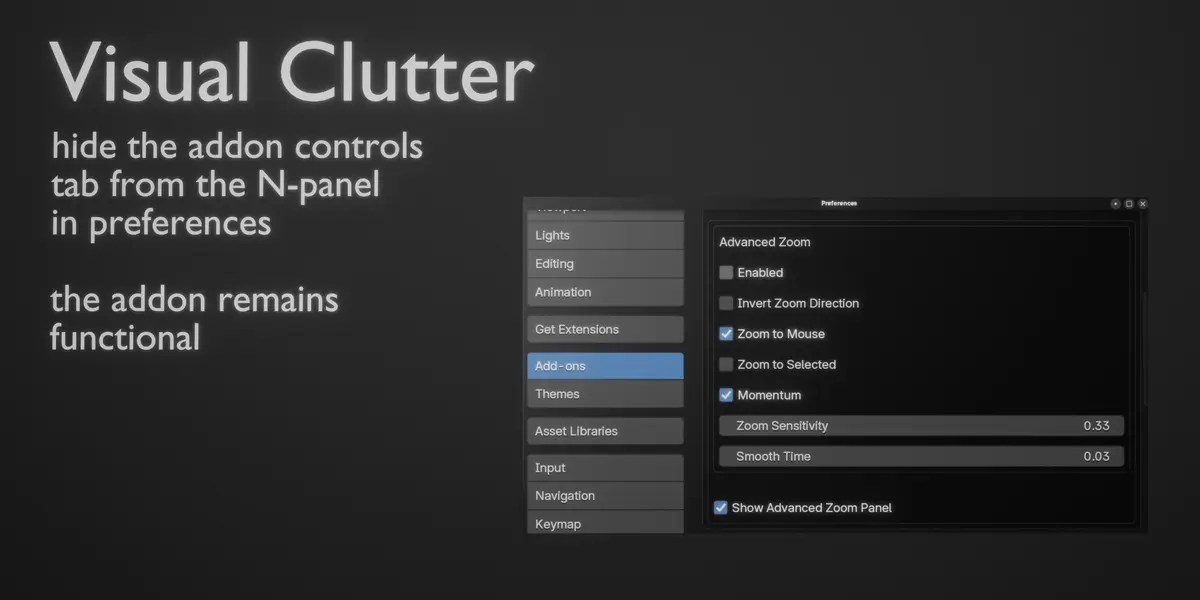

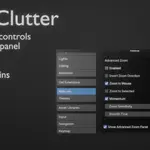
Advanced Zoom gives you control over how Blender's viewport responds to mouse-wheel zooming. Adjust the zoom speed, smoothness, direction, and pivot to create a navigation experience that matches the way you work.
Smooth Zoom makes mouse-wheel zooming fluid and continuous instead of moving the viewport in fixed steps. Adjust the sensitivity and smoothing to find the response that feels right for you.
Zoom Pivots control where the viewport zooms toward. Choose from the available pivot modes to change how the zoom behaves around your cursor and scene.
Invert Zoom reverses the direction of mouse-wheel zooming for workflows where you prefer the opposite scrolling behavior.
Video tutorial and demonstration are included - see the Demo Video section of this page. The video demonstrates the different zoom modes, settings, presets, and how Advanced Zoom behaves during normal viewport navigation.
Installing
Install Advanced Zoom through Blender's standard add-on installation:
Edit ▸ Preferences ▸ Add-ons ▸ ▾ ▸ Install from Disk
Select the Advanced Zoom.zip file you downloaded. There is no need to extract the archive first.
After enabling the add-on, open the 3D Viewport sidebar by pressing N. The Advanced Zoom panel will appear in the sidebar.
Using it
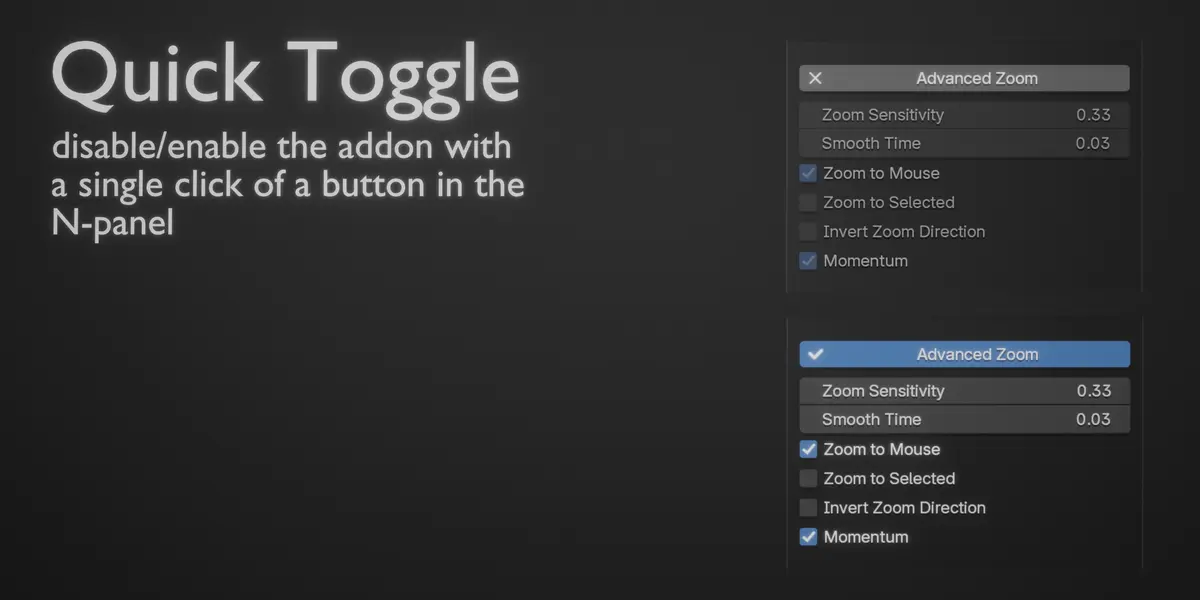
Open the Advanced Zoom panel in the 3D Viewport sidebar and adjust the settings to your preference.
Changes take effect immediately, so you can scroll through the viewport while adjusting the controls and find the right behavior without repeatedly opening Preferences or restarting Blender.
Sensitivity
Controls how much the viewport moves for each mouse-wheel input.
Use a lower value for slower, more precise zooming or increase it when you want to move through large scenes more quickly.
Smoothness
Controls how smoothly the zoom movement transitions between mouse-wheel inputs.
Adjust it to find the balance between direct mouse-wheel response and a more fluid zooming motion.
Invert Zoom
Reverses the direction of mouse-wheel zooming.
Enable it if you prefer scrolling up to move away from the scene and scrolling down to move toward it, or vice versa.
Zoom Pivot
Controls the point the viewport zooms around.
Different pivot modes can be useful depending on whether you are navigating around a specific part of your model, working close to geometry, or moving through a larger scene.
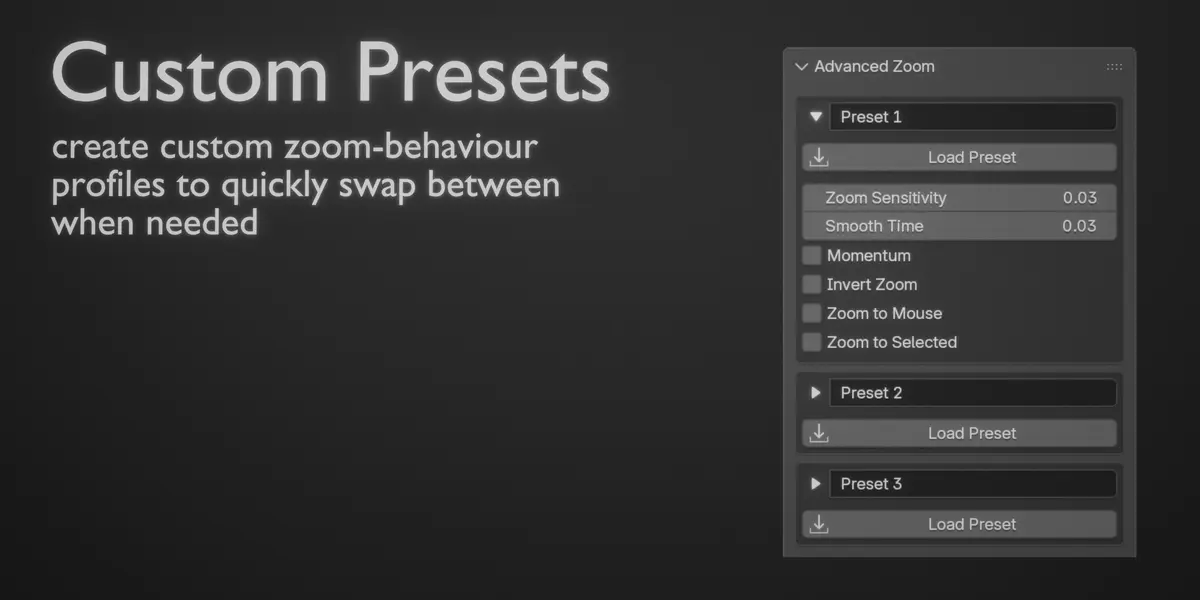
Presets
Save your preferred Advanced Zoom configurations as presets so you can switch between different setups without manually changing every setting.
Your custom presets are available across projects.
On-the-fly changes
Advanced Zoom is designed to be configured while you work.
Adjust the settings, scroll the viewport, and immediately see how the new values affect the zoom behavior. There is no need to stop your workflow to apply the changes.
Compatibility
Advanced Zoom is designed for Blender 4.2+
Support
If Advanced Zoom behaves unexpectedly, first check that you are using a compatible Blender version and that no other navigation add-on is modifying the same mouse-wheel input.
When reporting an issue, include your Blender version, operating system, and Advanced Zoom settings so the problem can be reproduced more easily.
 Included
Includes 12 months of
- Support from Patrik Capka
- Product updates
Extend this product’s Support Period +12 months: 100% of product price
Have questions before purchasing?
Login to message
| Blender Extension Compatible | Yes |
| Published | about 14 hours ago |
| Blender Version | 4.2 - 5.2 |
| Extension Type | Add-on |
| Render Engine Used | Cycles |
| License | GPL |

Discover more products like this
Wheel camera zoom camera viewport viewport navigation mouse scroll mouse mouse-wheel viewport scroll zoom