 ZibadMend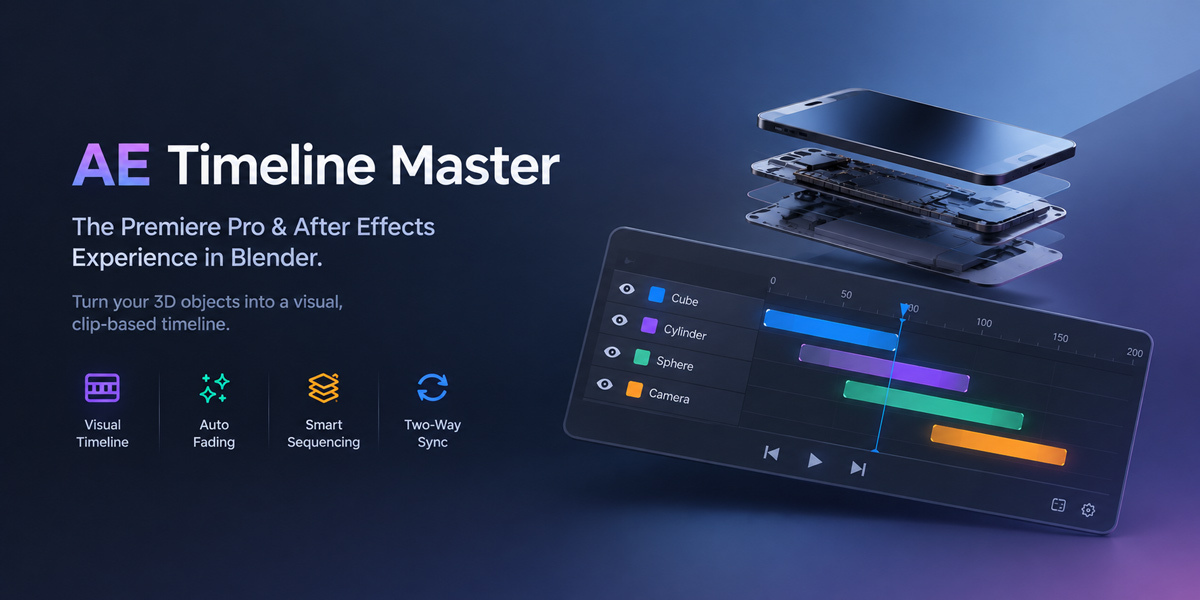
What exactly does AE Timeline Master do?
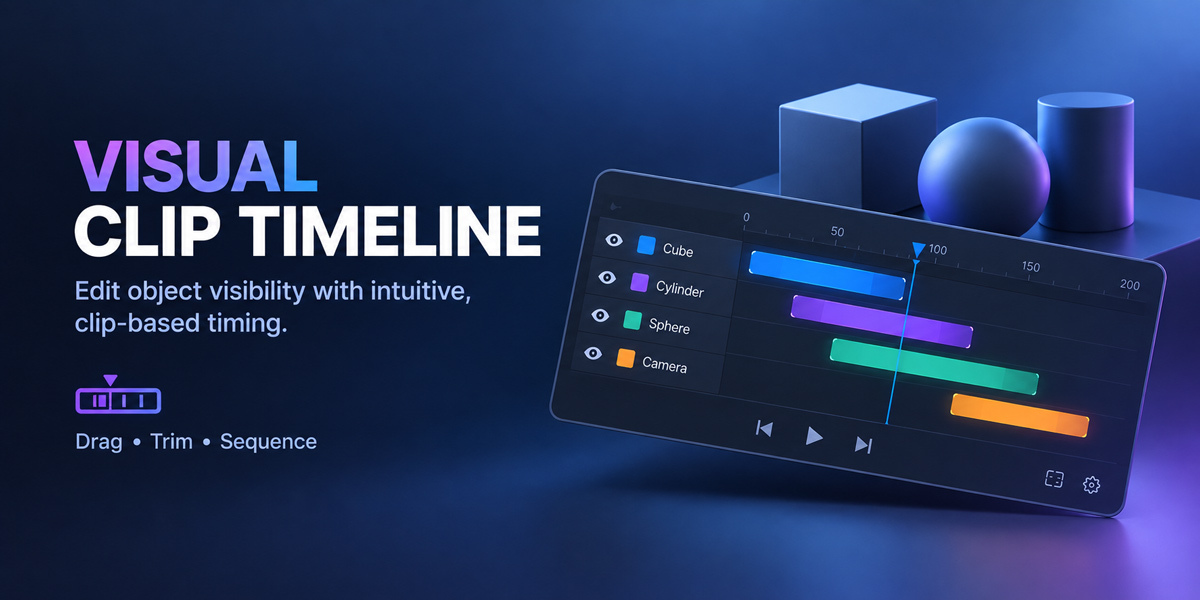
It creates an After Effects-style floating timeline inside Blender's 3D Viewport. It allows you to drag, drop, and trim clips to control exactly when objects appear, disappear, or animate into your scene, without ever touching the graph editor or keyframing manually.
Does it work on Blender 5.0 and 4.2 LTS?
Yes! 💯 The addon is explicitly engineered for Blender 4.2+ and 5.0, taking full advantage of the new extension manifest and safely handling the new Slotted Actions architecture without throwing `FCurves` errors.
Will this addon mess up my existing materials?
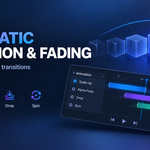
No. If you choose the "Alpha Fade" effect, the addon simply injects an `Object Info` node into your Principled BSDF's Alpha socket. It changes the Blend Mode to `Hashed` or `Alpha Blend`, preserving your original textures and node setups.
How do I open or close the graphical timeline?
Press `N` in the 3D Viewport, go to the **AE Timeline** tab, and click the big "Toggle AE Timeline" button. (It also attempts to auto-start when you load the addon).
How do I zoom and navigate the timeline?
**Zoom:** Hold `Ctrl` and scroll your mouse wheel.
**Scroll Vertically:** Scroll your mouse wheel while hovering over the left panel (layer names).
**Scroll Horizontally:** Scroll your mouse wheel while hovering over the right panel (clips).
I clicked on the timeline, but objects in the 3D viewport behind it get selected. Why?
This is a feature! We programmed an intelligent "Pass-Through" shield. If you click on an empty, dark space in the timeline, Blender allows you to select 3D objects behind it. The timeline only "eats" your click if you click directly on a clip, button, or the time-ruler.
Can I select multiple clips at once?
Absolutely. You can click and drag in empty space to draw a **Box Selection**, or you can hold `Shift` and click multiple clips. When you drag one, they all move together!
What does "Sequence Selected" do?
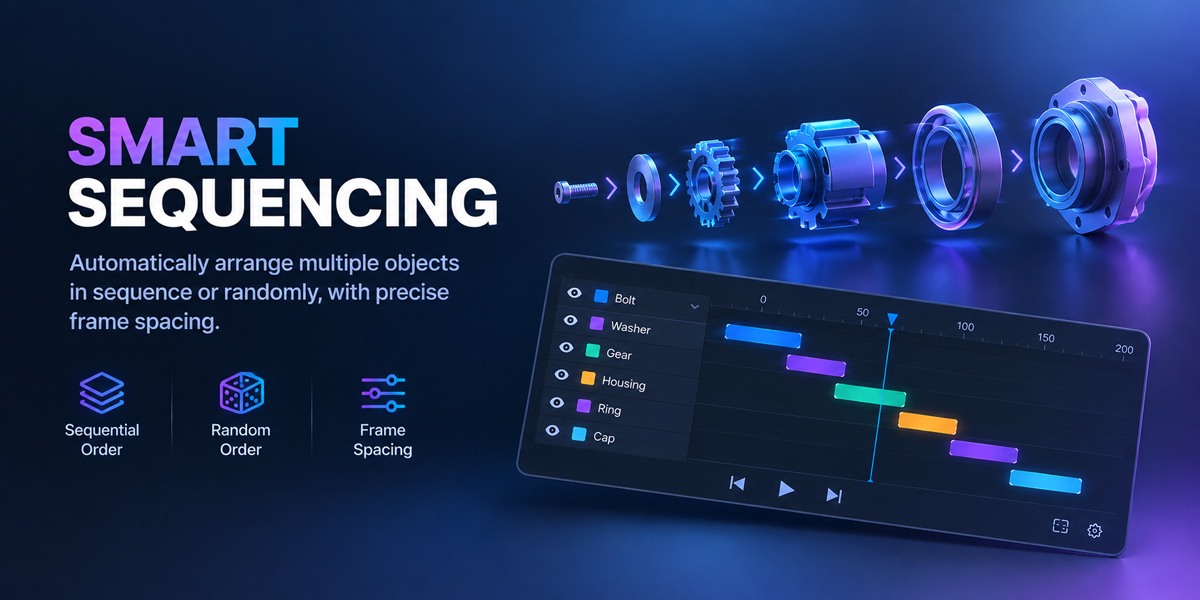
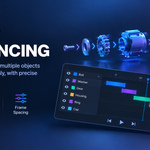
This is a motion-graphics superpower. If you select 50 pieces of a car engine, set the offset to 3 frames, and click "Sequence", the addon will automatically arrange the clips in a staircase pattern. The pieces will assemble themselves one by one!
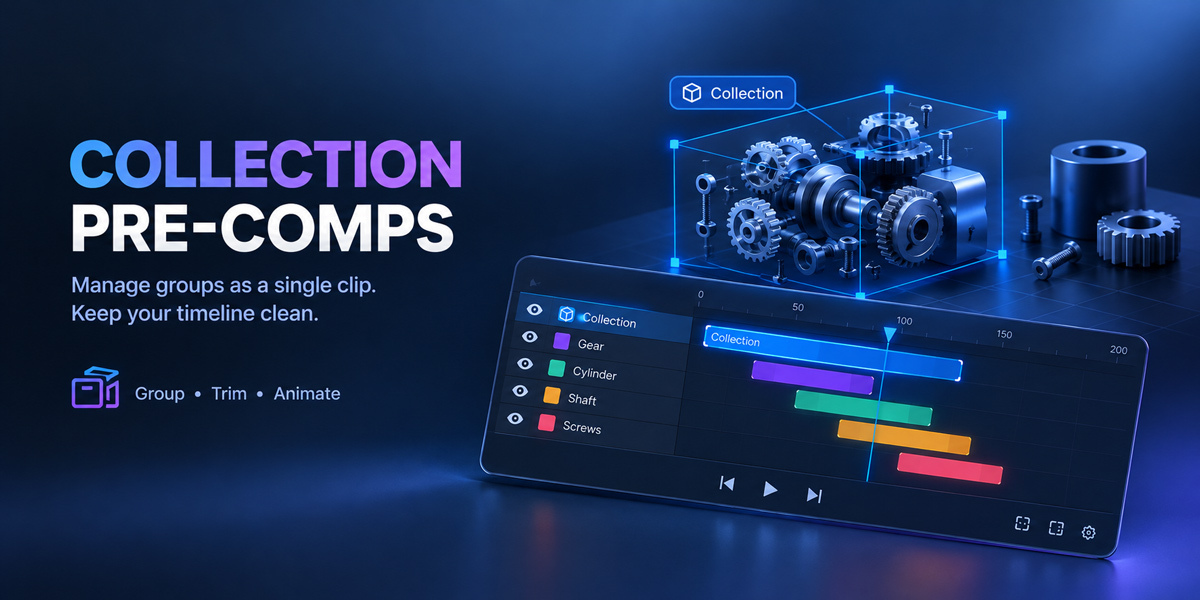
Can I animate a whole Collection instead of single objects?
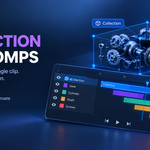
Yes. Select a collection in your Outliner (make it active), then click **Add Active Collection** in the N-Panel. A single yellow track `[C]` will appear in the timeline. Moving this track moves all objects inside the collection simultaneously.
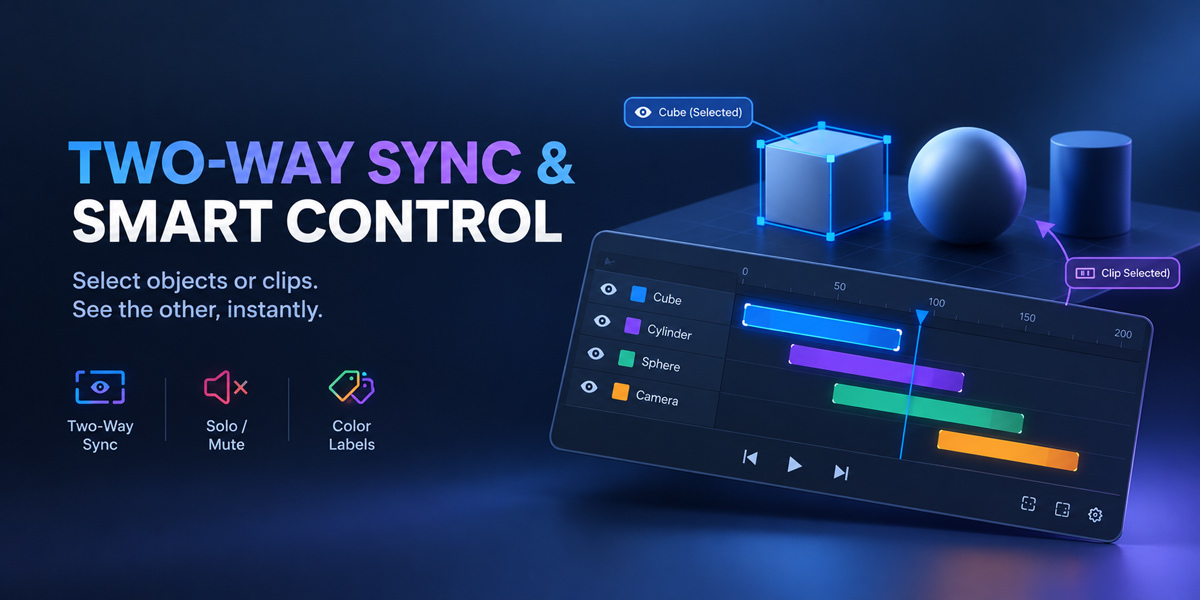
What do the `S` and `M` buttons mean?
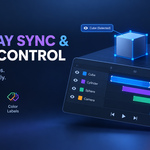
**S (Solo):** Isolates the layer. Only this layer will be visible; all others will be temporarily hidden.
**M (Mute):** Hides the layer. This object will not be visible or rendered during the animation.
How do I change the color of a clip?
Simply `Right-Click` on any clip in the timeline. It will cycle through Blue, Red, Green, Yellow, and Purple. This is great for organizing your scene.
Can I resize the timeline window?
Yes! Hover your mouse over the top edge of the timeline (the grey bar with a handle). Your cursor will turn into an up/down arrow. Click and drag to make the timeline taller or shorter.
Why did the mouse cursor get stuck as an arrow?
In extremely rare cases, if Blender interrupts the drawing process, the cursor might stick. Simply click once in the empty 3D viewport outside the timeline, and it will restore instantly.
If I change an effect (e.g., Scale to Drop), do I lose my timing?
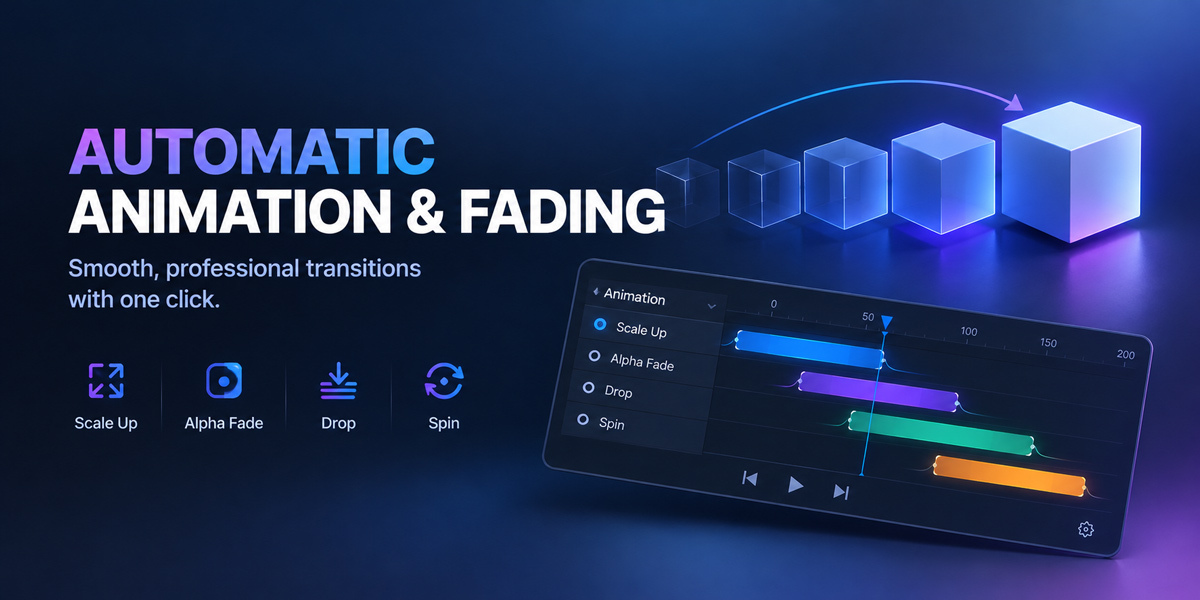
Not at all. The addon remembers your In and Out points. Just select the clip, change the settings in the N-Panel, and hit **Update Settings**. The new effect will be applied within the exact same timeframes.
Is it compatible with EEVEE and Cycles?
Yes! The transforms (Scale, Drop, Spin) work universally. The Alpha Fade automatically adjusts settings that work flawlessly in both EEVEE and Cycles engines.
 Included
Includes 12 months of
- Support from ZibadMend
- Product updates
Extend this product’s Support Period +12 months: 50% of product price
Have questions before purchasing?
Login to message
| Blender Extension Compatible | Yes |
| Published | about 18 hours ago |
| Blender Version | 4.2 - 5.2 |
| Extension Type | Add-on |
| License | GPL |
Discover more products like this
productivity sequencer layers mograph after effects animation motion graphics Motion design Workflow keyframe user interface timeline