Aeblink V1.2 ( Now Support Blender 5.2 )
 Nps3D
Nps3D


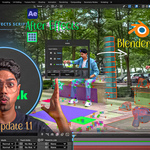
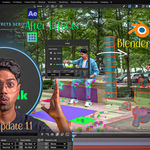
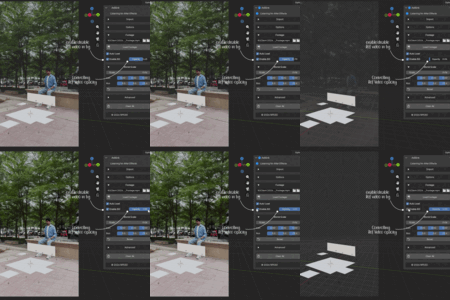
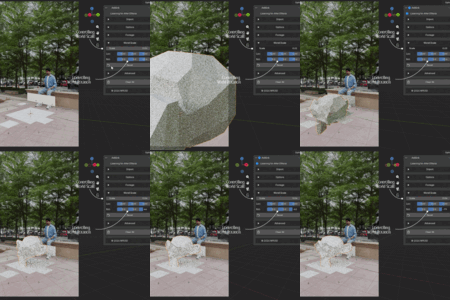
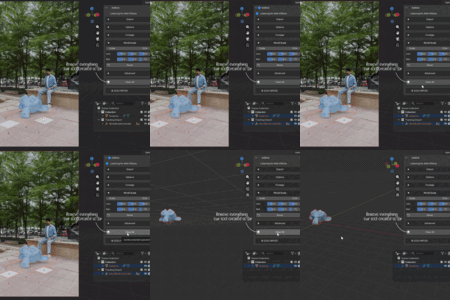
AeBlink
After Effects to Blender — User Guide
Version 1.2 • After Effects 2024–2026 • Blender 4.0–5.2 • © 2026 NPS3D
1. Overview
AeBlink is a one-way bridge that sends 3D tracking and layout data straight from After Effects into Blender. Set up a camera, solids, or nulls in your After Effects composition, run one script, and the matching scene appears in Blender — keyframes and all.
What gets transferred:
• Camera — position, rotation, and focal length, fully keyframed.
• Solids — recreated in Blender as image planes, with position, rotation, and scale.
• Nulls — recreated as empties, useful for tracking points or rig anchors.
• Footage reference — the linked source video can be loaded behind the camera in Blender for visual reference.
Note: Data only flows one direction: After Effects → Blender. Changes made in Blender are not sent back to After Effects.
2. What's New & Key Features
|
Feature |
What it does |
|
Auto-Import |
Blender watches the shared transfer folder and imports the scene automatically the moment After Effects exports — no manual file browsing needed. |
|
Connection Status Indicator |
A small icon at the top of the panel shows whether Blender is waiting, has detected a new scene, imported successfully, or hit an error. |
|
Footage Auto-Detection |
After Effects identifies the source video in your composition, Blender can load it as a camera background automatically. |
|
Shadow Catcher Toggle |
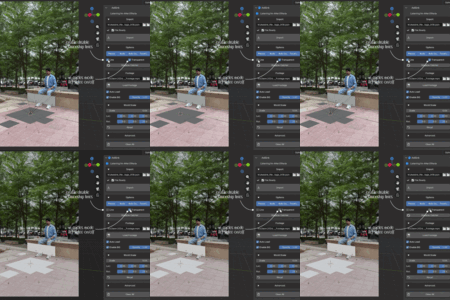
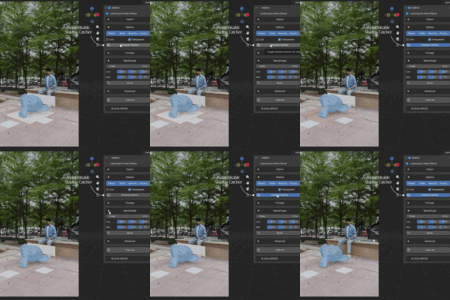
One click enables Cycles' Shadow Catcher on selected objects, so real-world shadows can be composited onto live footage. |
|
World Scale Master Controller |
A single empty scales, moves, and rotates the entire imported scene together — ideal for matching real-world scale. |
3. Requirements
|
Item |
Details |
|
Adobe After Effects |
2024, 2025, or 2026 |
|
Blender |
4.0 through 5.2 |
|
Operating System |
Windows or macOS — anywhere both apps can run |
|
Supported footage formats |
.mp4, .mov, .avi, .mkv, .m4v, .mpeg, .mpg, .webm, .mxf |
Note: After Effects and Blender must both be able to read and write the same Transfer Folder on disk. A regular local folder works best.
4. Installation
Install in Blender
1. Open Blender, then go to Edit > Preferences > Add-ons.
2. Click Install..., select the AeBlink file, and enable the checkbox next to “AeBlink”.
3. Press N in the 3D Viewport to open the sidebar — a new AeBlink tab will appear there.
Install in After Effects
1. Copy the AeBlink script file into After Effects' Scripts folder:
• Windows: C:\Program Files\Adobe\Adobe After Effects [version]\Support Files\Scripts\
• macOS: /Applications/Adobe After Effects [version]/Scripts/
2. Restart After Effects.
3. Run it any time from File > Scripts, or via File > Scripts > Run Script File…
Match the Transfer Folder
Both sides need to point at the same folder. By default, After Effects and Blender both use an “AeBlink” folder inside your Documents folder, so most users won't need to change anything. If you do customize the path, set it the same in both places: the After Effects export dialog, and Blender's Edit > Preferences > Add-ons > AeBlink.
5. How It Works
1. In After Effects, select your composition and run the AeBlink script.
2. Choose what to export — Camera, Solids, Nulls — then click Export.
3. AeBlink writes a JSON file to the Transfer Folder.
4. In Blender, if Auto Import is on (the default), the scene appears within a second or two — watch the status icon change to a checkmark.
5. If Auto Import is off, click the folder icon in the Import section of the panel, choose the JSON file, then click Import.
Everything AeBlink creates lands inside a collection named “Tracking Import,” so your existing scene stays untouched.
6. User Interface Panel
In Blender's 3D Viewport sidebar (press N), open the AeBlink tab. The panel is organized into collapsible sections:
|
Section |
What it does |
|
Status (header) |
Shows the connection state: pulsing dot = waiting, checkmark = import successful, folder icon = new scene detected, warning icon = import failed. |
|
Import |
Browse to a JSON file and import it manually. |
|
Options |
Toggle which items import (Planes, Nulls), Auto Setup Scene, and Focal Length. Also toggles viewport guide lines, background transparency, and the Shadow Catcher (Cycles only). |
|
Footage |
Load or auto-load the After Effects source video as a camera background; enable/disable it and adjust its opacity. |
|
World Scale |
The master controller — scale, position, and rotation sliders that move the entire imported scene together, plus a Reset button. |
|
Advanced |
Frame Offset, Position Divider, the detected After Effects format, a manual vertical/horizontal override, and the Transfer Folder path. |
|
Utilities |
Clear All — removes everything AeBlink has imported, so you can start fresh. |
7. Troubleshooting
|
Issue |
Likely Cause |
Fix |
|
Blender isn't auto-importing |
Auto Import is off, or the Transfer Folders don't match. |
Turn on Auto Import in Blender's Add-on Preferences, and confirm After Effects and Blender point to the same folder. |
|
Nothing happens when I click Import |
No JSON file is selected, or the file no longer exists. |
Browse and reselect the JSON file in the Import section. |
|
Camera or objects are huge or tiny |
Scale mismatch between After Effects pixels and Blender units. |
use the World Scale controller to rescale the whole imported scene at once. |
|
Shadow Catcher button shows a warning |
Blender's render engine isn't set to Cycles. |
Switch to Cycles under Render Properties, then try again. |
|
Footage doesn't appear behind the camera |
The source file moved, the format isn't supported, or Auto Load is off. |
Reselect the video in the Footage section and click Load Footage; confirm the format is on the supported list. |
|
World Scale sliders don't do anything |
No scene has been imported yet. |
Import a scene first — the controller is created automatically on import. |
|
Old export files pile up in the Transfer Folder |
AeBlink never overwrites; every export gets a new numbered file. |
Periodically delete old files by hand — this is safe, since only the newest export is needed. |
|
Import fails with a JSON error |
The export was interrupted, or the file was edited or corrupted. |
Re-run the export from After Effects to generate a fresh file. |
8. Good to Know
• AeBlink only sends data one way: After Effects → Blender.
• Click Clear All before re-importing the same composition to avoid creating duplicate objects.
• Open the Transfer Folder occasionally and delete export files you no longer need.
• The World Scale controller is the safest way to resize or reposition an entire imported scene — adjust it instead of moving individual objects.
-
$19
Full package + Free Future Updates and Support.
-
$59
Full Package + Free Future Updates and Support.
-
$199
Full Package + Free Future Updates and Support.
Have questions about this product?
Login to message

Discover more products like this
3d import 3DMotionGraphics ae Camera Tracking VFX tracking 3D Visual Effects matchmove cgi