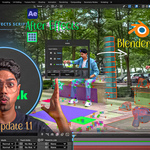
Aeblink V1.2 ( Now Support Blender 5.2 )
 Nps3D
Nps3D


Is AeBlink beginner-friendly?
Definitely. The UI is designed with simplicity in mind — clean, modern, and minimal. Even if you’re new to Blender, you can follow the Quick Guide and get your first import done in seconds.
Does AeBlink support vertical videos or reels?
Yes. There’s a Vertical Mode toggle under the Advanced section that automatically adjusts your camera orientation for portrait compositions.
Will AeBlink import lights, text, or shapes from AE?
Currently, AeBlink focuses on cameras, nulls, and solids, ensuring accurate 3D scene recreation. Additional layer types may be supported in future updates.
Does AeBlink require any third-party plugins?
No. AeBlink works as a standalone pair of tools — one After Effects Script (.jsx) and one Blender Addon (.py). No extra software or plugins are needed.
Can I change the scene scale or orientation later?
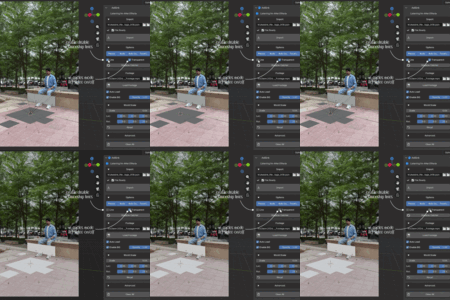
Yes! AeBlink includes a World Scale Controller that lets you resize, rotate, or reposition your imported scene non-destructively. It’s perfect for integrating AE data into larger 3D projects.
Do I need to manually adjust frame rate or resolution?
No. AeBlink’s Auto Setup feature automatically matches your Blender scene’s frame rate, resolution, and duration with your After Effects composition.
How does AeBlink work?
AeBlink uses a simple Export → Import → Create workflow.
Export tracking data from After Effects using the AeBlink Script (.jsx)
Import the exported file into Blender using the AeBlink Addon
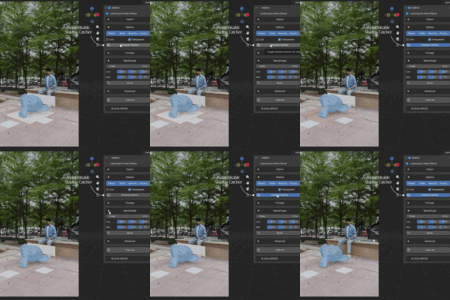
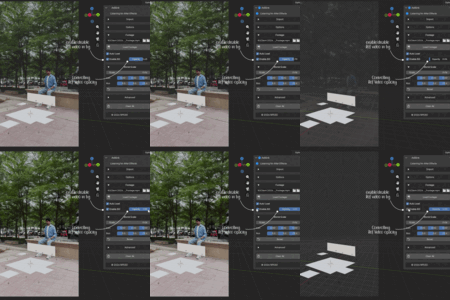
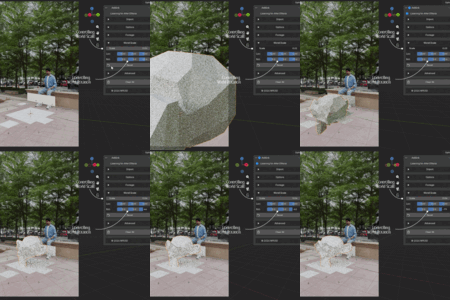
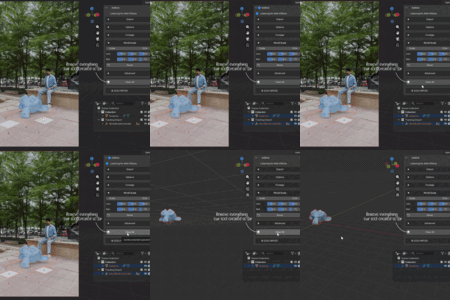
Your entire scene — camera, solids, and nulls — is recreated instantly with the correct animation, focal length, and frame settings.
-
$19
Full package + Free Future Updates and Support.
-
$59
Full Package + Free Future Updates and Support.
-
$199
Full Package + Free Future Updates and Support.
Have questions about this product?
Login to message

Discover more products like this
tracking VFX matchmove Camera Tracking 3d 3D Visual Effects import ae 3DMotionGraphics cgi