AeroShot Studio — Cinematic Flight
 AS Formworks
AeroShot Studio 0.6.0 — User Guide
1. Install
- Use Blender 5.2 or newer. Tested with 5.2.1 LTS. Blender 5.0/5.1 are not supported.
- Download AeroShot_Studio_0.6.0.zip. Do not extract this installer.
- Open Edit → Preferences → Get Extensions. In the menu choose Install from Disk, select the ZIP and enable AeroShot Studio.
- In a 3D View, press N and open AeroShot. Disable an older legacy copy before enabling this extension.
2. First shot and shipped examples
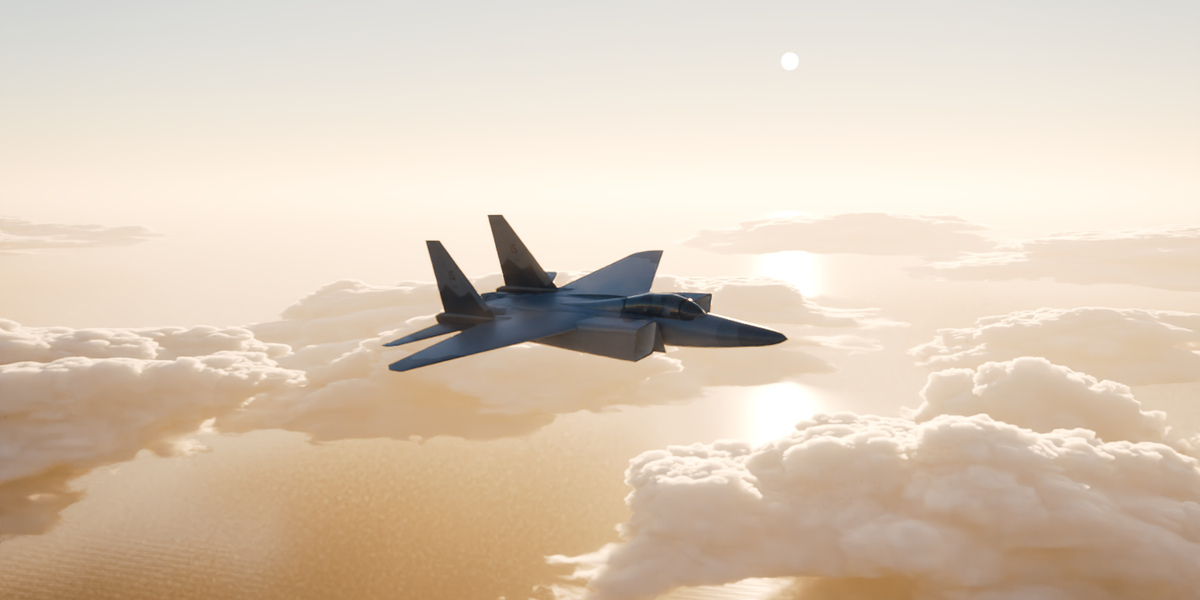
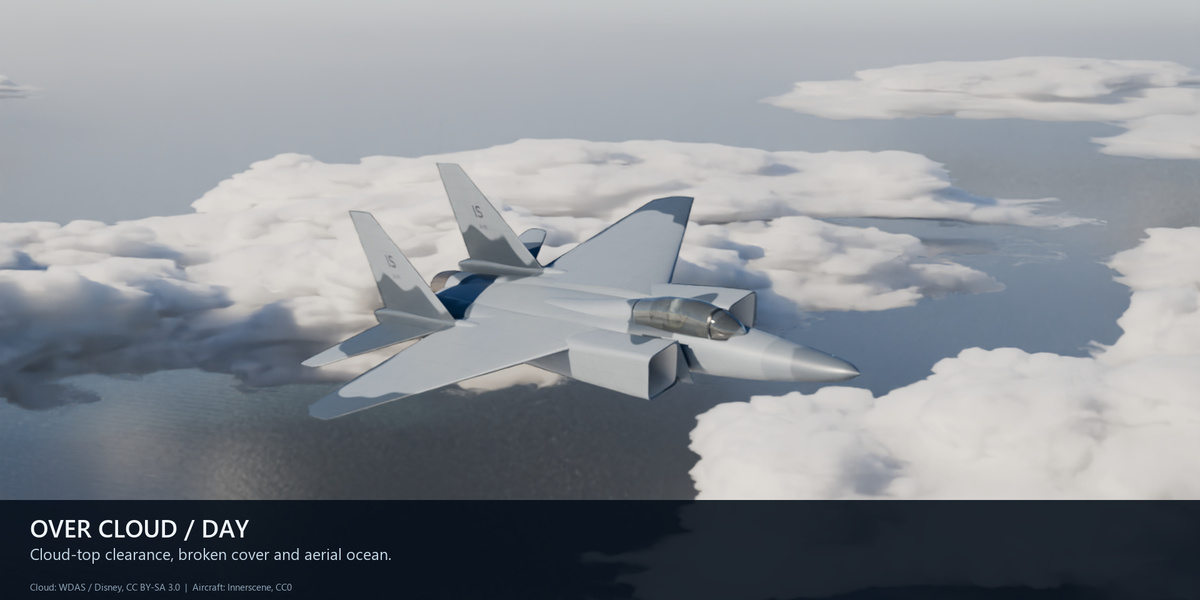
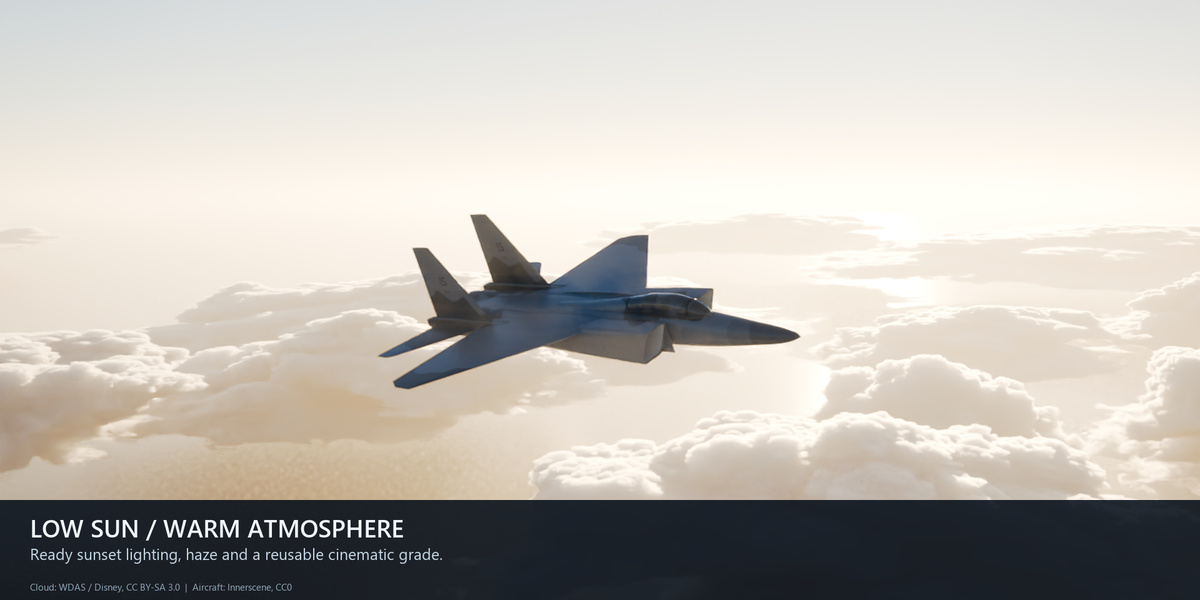
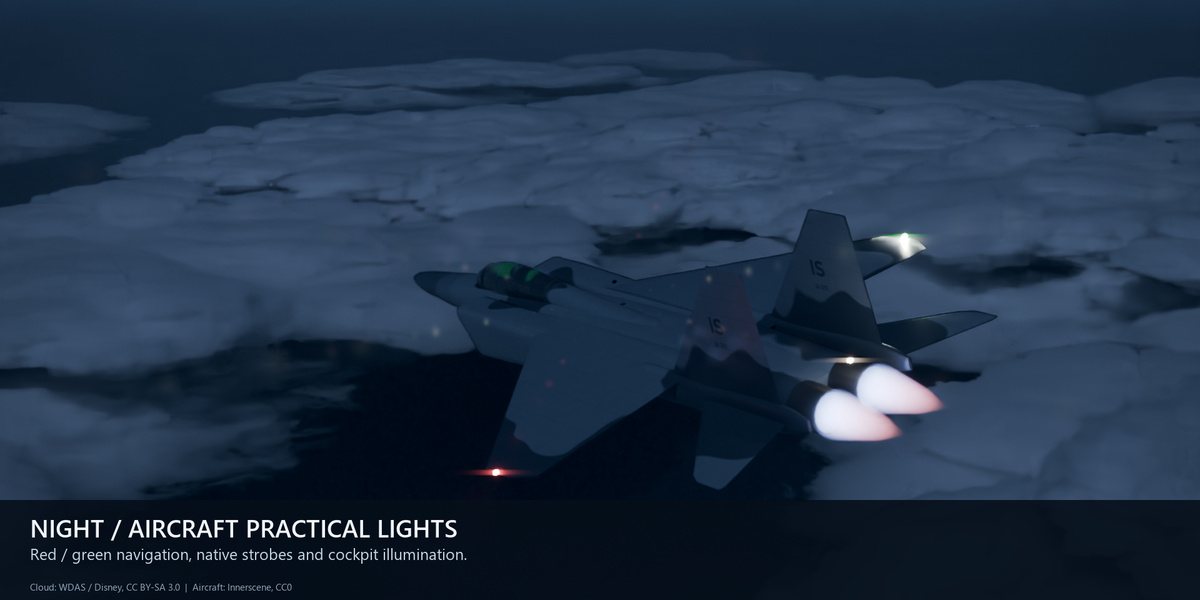
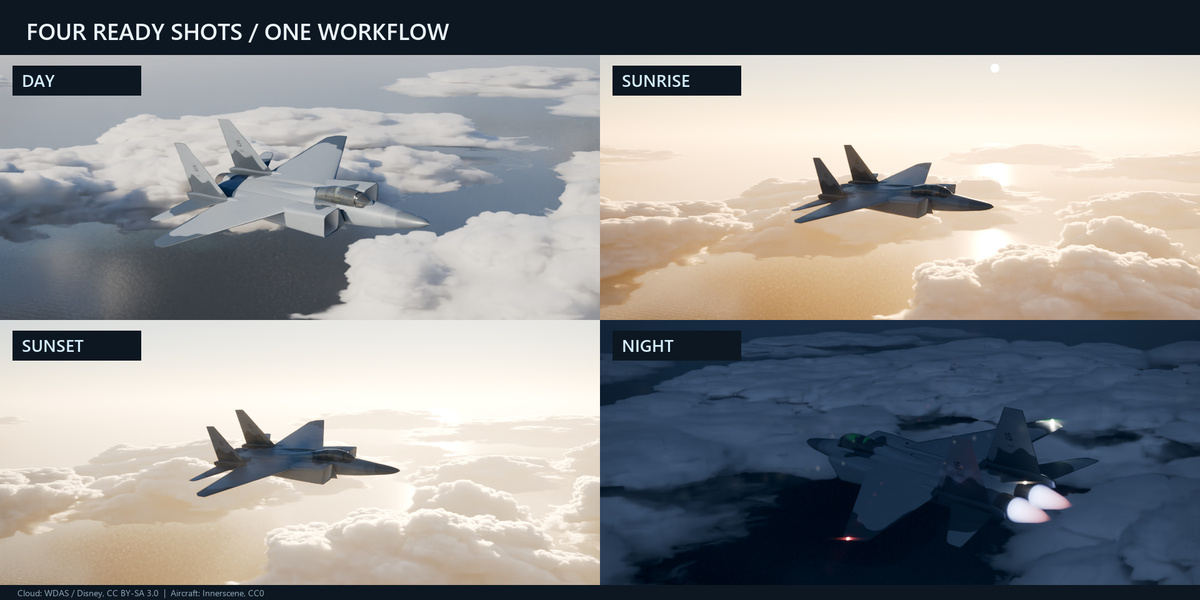
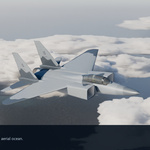
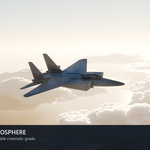
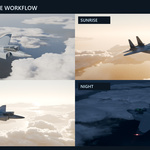
- Choose Over Cloud Day, Sunrise, Sunset or Carrier Night in Ready Cinematic Shot.
- Create Shot in New Scene preserves your current scene.
- The default shot has native flight/camera keys at 24 fps over frames 1–121. Frame 61 is the example still.
- F12 renders a still. For animation set an image-sequence output folder, then Ctrl+F12.
Extract AeroShot_Cinematic_Examples_0.6.0.zip as a whole. Keep assets and raw next to AeroShot_Cinematic_Examples.blend. Select one of its four scenes and frame 61. Textures are packed and VDB paths are relative. Saved native scenes render without the addon; its sidebar tools and EXR convenience workflow require the addon. Configure your preferred Cycles device in Preferences → System and Render Properties for your hardware.
3. Attach your own aircraft
- Select the model root or all top-level parts that should fly together.
- Set forward/up axes under Aircraft, then Attach Selected Aircraft.
- The generated flight rig is the animation root. Start at Current Pose rebases the next bake.
- Detach removes the generated rig while keeping the current pose. This is a transform rig, not an aerodynamic/control-surface simulation.
4. Flight clips
Add Maneuver inserts a clip. Remove or reorder clips in the list. Set duration and relevant direction, heading angle, bank, height or roll count. Available clips: cruise, banked turn, break turn, climb, descent, aileron roll, barrel roll, loop, Immelmann and Split-S. Set speed, start frame and turbulence, then Bake / Update Flight. The output is editable native keys. Rebake the camera after flight edits. Rebuild Entire Shot runs modules using current settings; optional flares remain optional.
5. Clouds and over-cloud clearance
Sky and weather presets are independent. Load Weather Preset copies its values; customize them, then rebuild. Reference VDB supports Cu/Congestus from one licensed WDAS volume with affine variations. Other morphology choices are procedural. Width, altitude, height and internal density affect each cloud. Sky amount/cell count, radius, organization, placement seed, regional gaps and randomness control distribution. Cloud detail exposes development, fill, variation, elongation, shear, erosion, wisps and type-specific options. Visible controls depend on source/type.
Over Cloud limits the ceiling below the flight rig’s lowest native altitude key, using Cloud-top clearance. If the base is above that ceiling, lower the base, reduce clearance or raise the flight. Use Build / Update Environment after edits. Distant cells and high VDB resolution increase memory and render cost.
6. Sun, atmosphere, timeline and ocean
Physical Sky uses one native Cycles sky sun; EEVEE uses a matching Sun lamp. Sky + art-directed Sun disables the sky disc and uses a controllable lamp. Set solar elevation, azimuth, size and intensity. Azimuth: 0° north (+Y), 90° east (+X), 180° south, 270° west. Air, aerosols, ozone and height haze affect the horizon; local haze is an approximation.
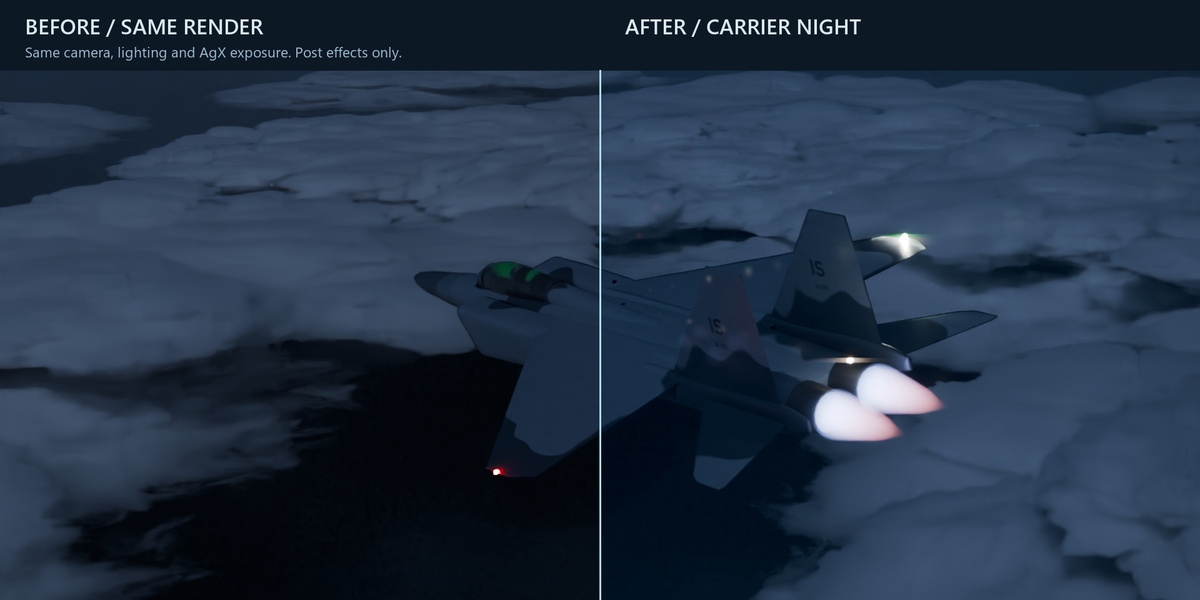
Day/night controls support manual lighting, selected solar time and baked sequences. Load a sequence, set start/end hours, frame range and step, then Bake Time Cycle. Time is solar time, not a civil timezone clock. Clear Time Cycle removes the generated cycle. Moon, stars, night brightness and automatic exposure are adjustable. Carrier Night uses art-directed brightness for readability.
Aerial Ocean provides aircraft-altitude ground context. Adjust extent, level, curvature, sea state, swell, direction, speed and foam, then Build / Update Ocean. It is not a close-up water simulation. Restore Original World restores the world kept by AeroShot.
7. Camera
Choose chase, formation, orbit, wing or fly-by. Lead/front is available for chase/formation. Set distance, relevant side offset, height, lag, shake, lens and depth of field. Orbit adds angle; fly-by adds passing time. Bake / Update Camera writes native keys. Restore Previous Camera returns to the saved camera. Rebuild after flight edits and inspect the full range before long renders.
8. Aircraft lights and effects
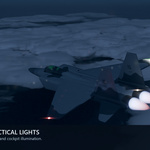
Enable navigation lights and set intensity, lens radius, strobe, beacon, cockpit practical and flash rate. Build / Update Aircraft Lights creates the rig. Move AS_LightSocket empties to fit your model; rebuild preserves socket positions. Port is red, starboard green and aft white in AeroShot’s +Y-forward basis. Emitters and Point lights share native pulse keys. This is a visual rig, not an aircraft-specific electrical system.
Engine Socket at Cursor places engine outputs. Set afterburner radiance, exhaust length and optional heat haze, then Build / Update Engine FX. Heat haze approximates Cycles refraction. For countermeasures set count, first frame, interval, life, spread and trails; place a flare socket and Build / Update Flare Burst. Countermeasure flares are scene objects; lens flare is post optics.
9. Quality and performance
Draft uses EEVEE with reduced budgets. Balanced uses Cycles 128 samples/16 volume bounces; Final uses 512/32 with larger budgets. Choose profile, device, resolution, denoising, motion blur and shutter angle, then Apply Render + Post FX. Rebuild modules affected by budget changes. Performance audit reports object, shape, triangle and key counts. Reduce cells, distance, VDB resolution, output size and motion blur for iteration; increase quality in stages.
The supplied 1440 × 810 examples use 128 samples, 16 volume bounces and quarter-resolution near VDB data. Recorded stills took approximately 11–38 minutes on an RTX 4060 Ti. This is a measured example, not a speed guarantee; hardware and settings strongly affect timing.
10. Post FX
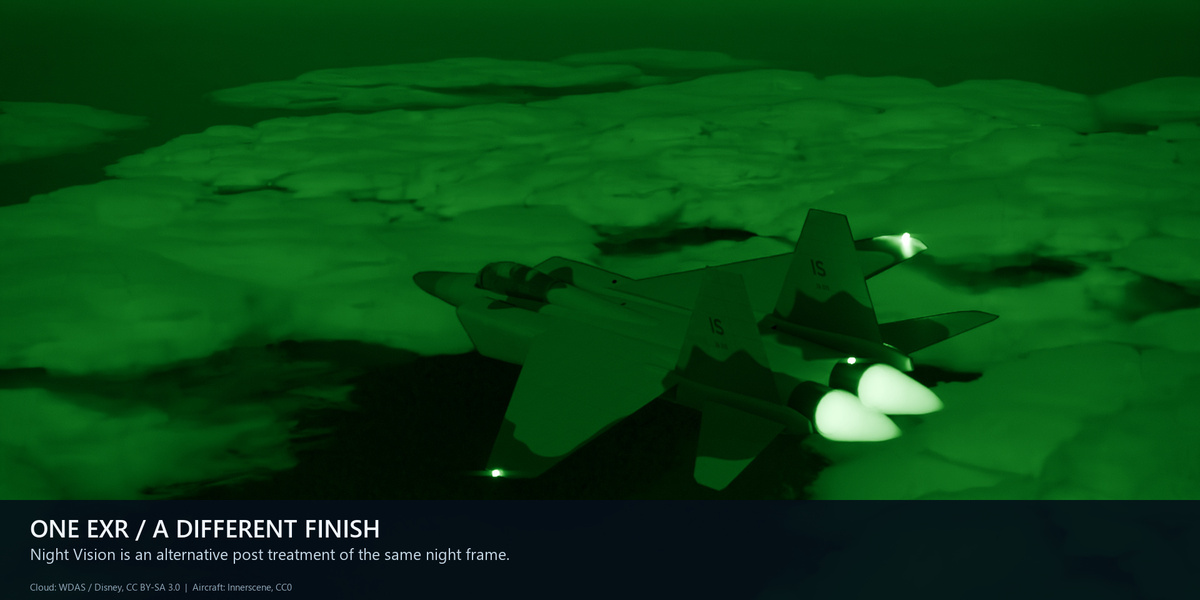
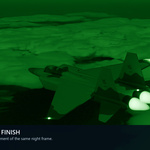
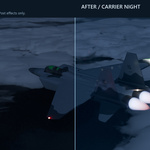
Select Clean, Over Cloud Day, Sunrise, Sunset, Carrier Night or Night Vision and Load / Apply Look. Edit bloom, ghosts, streaks, threshold, color strength, saturation, exposure trim, distortion, dispersion, vignette and grain, then Update Post FX Only. Enable and Before/After Strength update immediately. Effects are exposure-normalized; AgX is applied once at output. Optical highlights are bounded without clamping 3D radiance. The wrapper preserves upstream nodes; Remove AeroShot Post FX restores their output connection.
11. Save and regrade EXR
- Enable Save pre-grade EXR and choose a raw folder.
- Choose compact 16-bit Half or 32-bit Float for extreme radiance such as the direct sun disc. Half-float has a finite maximum of 65504.
- Render once. Raw names contain scene and frame. Existing upstream compositor output is captured before AeroShot.
- Select a scene-linear EXR, or leave the field empty to find the latest matching EXR in the raw folder.
- Open EXR Grading Scene creates Image + Post nodes without source Render Layers geometry.
- Apply/edit a look and press F12. Saved pixels are processed without rerendering the aircraft/clouds. PNG/JPEG are excluded because their view transform is baked.
12. Troubleshooting
- No panel: enable the extension, use a 3D View and open N. Avoid duplicate legacy copies.
- Missing VDB: extract the entire Examples folder and retain assets next to the blend.
- Wrong aircraft orientation: set forward/up axes before attaching and adjust light sockets.
- Cloud base error: lower the base or raise the flight so clearance fits.
- Edits do not appear: rebuild the affected module; most detail controls are not live simulation controls.
- No EXR found: render with Save pre-grade EXR enabled, choose the correct folder or select an EXR explicitly.
- Clipped highlights: inspect camera exposure, source energy, threshold and effect strengths. Use full-float RAW for radiance beyond half-float range.
- Slow render: use Draft/reduced coverage and output size, and configure a compatible render device.
13. Scope, licenses and sources
Flight clips are cinematic keyframed motion. The included F-15-style aircraft is for medium shots and has limited cockpit detail. No carrier ship, game assets, screenshots, paid models or photographic HDRIs are included. Night Vision, local haze, heat haze and lens optics are approximations. Post processing cannot repair poor geometry, composition or light direction.
Code is GPL-3.0-or-later. Original aircraft: Innerscene, CC0 1.0. WDAS Cloud Data is Copyright 2017 Disney Enterprises Inc., CC BY-SA 3.0; photograph reference Kevin Udy / Colorado Clouds. Reference cloud variants derive from one density data set. WDAS-based example scenes/renders are CC BY-SA 3.0. See the full archive notices; the collection is not entirely CC0.
Sources: WDAS clouds, CC BY-SA 3.0, reference photograph, Innerscene aircraft.
Have questions about this product?
Login to message
| Blender Extension Compatible | Yes |
| Published | about 8 hours ago |
| Blender Version | 5.2 |
| Extension Type | Add-on |
| Render Engine Used | Cycles, Eevee |
| License | GPL |