 ZEG
ZEG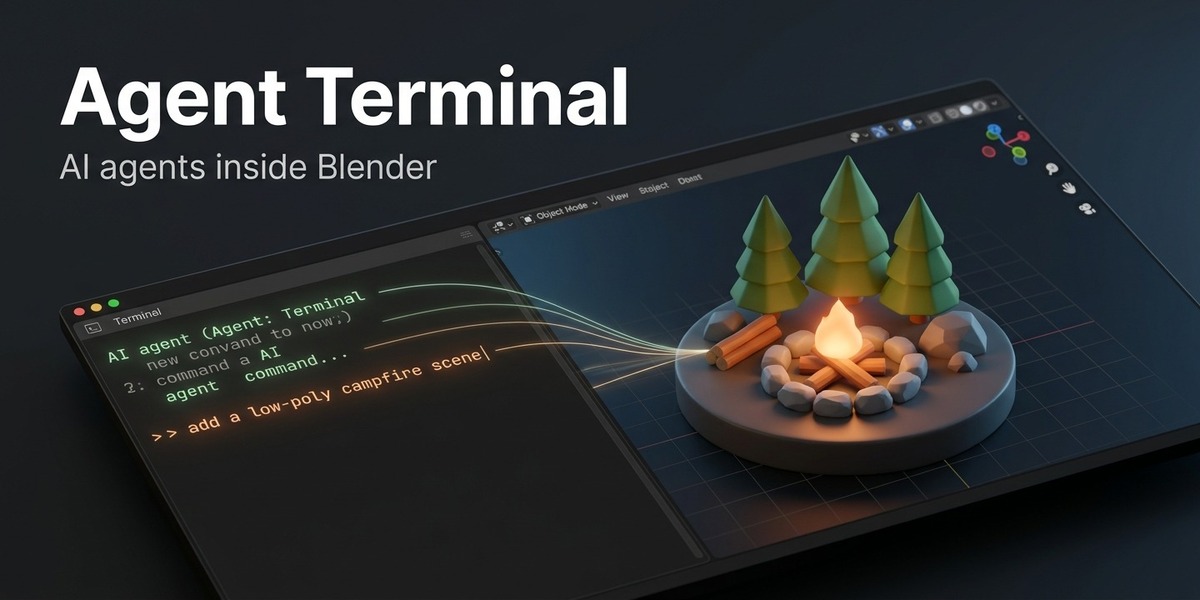
REQUIREMENTS
- Blender 5.1 or newer.
- Online Access turned on: Edit > Preferences > System > Network > Allow Online Access. The connection
between the agent and Blender stays off without it, and the Agent Terminal header tells you so.
- For an agent mode, that agent installed and logged in with your own account:
Claude Code: https://claude.com/claude-code
Codex CLI: https://github.com/openai/codex
OpenCode: https://opencode.ai
Before you start, check that the agent works by running claude, codex or opencode in your normal
system terminal.
- Terminal mode needs nothing extra.
INSTALLATION
1. Download blender_agent_terminal-1.1.0.zip. Do not unzip it.
2. In Blender, open Edit > Preferences > Get Extensions.
3. Click the small arrow menu in the top-right corner and choose Install from Disk.
4. Select the zip file and confirm. The add-on is enabled automatically.
5. Make sure Allow Online Access is turned on (see Requirements).
Updating: install the new zip the same way. Blender replaces the old version.
Uninstalling: Edit > Preferences > Add-ons > Blender Agent Terminal > Uninstall.
OPENING AN AGENT TERMINAL
There are three ways:
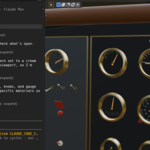
- 3D Viewport button: click the terminal button in the bottom-left corner of any 3D Viewport. The
viewport splits, with the Agent Terminal on the left third. Click the button again to close it.
- Editor type menu: in any area, open the editor-type menu (top-left of the area) and choose Agent
Terminal.
- New window: Window > New Agent Terminal Window.
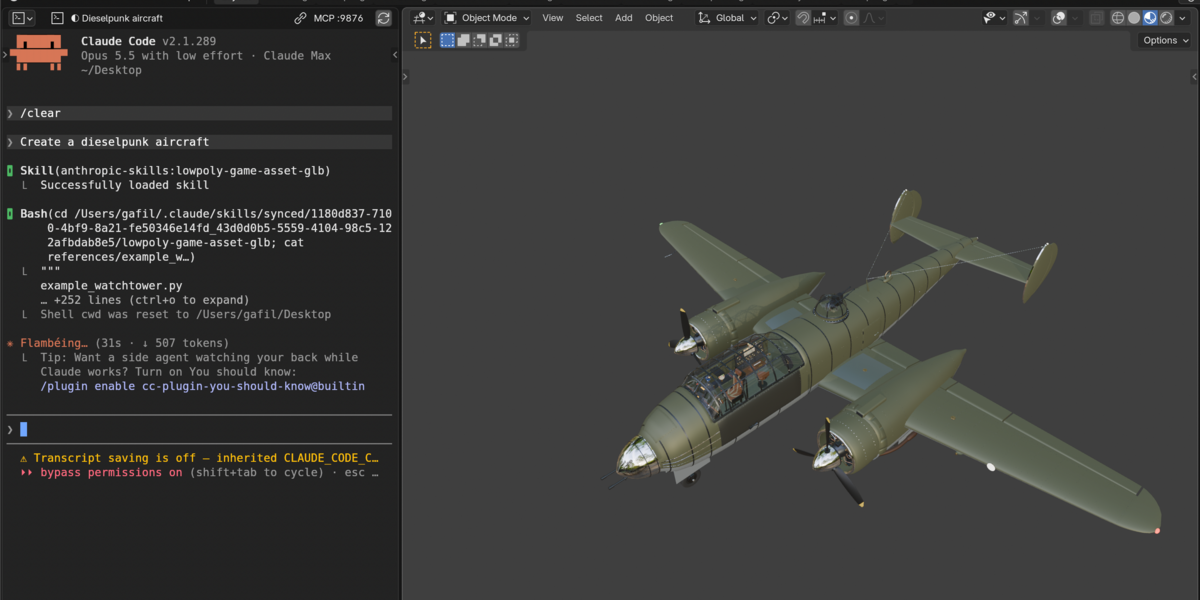
The header of the Agent Terminal shows the running program, the connection port (for example MCP :9876)
and a Restart button.
CHOOSING THE AGENT MODE
Go to Edit > Preferences > Add-ons > Blender Agent Terminal > Agent Mode.
- Claude Code (default): runs claude, connected to Blender.
- Codex CLI: runs codex, connected to Blender.
- OpenCode: runs opencode, connected to Blender.
- Terminal: runs your normal login shell (PowerShell on Windows), with no agent. The BLENDER_MCP_PORT
environment variable is set so you can connect your own tools.
Changing the mode restarts all open Agent Terminal areas. You can edit each mode's command in the
preferences, for example to add your own flags. Commands run through your login shell on macOS and
Linux, or PowerShell on Windows, so they find programs the same way your system terminal does.
USING THE AGENT TERMINAL
- Typing: move the mouse over the Agent Terminal and type. Your keys go to the agent.
- Selecting and copying: drag with the left mouse button to select text, then press Ctrl+C (Cmd+C on
macOS).
- Pasting: Ctrl+V (Cmd+V on macOS).
- Scrolling: use the mouse wheel to scroll through earlier output.
- Restarting: click the Restart button in the header.
- Model and effort (Claude Code mode only): use the buttons at the bottom of the area to switch the
model and the effort level.
Example prompts:
- "Look at my scene and tell me what is in it."
- "Add a low-poly campfire around the selected object, using modifiers and collections."
- "Find a free sunset HDRI and use it as the world background."
- "Put a free wooden table under the selected object."
- "Rename all selected objects after their material."
- "Take a screenshot of the viewport and tell me what looks wrong with the lighting."
WHAT THE AGENT CAN DO IN BLENDER
Blender tools (the official Blender Lab MCP server, built in):
- inspect the scene, objects and data
- run Python (bpy) code
- take screenshots of the Blender window or an area
- search the bundled Blender Python API reference and user manual
Online asset tools:
- search, preview and import free assets from Poly Haven, ambientCG, 3DAssets.dev, BlenderKit, Sketchfab
and Openverse
- models, materials, HDRIs and images (an image is imported as a plane, or as a material on the objects
you choose)
ONLINE ASSETS
- Only free assets are searched and imported. Paid assets are skipped.
- Downloaded files are kept in the add-on's data folder, so they are not downloaded again.
- Every import adds the asset's name, author, source and license to a text block called Online Asset
Credits.
- Licenses differ from asset to asset (CC0, CC BY and others). Check each asset's license before
commercial use.
- Sketchfab downloads need your Sketchfab API token. Copy it from your Sketchfab account settings
(Password & API) and paste it in Edit > Preferences > Add-ons > Blender Agent Terminal > Online
Assets. No other source needs an account.
PREFERENCES
- Agent Mode: which program runs in the Agent Terminal.
- Command for each mode: the command line used to start it.
- Font size: the text size in the Agent Terminal.
- Scrollback: how many lines of earlier output are kept.
- Online Assets: your Sketchfab API token.
WORKING WITH SEVERAL BLENDERS
Each Blender instance uses its own connection port, starting at 9876. The port is shown in the header.
Two Blender instances never control each other's scenes. You can also open several Agent Terminal areas
in one Blender.
TROUBLESHOOTING
The header says Online Access is off:
Turn on Edit > Preferences > System > Network > Allow Online Access, then click Restart in the header.
"command not found" or the agent does not start:
Install the agent and check that it runs in your system terminal. If it is installed somewhere unusual,
enter its full path in the mode's command in the preferences.
The agent cannot see Blender:
In Claude Code, type /mcp. Both blender and online-assets should be listed as connected. If not, click
Restart in the header. Make sure no firewall blocks local connections to 127.0.0.1.
Text looks too small or too large:
Change Font size in the add-on preferences.
An online asset fails to download:
Check your internet connection and try again. Sketchfab downloads need a valid API token.
PRIVACY
The add-on only connects Blender to the agent on your own computer (127.0.0.1). What the agent sends to
its provider is governed by that agent and its own settings. Online asset searches and downloads go
directly to the asset websites. API tokens are stored in the Blender preferences and are not written
into the agent's configuration.
SUPPORT
If something does not work, send a message through Superhive. Include your operating system, your
Blender version, the Agent Mode you use and a screenshot of the Agent Terminal.
 Included
Includes 12 months of
- Support from ZEG
- Product updates
Extend this product’s Support Period +12 months: 75% of product price
Have questions before purchasing?
Login to message
| Blender Extension Compatible | Yes |
| Published | 1 day ago |
| Blender Version | 5.2 |
| Extension Type | Add-on |
| License | GPL |
