 Sunyifan


AI Hair Toolkit
Generate Blender hair from a single portrait image.
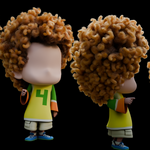
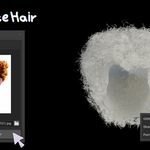
AI Hair Toolkit brings AI hair generation into your Blender production pipeline: feed in a front-facing portrait and get native hair curves strands, then reduce strand count and curve resolution inside the add-on so you can keep sculpting, combing, and styling.

Features
From inference to editable strands, then density and resolution optimization — one continuous pipeline.
AI Hair Generation
Calls the local AIHairRuntime to infer full hair strands from a portrait image.
Density Optimization
Keep a percentage of strands to reduce total hair count.
Curve Resolution
Uniformly resample control points per strand to ease viewport load.
Native Curves
Imports as Blender Hair Curves so you can keep using sculpt / edit / Geometry Nodes.
Bilingual UI
Panel and error messages support Simplified Chinese / English.

System Requirements
Please confirm your hardware and environment meet the following before purchase.
- Blender: 4.2 or newer
- OS: Currently focused on Windows
- GPU (required): Only support Ada RTX 40-series: 4070, 4070 Ti, 4070 Ti Super, 4080, 4090 (CUDA must be available; inference runs in a separate Runtime process)
- Disk: Enough space for the Runtime package and model weights (15 GB+)
Performance Reference
Test setup: Windows + RTX 4070 Ti Super, default Denoise Iterations (100). Actual times may vary with disk, drivers, and GPU model.
| Item | Expected time | Notes |
|---|---|---|
| First-time setup | 1–2 minutes | Only needed once after extracting |
| First inference | 1–2 minutes | Includes starting the Runtime service, loading models, and generating the first image |
| Typical inference | ~1 minute | Subsequent runs when the service is ready and models are already in VRAM |
If any step still has not finished after more than 10 minutes, please contact the author for troubleshooting.
Installation
Addon + Runtime + model weights — three steps to get ready.
1. Install the add-on
- Install the add-on into Blender (Extensions / user add-ons folder, or the package built from this repository).
- In Edit → Preferences → Add-ons, search for AI Hair Toolkit and enable it.
- An AI Hair Toolkit tab will appear in the N-panel on the right side of the 3D Viewport.
2. Prepare AIHairRuntime & Model ights
AIHairRuntime is the companion local inference environment: it includes a standalone Python environment, dependencies, and a local HTTP service that runs model inference outside Blender. The add-on itself only handles image selection, calling the service, and importing Hair Curves — it does not ship the inference environment or model weights.
Before use, download and extract the Runtime package separately, set the Runtime path in the add-on preferences, and complete the first-time environment setup. Model weights must be downloaded separately; neither the add-on nor the Runtime bundles or redistributes weight files. Follow runtime/models/README.txt to register on the relevant official site, accept the license terms, download the weights, place them in the specified folders, and comply with the official data and weight usage restrictions.
Typical Runtime layout:
first_run.bat ← required on first run (conda-unpack)
start.bat
runtime/
python.exe ← standalone Python for inference
server.py ← local inference service
Scripts/conda-unpack.exe
models/ ← place model weights here (download separately)
…/
3. Preferences
Edit → Preferences → Add-ons → AI Hair Toolkit (expand the entry):
- Set Runtime Path (absolute path to the extracted root folder)
- Click First-time Environment Setup and wait for initialization to finish in the console that opens
- Confirm model weights are downloaded and placed as described above
- No need to change Server Host / Port (local service listen address) or Denoise Iterations (denoising iteration count)
Then return to the N-panel to generate hair.
Workflow
From picking an image to styling — five steps.
Select a portrait
In the panel INPUT section, choose a clear front-facing portrait (currently PNG / JPEG). A sample image is included so you can try right away.
Generate hair
Click Generate Hair:
- The add-on validates the Runtime and the image
- If needed, it automatically starts the local HTTP service
- After inference, strands are imported as Hair Curves
- The panel shows strand count and points per strand, and resets the optimization sliders

Optimize
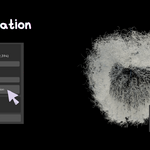
Raw generated strands often have a very high point count. In OPTIMIZATION, adjust:
- Hair Count: percentage of strands to keep (e.g. 50%)
- Curve Resolution: points per strand after optimization (e.g. 160)
Click Apply Optimization to apply — no need to run AI again. The panel shows estimated memory usage so you can balance quality and performance.

Keep creating
The result is ordinary Blender hair curves. You can continue with:
- Sculpt / Comb
- Curve editing
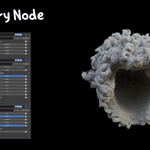
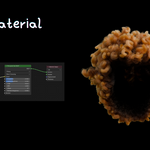
- Geometry Nodes and materials

Stop the server
Stop Server at the bottom of the panel shuts down the Runtime HTTP service started by the add-on. Disabling the add-on also attempts to stop the managed process.
Interface
N-panel and preferences at a glance.
N-panel
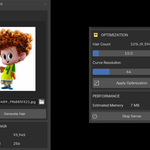
- INPUTImage path, preview, generate button
- GENERATED HAIRLatest strand count / points-per-strand stats
- OPTIMIZATIONHair Count, Curve Resolution, apply optimization
- PERFORMANCEEstimated memory
- Stop ServerStop the local inference service
Preferences
- Runtime PathAIHairRuntime root folder
- First-time Environment SetupOnly needed after a fresh extract or path change
-
Server Host / PortLocal service listen address (default
127.0.0.1:8765) -
Denoise IterationsDenoising iterations sent to
/generate

FAQ
Common questions about install and generation.
I can’t find the settings in Preferences?
You must expand the AI Hair Toolkit entry under Preferences → Add-ons. Options appear under the add-on row — they are not in the N-panel.
It says Runtime Path is not set?
Enter the absolute path in Preferences first, then generate.
First use reports missing python / models?
Model weights must be downloaded separately — follow runtime/models/README.txt and place them under runtime/models/.
Generation is slow?
First inference takes about 1–2 minutes (including startup and model load); later runs with a reused service take about 1 minute. If it still has not finished after more than 10 minutes, contact the author.
Unsupported image format?
Use a valid PNG or JPEG (validated by file header, not just the extension).
Known Issues
- Blender 5.x: Very high-density Hair Curves (large strand count × points) may display incorrectly in the viewport; they render normally in Cycles. Lower Hair Count / Curve Resolution before previewing.
- The current Runtime package and first-time setup flow are primarily for Windows.
License
- Add-on code: GPL-3.0-or-later
- AIHairRuntime has its own licenses and is not covered by this add-on’s GPL
- Third-party model data and pretrained weights belong to their original authors; users must register, download, and comply with their licenses. This project does not include or redistribute those weights.
