AI Object Namer
 Neatmesh
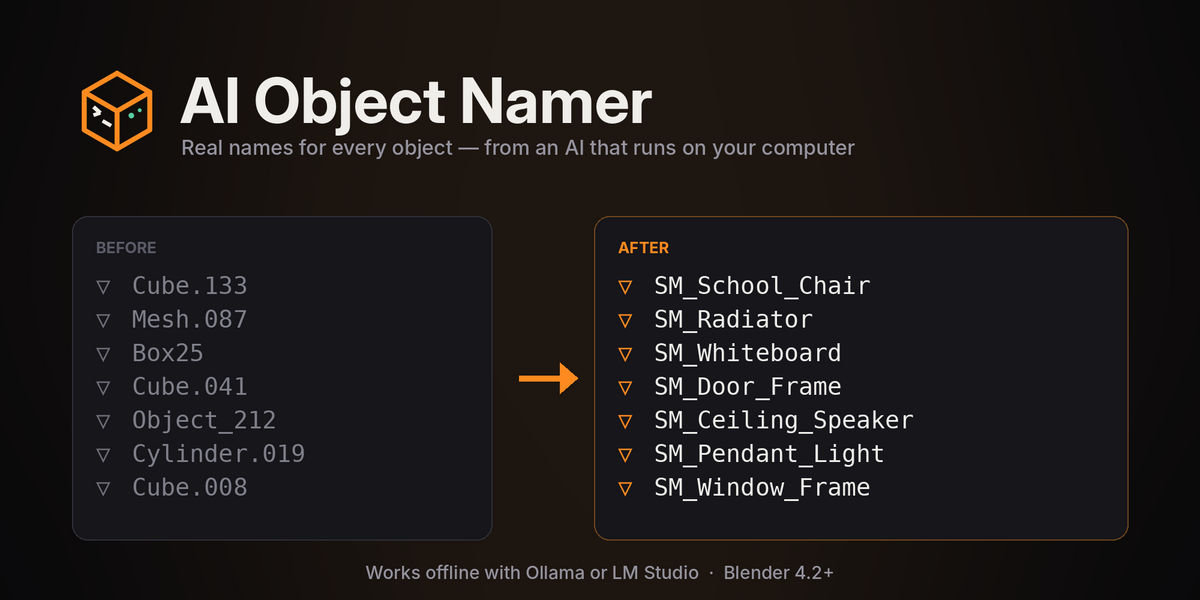
Installing
Download ai_object_namer-1.0.2.zip, then in Blender go to Edit → Preferences → Get Extensions, open the ⌄ menu in the top right corner, choose Install from Disk… and pick the zip (dragging the zip into the Blender window works too). The add-on shows up in the 3D Viewport sidebar under the Namer tab; press N if the sidebar is hidden.
Setting up the AI
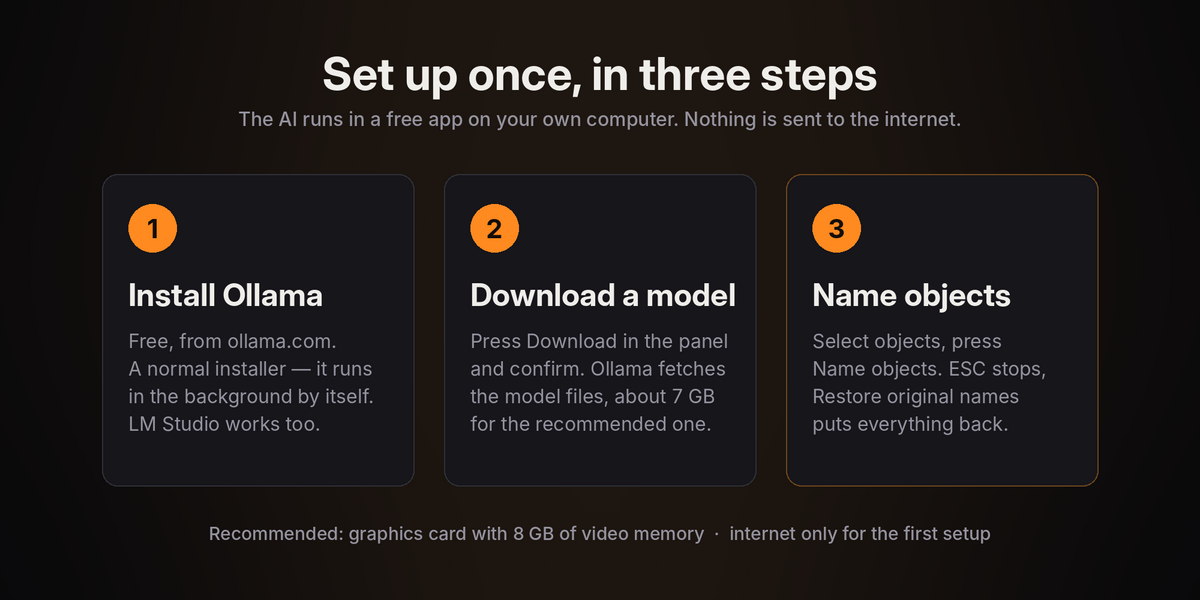
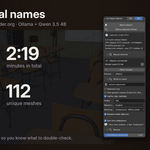
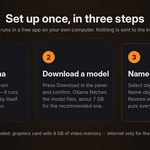
You only do this once. The easiest route is Ollama: download it from ollama.com and run the installer like any other program. It starts on its own and stays in the background, so there's nothing to configure, and if the Neural network panel is open in Blender it notices Ollama within a few seconds.
Then get a model. The panel lists the tested models grouped by video memory (8, 12 and 24 GB) with their size, speed, naming quality and license. Press Download next to the recommended one and a window shows you the model and how big it is; once you confirm, Ollama downloads the model files and nothing else gets installed. From the same list you can switch between models with Use, remove them with Delete, or type the name of any vision model from ollama.com/library.
If you already have LM Studio, search for "Qwen3.5 9B" in its Discover tab, download it, then open Developer and press Start Server. The add-on finds LM Studio by itself. Any other OpenAI-compatible server works as well: choose Other address under Source and enter its URL.
Naming
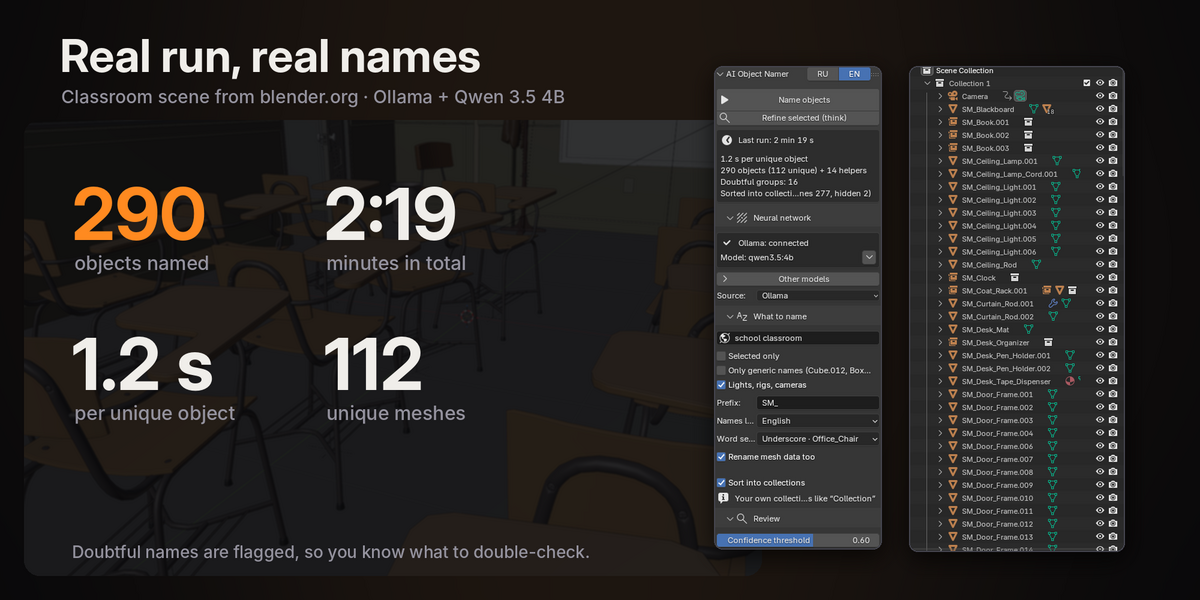
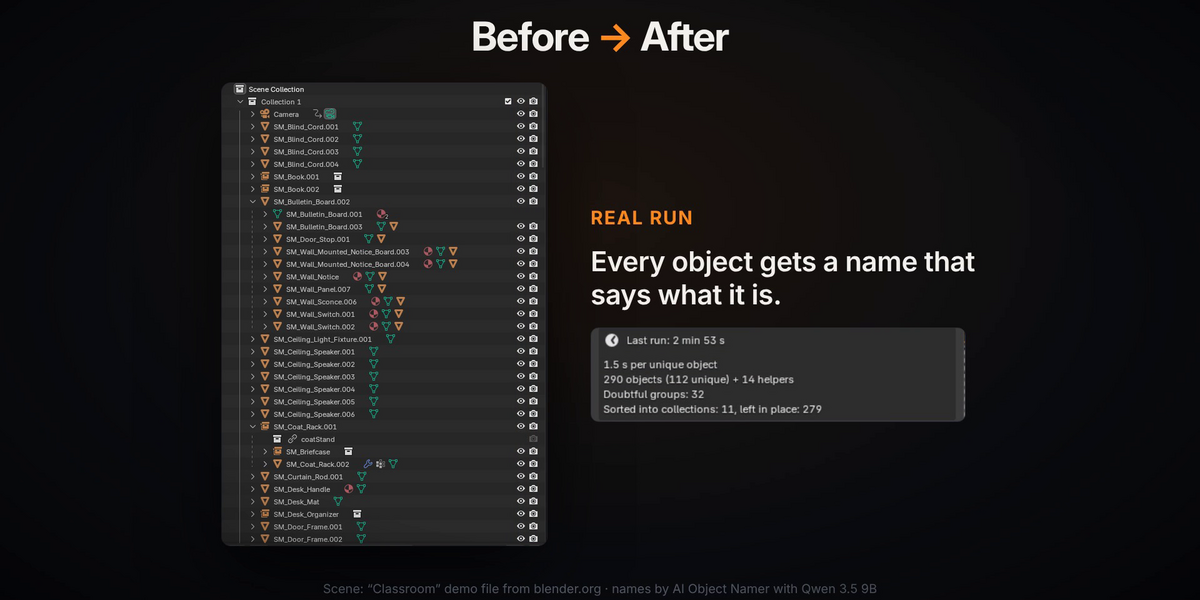
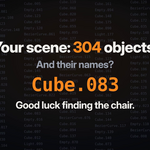
Select the objects you want named, or untick Selected only to do the whole scene, and press Name objects. ESC stops the run at any point and keeps everything named so far. The very first run after starting Ollama takes a little longer because the model is being loaded into video memory.
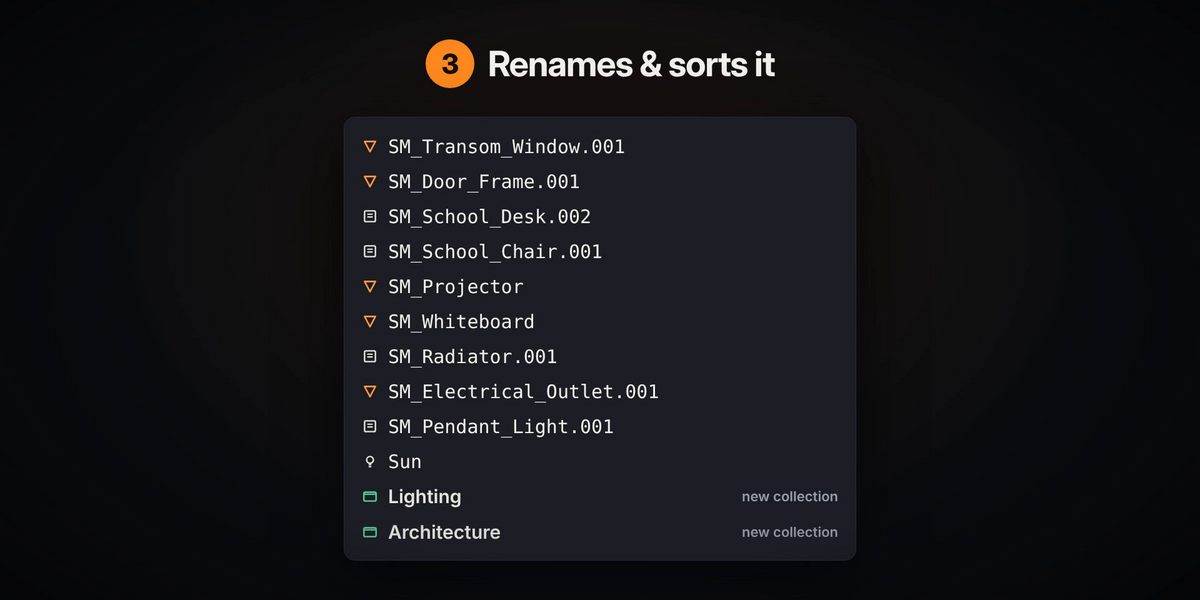
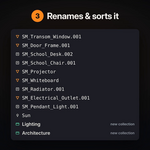
The options in What to name are mostly self-explanatory. Scene description is an optional hint like "kitchen interior" that helps with ambiguous shapes. Only generic names skips anything you've already named yourself. Prefix adds something like SM_ to mesh names. Names language and Word separator decide how the names look, and Rename mesh data too keeps the data names matching. Sort into collections moves objects into new collections by type and leaves your own collections alone.
Checking the result
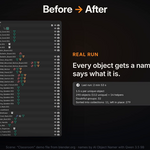
Every object gets a confidence score. Select doubtful selects everything below the Confidence threshold so you can have a look, and Refine selected runs the selected objects again with the model thinking first, which is slower but noticeably better on tricky objects. Restore original names undoes all renames and collection changes made by the add-on.
If something goes wrong
"LM Studio or Ollama not found" means the app isn't running: start Ollama, or in LM Studio check that the server is on (Developer → Start Server). "This model can't see images" means the selected model has no vision; pick one from the add-on's list, they all have it. If Download doesn't do anything, check Edit → Preferences → System → Allow Online Access, because the add-on respects that setting. If names are off, add a short scene description and use Refine selected on the wrong ones; a bigger model helps too if your card has room for it. Ollama's cloud models are ignored on purpose, only models stored on your computer are used.
Privacy
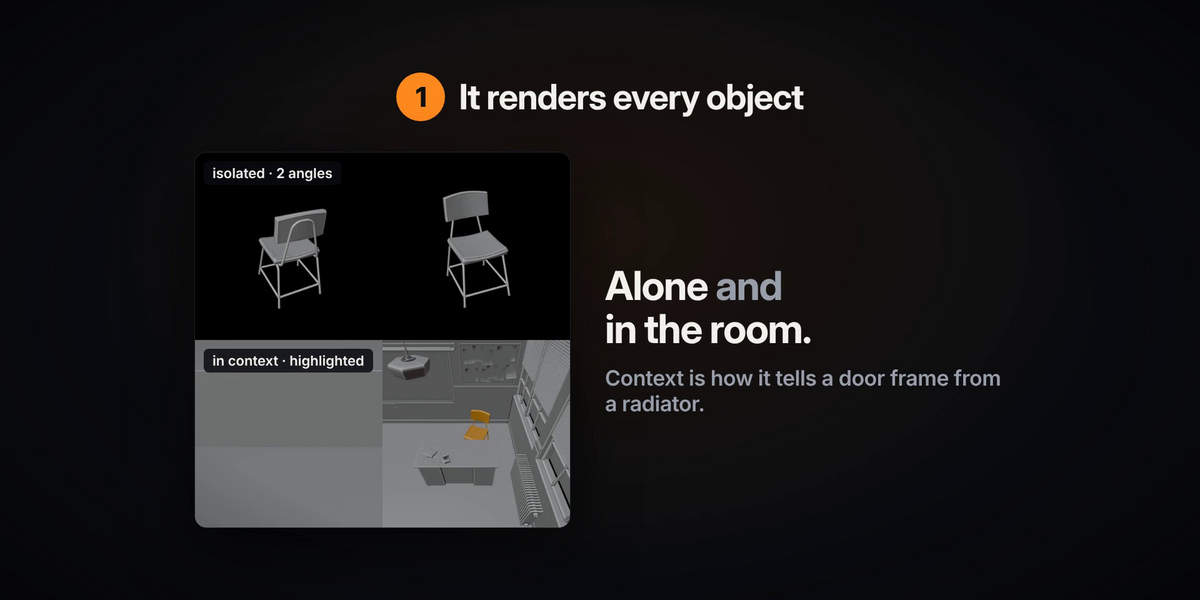
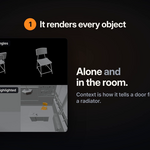
The add-on renders small preview images of your objects into the system temp folder and sends them only to Ollama or LM Studio on this computer (127.0.0.1). Nothing is sent to the internet.
Support
Ask through the Superhive product page. It helps a lot if you mention your Blender version, whether you use Ollama or LM Studio, and which model.
Have questions about this product?
Login to message
| Blender Extension Compatible | Yes |
| Published | 3 days ago |
| Blender Version | 4.2 - 5.1 |
| Extension Type | Add-on |
| Render Engine Used | Cycles |
| License | GPL |
Discover more products like this
local ai ollama collections pipeline organization naming Scene Management cleanup outliner game ready rename ai