 ZEG
ZEG



AI Shortcuts : Vibe coding in blender
Tired of repetitive tasks? Wish you could make custom tools without coding? AI Shortcuts lets you vibe code your ideas into instant one-click Blender tools.
Stop digging through menus. Just describe what you want in plain English, and the AI writes the code and builds the tool instantly. From quick objects to complex automations, it’s like having a script dev on call 24/7.
Build the personalized toolset you’ve always wanted and speed up your creative flow.
Installation & Setup (5-Minute Guide)
Getting started is quick and easy:
-
Install the Addon
Download the.zipfile after purchase. In Blender, go toEdit > Preferences > Add-ons, click Install, and select the downloaded file. -
Enable It
Locate AI Shortcuts in your addons list and check the box to enable it. -
Get a Gemini API Key (Optional)
This addon is powered by Google's Gemini AI. Get a free API key from Google AI Studio. The free tier is generous and covers heavy daily use. -
Enter Your Key
In the AI Shortcuts preferences, paste your API key into the designated field.
If you add your own API key you will have wider limits and have ability to use high end llm models like Gemini 2.5 Pro. -
You're Ready!
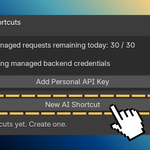
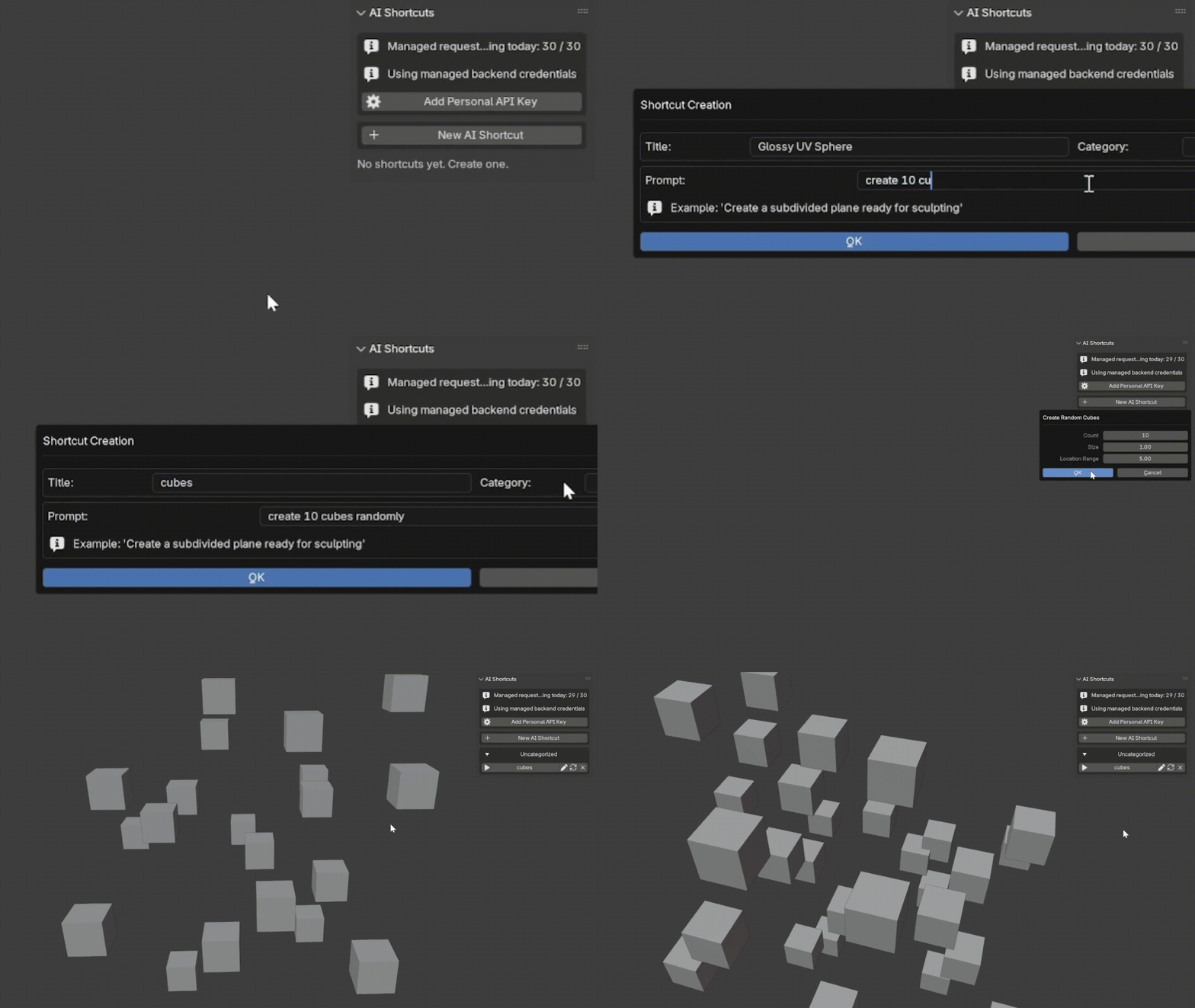
The AI Shortcuts panel now appears in your 3D View sidebar (pressNto open it).
How to Use: From Thought to Tool in Seconds
Creating your own custom tool has never been easier:
-
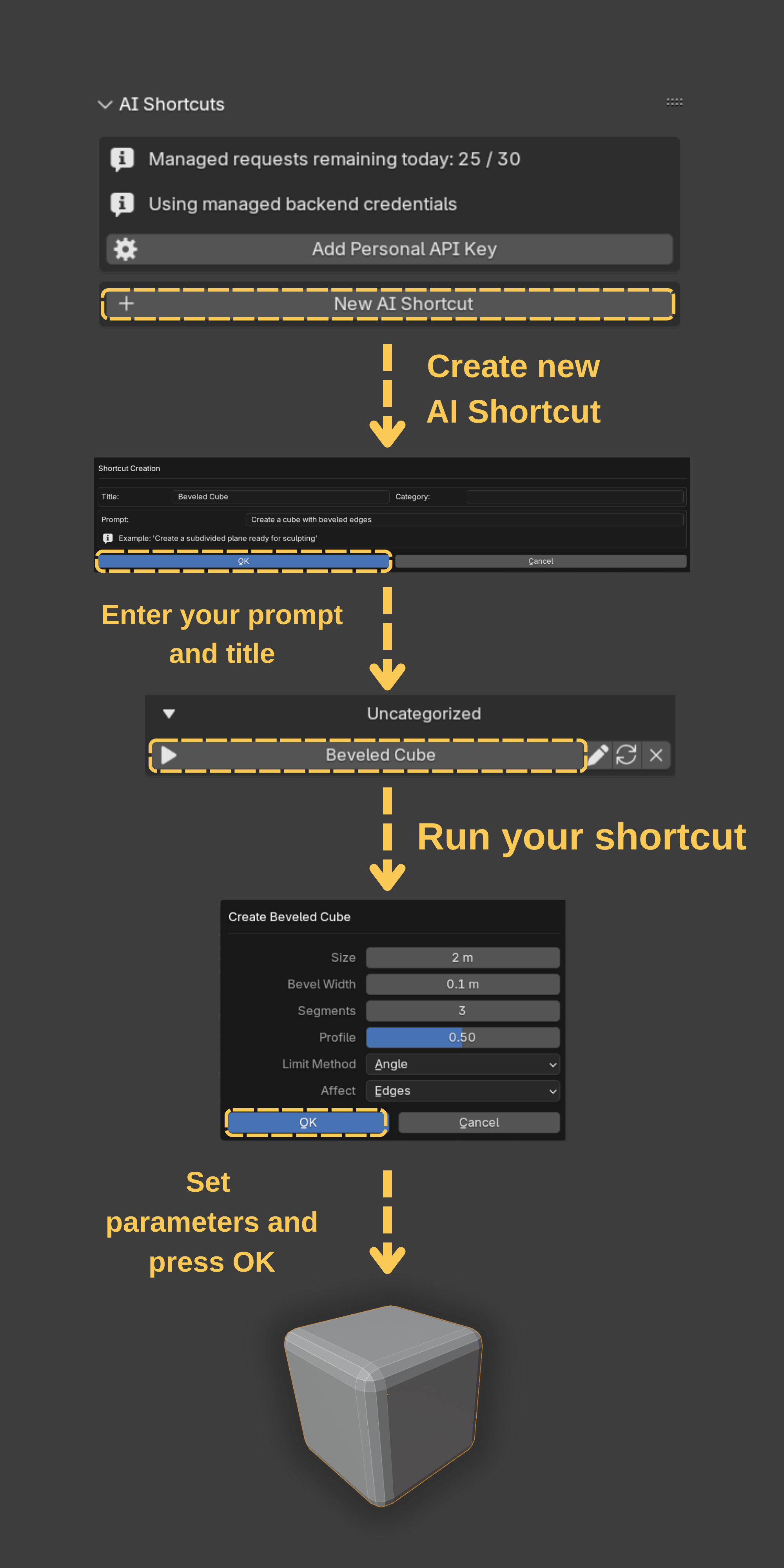
Click "New AI Shortcut"
Opens the creation dialog. -
Describe Your Tool
-
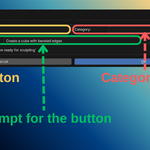
Title: Give your tool a short name (e.g., "Rock Generator").
-
Category (Optional): Group tools for workflow clarity (e.g., "Modeling," "Lighting").
-
Prompt: Clearly describe what you want the tool to do. The more specific, the better.
-
-
Generate!
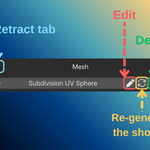
Click OK. A new disabled button appears in your sidebar with "(Generating...)" status. Blender won’t freeze—you can keep working while the AI builds your tool. -
Use Your New Tool!
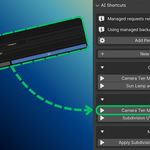
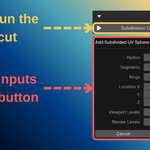
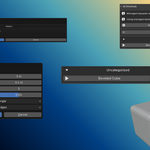
In seconds, the button becomes active. Click it to run your custom operator. If adjustments are needed (e.g., size, count), the AI often adds a popup dialog for settings.
Example Use Cases
AI Shortcuts scales with your imagination. Here are some ideas:
Basic Asset Creation & Scene Management
-
"Create a cube with random dimensions and apply a bevel modifier."
-
"Add a Suzanne head and a Subdivision Surface modifier with 2 levels."
-
"Delete all materials in the scene that are not assigned to any object."
-
"Select all objects larger than 10 meters on any axis."
Advanced Workflow Automation
-
"For every selected object, set its origin point to the center of its geometry."
-
"Create a new collection named 'Render-Ready' and move all objects with a polycount over 50,000 into it."
-
"Apply all modifiers on the selected objects, then create a new linked duplicate for each."
-
"Add a Decimate modifier to all selected meshes and set the ratio to 0.4."
"WOW!" – Your New Superpowers
-
Rigging & Animation: "For every selected bone in Pose Mode, create an empty at its location and add a 'Child Of' constraint to the active object targeting that empty."
-
Hard Surface Detailing: "Select all faces on the active object that are facing up on the Z-axis and inset them by a variable amount."
-
Lighting Setup: "Create a 3-point lighting setup (Key, Fill, Rim lights) targeting the active object. Lights should be area lights, with adjustable energy and color adjustable."
-
VFX & Destruction: "Take the active object, apply a cell fracture modifier with 150 shards, and add an active rigid body to all resulting pieces."
-
Geometry Nodes Magic: "Automatically create a geometry nodes setup that scatters rocks across the active plane, with adjustable density and scale."
-
Camera Tricks: "Add a turntable animation for the active camera around the selected object, with a customizable frame range and rotation speed."
-
Material Wizardry: "Set all materials of all selected objects to transparant and animate their opacity from 0 to 1 between 0-400 frames."
-
Physics Fun: "Add soft body physics to the selected objects and create a ground plane collider automatically."
AI Usage Disclosure
This add-on is human-driven and AI-assisted. It generates Blender Operator classes from your prompts to speed up repetitive tasks, but you remain the creator making all meaningful choices (what to generate, when to run it, and how it fits your scene/workflow).
• Model: Google Gemini (model selectable when using a personal key; otherwise a managed model is used).
• Human control: You review, run, and edit all generated code; nothing is executed automatically without your action.
• Transparency: Parts of the add-on’s code and prompts may be AI-assisted; all final product code and UX were authored by Zahit Erdem Güzel.
• Quality/Accuracy: AI can be wrong. Please review generated code before use.
• Copyright: This tool assists your workflow; it does not replace human authorship.
(Compliant with Superhive’s AI Policy; fully AI-generated products with little or no human input are not allowed.)
support.superhivemarket.com
Off-site Services Disclosure
This add-on connects to an external service to generate operator code.
• Service: blender-ai-buttons.onrender.com (HTTPS)
• What’s sent: your prompt (and your Blender version is appended to improve results). If you supply a personal Gemini API key, it is sent only in the request body to the generation endpoint to call the model on your behalf.
• What’s NOT sent: scene files, meshes, textures, or other local assets.
• Costs: No extra purchase required. The add-on includes 20 free requests per day via the managed backend. For effectively unlimited usage, you may optionally add your own Gemini API key (most users won’t need this).
• Storage: The add-on stores user settings (including, if provided, your API key) in Blender preferences.
• Opt-out: Leave the API key blank to use the managed plan; remove it anytime.
• Local modules: No third-party Python packages are fetched at runtime.
This disclosure is provided to comply with Superhive’s Off-site Services Policy and exception process.
