Alembic to Editable Mesh
 Dani K Daniel





Alembic to Editable Mesh
Documentation
Version: 1.0.0
Author: Dani K Daniel
Blender: 2.80+
License: Free for personal and commercial use
Overview
Converts Alembic cache files to fully editable meshes while preserving 100% of animation using shape keys. Edit freely without losing motion.
Installation
- Edit → Preferences → Add-ons → Install
- Select
alembic_to_editable_mesh.py - Enable "Object: Alembic to Editable Mesh"
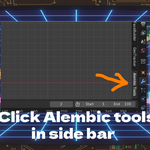
- Press N in 3D Viewport → Alembic Tools tab appears
How to Use
Basic Steps
- Import your Alembic file (File → Import → Alembic)
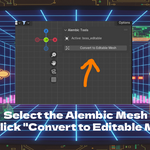
- Select the Alembic mesh object
- Press N → Navigate to Alembic Tools tab
- Click "Convert to Editable Mesh"
- Adjust settings (or use defaults)
- Click OK and wait for completion
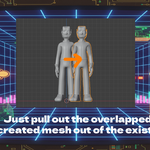
- Edit your new mesh freely!
Settings
| Setting | Default | Description |
|---|---|---|
| Use Scene Frame Range | ✓ ON | Automatically uses timeline's start/end frames |
| Start Frame | 1 | First frame to capture |
| End Frame | 250 | Last frame to capture |
| Frame Step | 1 | Interval between frames (1=all, 2=every other, etc.) |
Features
✅ One-click conversion
✅ Frame-perfect animation preservation
✅ Full Edit Mode access
✅ Shape key-based animation
✅ Non-destructive (original preserved)
✅ Undo support
✅ Progress feedback in console
Tips
Performance Optimization
- Frame Step = 2: 50% faster, halves shape keys, barely noticeable
- Frame Step = 5: 80% faster, good for previews/long animations
- Custom Range: Convert only needed sections
- Test First: Try Frame Step = 5, then Frame Step = 1 for final
Best Practices
✓ Save scene before converting
✓ Close other applications for large conversions
✓ Monitor progress in System Console
✓ Keep original Alembic (hide with H key)
✓ Test with small frame range first
Common Issues
| Problem | Solution |
|---|---|
| "Select a mesh object" | Click on your Alembic mesh to select it |
| Conversion too slow | Increase Frame Step (2-5) or reduce frame range |
| Out of memory | Close apps, use smaller range, increase Frame Step |
| Too many shape keys | Re-convert with Frame Step = 2 or higher |
| Animation doesn't match | Use Frame Step = 1, verify frame range correct |
| Panel not visible | Press N, check addon enabled in Preferences |
Technical Details
How It Works
- Captures evaluated mesh data for each frame
- Creates new mesh object from first frame
- Generates shape key for each captured frame
- Animates shape key values with keyframes
- Result: Editable mesh with preserved animation
Memory Usage
Temporary Memory = Vertex_Count × Frame_Count × 48 bytes
File Size Impact = Vertex_Count × Shape_Key_Count × 12 bytes
Example: 50,000 verts × 250 frames = ~600MB temp, ~150MB added to .blend
Performance
| Mesh Complexity | Frame Count | Approximate Time |
|---|---|---|
| 10,000 verts | 100 frames | ~30 seconds |
| 50,000 verts | 250 frames | ~5 minutes |
| 100,000 verts | 500 frames | ~20 minutes |
Workflow Examples
Example 1: Cloth Simulation Edit
1. Import cloth_sim.abc
2. Convert (Frame Step = 1)
3. Tab → Edit Mode → Fix intersections
4. Add Subdivision modifier for detail
Example 2: Long Animation Optimization
1. Select 1000-frame Alembic
2. Uncheck "Use Scene Frame Range"
3. Set Frame Step = 3
4. Result: 334 shape keys instead of 1000
Example 3: Section Conversion
1. Uncheck "Use Scene Frame Range"
2. Start Frame = 50, End Frame = 150
3. Frame Step = 1
4. Convert only problem area (101 frames)
Limitations
- Requires consistent topology (same vertex count across frames)
- Does not copy location/rotation/scale from original
- Captures whole frames only (no sub-frame interpolation)
- Single-threaded processing (uses one CPU core)
- Shape key limit: ~1000 recommended (Blender can handle more but UI slows)
FAQ
Q: Works with FBX/USD?
A: Yes, any animated mesh object.
Q: Can I edit after conversion?
A: Yes! Full Edit Mode, modifiers, sculpting, everything.
Q: Will animation be lost?
A: No, preserved frame-perfectly with shape keys.
Q: Does it delete the original?
A: No, original stays. New object created.
Q: Undo support?
A: Yes, Ctrl+Z immediately after conversion.
Q: Maximum frames?
A: Limited by RAM. Most systems: 500-1000 frames for moderate meshes.
Discover more products like this
Animation Preservation Editable Mesh shape keys alembic blender addon Mesh Cache animation-baking