AlphaForge
 GPolygon Design


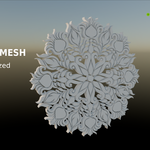
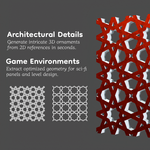
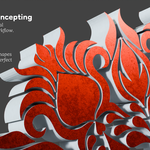
AlphaForge — Documentation & User Guide
1. Installation (Blender 4.2+)
AlphaForge is packaged using Blender's modern Extension architecture.
- Open Blender and go to Edit > Preferences.
- Select the Get Extensions tab on the left.
- Click the top-right drop-down arrow (gear menu) and select Install from Disk...
- Locate and select the AlphaForge.zip file.
- Ensure the checkbox next to AlphaForge is enabled.
- The add-on is now ready in the 3D Viewport Sidebar (N-Panel > AlphaForge).
2. Quick Start Workflows
A. Standalone 3D Lattice (From Image File)
- Press N in the 3D Viewport and open the AlphaForge tab.
- Click the Open button (folder icon) to load any PNG (RGBA alpha or Black & White silhouette).
- Adjust Thickness and Bevel under Geometry Dimensions.
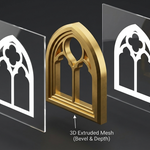
- Click Generate Lattice to spawn a beveled 3D profile lattice at the 3D Cursor.
B. 1-Click Architectural Surface Replacement (Sandwich Panel)
- Select a building facade, window pane, or gothic arch mesh containing an alpha texture.
- Click Detect from Selected. AlphaForge automatically analyzes the material node tree, UV coordinates, and 3D orientation.
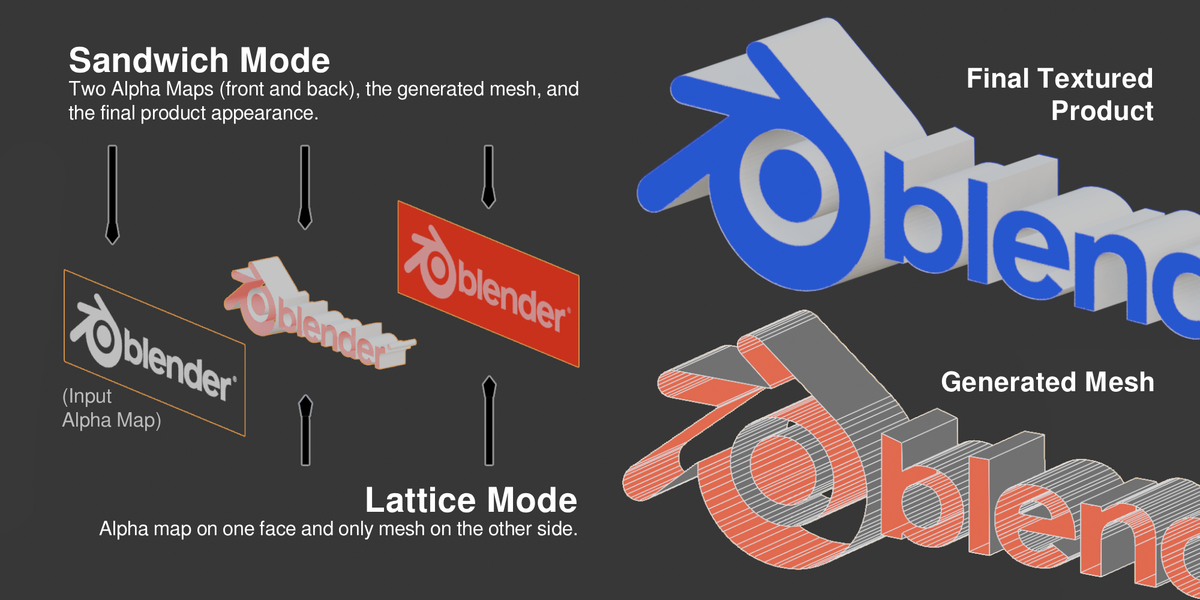
- Click Generate Sandwich. The tool seamlessly replaces the 2D window surface with a flush 3-Layer Hybrid Sandwich Panel (Front Alpha Glass + 3D Extruded Core + Back Alpha Glass).
- To adjust depth or bevel, tweak the settings and click Rebuild Selected to update the panel live in-place.
- To cancel or revert, click Revert to Surface to restore your original untouched wall geometry instantly.
C. Surface Conform to Curved Objects (Cylinders & Columns)
- Select your generated AlphaForge panel.
- Under Surface Conform, use the Eyedropper to select your curved column, cylinder, or dome.
- Adjust the Offset (e.g. 0.001 m to eliminate Z-fighting) and click Conform / Wrap to Surface.
3. UI & Parameter Reference
Image Input Section
- Alpha Image Picker: Load an image from disk or pick an existing image from the .blend file. Displays real-time resolution readout (e.g. 2048 x 2048 px).- Detect from Selected: Automatically searches active meshes and shader trees for alpha textures, orientation matrices, and UV boundaries.
Extraction Settings
- Channel:
* Auto (Alpha / B&W): Intelligently detects whether transparency is stored in the Alpha channel or derived from RGB brightness.
* Alpha Channel: Forces extraction from the 4th RGBA channel.
* Grayscale (B&W) / Red / Green / Blue: Extracts boundaries from color or brightness values.
- Invert Mask: Flips the extraction area (treats black as solid geometry). Viewport material preview updates live in real-time.
- Threshold (0.01 - 0.99): Sets the edge cutoff point. Default 0.50 delivers crisp boundaries for standard masks.
- Optimize Topology: Straightens diagonal pixel staircases into clean polygon runs.
* Tolerance (px): Pixel tolerance for dissolving redundant vertices along straight lines.
* Sharp Corners (deg): Minimum corner angle (default 22.0 deg) to strictly preserve mechanical corners while keeping curves smooth.
Geometry Dimensions
- Thickness: Physical extrusion depth along the profile normal axis (e.g. 0.05 m).
- Bevel: Procedural chamfer width applied to edges (e.g. 0.002 m) for realistic specular highlights.
- Target Width & Height: Real-world dimensions in meters. Automatically computes aspect ratios when loading images standalone.
Action Buttons
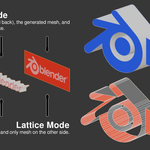
- Generate Lattice: Creates an open-back 3D extrusion ribbon profile mesh.
- Generate Sandwich: Creates a closed 3-layer panel with 1:1 front/back transparent cap faces and solid beveled extrusion walls.
- Rebuild Selected: Re-extracts and rebuilds the active panel in-place, preserving exact 3D positioning, orientation, and arch curvature.
- Revert to Surface: Safely deletes the generated panel and restores the original untouched 2D surface geometry with 100% precision.
4. Automated Material & UV System
- Cap Faces (Front & Back): Retains exact 1:1 2D UV mapping corresponding to your original alpha texture or glass material.
- Intermediate Wall Faces: Automatically unwrapped via optimized Smart UV Project (66 deg Angle Limit, Scaled Margin, Axis-Aligned Vertical) to ensure seamless PBR texturing with zero distortion.
Have questions about this product?
Login to message
| Blender Extension Compatible | Yes |
| Dev Fund Contributor | |
| Published | about 2 months ago |
| Blender Version | 4.2 - 5.2 |
| Extension Type | Add-on |
| Render Engine Used | Cycles, Eevee |
| License | GPL |
Discover more products like this
game assets topology Trim Sheet architecture ornament alpha to mesh gpolygon 2d to 3d procedural mesh-generator 3d modeling hard surface