Animation Snapper Pro - Switcher
 Melowilo Animation LTD


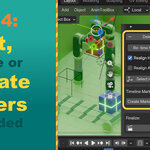
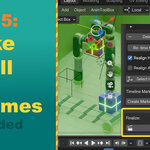
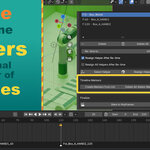
AnimSnapPro-Switcher: Complete User Manual
AnimSnapPro-Switcher is a dynamic animation tool for Blender 5.0 designed to solve one of the most frustrating parts of 3D animation: Dynamic Parenting.
Whether a character is picking up a sword or putting down a coffee cup, switching "parents" usually causes objects to jump across the screen. This addon creates a seamless "hand-off" between objects, ensuring your items stay exactly where they are visually while their logic changes behind the scenes.
INSTALLATION
Open Blender 5.0.
Go to Edit > Preferences > Add-ons.
Click "Install" and select the AnimSnapPro_Switcher_v1_0_0.zip
The tool is located in the 3D Viewport Sidebar (N-Panel) under the tab "AnimSnapPro".
🚀 The Core Workflow: How to Use It
The addon is designed to be used while you are animating.
Identify the Pair: Decide who is the Source (the object in control, like a hand) and who is Following (the object being moved, like a sword).
Set the Stage: Go to the frame where the interaction happens.
Perform the Switch: Click a switch button. The addon creates an invisible "Helper" object that acts as the bridge.
Keep Animating: If the character drops the sword later, go to that frame and switch to "World/Static."
Finish: Once the shot is done, "Bake" everything to turn it into standard keyframes.
🛠 Section 1: Selecting Your Items
This is where you tell the addon which objects are involved in the animation.
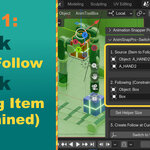
1. Source (The Item to Follow)
This is the "Parent." Whatever you pick here will control the movement of your object.
Pick Bone (Bone Icon): Click this to enter "Picker Mode." Your cursor changes; simply click any bone on any character in the 3D view to set it as the target.
Set from Selection (Square/Arrow Icon): If you already have the target object or bone selected, click this to "lock it in" to the addon.
The Status Label: Displays the name of the current Source. If it says "None," the "Switch to Source" button will not work.
2. Following (The Constrained Item)
This is the "Child" or the item that is actually moving. Usually, this is a prop (like a gun) or an IK bone (like a character's hand following a steering wheel).
Buttons: These function exactly like the Source buttons above but apply to the object you want to move.
⚡ Section 2: Making the Switch
These buttons are the "Action" buttons. Use these at the specific frame where an action occurs.
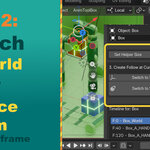
Helper Display Size: Adjusts how big the generated helper objects (cubes) appear in your scene. If your scene is very large or very small, use this so you can actually see the helpers.
Switch to World/Static: Use this to "pin" an object in place. It stops following everything and stays at its current world position. Perfect for putting objects down on tables or floor.
Switch to Source Item (Large Button): This is the magic button. It creates a connection so the "Following" item begins moving with the "Source" item instantly, without moving a single millimeter from its current position.
📋 Section 3: The Timeline Manager (Editing)
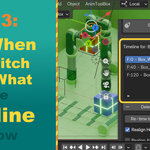
Every time you click a "Switch" button, an entry is added to this list. This is your command center for fixing mistakes. To edit the "Switches", first select them from the list.
Refresh List (Cycle Icon): If you’ve been deleting things manually and the list looks wrong, click this to "force-scan" the object and update the UI.
The UI List: Shows every switch you’ve made. F:10 means a switch happened on Frame 10. Clicking an entry selects it so you can edit it.
Delete (Minus Icon): Removes the selected switch. The addon will intelligently "heal" the timeline so the object continues to follow its previous target instead.
Delete All (Trash Icon): The emergency reset. This wipes every constraint and helper created by the addon for this object, returning it to a clean slate.
Re-time to: Type a frame number here (e.g., 50).
Retime (Keyframe Icon): Moves the selected switch to the frame you typed in. Because Blender 5.0 uses "ChannelBags," moving keyframes manually is hard. This button does the heavy lifting for you, moving all the influence keyframes and renaming the helpers so they match the new time.
Realign Helper After Retime: When checked, the addon ensures that when you move a switch to a new frame, the object doesn't "pop" due to the parent being in a different spot on that new frame.
Select Helper: Finds and selects the Empty(Helper) object that is controlling this specific switch. Use this if you need to manually offset the object (like sliding a hand further down a sword handle).
Realign Helper (Snap Icon): If you accidentally move a character's hand and the prop is now floating away, click this. It snaps the helper back to the current visual position of the object.
📍 Section 4: Organization & Cleanup
Tools to help you stay organized and prepare the file for rendering.
Create Markers from List: Automatically puts markers on your Blender timeline labeled "Fol_..." at every frame where a switch happens. Great for visual timing.
Delete All Addon Markers: Clears the markers created by the addon.
Bake to Keyframes (The Final Step): When your animation is 100% finished, click this. The addon will play through your animation, record the movement into standard Blender keyframes, and then delete all the "helpers" and constraints.
Why use this? It makes your file "clean”.
Have questions about this product?
Login to message
| Blender Extension Compatible | Yes |
| Dev Fund Contributor | |
| Published | 6 months ago |
| Blender Version | 5.0 - 5.1 |
| Extension Type | Add-on |
| Render Engine Used | Blender-Internal, Blender-Game-Engine, Cycles, Eevee |
| License | GPL |