Animation Utilities
 VertSoftex Studio - Support Periods Included at NO Extra Cost!
in Interface
VertSoftex Studio - Support Periods Included at NO Extra Cost!
in Interface


Installing the Addon
- Download the Animation Utilities addon zip file
- Open Blender and go to
Edit > Preferences - Navigate to the
Add-onstab - Click the
Install...button at the top right and select the downloaded zip file (Note: Button label might vary slightly based on Blender version) - Enable the addon by checking the box next to "Animation: Animation Utilities" (The name might include a category)
Note: Animation Utilities requires Blender 4.1 or later. Some features may not work correctly with older versions.
User Interface Reference
This section provides a comprehensive reference for all operators available within the Animation Utilities addon. Each entry includes the operator's display name and a brief description of its functionality, designed to help you quickly understand and utilize every tool.
The interface consists of a panel with two varieties: a Descriptive Panel, which shows icons and operator names, and a Compact Panel, which shows just icons. Both panels have exactly the same functionality. You can choose which one is shown in the addon preferences (see section below). The interface also has a pie menu that opens with a shortcut, by default Alt + Right Mouse; you can change this in the addon preferences. The Pie Menu provides the same functionality as the Descriptive or Compact Panels. It's simply a matter of convenience, whether you prefer another addon panel shown in the sidebar or just want quick access.
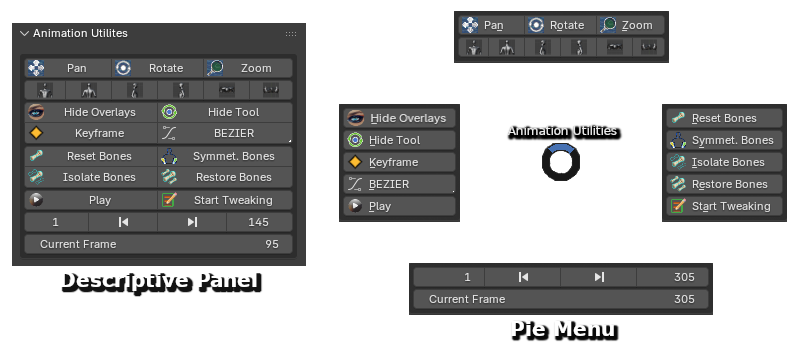
Operators
-

Pan 3D View- Pan the 3D view. -

Rotate 3D View- Rotate the 3D view. -

Zoom 3D View- Zoom the 3D view. -

Front Orthographic View- Sets view to front orthographic. -

Back Orthographic View- Sets view to back orthographic. -

Right Orthographic View- Sets view to right orthographic. -

Left Orthographic View- Sets view to left orthographic. -

Top Orthographic View- Sets view to top orthographic. -

Bottom Orthographic View- Sets view to bottom orthographic. -

Show/Hide Overlays- Toggles rig display and viewport overlays. -

Toggle Rotate Tool- Switches rotate gizmo on/off. -

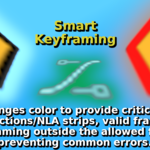
Insert Keyframe- Inserts keyframes for selected bones on the rig's action or the selected NLA strip at the current frame. The operator icon can display one of three possible states:-
Enabled - You can insert keyframes. The current frame is within the frame range of the rig's action or the selected NLA strip.
-
 Enabled (Warning) - You can insert keyframes, but the current frame is outside the frame range of the rig's action or the selected NLA strip. Keyframing here might not be intended.
 -
 Disabled - You can't insert keyframes. The rig doesn't have an action assigned, and there is no NLA strip in tweaking mode.
-
-

Interpolation Mode Menu- Sets default interpolation for new keyframes (Constant, Linear, Bezier, etc.). -

Reset Bone Transforms- Returns selected bones to rest pose. -

Symmetrize Bone Selection- Copies the pose from selected bones to their counterparts on the opposite side (requires standard L/R naming convention, i.e., foot.l/foot.r). -

Isolate Selected Bones- Hides all bones except selected ones. -

Restore Hidden Bones- Shows all hidden bones. -

Play/Stop Animation- Plays the entire animation stack, even when an NLA strip is in tweak mode. -

Edit NLA Strip- Toggles tweak mode for the selected NLA strip. -

Start Frame- Sets the scene's start frame. -

Go to Start Frame- Moves the current frame to the start of the playback range. -

Go to End Frame- Moves the current frame to the end of the playback range. -

End Frame- Sets the scene's end frame. -

Current Frame- Sets the scene's current frame.
Addon Preferences
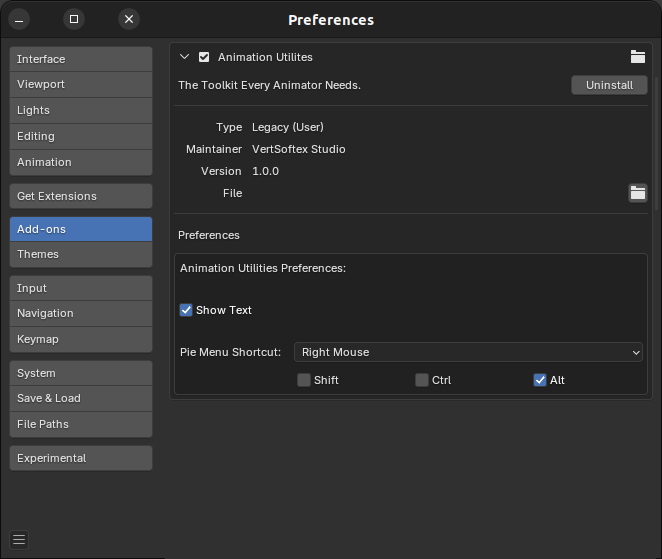
Configure the addon's global settings and default behavior. They can be found in Edit > Preferences > Add-ons > Animation Utilities.
-
Show Text- When enabled, operator names will be displayed (e.g., Descriptive Panel). -
Pie Menu Shortcut- This shortcut (either a mouse button or keyboard key; the default is Alt + Right Mouse) will open the Animation Utilities Pie Menu. You can also set modifier keys.
Have questions about this product?
Login to message
VertSoftex Studio - Support Periods Included at NO Extra Cost!
Visit Website See all items by this creatorDiscover more products like this
rigging loveblender animation motion dev-fund posing nla-tools rig NLA editor mocap animation tools