 CGJackB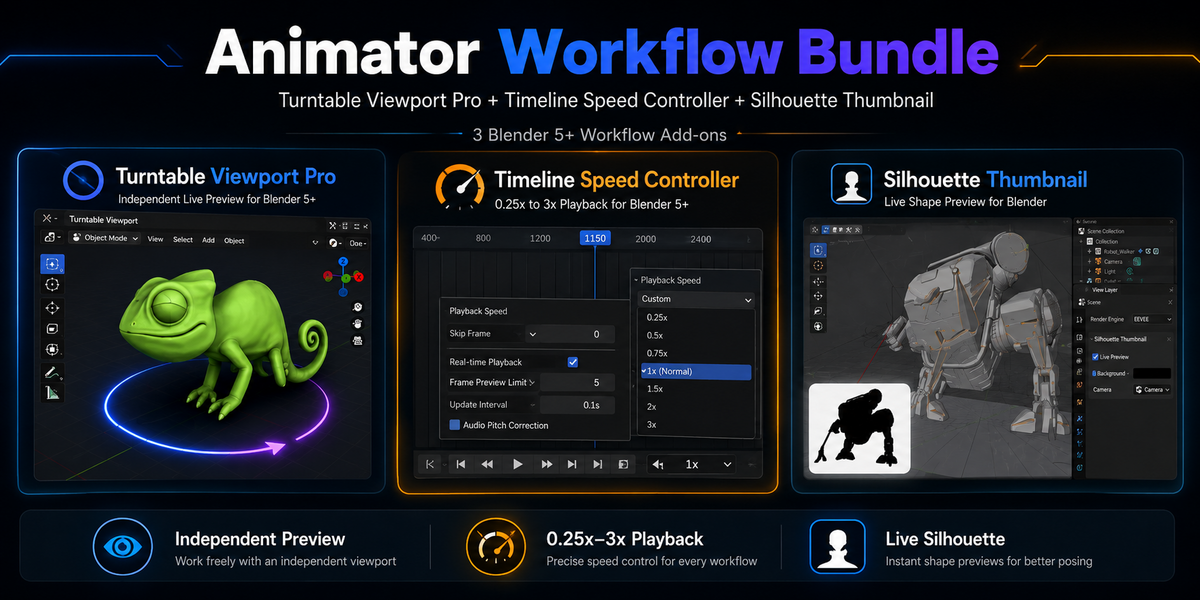
Animator Workflow Bundle — Documentation
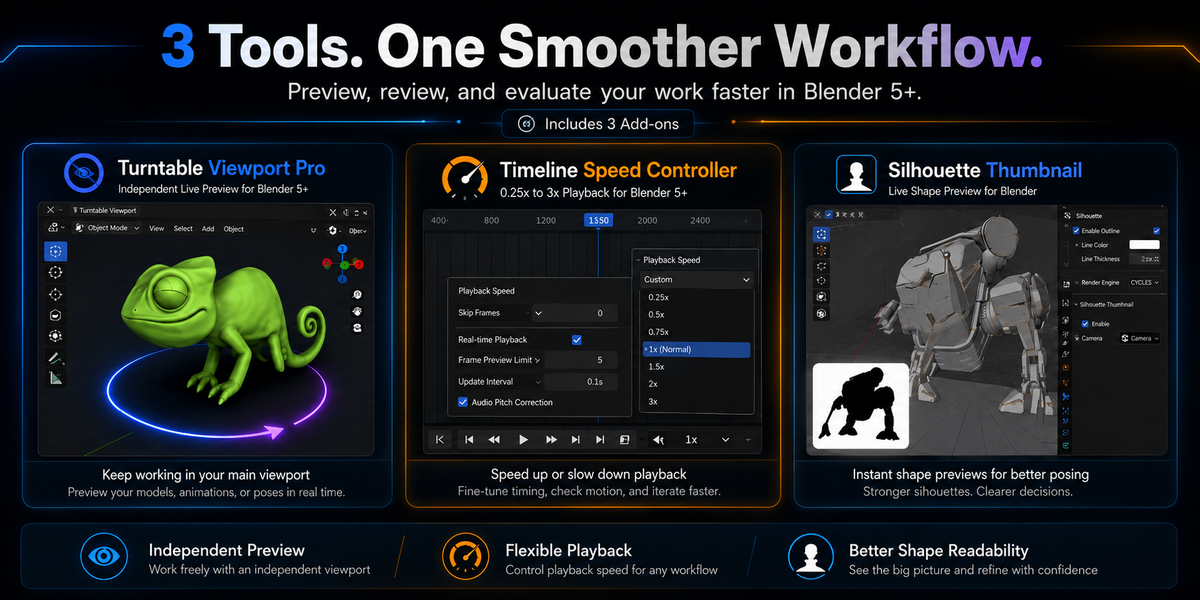
The Animator Workflow Bundle includes three Blender 5+ add-ons designed to improve animation previewing, motion review, posing, and asset presentation:
- Turntable Viewport Pro
- Timeline Speed Controller
- Silhouette Thumbnail
Each add-on is installed separately and can be enabled or disabled independently.
Requirements
- Blender 5.0 or newer
- Windows, macOS, or Linux
- FFmpeg may be required for certain Turntable Viewport Pro video-export formats
Installation
The bundle contains three individual add-on ZIP files.
- Download the bundle package.
- Extract the main bundle ZIP.
- Open Blender.
- Go to Edit → Preferences → Extensions.
- Open the dropdown menu in the upper-right corner.
- Select Install from Disk.
- Choose one of the included add-on ZIP files.
- Enable the installed add-on.
- Repeat for the remaining two add-ons.
Do not extract the individual add-on ZIP files before installing them.
After installation, save your Blender preferences so the add-ons remain enabled when Blender restarts.
Turntable Viewport Pro
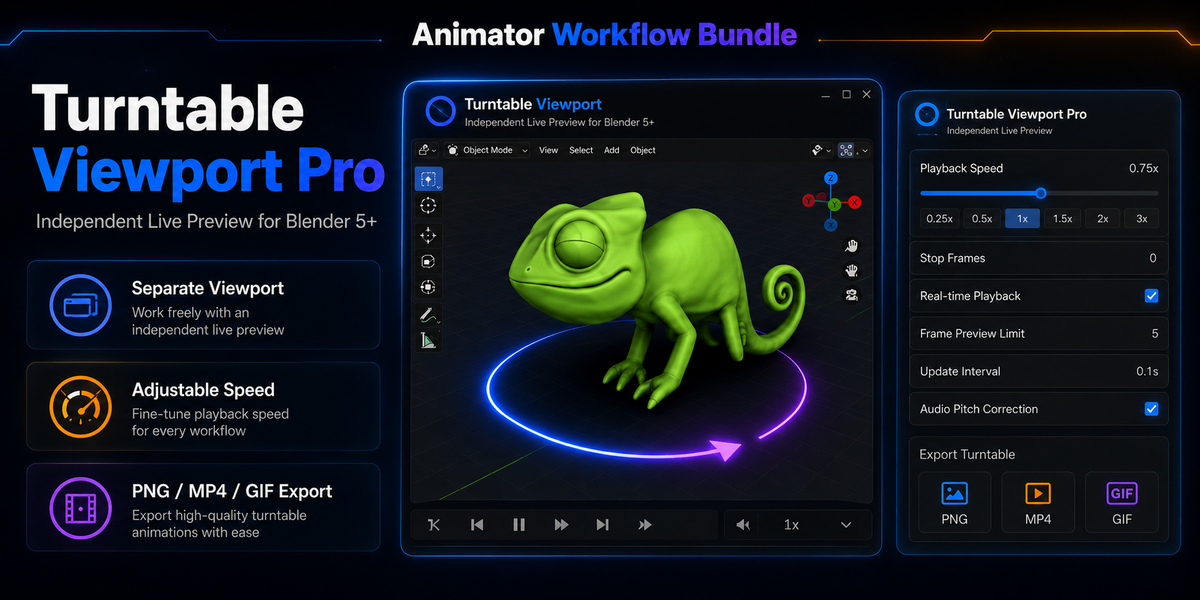
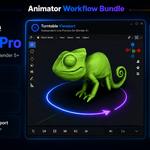
Turntable Viewport Pro creates a live rotating preview in a separate Blender 3D Viewport.
The preview rotates the viewport around your asset rather than rotating the object itself. Your object transforms, animation, camera, and scene setup remain unchanged.
Main Features
- Independent live turntable preview
- Separate 3D Viewport workflow
- Adjustable rotation speed
- Clockwise and counterclockwise rotation
- Pause and resume controls
- Pivot-object selection
- Origin and bounding-box centering
- Axis and rotation-space controls
- Front-view reset
- Still-image and animation export
- PNG, MP4, and GIF output options
- Non-destructive operation
Basic Usage
- Open or create a second 3D Viewport.
- Select the object you want to preview.
- Open the Turntable Viewport controls.
- Choose the preview viewport and pivot settings.
- Set the rotation speed and direction.
- Start the turntable preview.
- Continue working normally in your main viewport.
The preview viewport remains independent from your primary working viewport.
Exporting
Turntable Viewport Pro can export turntable previews in supported still-image and animation formats.
Before exporting:
- Confirm the desired resolution.
- Check the frame range.
- Choose the output location.
- Select PNG, MP4, or GIF.
- Verify that FFmpeg is available when using a format that requires it.
Timeline Speed Controller
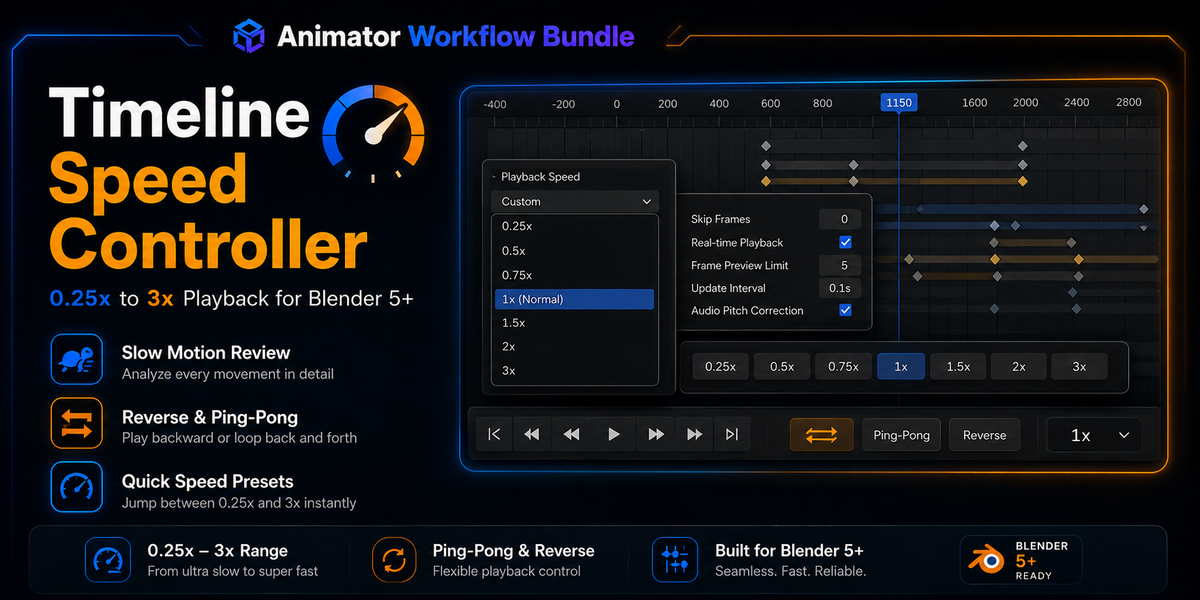
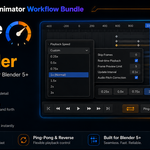
Timeline Speed Controller changes how quickly animation is previewed without permanently changing the scene’s frame rate or retiming the animation.
Main Features
- Playback speeds from 0.25× to 3×
- Quick speed presets
- Slow-motion playback
- Faster animation previews
- Reverse playback
- Ping-pong playback
- Timeline header controls
- N-panel controls
- Optional frame-preview limits
- Real-time playback options
Basic Usage
- Open the Timeline Editor.
- Locate the Timeline Speed Controller button or controls.
- Select a playback-speed preset.
- Press Play in the Timeline.
- Enable Reverse or Ping-Pong when needed.
- Return to 1× for normal playback.
Speed Presets
- 0.25× — Detailed slow-motion review
- 0.5× — Half-speed playback
- 0.75× — Slightly slowed playback
- 1× — Normal playback
- 1.5× — Moderately faster playback
- 2× — Double-speed playback
- 3× — Fast preview playback
Timeline Speed Controller affects preview behavior only. It does not move keyframes, alter animation data, or permanently change the scene FPS.
Silhouette Thumbnail
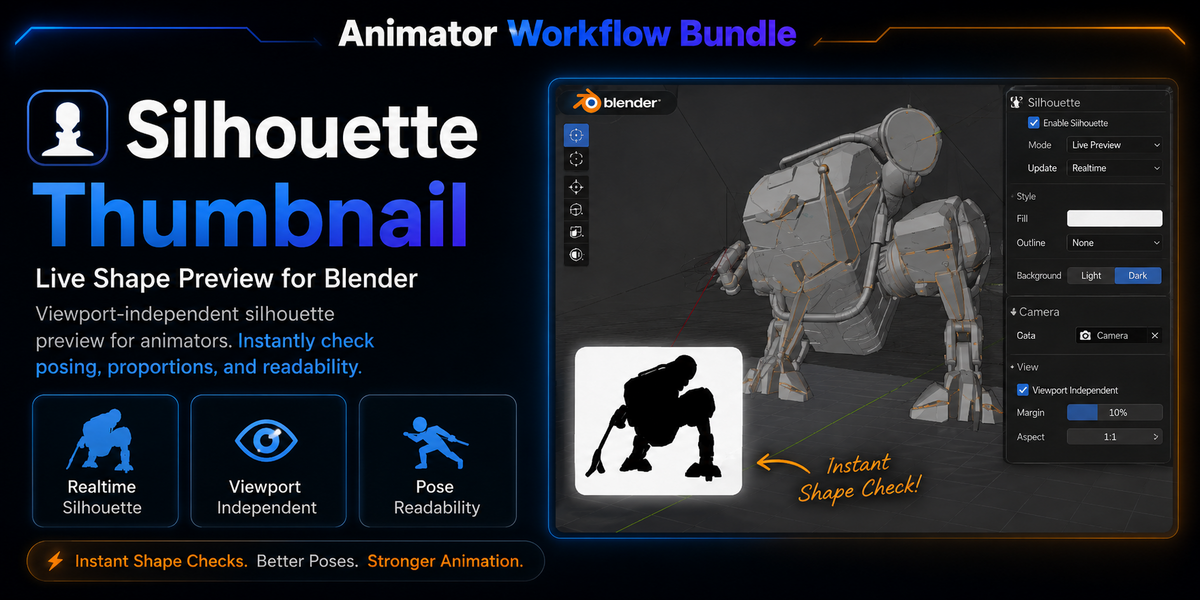
Silhouette Thumbnail creates a live shape preview that helps evaluate poses, proportions, balance, and visual readability.
The silhouette is viewport-independent, allowing you to continue navigating and editing in the main viewport without losing the preview angle.
Main Features
- Live silhouette preview
- Viewport-independent display
- Real-time shape updates
- Zoom-aware preview
- Support for models and character rigs
- Adjustable preview appearance
- Optional background controls
- Automatic exclusion of cameras, lights, and empties
- Useful for posing, modeling, rigging, and animation
Basic Usage
- Select the model or character you want to evaluate.
- Open the Silhouette Thumbnail controls.
- Enable the live preview.
- Choose the desired viewing angle.
- Adjust the preview size, background, or display options.
- Continue posing or editing the asset.
The silhouette updates as the model’s pose, position, rotation, and visible shape change.
Recommended Workflow
The three add-ons can be used together:
- Use Turntable Viewport Pro to monitor the asset from a secondary rotating angle.
- Use Timeline Speed Controller to slow down or accelerate animation playback.
- Use Silhouette Thumbnail to check whether poses remain clear and readable.
This provides simultaneous control over viewing angle, playback speed, and shape evaluation.
Updating the Add-ons
When an update is released:
- Download the latest bundle package.
- Close any active preview or playback sessions.
- Install the updated ZIP file through Blender’s Extensions preferences.
- Restart Blender when recommended.
- Confirm the updated version is enabled.
Your Blender project files do not normally need to be modified when updating the add-ons.
Support Information
When requesting support, include:
- Blender version
- Operating system
- Add-on version
- A description of the issue
- The full error message or traceback
- Steps needed to reproduce the problem
- Screenshots or a small example file when relevant
Have questions about this product?
Login to message
| Blender Extension Compatible | Yes |
| Dev Fund Contributor | |
| Published | about 2 months ago |
| Blender Version | 5.0 - 5.2 |
| Extension Type | Add-on |
| License | GPL |
