 eihort
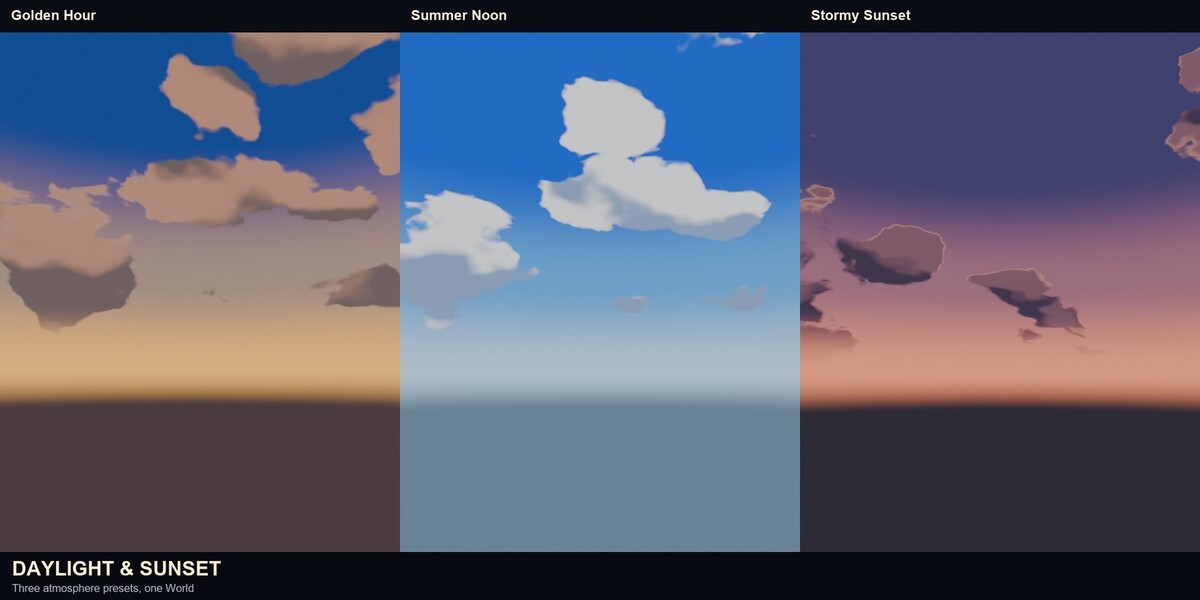
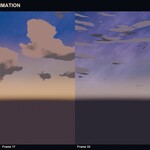
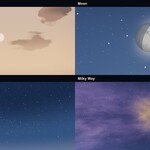
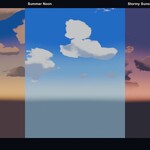
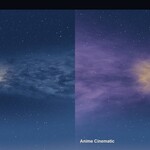
First look
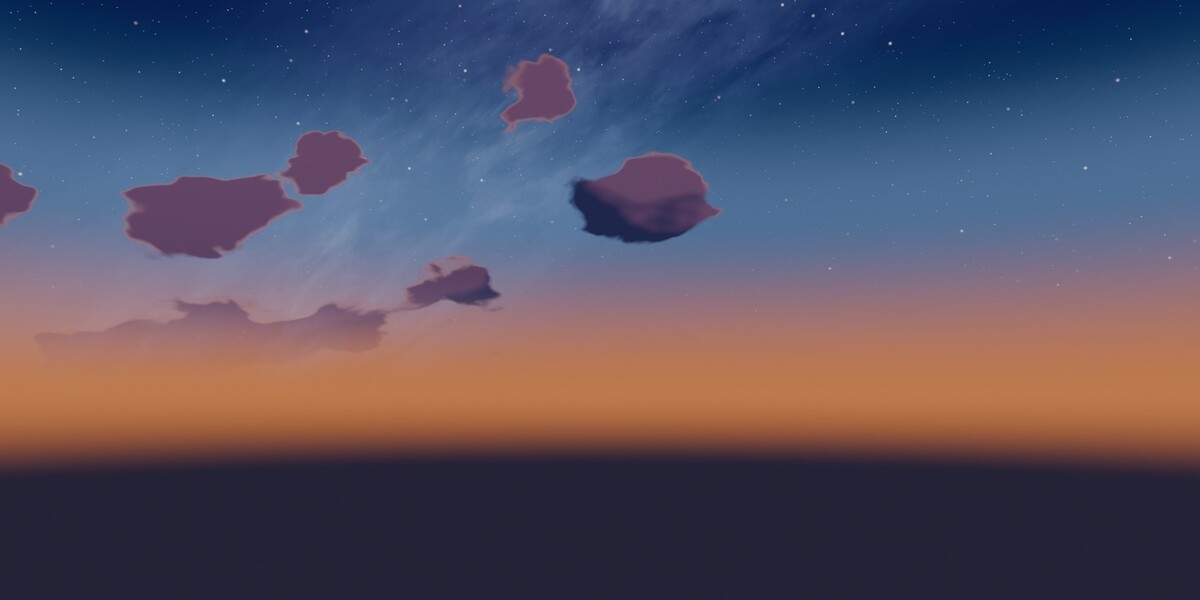
Open Scene Properties > Anime Sky Toolkit, or press N in the 3D Viewport and open the Anime Sky tab. Choose a preset in Atmosphere Preset, press Apply Palette, then adjust Atmosphere, Celestial Bodies and World Clouds. Save the file; the look, seeds, custom presets and animation are stored in the scene.
Presets and custom presets
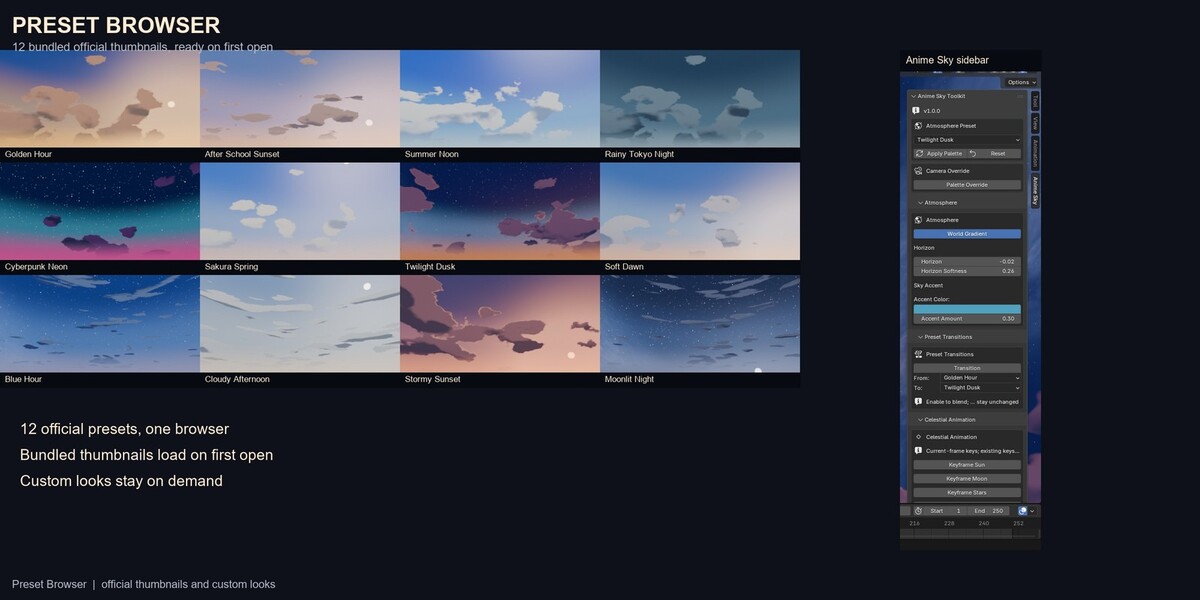
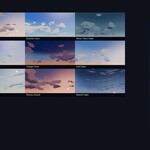
The twelve official presets are read-only starting points. Save Current copies the current look into your own library without changing the official preset. Custom Presets stores full looks and single components (Sun, Moon, Stars, Milky Way), separately from the official twelve. The Preset Browser shows the bundled official thumbnails; custom thumbnails render on demand and are cached per scene.
Atmosphere and celestial bodies
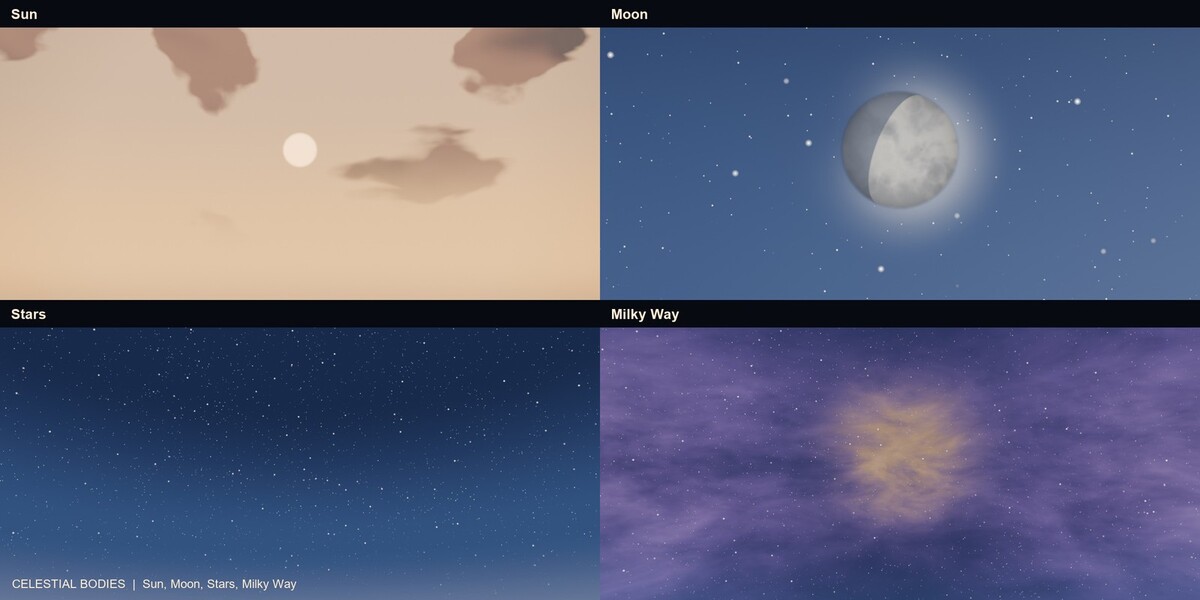
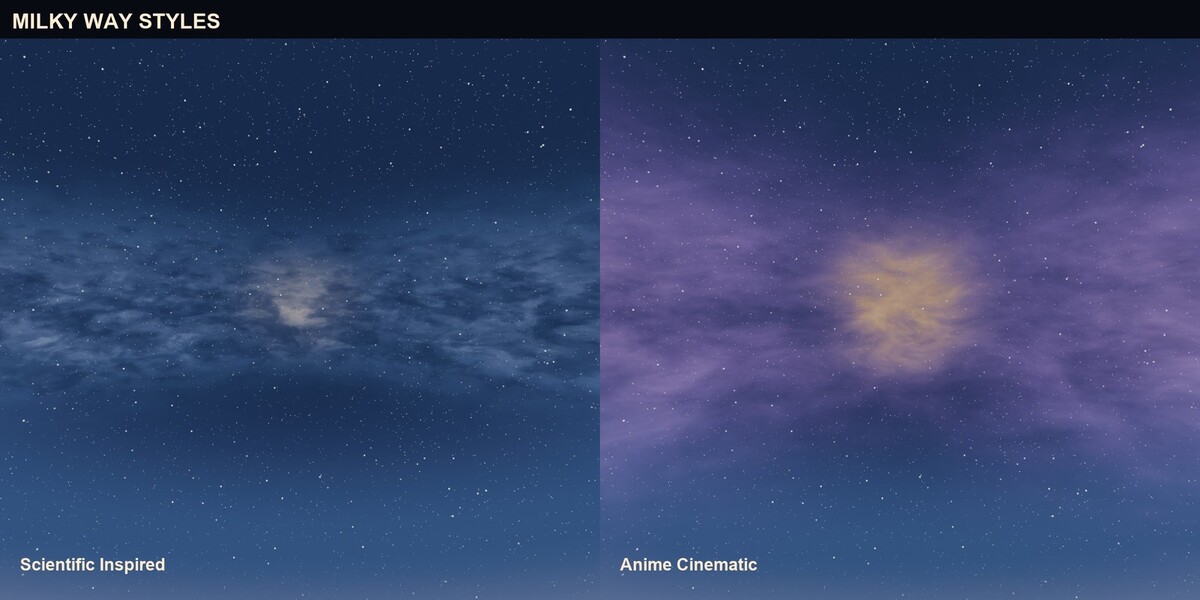
The Atmosphere section controls the four sky zones, Horizon Offset, Horizon Softness, Sky Accent and custom colors. Celestial Bodies contains Sun, Moon, Stars and Milky Way. Sun Elevation runs from -30 to 85 degrees; the disk is hidden below the horizon and the glow fades by about -7 degrees. The Moon has position, size, phase, lit-side rotation, earthshine, glow and a procedural surface. Stars have amount, density, size, concentration, rotation and deterministic twinkle. The Milky Way has two styles plus rotation, elevation, core position, core width, dust and intensity.
World clouds
The three cloud families are Cumulus, Stratocumulus and Cirrus. Distribution controls coverage, scale, seed, wind and contrails. Shape controls vertical, flatness, breakup and detail. Lighting controls sun lighting, Sun Scatter, rim boost and cloud colors. Cloud Breakup erodes density before the threshold; Cloud Detail scales the border and body noise; Cloud Vertical lowers the effective flatness.
Transitions and timelapse
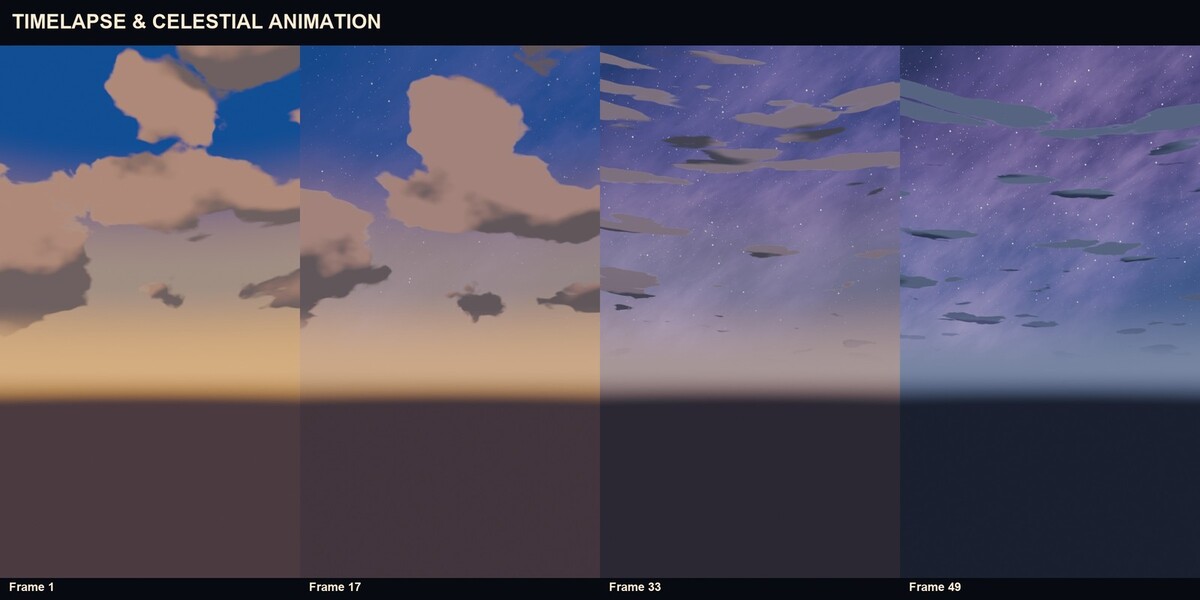
Preset Transitions blends two official presets or two saved Full Custom looks with a 0..1 factor. At 0.0 the result is exactly From; at 1.0 it is exactly To. Sun and Moon azimuths take the shortest path; seeds, cloud family, style and enums switch discretely. Timelapse Workflow sets From, To, Start Frame, End Frame and an easing, then Apply Timelapse. It creates no keyframes, Actions or markers. Remove Timelapse restores the transition state that was active before.
Seeds, materials and compositor
Seed Management covers Clouds, Stars, Moon Surface and Milky Way: Randomize changes one generator, Lock excludes it from Randomize All, Reset returns to the effective preset value. Materials & Shadows adds optional Shadow Tint, Cel and Rim shading. The Compositor is inactive by default, is never enabled automatically and is not required to apply a palette; only an ALD stack exposes the full controls.
Legacy ALD data
Old collections are never removed automatically. The Legacy ALD Data panel can Disable tagged collections reversibly, Restore the saved visibility, or Remove Permanently after showing the list. Shared collections and user children are skipped.
Troubleshooting
- If the sky does not change, press Apply Palette.
- If the Sun is invisible, raise Sun Elevation.
- If clouds look flat, raise Cloud Vertical or Coverage, or change family.
- If the Moon phase reads CUSTOM, a Preset Transition is active.
- If custom thumbnails are missing, use Generate or Generate Missing in the Preset Browser.
Have questions about this product?
Login to message
| Blender Extension Compatible | Yes |
| Published | 1 day ago |
| Blender Version | 5.1 - 5.2 |
| Extension Type | Add-on |
| Render Engine Used | Cycles, Eevee |
| License | GPL |
Discover more products like this
background atmosphere night Cycles anime procedural eevee milky way Moon environment clouds