 Skava
Skava



AnimExport Pro — Documentation
v1.0.2 · Blender 4.2 LTS and later · Windows / macOS / Linux
1. Install
- Download the add-on archive and leave it zipped — Blender wants the archive, not a folder.
- Edit → Preferences → Add-ons. Click the arrow button in the top right of that window and choose Install from Disk, then pick the zip.
- Tick the checkbox next to the add-on name.
- Press N in the 3D Viewport → the AnimExport tab appears in the sidebar.
Updating from an earlier version: remove the old one first (Preferences → Add-ons → expand the entry → Uninstall), then install the new zip and restart Blender. Two copies switched on at once shadow each other, and the older code can win.
After installing, press N in the 3D Viewport: a tab named AnimExport appears in the sidebar.
2. What it is for
Game animation leaves Blender in a specific shape: one FBX per clip, root motion on the object rather than on the hip bone, bone names the engine recognises, and a rig that passes the engine's humanoid check. AnimExport Pro does those four things and the batch export around them.
3. Root Motion
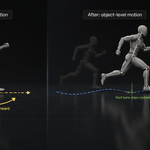
Engines expect the character's travel to live on the object transform, while the skeleton animates in place. Blender animators normally keyframe the hip bone instead.
- Root Bone — which bone carries the travel. Defaults to the hip bone of the rig.
- Horizontal (X/Y) and Vertical (Z) — which axes to lift out. Vertical is usually left off for walk and run cycles and turned on for jumps.
- Extract Root Motion — moves the chosen axes off the bone and onto the object, into a new action named _RootMotion. The original action is kept.
- Inject Root Motion — the reverse, for when a clip has to go back to being in-place.
Verified on a rigged character with a 12-frame walk: the travel ends up on the object, the skeleton keeps its cycle, and the extracted action carries the keys.
4. Clip Splitter
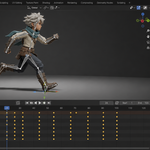
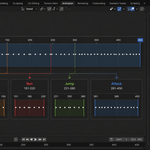
One long take usually holds several animations. The clip list turns frame ranges into separate actions.
- Add Clip — takes the current frame range as a new entry. Rename it and adjust the range in the list.
- Split Clips — every entry becomes its own action, keys copied and rebased so each clip starts at frame 0.
- Remove Clip — drops an entry from the list. Actions already created are not touched.
5. Mixamo Cleanup
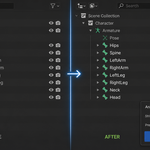
Mixamo rigs arrive with a mixamorig: prefix on every bone, a scale that does not match Blender units, and an extra root. Cleanup fixes all three, each optional:
- Rename Bones — strips the prefix and maps the names onto the standard humanoid set.
- Fix Scale — brings the rig to Blender's metre scale.
- Remove Extra Root — deletes the empty root Mixamo adds above the hips.
Retarget to Rig adds Copy Rotation constraints from a source armature onto the target, for reusing a Mixamo take on your own skeleton.
6. Humanoid Validation
Validate Humanoid checks the armature against the 20 bones an engine humanoid rig requires — hips, three spine bones, neck, head, both arm chains and both leg chains — and reports what is missing or misnamed before the export fails on the engine side. Twist bones are recognised and not reported as strays.
7. Blend Preview
Start Blend Preview builds an NLA setup that cross-fades two actions so a transition can be judged in the viewport before it is baked. Stop Blend Preview clears it and restores the original action — nothing is left behind in the NLA stack.
8. Export
- Target Engine — Unity or Unreal Engine. Sets the axis and scale conventions the FBX is written with.
- Export Path — where the files go. A path starting with // is relative to the .blend, so save the file first or choose an absolute folder.
- Use NLA Strips — export the NLA arrangement rather than the active action.
- Export Current Action — the active action as a single FBX.
- Batch Export All Clips — one FBX per clip in the list, named after the clip.
- The FBX holds the armature and its animation only — meshes are not written. Export sets the scene frame range to the exported action and leaves only the armature selected.
9. Troubleshooting
The panel is missing. Press N in the 3D Viewport and look down the vertical tabs on the right edge for AnimExport. With many add-ons installed that row gets long — drag the sidebar wider.
Validation reports missing bones on a rig that animates fine. The check is against the engine's humanoid naming, not against whether the rig works in Blender. Run Mixamo Cleanup first, or rename the bones to the standard set.
Root motion did nothing. Check the Root Bone field points at the bone that actually carries the travel, and that at least one of Horizontal / Vertical is ticked.
10. Changelog
v1.0.2 — maintenance release. Minimum Blender is now 4.2 LTS. The package ships the full licence text and an updated README. No changes to the tools.
v1.0.1 — Root motion, clip splitting and Mixamo cleanup work again on Blender 4.4 and newer. Blender 4.4 moved F-Curves out of the action into slots and channelbags, and 5.x removed the old action.fcurves path entirely, so every function that touched curves raised «'Action' object has no attribute 'fcurves'» and stopped dead. Curve access now goes through a compatibility layer that works on both layouts. Verified on a rigged, animated character: root motion extracted into its own action, a clip split out with 15 curves and 27 keys.
v1.0.0 — initial release.
11. Support & License
Through marketplace messaging. GPL-3.0; your animations are yours.
Have questions about this product?
Login to message
| Published | 5 months ago |
| Blender Version | 3.1 - 5.1 |
| Extension Type | N/A |
| Render Engine Used | Cycles, Eevee |
| License | GPL |
Discover more products like this
humanoid-validation FBX Export Animation Export mixamo Game animation mocap root motion unity-animation clip-splitting batch-export retargeting unreal-animation