Anvil Pie Menus
 Anvil Interactive Solutions
Anvil Pie Menus 1.1
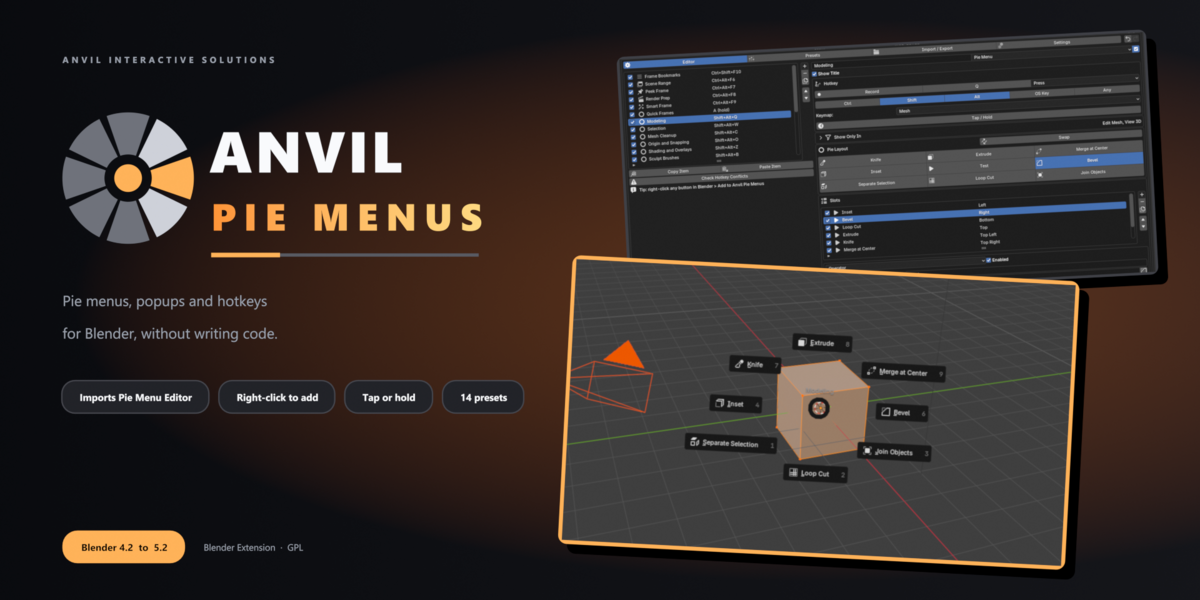
Pie menus, menus, popup dialogs, sticky keys, macros and context switches for Blender 4.2 LTS to 5.2 LTS.
1. Installation
Blender 4.2 and newer (recommended): Edit > Preferences > Get Extensions > drop-down arrow (top right) > Install from Disk, then choose anvil_pie_menus-1.1.0.zip. Do not unzip it.
Legacy add-on install: Edit > Preferences > Add-ons > Install from Disk, then choose anvil_pie_menus-1.1.0-legacy.zip.
Updating: install the new zip the same way. Your items are kept.
2. First run
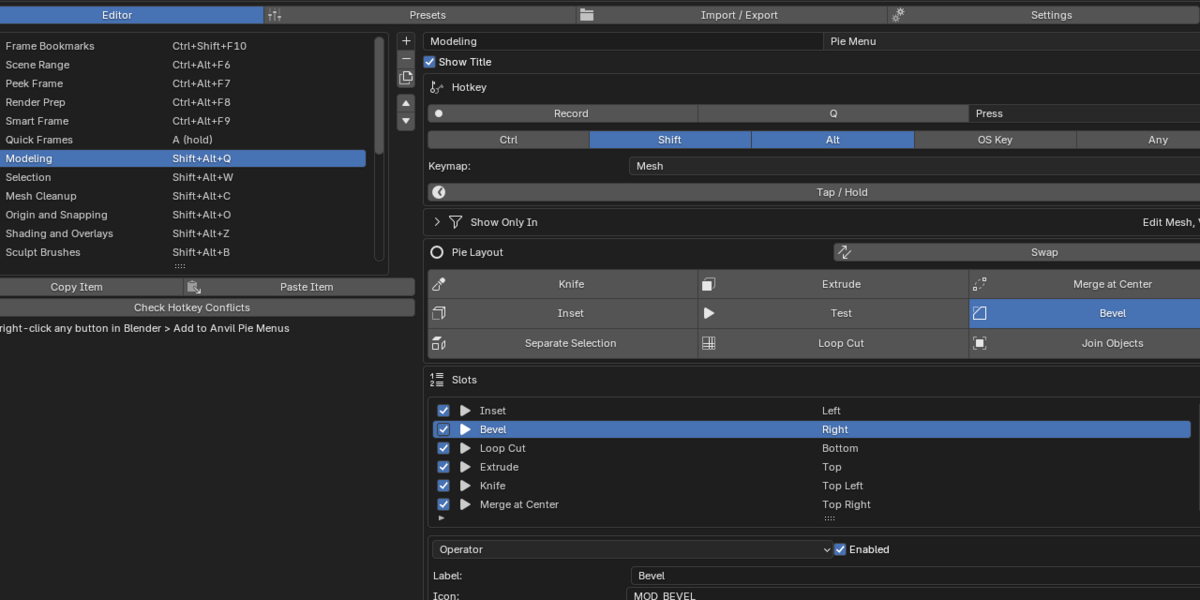
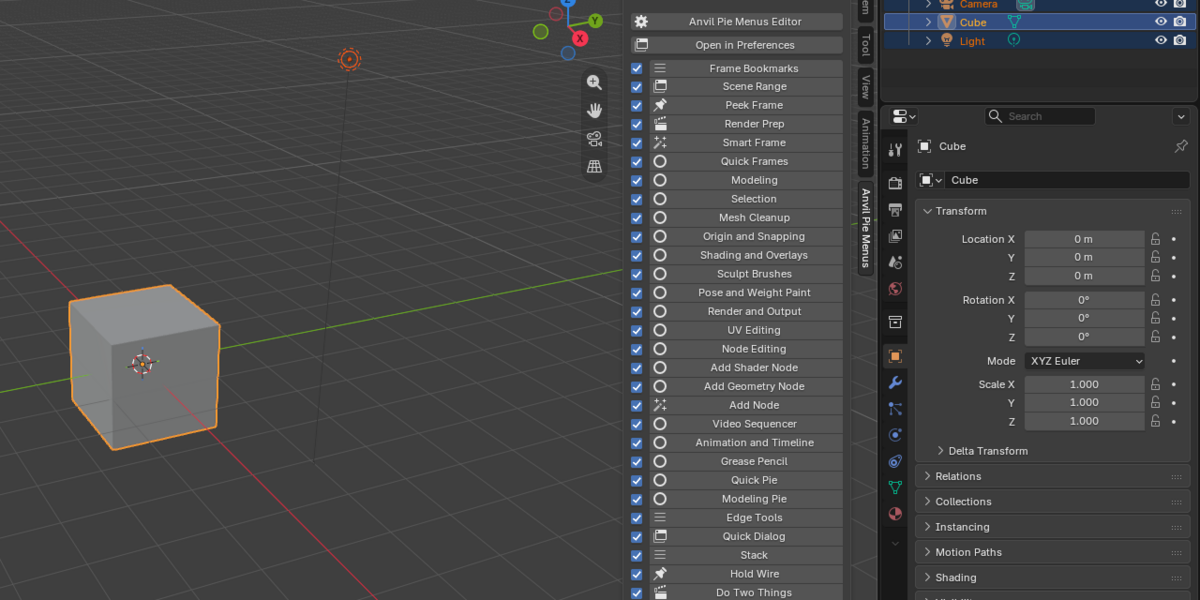
Open the editor in Edit > Preferences > Add-ons > Anvil Pie Menus. A welcome panel offers starting setups:
- Modeling, Sculpting, Animation and Rigging, Nodes and Shading, Video and 2D, or Everything turns on the matching presets.
- Find PME Data searches for Pie Menu Editor backups and imports them with one click.
- Skip starts with an empty list.
You can also open the editor from the 3D Viewport: press N and choose the Anvil Pie Menus tab.
3. The fastest way to build a pie
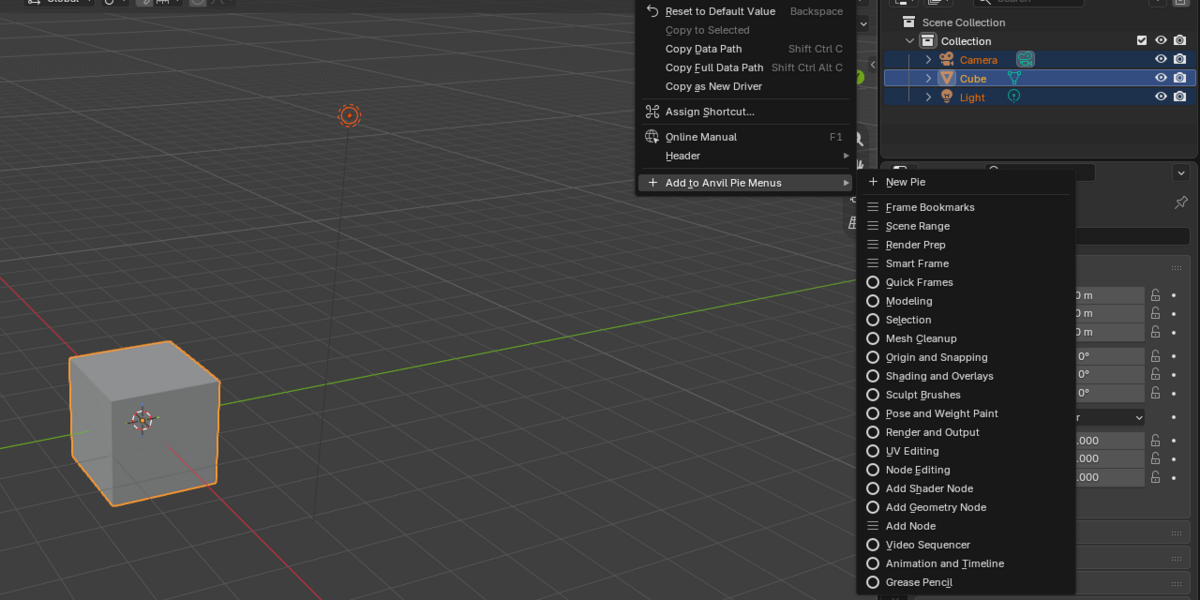
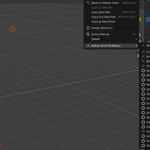
- Right-click any button, menu entry or property in Blender.
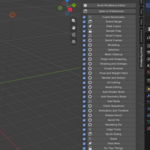
- Choose Add to Anvil Pie Menus, then pick an existing item or New Pie.
- In the editor, give the item a hotkey with Record, then press the key combination.
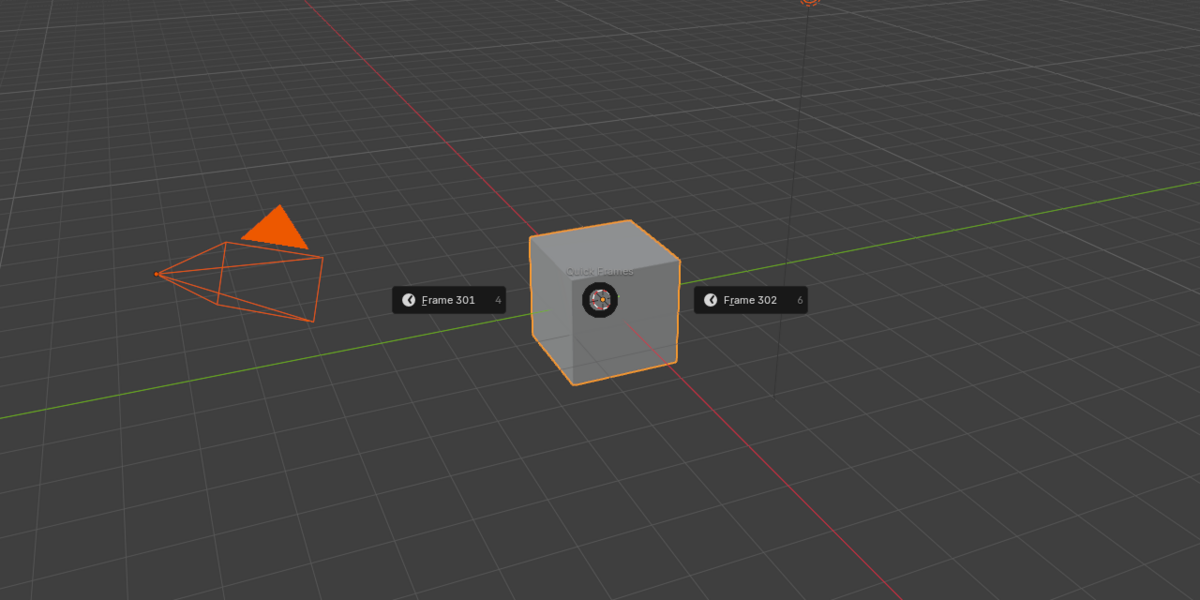
- Press the hotkey in the viewport.
4. Item types
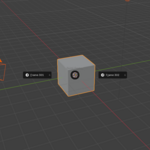
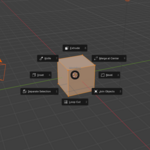
| Pie Menu | Up to 8 directions. Slots set to Extra appear in a box below the pie. |
| Menu | A vertical list with submenus, separators and labels. |
| Popup Dialog | Rows of slots. Turn on Same Row to place a slot beside the previous one. Property slots appear as live widgets. |
| Sticky Key | Slot 1 runs when the key is pressed; slot 2 runs when it is released. |
| Macro | Runs all slots in order and stops at the first one that fails. |
| Context Switch | Runs the first slot whose Only In Modes and Show If both match. Point Menu slots at other items to get a different pie per mode or editor. |
5. Slot types
| Operator | Search for any operator. Arguments use Python keyword form, for example type='CENTER', segments=2. The import button fills in every editable property. |
| Python Command | Python code with bpy, C, D, context and event available. The text button opens it in a Text Editor for multiple lines; press Apply when done. |
| Menu | Any Blender menu, or another Anvil item. |
| Property | A path such as space_data.overlay.show_wireframes. Toggle flips it, Set assigns a value, and Cycle steps through a list or through every option of an enum. |
| Separator / Label / Empty | Layout only. Empty keeps a pie direction blank. |
Every slot also has a label, an icon, Only In Modes and a Show If Python condition.
6. Hotkeys
- Record: press the combination you want. Esc or right-click cancels.
- Keymap: choose where the key works, such as Window, 3D View, Mesh, Object Mode, Sculpt or Node Editor. Choose Other... to type any keymap name.
- Conflicts: clashes are listed under the hotkey. Disable turns off the other binding; you can turn it back on in Preferences > Keymap.
- Tap / Hold: a quick tap does what Blender normally does with that key, and holding it opens your item. Set the hold delay in the Settings tab.
- Show Only In: limits an item to modes, editors or a Python condition. Everywhere else the key falls through to Blender.
7. Pie Layout grid
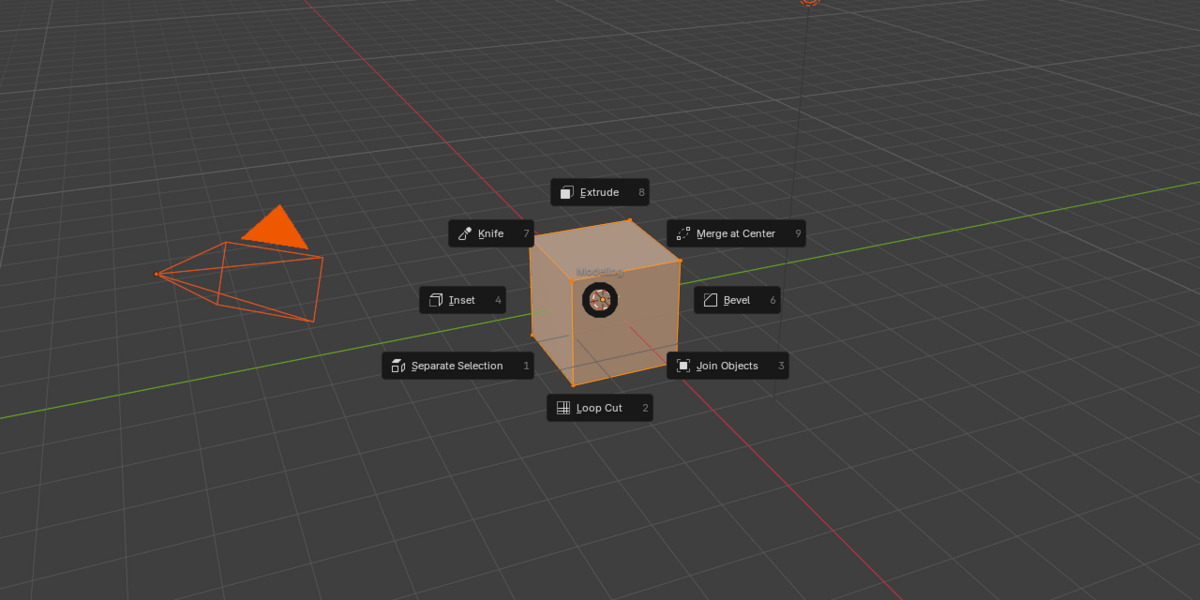
For pie items, the editor shows a 3×3 grid of the eight directions. Click an empty direction to add a slot there, or click a filled one to select it. Press Swap, then click another direction to exchange them. Test opens the pie immediately.
8. Importing from Pie Menu Editor
Use Find PME Data, or go to Import / Export > Import Pie Menu Editor JSON and pick a PME export. The import report lists everything as mapped, approximated or skipped.
- Pies, menus, dialogs, sticky keys, macros, hotkeys and poll conditions are converted.
- Stack keys become menus. Panel groups become disabled menus of panel shortcuts.
- PME custom layout code, hotkey emulation and unknown entries become disabled slots that keep their original text.
9. Saving, sharing and backups
- Everything saves automatically and survives restarts, updates, and disabling and re-enabling the add-on.
- Undo / Redo: the arrows next to the tabs, up to 100 steps.
- Automatic backups: the last 20 versions are kept. Open the folder from the Settings tab.
- Export / Import JSON files, Full Backup / Restore Backup, and Copy / Paste Item to share a single item as text.
- Reset to Defaults asks for confirmation and makes a backup first.
10. Presets
Fourteen presets are available in the Presets tab. All use Shift+Alt plus a key: Modeling (Q), Selection (W), Mesh Cleanup (C), Origin and Snapping (O), Shading and Overlays (Z), Sculpt Brushes (B), Pose and Weight Paint (P), Render and Output (R), UV Editing (U), Node Editing (Q, Node Editor), Add Node (A, Node Editor), Video Sequencer (Q, Sequencer), Animation and Timeline (K) and Grease Pencil (G).
11. Uninstalling
Disabling or removing the add-on removes every menu, popup, hotkey and right-click entry it created. Blender's own keymap is left untouched.
Please include your Blender version and, for import problems, the PME JSON file.
 Included
Includes 12 months of
- Support from Anvil Interactive Solutions
- Product updates
Extend this product’s Support Period +12 months: 50% of product price
Have questions before purchasing?
Login to message
| Blender Extension Compatible | Yes |
| Published | 6 days ago |
| Blender Version | 4.2 - 5.2 |
| Extension Type | Add-on |
| License | GPL |
Discover more products like this
sticky keys Hotkeys shortcuts macro interface ui Workflow pie menu editor blender 5 productivity pme pie menu