 BlendPix


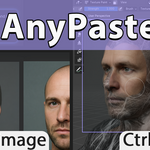
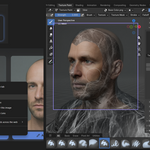
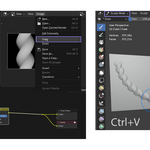
A quick way to insert images into the brush. Currently available for Windows x64 only.
How to use
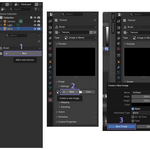
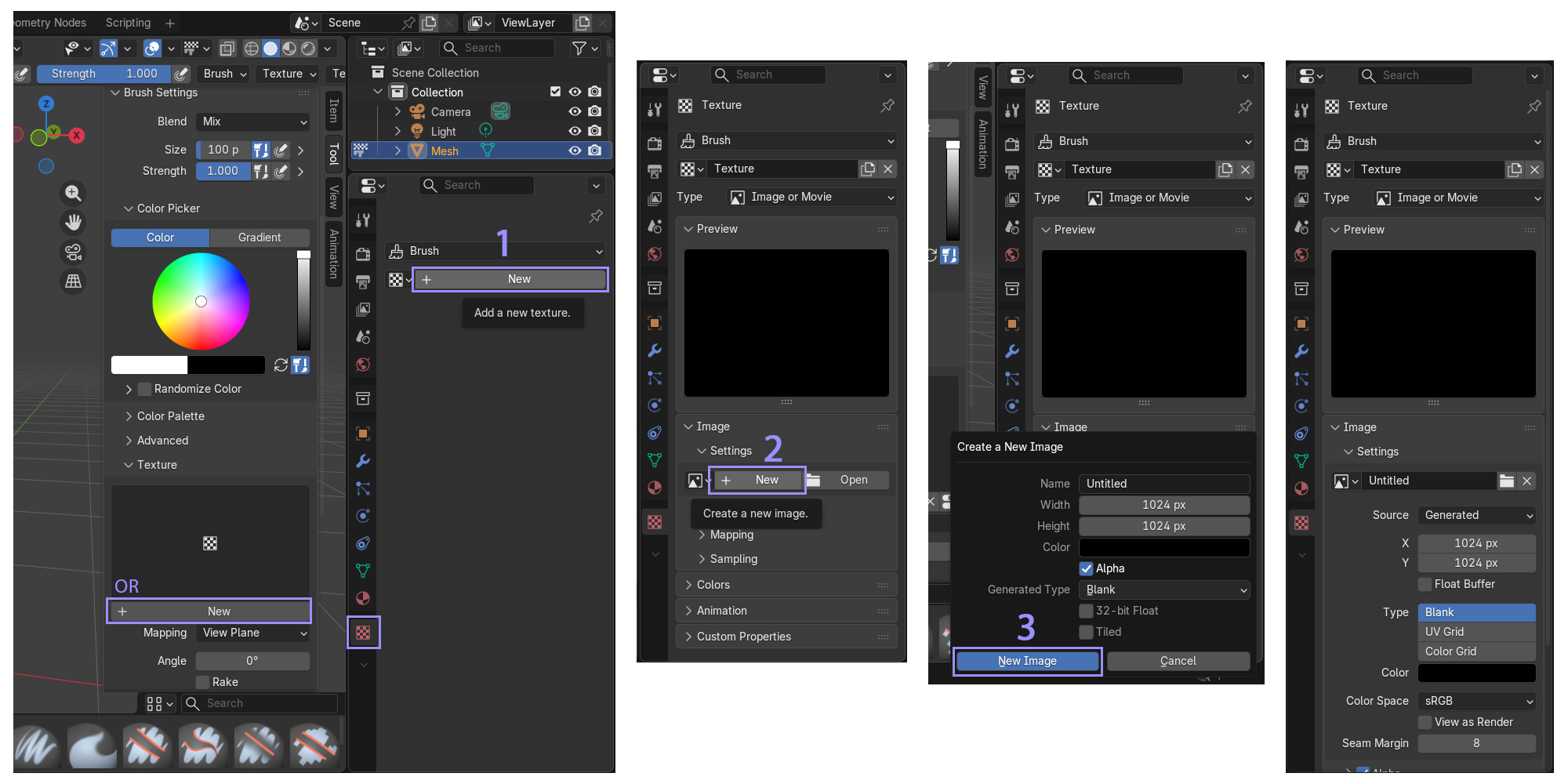
- After installing the add-on, switch to Texture Paint mode. In the Brush settings or in the Texture settings, create a new Texture and a new Image (ex. “Untitled”, 1024x1024).
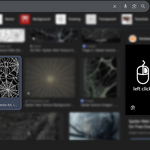
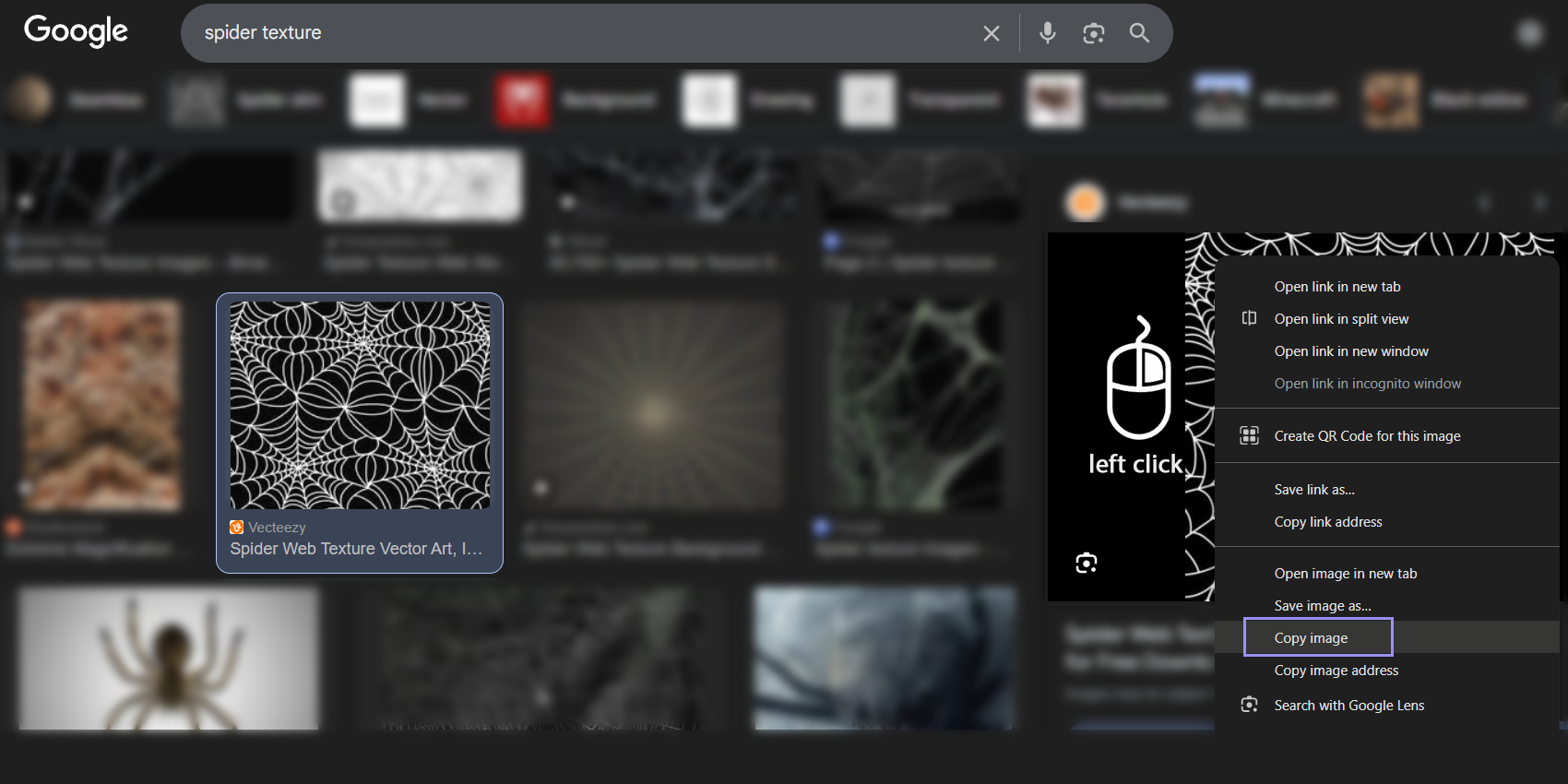
- Copy an image to the clipboard. For example, from a web browser, Photoshop, or any other graphics program, usually via Right Mouse Click > Copy Image.
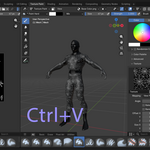
- In Blender, press Ctrl+V. The brush texture image will be replaced with the new one that was copied.
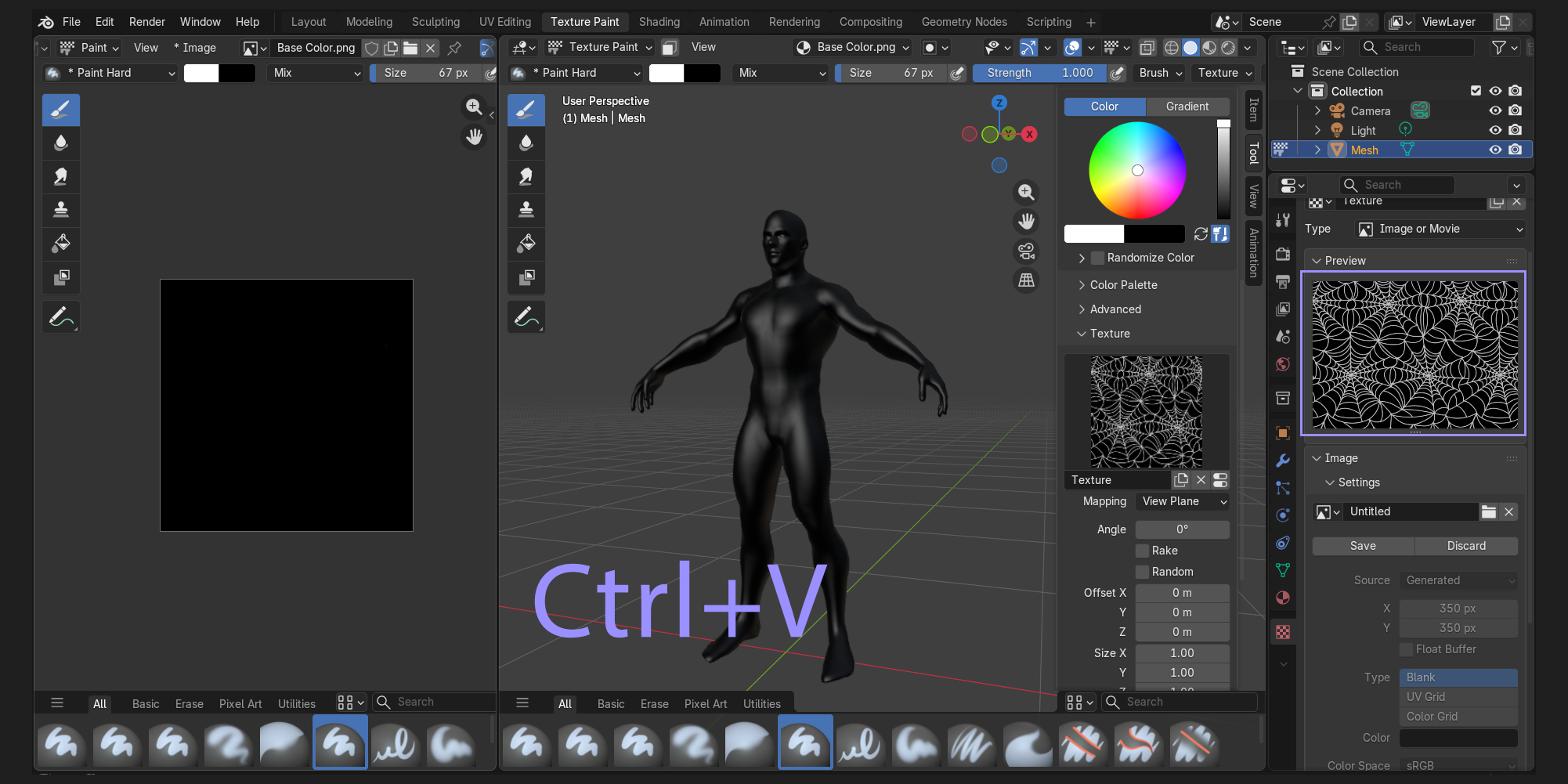
In this quick and easy way, you can change the brush texture in both 3D and 2D, as well as in Sculpt mode. You just copy and paste from anywhere, even from within Blender itself. Transparent images are also supported.
Make sure the brush color is pure white. Otherwise, the texture will have a different tint or appear completely black.
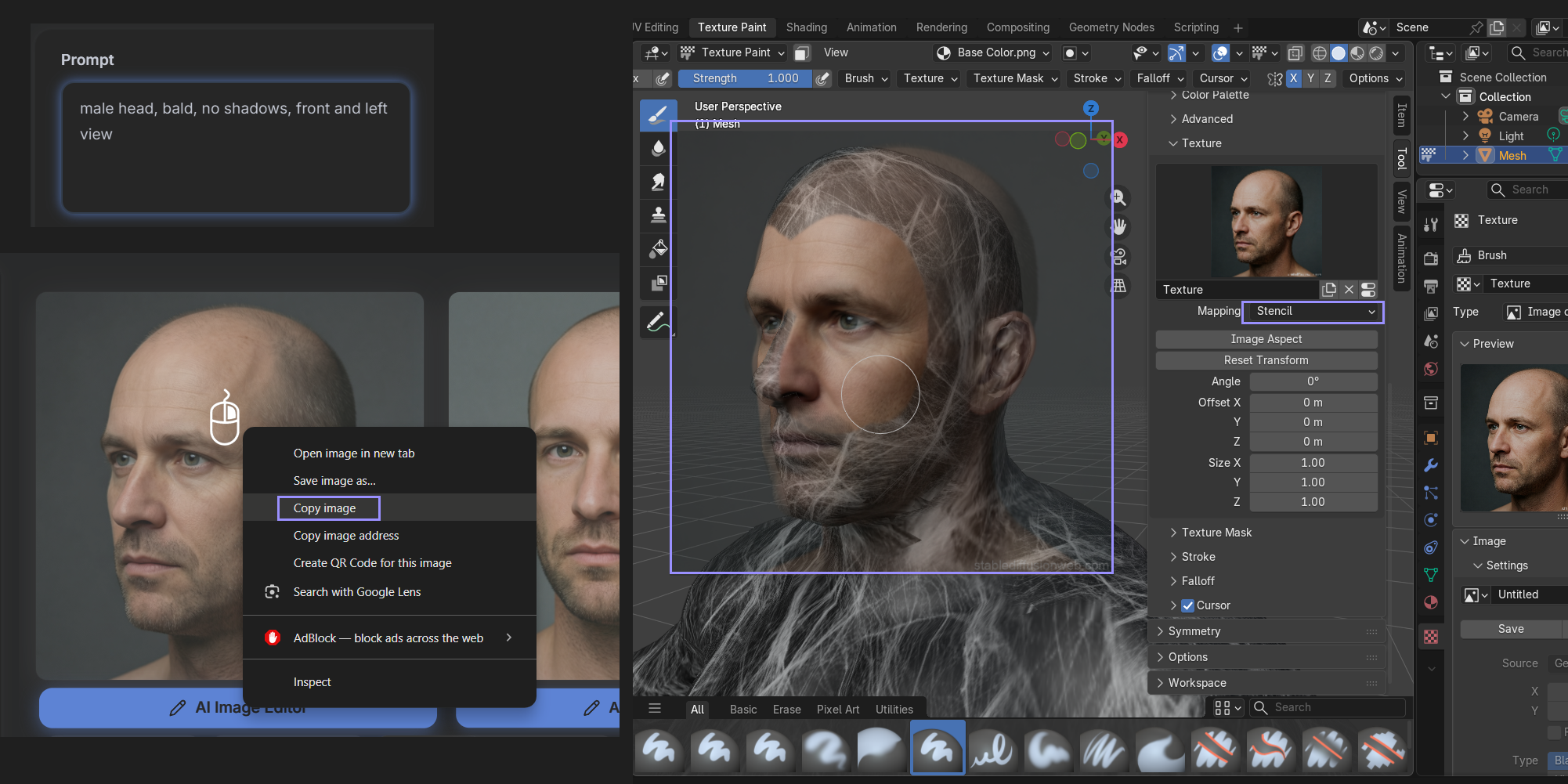
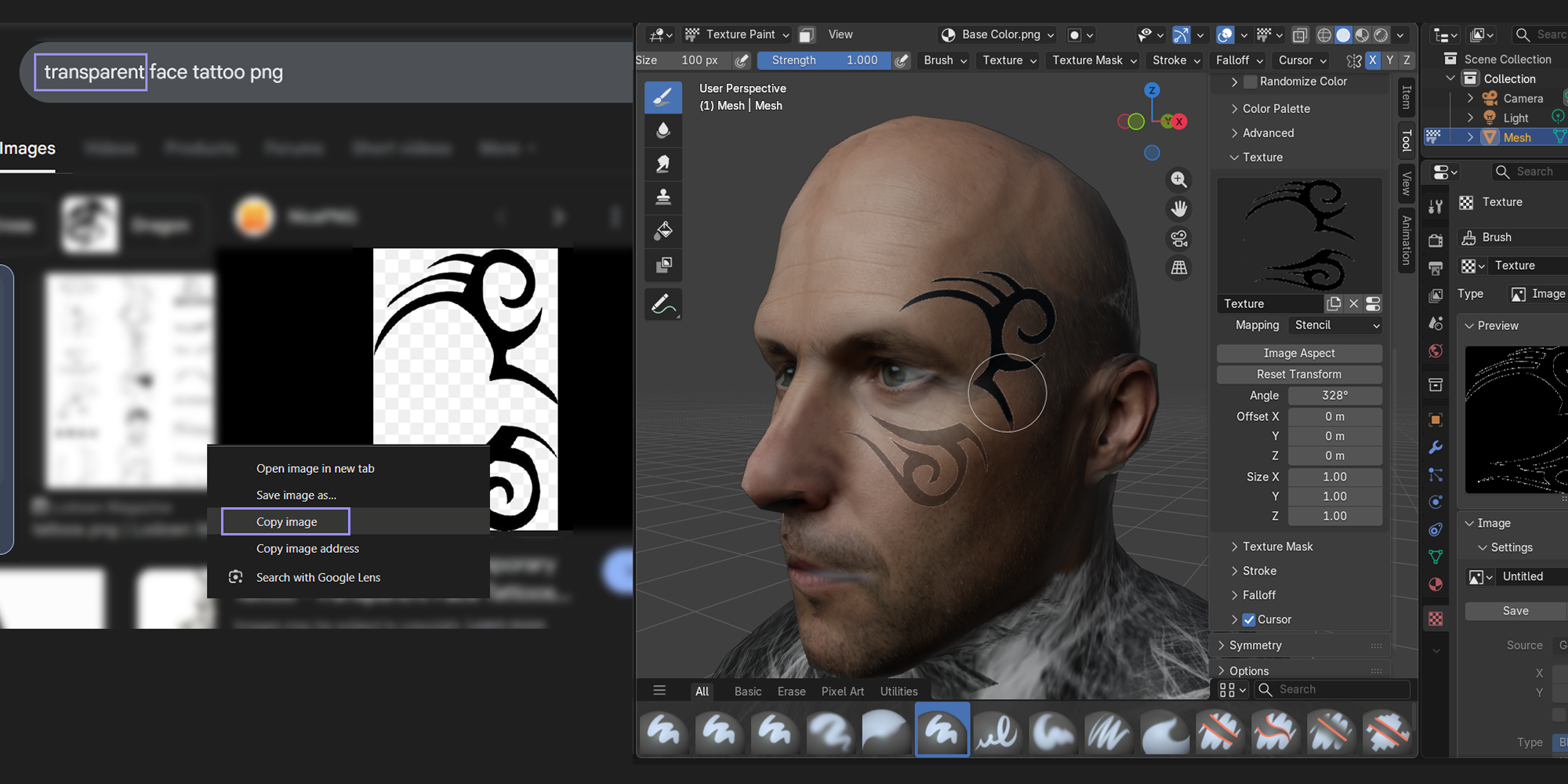
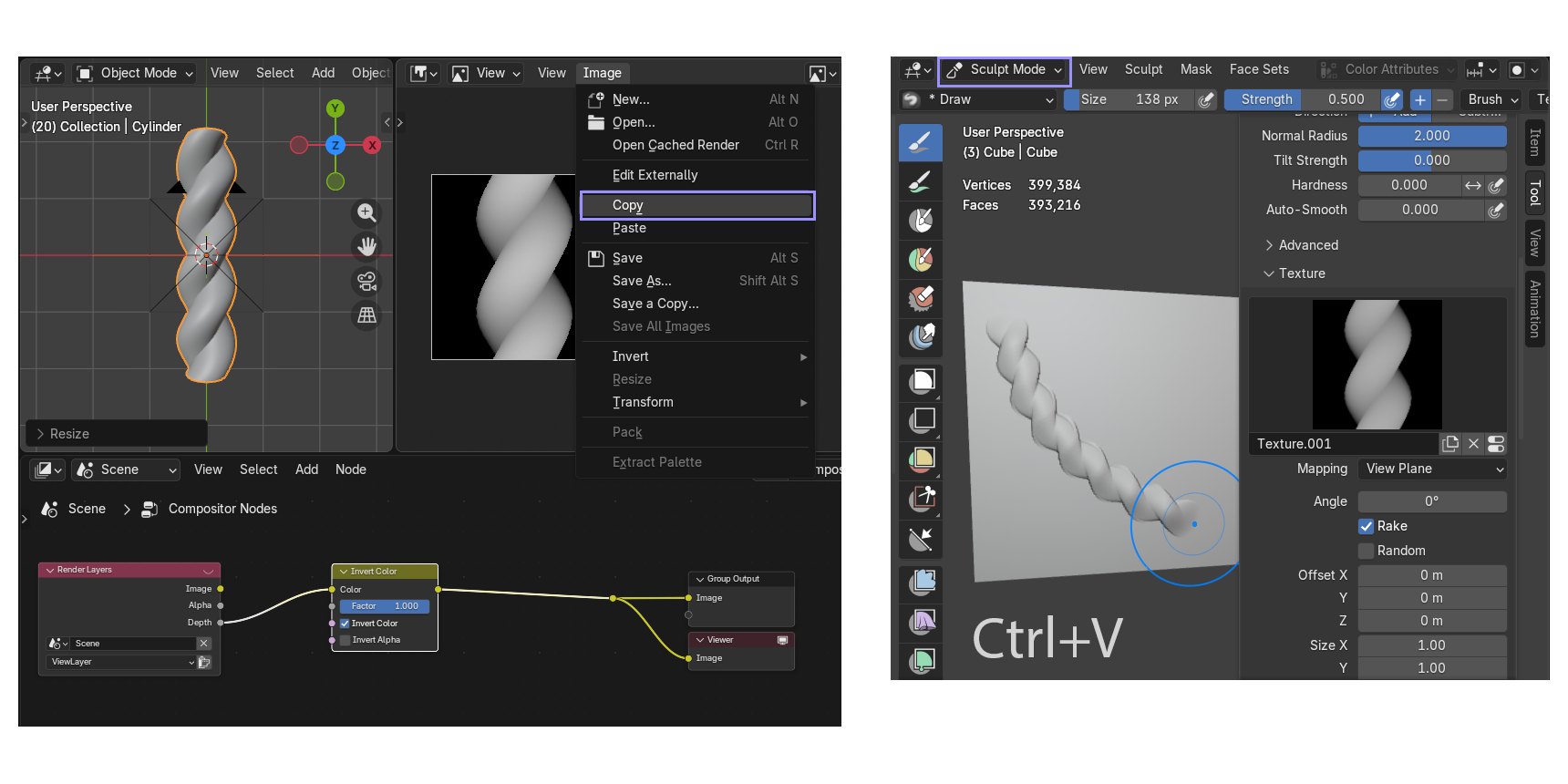
Please remember that some images on the internet may be protected by copyright.
