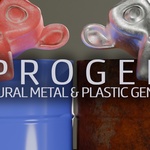
AprogenT Metal & Plastic
 Eduardo Grativol





1. Introduction
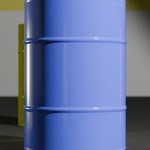
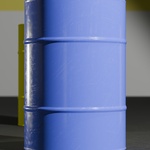
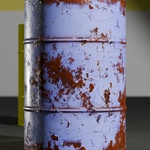
A short paragraph describing what the user will find in the package and what it is for.
2. Requirements
Blender 4.5.1 LTS (recommended) or newer.
Works in Cycles.
No third-party add-ons required.
3. Included Files
AprogenT Metal & Plastic.blend – main project file with all Node Groups.
UserGuide_AprogenT Metal & Plastic.pdf – full usage guide and tips.
4. Installation
Download the product package. Extract.
Open the
.blendfile in Blender 4.5.1 LTS or later.Save a copy in your working directory.
or use it by appending to your own projectOpen your own Blender project.
Go to File → Append.
Navigate to the downloaded
AprogenT Metal & Plastic.blendfile.Double-click the file to open its contents.
Open the NodeTree folder.
Select
AprogenT Metal & Plastic(the Node Group) and click Append.The Node Group will now appear in your Shader Editor → Add → Group menu.
5. Getting Started
The generator is implemented as a Node Group inside the Shader Editor.
Add the Node Group to your material and connect it to the Material Output. Add a Texture Coordinates and a Mapping nodes, connect object output (from texture coordinates) to vector input (mapping), then connect vector output (mapping) to vector input (AprogenT Metal & Plastic).
Adjust parameters to customize the material look.
Works best for baking seamless textures before heavy rendering.
Have questions about this product?
Login to message
| Published | 12 months ago |
| Blender Version | 4.5 |
| Render Engine Used | Cycles |
| Misc Data | Low-High-Resolution |
| License | Royalty Free |

Discover more products like this
metal plastic procedural customizable Material stylized realistic 4k texture