 dgraphycs
Assembly
Quick Start Guide
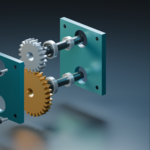
Assembly helps you create assembly and disassembly animations for products, mechanical models, and individual components.
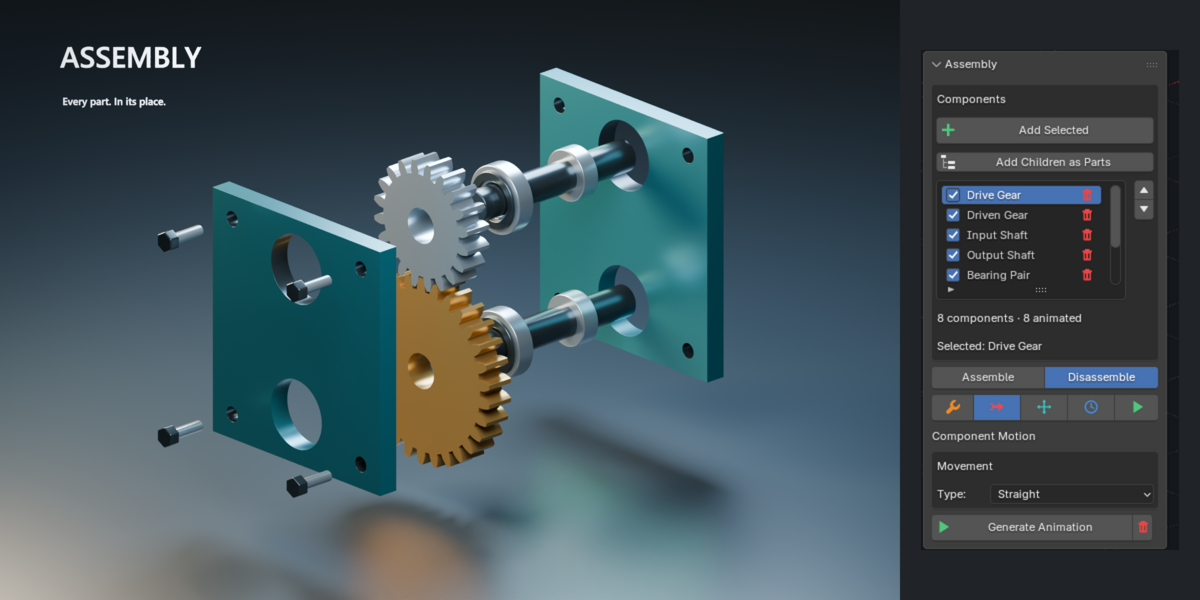
1. Add your components
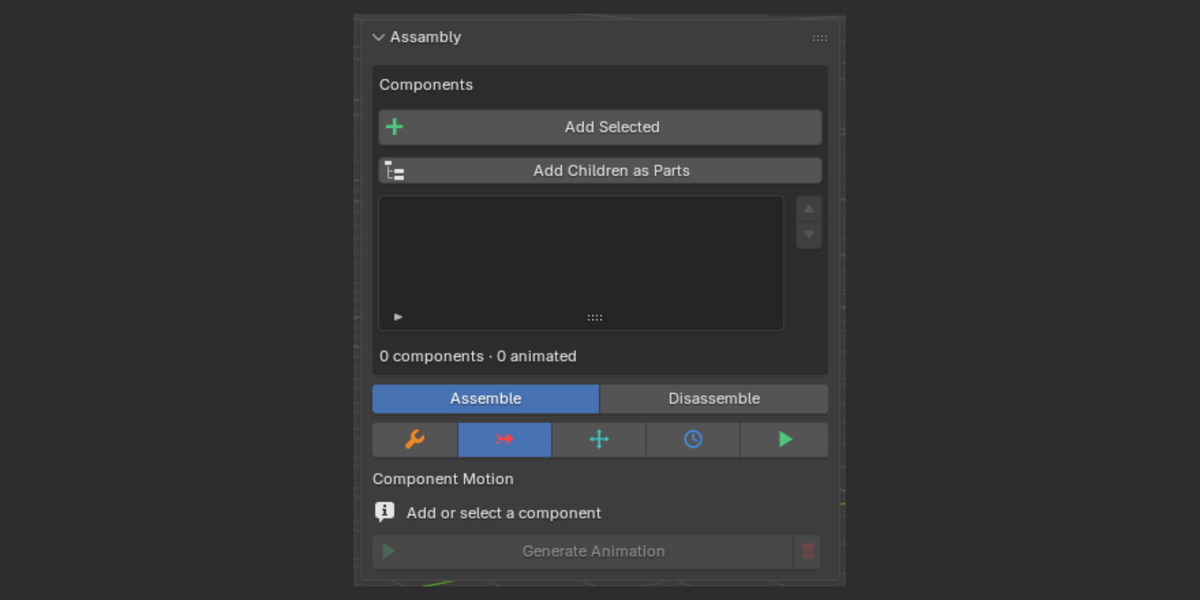
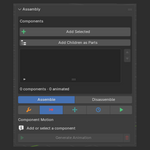
Open the Assembly tab in Blender’s 3D Viewport sidebar. Press N if the sidebar is hidden.
Add Selected: adds the selected objects to the component list.
Add Children as Parts: discovers and adds the parts beneath a selected parent.
New components default to None for motion. Choose a movement only for the parts you want to animate.
Use the arrows to reorder components. The trash button beside a component removes it from the add-on list without deleting the model.
2. Set the assembled position
Arrange your product in its finished, assembled state, then click Capture Assembled Poses in the Parts tab.
This records the position, rotation, and scale that Assembly uses as its reference. Capture again after intentionally changing the assembled arrangement.
3. Choose a motion
Select a component in the list and open the Motion tab.
| Motion | Use |
|---|---|
| None | Keep the component stationary. |
| Straight | Move along a straight path. |
| Screw / Unscrew | Combine travel with rotation around the travel axis. |
| Straight then screwing | Approach first, then rotate into place. |
| Rolling | Combine travel with rolling rotation. |
| Hinge | Rotate around a chosen pivot. |
For hinges, use a pivot object or set the pivot from the 3D cursor.
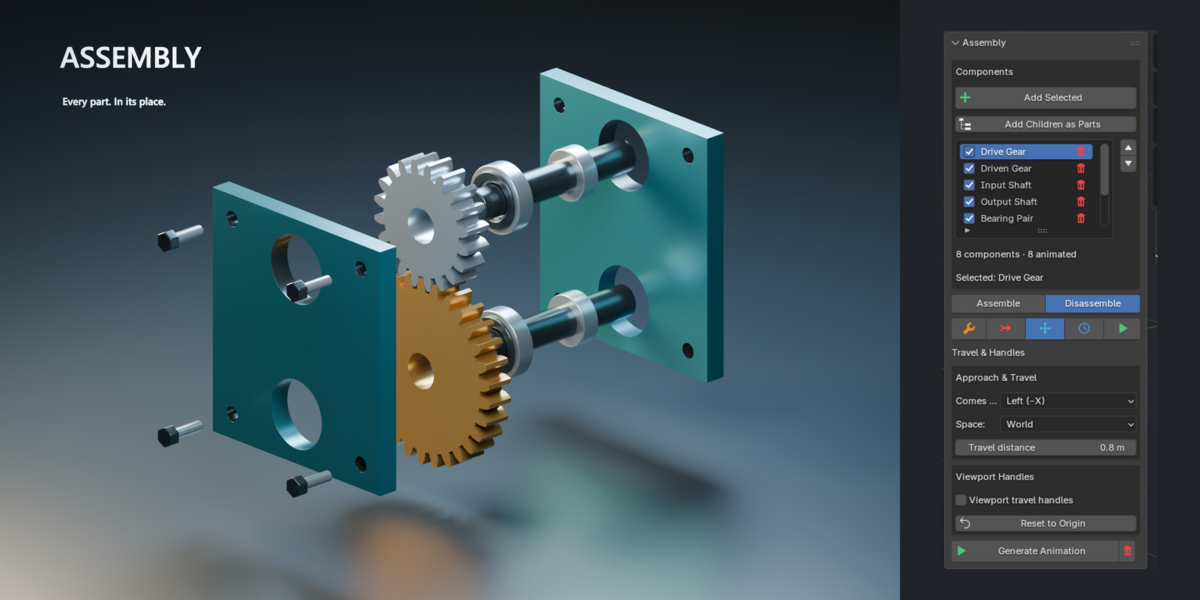
4. Adjust travel
In Travel & Handles, choose the direction, coordinate space, and travel distance.
Enable Viewport travel handles to adjust the offset directly in the viewport. The part moves while you drag, providing visual feedback.
Reset to Origin clears the travel offset and returns the part and handles to the captured assembled position.
5. Set timing and appearance
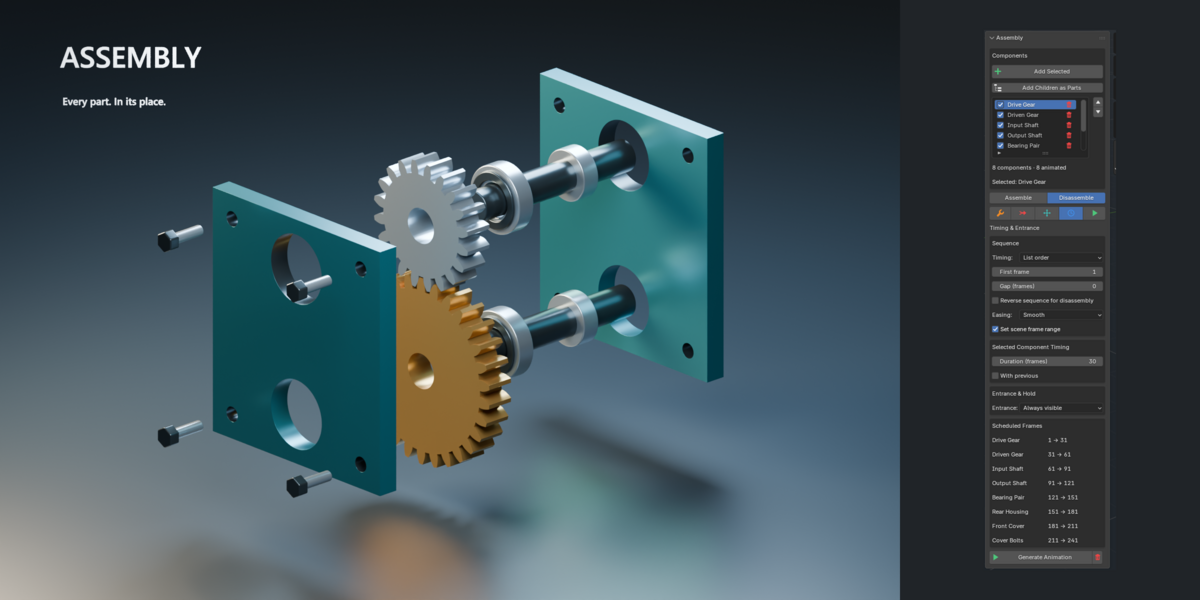
In Timing & Entrance, choose how the sequence is scheduled:
List order: components follow the list, using their durations and the gap between steps.
Manual: assign individual start and end frames.
Use With previous to move components together in list-order timing.
Entrance settings let a component remain visible throughout or appear before its movement begins—for example, appear at frame 234 and start moving at frame 250.
6. Work with subassemblies
In Parts & Subassemblies:
Group Selected combines related parts under a shared parent.
Animate Parent as Group uses an existing parent to move its children together.
Enable Internal Steps allows components inside the subassembly to have their own steps.
Schedule the group movement and its internal movements at separate times to avoid conflicting parent and child motion.
7. Preview and generate
Choose Assemble or Disassemble. Enable automatic reversal in the Timing tab when you want to reverse the sequence.
Use the Preview tab to inspect the selected component’s assembled position, exploded position, or movement.
Click Generate Animation to create the animation.
The trash button beside Generate Animation removes the generated animation and restores the original poses and actions. It keeps your objects and Assembly settings.
Example: a bottle and cap
Add the bottle and cap.
Keep the bottle’s motion set to None.
Choose a screw motion for the cap.
Set its travel along the bottle’s axis and adjust the number of turns.
Set the duration, choose Assemble or Disassemble, and generate.
Tip: Capture assembled poses before adjusting travel, then preview each movement before generating the full sequence.
Have questions about this product?
Login to message
| Blender Extension Compatible | Yes |
| Dev Fund Contributor | |
| Published | about 5 hours ago |
| Blender Version | 5.2 |
| Extension Type | Add-on |
| Render Engine Used | Cycles, Eevee |
| License | GPL |
