 Gtech-i-Design LLC


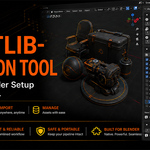
AssetLIB-Migration Tool — Move Your Blender Setup Forward
Upgrading Blender or switching computers shouldn't mean rebuilding your Asset Libraries one path at a time. Export, remap and restore the configuration your day-to-day work depends on.

The AssetLib tab in the 3D Viewport N-panel.
The settings usually left behind
Blender keeps configuration in a separate folder per version. AssetLIB-Migration Tool turns that configuration into named, portable backups — one category at a time, so you restore only what you need.
Asset Library registrationsNames, folder paths, import methods, plus relative-path and enabled states where Blender exposes them. |
Extension RepositoriesRepository names, module IDs, URLs, custom directories, cache and sync options — and access tokens only when you explicitly opt in. |
Add-on & extension filesUser-installed legacy add-ons and Extensions collected into a single named |
||||||
Blender & add-on preferencesYour |
Custom startup file (experimental)Default scene, workspaces and editor layout from your |
Timestamped safety copiesPreference and startup restores copy the existing file first — |
||||||
Drive letter tools
The drive changed. The paths shouldn’t have to.
Move an external drive to another machine and Windows hands it a new letter. Check the libraries you want, type the new letter, apply. Only the drive prefix changes — the rest of every folder path is preserved.
D:\Asset Library\Models → G:\Asset Library\Models |
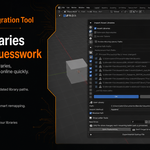
Manage libraries where you model
Press N in the 3D Viewport and open the AssetLib tab. Add, remove, inspect and edit registered Asset Libraries without walking back through Blender Preferences every time.
- Check libraries individually, or use
All/None, then edit the active library's path, import method and Relative Path. - Update matching libraries on import instead of creating
User Library.001duplicates. - Save to Blender Preferences in one click when you’re done.

Asset Libraries and Drive Letter Tools in the N-panel.
Prefix remapping
Every change is previewed before it’s applied
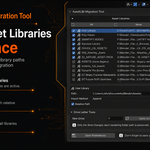
When an import finds paths that don't exist on this machine, you review them: enter the old prefix and its replacement, choose which entries change, preview the result, then confirm. The original JSON backup is never rewritten.

Missing-path review with preview during Import Settings.
Drive letterD:\ |
Parent folderD:\Studio\Blender Assets\Models |
Network share\\OLD-SERVER\Assets |
Boundary-safe matchingOnly a matching leading prefix is replaced — never unrestricted text inside a path. Remapping |
Suggestions, not surprisesIf several missing paths share a drive, the add-on can look for the same folder structure elsewhere — but nothing is applied until you review and confirm. |
Built for safer Blender upgrades
- Moving from an older Blender release to a newer one.
- Migrating to a replacement computer.
- Reconnecting libraries stored on an external drive.
- Correcting many library paths after a drive-letter change.
- Maintaining several Blender installations side by side.
- Transferring private or marketplace repository settings.
- Studios deploying one library configuration across workstations.
Feature list
- Asset Library management from the 3D Viewport N-panel.
- Export and import library settings as JSON.
- Multi-library drive-letter replacement.
- Windows, UNC, macOS and Linux prefix handling.
- Extension Repository export, import and optional tokens.
- Add-on, preference and startup archives with safety copies.
- Reads JSON backups from the original AssetLib-EXP-IMP.
- Rejects unsupported future backup formats before anything changes.
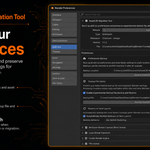
Add-on preferences
Set the backup location once, back preferences up on demand, and opt into experimental startup-file backup and restore — restores create a safety copy and take effect the next time Blender starts.

AssetLIB-Migration Tool in Blender Preferences → Add-ons.
What can be migrated?
| Category | Migrated | Limitation |
|---|---|---|
| Library names & paths | YES | Destination folders must exist |
| Import methods, relative-path, enabled state | YES | Where the destination Blender exposes them |
| Drive letters & parent prefixes | YES | Reviewed and confirmed by you |
| UNC, macOS and Linux prefixes | YES | Share or mount must be accessible |
| Repository names & URLs | YES | User-managed repositories only |
| Repository access tokens | OPTIONAL | Plain text; may expire or be revoked |
| Legacy add-on & extension files | YES | Add-on must support destination Blender |
| Blender & add-on preferences | YES | Older-to-newer is the intended direction |
| Startup scene & workspaces | EXPERIMENTAL | Version-specific adjustments may be needed |
| System repositories | RECORDED | Read-only; controlled by Blender |
| Actual asset files | NO | Copy or connect the asset folders separately |
| Newer preferences into older Blender | NO | Blocked for safety |
| Licenses, activations, OS settings | NO | Reactivate or transfer separately |
|
Requires Blender 4.2 or newer Validated across 4.2.1 LTS, 4.5.4 LTS, 5.1.2 and 5.2.0 LTS. AssetLIB-Migration Tool is the continuation of AssetLib-EXP-IMP and reads its existing JSON backups. |
