Auto Image Importer
 Soyoyo



Install Addon
Blender 4.1 and blelow
- Edit > Preferences > Add-Ons
- Click the “Install…” button in the top right of the window
- Find the Add-On file to install
- Click “Install Add-on”
- Check the checkbox to enable the addon.
Blender 4.2 and above
- A little different from Blender 4.2: choose 'install from disk', or Drag the .zip into Blender and confirm.
Install dependencies
After installing the addon, you need to install the depency for this addon if not any.
- On Windows, the Pillow package is required.
- On Mac, the Pillow and pyobjc packages are required.
Windows OS
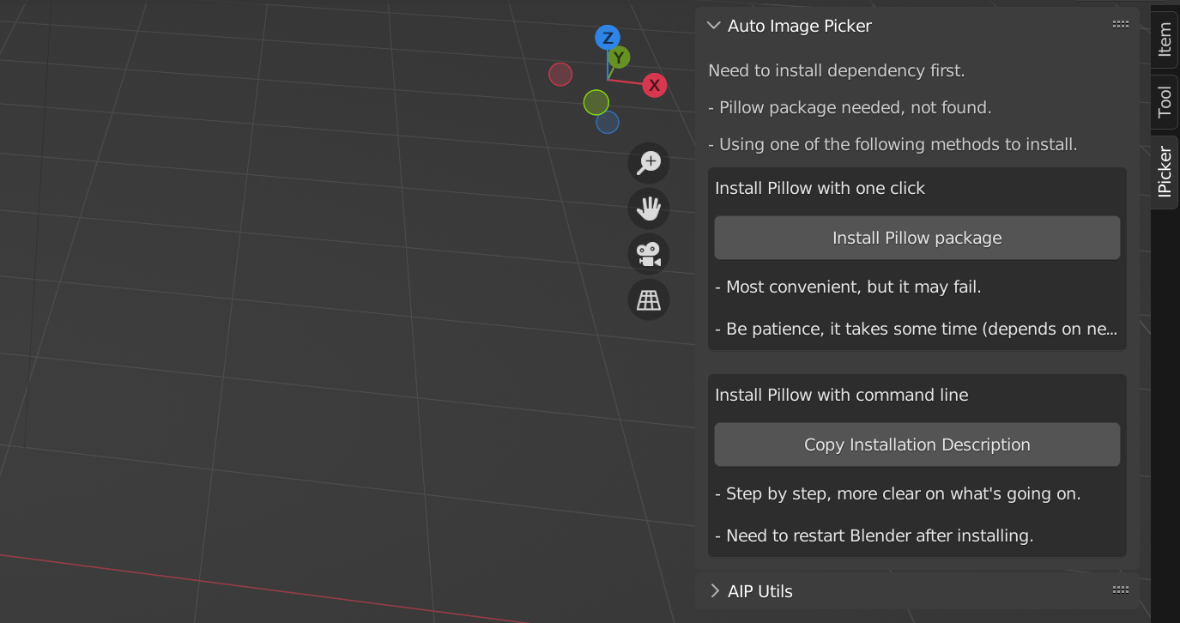
If you haven't installed the Pillow packege yet, it will show this info in the main panel. You can install the package with one click, but it may failed due to the network or some other reasons. If it failed or you want a better control on the package installing, you can install it manually. This addon has prepared some installation instructions, you can have a check on it.
Mac OS
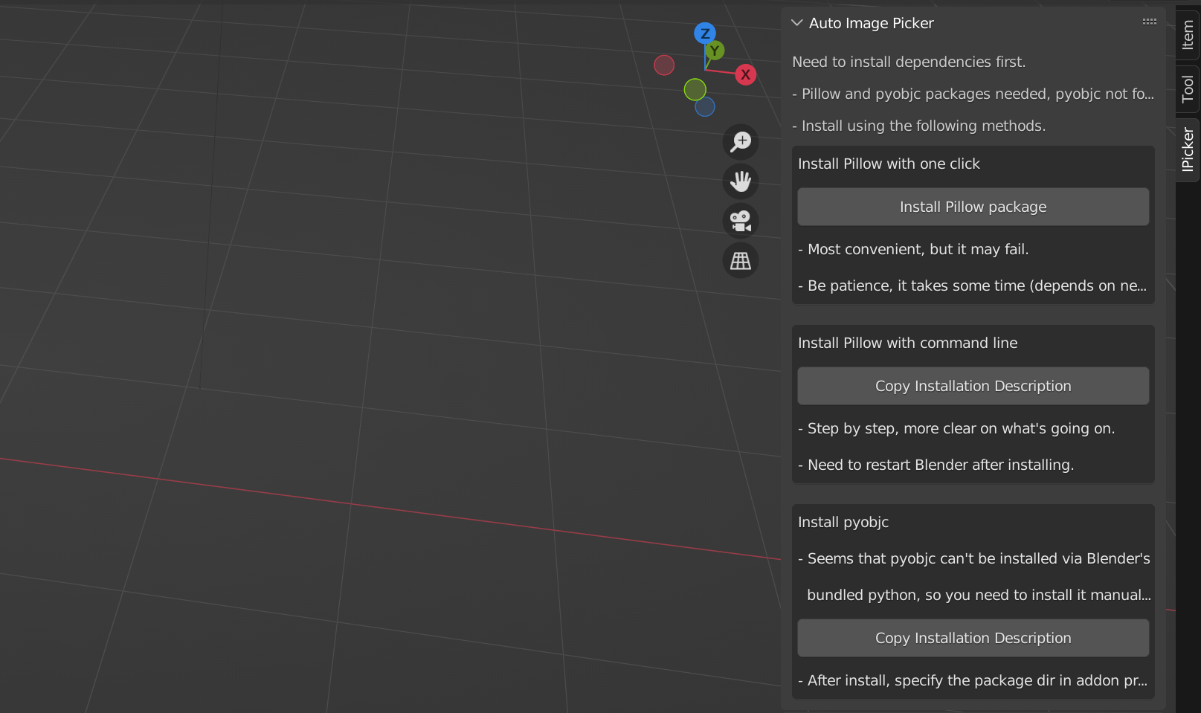
If you haven't installed the packeges yet, it will show this info in the main panel. The installation of Pillow package are almost the same to Windows. For the pyobjc package, there's no one click to install button. Because it seems that pyobjc package can't be installed via Blender's bundled Python, at least what I try is that. So you need to install it manually. This addon has prepared some installation instructions, you can have a check on it.
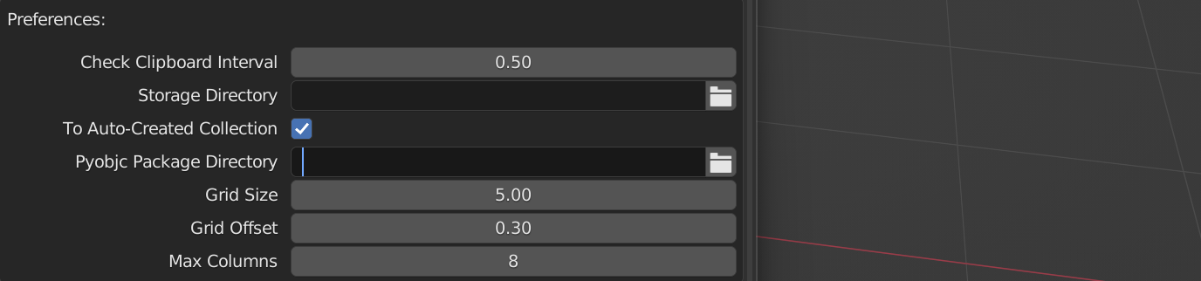
After installing the pyobjc package, specify where it is in the addon preferences, so this addon can find it. It could be something like "/Users/username/Library/Python/3.x/lib/python/site-packages", maybe not.
Usage
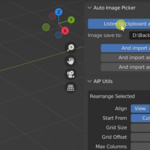
Turn on clipboard listener and specify the image storage directory
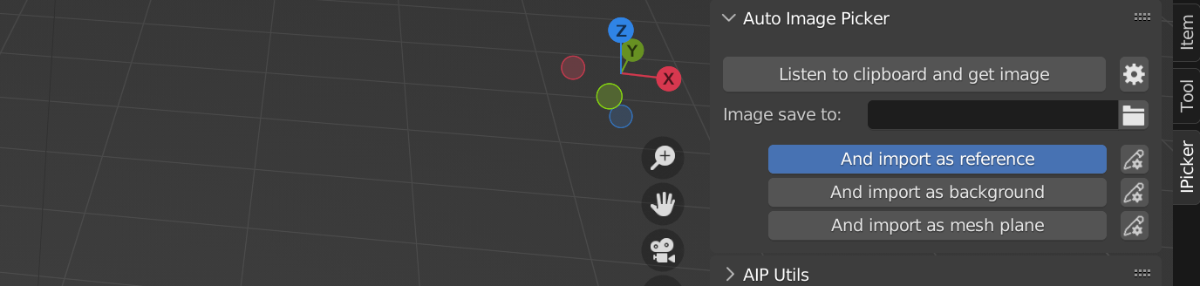
Before copying images, you need to turn on the clipboard listener. If not specify the storage directory yet, you also need to choose one. If you want to edit the import params, click the edit button to show them.
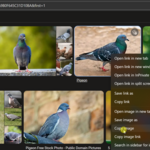
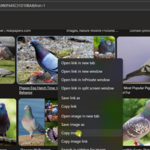
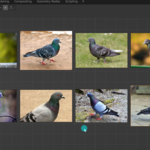
After doing all the stuff above, you can go to web browser or local file system or somewhere else to copy images, capture screenshot. This addon will automatically import your copied images.
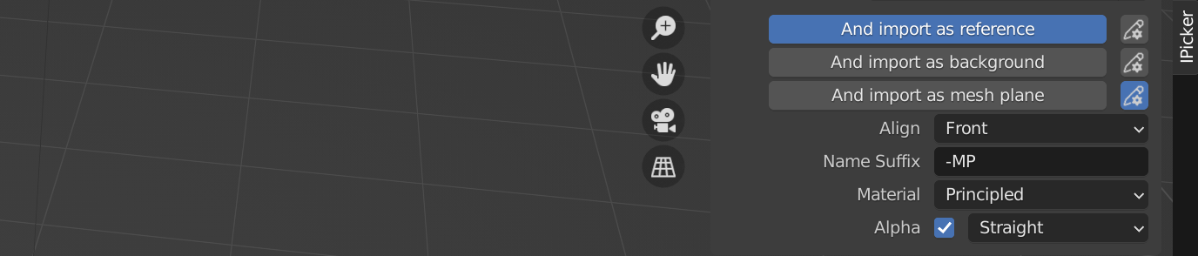
You can ajust the importing params like the above picture shows.
Image Objects Management Utils
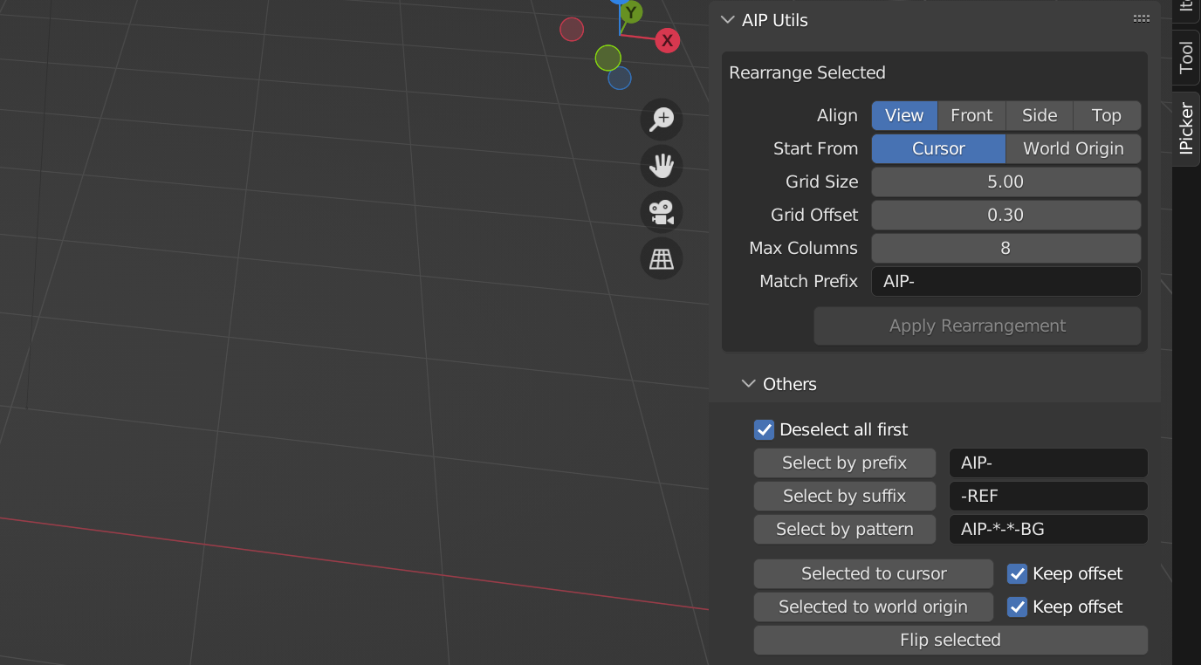
This addon only provides a few management tools, mainly on rearrangement and selection, because Blender itself has sufficient object management capabilities.
Tips
- In Blender 4.1 and below, if you want to import image as mesh plane using this addon, you need to enable the addon Import Images as Planes, it's a built-in addon, but not enabled by default. No need to do anything about this in Blender 4.2 and above.
- It's best to save the blender file first, especially if you are using Blender 3. x. In Blender 3.x, it may cause Blender crash, so be carefull with it. If you are using Blender 3.3, and import image as mesh plane, and use the render view, you should change the render engine to Cycles and use GPU, otherwise it will easily cause Blender crash. This is also the reason why we exclude support for Blender 3.3.
- Shift + Right Click the place the cursor. Changing the cursor location will reset the image objects counter (start_position, row_num, col_num etc).
- Remember to turn the clipboard listener off if you stop copying images. Avoid unnecessary image imports.
- Don't use it when rendering or performing heavy tasks in the background.
Update
version 1.1.1
- Canceled the alpha_mode option when import as mesh plane, because Blender 5.0 canceled it.
version 1.1.0
- Added an operator to reset the counter.
- Made a little ajustment to the preferences UI.
version 1.0.0
- First released.
Have questions about this product?
Login to message
| Blender Extension Compatible | Yes |
| Dev Fund Contributor | |
| Published | about 1 year ago |
| Blender Version | 3.6 - 5.0 |
| Extension Type | Add-on |
| Render Engine Used | Cycles, Eevee |
| License | GPL |
Discover more products like this
ref reference pureref mesh plane modelling image importer beeref clipboard background Image Import