Auto Importer & Organizer
 JMS Tools


Quick Start Guide
This addon is designed to be simple and fast to use. Most users can start working in less than one minute.
1) Importing Assets From a Folder
- Open the JMS Auto Importer & Organizer panel in the Blender sidebar (N Panel → JMS Tools).
- Select the folder that contains your 3D models.
- Choose which file formats you want to import (OBJ, FBX, GLTF/GLB, STL).
- Enable or disable Search Subfolders if needed.
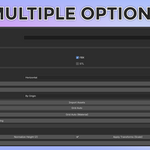
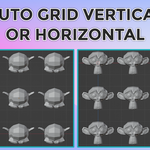
- Adjust grid settings such as columns, spacing, and orientation.
- Click Import Assets.
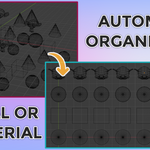
The addon will automatically import all supported files and arrange them into a clean grid layout.
2) Organizing Existing Objects
If your scene already contains objects:
- Select the objects you want to organize.
- Adjust grid settings.
- Click Grid Auto.
The selected objects will be rearranged using the same grid logic without re-importing anything.
3) Organizing by Material
To automatically separate assets by material:
- Select the objects.
- Click Grid Auto (Material).
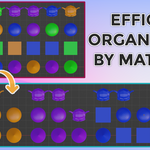
The addon will create material groups, generate collections (MATERIAL-A, MATERIAL-B, etc.), and arrange each group into its own grid layout.
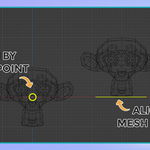
4) Placement Modes
- By Origin: Objects are placed using their origin position.
- By Mesh Bottom (Z=0): Objects are aligned so their lowest point touches the ground without changing the origin.
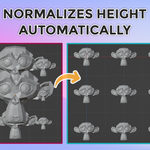
5) Normalize Height Tool
This tool scales selected objects so they all reach the same height.
Recommended use:
- Asset previews
- Consistent prop sets
- Visual comparison layouts
Avoid using this on assets with very different proportions.
6) Apply Transforms Tool
This applies scale transforms to selected objects, making the current visual size the real scale value.
Useful before exporting assets or standardizing asset libraries.
Performance Tips
- When importing very large folders, disable unnecessary formats to speed up scanning.
- Use reasonable grid spacing values to avoid overlapping bounding boxes.
- For extremely large libraries, consider importing in smaller batches.
Troubleshooting
- If nothing imports, make sure the folder path is valid and contains supported file types.
- If objects overlap, increase grid spacing or reduce the number of columns.
- If STL files do not import, make sure Blender STL import support is enabled in your build.
If you encounter unexpected behavior, restarting Blender usually resolves temporary import operator issues.
Support
This addon is actively maintained. Updates and bug fixes may be released based on user feedback.
If you experience issues, please provide:
- Blender version
- File format used
- Short description of the problem
Have questions about this product?
Login to message
| Blender Extension Compatible | Yes |
| Published | 9 months ago |
| Blender Version | 4.0 - 5.0 |
| Extension Type | Add-on |
| Render Engine Used | Cycles |
| License | GPL |