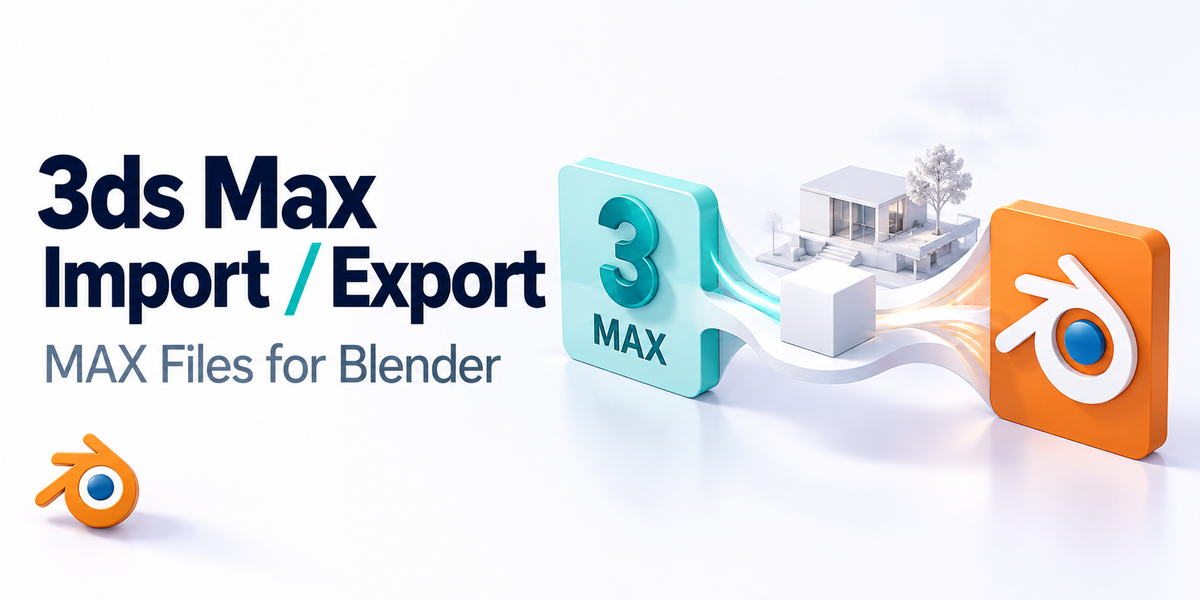
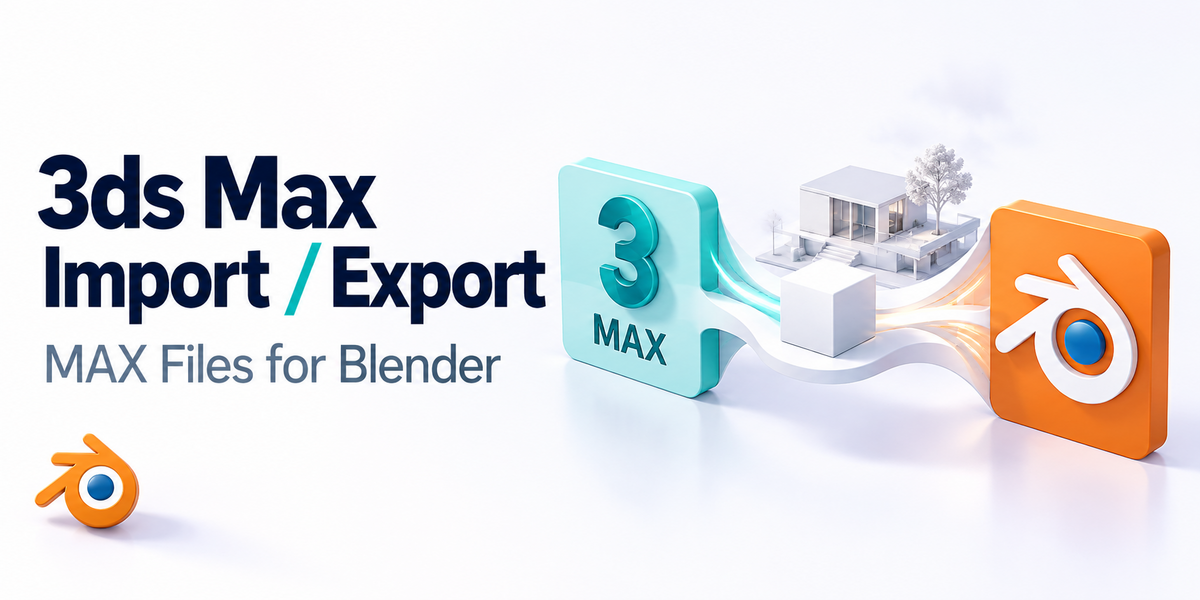
Autodesk 3Ds Max File Import-Export (.Max)
 blenderVfxMaster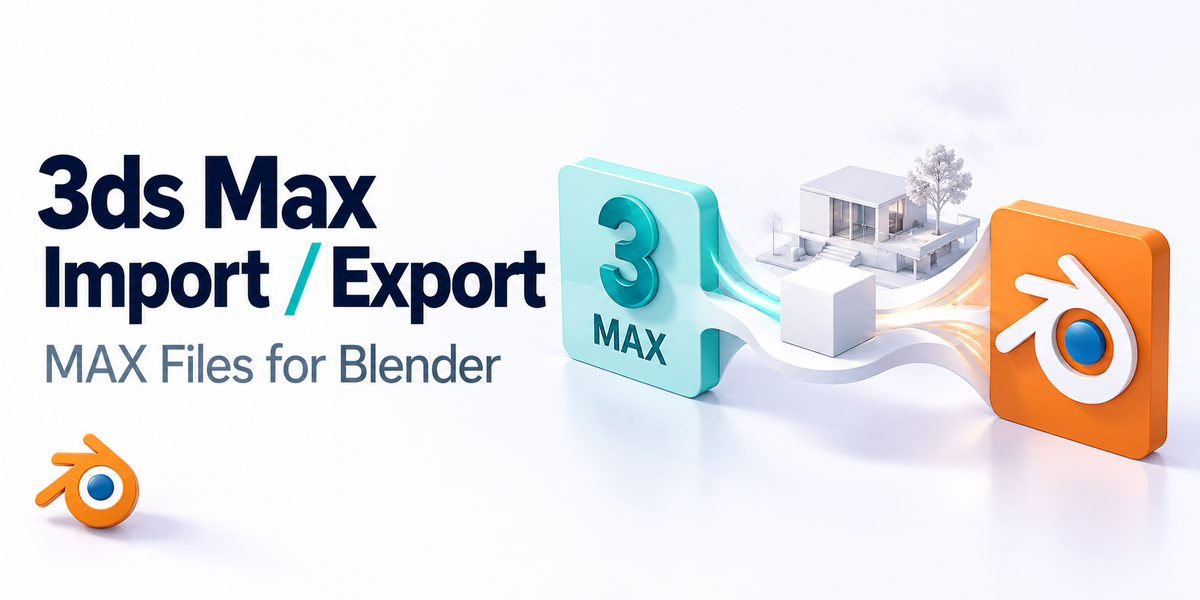


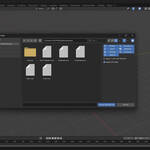
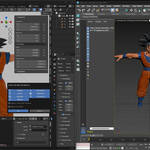


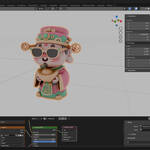

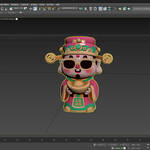


AUTODESK 3DS MAX FILE IMPORT-EXPORT ADDON
DOCUMENTATION
TABLE OF CONTENTS
-
Overview
-
Installation
-
System Requirements
-
Configuration
-
Importing 3ds Max Files
-
Exporting to 3ds Max
-
Advanced Settings
-
Troubleshooting
-
FAQ
-
Support
1. OVERVIEW
The Autodesk 3ds Max File Import-Export addon provides seamless integration between Blender and Autodesk 3ds Max through native .max file support.
The addon uses intelligent conversion to maintain scene integrity, materials, animations, and object hierarchies during file transfer.
Key Features:
-
Direct
.maxfile import/export -
Selective asset filtering (models, lights, cameras, splines, animations)
-
Automatic 3ds Max installation detection
-
Drag-and-drop file support
-
Comprehensive logging system
-
Professional workflow integration
2. INSTALLATION
Standard Installation:
-
Download the addon
.zipfile -
Open Blender → Edit > Preferences > Add-ons
-
Click Install... and select the
.zip -
Enable the addon under Autodesk 3ds Max File Import-Export
-
Configure the 3ds Max Python path (see Configuration)
Manual Installation:
-
Extract the addon into Blender’s addons folder:
-
Windows:
%APPDATA%\Blender Foundation\Blender\[version]\scripts\addons\
-
-
Restart Blender
-
Enable the addon in Preferences > Add-ons
3. SYSTEM REQUIREMENTS
-
OS: Windows 10/11 (64-bit)
-
Blender: 4.2+
-
3ds Max: 2023+ (any edition)
-
Python: Compatible with 3ds Max installation
-
Disk Space: 50MB+ for temp files
-
RAM: 4GB minimum (8GB recommended)
Notes:
-
Requires a working Autodesk 3ds Max installation
-
Linux/macOS are not supported
-
Admin privileges may be required on first setup
4. CONFIGURATION
Initial Setup:
-
Open Preferences > Add-ons
-
Expand Autodesk 3ds Max File Import-Export settings
-
Click Auto Detect (locates 3ds Max Python path)
-
If detection fails, manually browse to:
-
C:\Program Files\Autodesk\3ds Max 2025\Python\python.exe -
C:\Program Files\Autodesk\3ds Max 2024\bin\python.exe
-
Default Import Settings:
-
Models (enabled)
-
Lights (enabled)
-
Cameras (enabled)
-
Splines (enabled)
-
Animations (enabled)
-
Materials (enabled)
-
Armatures (enabled)
-
Apply X-Axis 180° Rotation (disabled)
-
Apply 0.01 Scale (enabled)
5. IMPORTING 3DS MAX FILES
Method 1: File Menu
-
File > Import > Autodesk 3ds Max (.max)
-
Select
.maxfile -
Adjust import options
-
Click Import
Method 2: Drag & Drop
-
Drag a
.maxfile into Blender viewport -
Options dialog appears
-
Configure settings → OK
Import Options:
-
Models, Lights, Cameras, Splines, Animations, Materials, Armatures
-
X-Axis 180° Rotation (coordinate fix)
-
0.01 Scale (unit conversion)
Tips:
-
Large files may take minutes
-
Check System Console for progress
-
Ensure free disk space
-
Close heavy applications during import
6. EXPORTING TO 3DS MAX
Standard Export:
-
File > Export > Autodesk 3ds Max (.max)
-
Choose destination/filename
-
Configure export options
-
Click Export
Export Options:
-
Models, Lights, Cameras, Splines, Animations
-
Selection Only (optional)
Process:
-
Blender generates intermediate data
-
3ds Max converts to
.max -
Temp files cleaned automatically
-
Final file saved
Best Practices:
-
Apply transforms before export
-
Use standard materials
-
Test with simple scenes
-
Verify exported file in 3ds Max
7. ADVANCED SETTINGS
Logging System:
-
Logs stored at:
Documents\blender_3dsmax_log.txt -
Includes conversion steps, errors, performance data
Cache Directory:
-
Stored at:
Documents\blender_3dsmax_cache\ -
Auto-cleaned after operations
Performance Optimization:
-
Use SSD for faster processing
-
Increase virtual memory for large scenes
-
Close unnecessary applications
-
Monitor system resources
8. TROUBLESHOOTING
Common Issues:
-
"3ds Max Python executable not found"
→ Verify installation, use Auto Detect, or set manually -
"Export failed"
→ Check object validity, unsupported types, or isolate exports -
"3ds Max script execution failed"
→ Verify installation integrity, free disk space, restart Blender/3ds Max -
"Import shows empty scene"
→ Enable filters, check file integrity, review logs -
Conversion too slow
→ Reduce scene complexity, close apps, split large scenes -
File too large
→ Optimize textures, reduce polycount, simplify animations
9. FAQ
Q: What versions of 3ds Max are supported?
A: 2020 and later (highest installed version auto-detected).
Q: Can I use this without 3ds Max installed?
A: No. A working installation is required.
Q: Are materials preserved?
A: Yes, with enabled option. Fidelity depends on material systems.
Q: What about animations?
A: Keyframes are preserved. Procedural data may need adjustments.
Q: Batch conversion supported?
A: Not yet. Files must be converted individually.
Q: Why intermediate FBX?
A: Best compatibility between Blender ↔ 3ds Max.
Q: Blender extensions compatibility?
A: Yes, includes manifest for Blender 4.2+ Extensions.
10. SUPPORT
Getting Help:
-
Review this documentation
-
Check
blender_3dsmax_log.txt -
Search Troubleshooting section
-
Contact support with errors & logs
When Reporting Issues, Include:
-
Blender version
-
3ds Max version
-
OS details
-
Error messages
-
Steps to reproduce
-
Log contents
Performance Tips:
-
Keep Blender/3ds Max up to date
-
Ensure 10GB+ free disk space
-
Close heavy background apps
-
Use wired connections for network files
Updates:
-
Check addon description for changelog & new features
Version: 1.0.0
Last Updated: 2024
Thank you for using the Autodesk 3ds Max File Import-Export addon!
-
$12
1 seat. For individual creators or small commercial projects.
-
$24
Up to 3 seats / single studio team. Use across all internal projects within one company.
-
$96
15+ seats / company-wide / unlimited internal use across subsidiaries.
Have questions about this product?
Login to message
| Sales | 90+ |
| Rating | 3 ratings |
| Published | about 1 year ago |
| Blender Version | 3.6 - 5.2 |
| Extension Type | N/A |
| License |
Discover more products like this
autodesk 3d modeling 3ds max animation Import-Export interoperability Workflow pipeline convert format Professional Tools File Conversion Cross-platform