Auto Organizer
 Daniel Yosef





Auto Organizer v2.1
Quick Start Guide 🚀
1. Installation 📦
-
→ Download the
.zipfile. -
→ In Blender, go to
Edit > Preferences > Add-ons. - → Click Install... and select the downloaded file.
- → Enable the checkbox next to Auto Organizer.
-
→ The panel appears in
3D Viewport > Sidebar (N) > Organizertab.
2. The Interface 🖥️
The panel is divided into collapsible accordion sections. The main action buttons are always visible at the top:
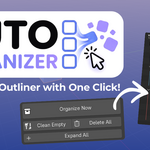
- → Organize Now - the primary button. Scans your scene and moves every object into its collection.
- → Clean Empty - removes any collection that has no objects and no children. Works in cascading passes.
- → Delete All - safely moves all objects back to the Scene Collection and removes auto-created collections.
- → Expand / Collapse All - toggle that opens or folds the entire Outliner tree in one click.
3. Core Features ✨
Organize Now
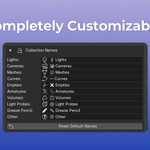
One click organizes your entire scene. Every object is placed into a top-level collection by type:
💡 Lights 📷 Cameras 🧊 Meshes 〰️ Curves ✖️ Empties 🦴 Armatures 🌫️ Volumes 🔵 Light Probes ✏️ Grease Pencil
Collections are color-tagged automatically and only created when matching objects exist (with Skip Empty Types enabled).
Advanced Sorting (on by default)
When enabled, objects are sorted into smart sub-collections based on their names and types:
Lights split by subtype:
☀️ Sun · 💡 Point · 🔆 Spot · ▭ Area
Meshes split by keyword detection (14+ categories):
🌿 Foliage · 🪨 Rocks & Terrain · 🏛️ Architecture · 🚗 Vehicles · 👤 Characters · ⚔️ Weapons · 🛋️ Furniture · 🔬 Sci-Fi · 📦 Props · and more.
Empties split by role:
🎯 Targets · 🔗 Controllers · 📍 Locators · 🪝 Hooks · 📷 Camera Rigs
Sub-collections are only created when matching objects actually exist in the scene.
4. Tools 🛠️
Auto Highlight
When active, selecting any object in the Viewport automatically scrolls the Outliner to reveal and highlight it. No more hunting through collapsed trees.
Solo Collection
Hides all collections except the one containing the active object - giving you full focus. Click again to restore everything.
Auto Clean Project
Scans the .blend file and removes all orphaned data: unused meshes, materials, textures, and images. Runs multiple passes to catch chained orphans.
5. Smart Rename ✏️
Select objects in the viewport, choose a mode, and click Apply. A live preview updates as you type.
-
→ Pattern - rename with auto-numbering. Use
#characters for padding:Tree_##→Tree_01. -
→ Find & Replace - replace any string inside names. Find
Cube, replaceRock. -
→ Strip Suffixes - removes the
.001suffixes Blender adds automatically.Tree.003becomesTree.
6. Scene Overview & Report 📊
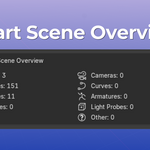
The Scene Overview accordion shows a live count of objects by type.
Scene Report generates a full statistics summary and copies it to your clipboard:
• Total objects, vertices, polygons, triangles
• Collection count, material count, image count
• Breakdown by object type
Let your Outliner breathe.
Designed for the serious artist. Fast, lightweight, and cinematic in its flow.
Auto Organizer - Created by Daniel Yosef Abdu
Have questions about this product?
Login to message
| Published | 7 months ago |
| Blender Version | 5.0 |
| Extension Type | N/A |
| Render Engine Used | Arnold, Blender-Internal, Cycles, Eevee |
| License | GPL |
Discover more products like this
cleanup management organization Workflow materials helper Scene Management utility collections outliner productivity automation