Axis Converter - Smart Camera Rig Utility Tool
 CelladorProject


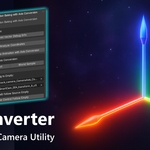
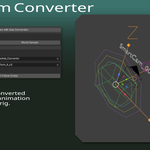
# SmartCam Orient Convertor - Documentation
## Overview
The SmartCam Orient Convertor is a specialized Blender addon designed to solve coordinate system mismatches when working with camera data from other DCC applications and rig
control systems. This tool is essential for SmartCam Rig workflows where you need to transfer camera motion data between different coordinate systems
while maintaining proper axis orientation.
## The Problem It Solves
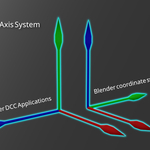
Different DCC applications use slightly different coordinate systems, typically rotated 90 degrees around the X-axis from each other. This creates a mismatch between the Y and Z axes:
- **Some DCC Applications**: Use Y-up coordinate systems
- **Blender**: Uses Z-up coordinate system
- **Result**: Y and Z axes are swapped between applications
When you simply constrain one camera to another camera imported into Blender, there are usually no obvious problems. However, when your camera has a **rig control system attached**, the axis mismatch becomes apparent - orientations can flip by 90 degrees, causing incorrect camera behavior.
### Coordinate System Differences
**DCC Application (Y-up system)**:
- **Up**: Points along the **Y axis**
- **Forward**: Points along the **Z axis**
- **Right**: Points along the **X axis**
**Blender (Z-up system)**:
- **Up**: Points along the **Z axis**
- **Forward**: Points along the **Y axis**
- **Right**: Points along the **X axis**
This 90-degree rotation around the X-axis causes issues when camera rig controls try to interpret orientation data, resulting in flipped or incorrect camera movements.
## Installation
1. Download the addon folder: `SmartCam_Orient_Convertor`
2. Place it in your Blender addons directory:
- Windows: `%APPDATA%\Blender Foundation\Blender\[version]\scripts\addons\`
- macOS: `~/Library/Application Support/Blender/[version]/scripts/addons/`
- Linux: `~/.config/blender/[version]/scripts/addons/`
3. Enable the addon in Blender Preferences > Add-ons
4. Find "SmartCam Orient Convertor" in the Animation category
## Interface Location
Access the tools in the 3D Viewport:
**View3D > Sidebar (N-Panel) > SmartCam Convertor tab**
## Features
### Core Baking Tools
#### 1. Camera Animation Baking with Axis Conversion
- **Matrix Conversion**: Fast, direct mathematical conversion using transformation matrices
- **World Sampling**: High-accuracy method that samples world space transforms per frame
- **Constraint Based**: Uses Blender constraints with correction matrices
#### 2. Debug and Analysis Tools
- **Vector Debug Info**: Prints detailed camera direction vectors to console
- **Coordinate System Analysis**: Creates visual helpers showing different coordinate systems
- **Real-time Conversion Verification**: Checks if conversions are working correctly
#### 3. Rig Integration
- **Constraint Attachment**: Automatically constrains rig controls to follow baked empties
- **Smart Object Selection**: Easy dropdown selection for source and target objects
## Usage Guide
### Basic Workflow
1. **Import your camera animation** from another DCC application
2. **Open the SmartCam Convertor panel** in the N-panel
3. **Choose your baking method**:
- **Matrix Conversion**: Recommended for most cases
- **World Sampling**: Use for complex camera rigs or when Matrix Conversion doesn't work perfectly
4. **Configure settings**:
- Source Camera (the imported camera with orientation issues)
- Target Empty name (creates if doesn't exist)
- Frame range
5. **Click "Bake Camera Animation with Axis Conversion"**
6. **Attach your rig controls** to the corrected empty
### Advanced Usage
#### Debug Tools
```
Debug Tools:
├── Print Vector Debug Info - Shows camera directions before/after conversion
└── Analyze Coordinates - Creates visual coordinate system helpers
```
Use these tools to:
- Understand coordinate system differences between DCC applications
- Visualize how the conversion affects camera orientation
- Verify conversion accuracy for your specific workflow
#### Rig Attachment
```
Constrain Rig to Empty:
├── Source Empty (Target) - The baked camera empty with corrected coordinates
├── Control Rig (Follower) - Your rig control that will follow
└── Make Control Follow Empty - Applies constraints
```
This creates Copy Location, Copy Rotation, and Copy Scale constraints, ensuring your rig controls work correctly with the converted camera data.
### Method Comparison
| Method | Speed | Accuracy | Use Case |
|--------|-------|----------|----------|
| **Matrix Conversion** | Fast | High | Standard DCC imports |
| **World Sampling** | Slower | Highest | Complex rigs, parented cameras |
| **Constraint Based** | Fast | High | Real-time preview needs |
## Technical Details
### Coordinate Conversion Matrix
```python
CONVERSION_MATRIX = Matrix((
(1, 0, 0, 0), # X remains X
(0, 0, 1, 0), # Y becomes Z (DCC Y-up → Blender Z-up)
(0, -1, 0, 0), # Z becomes -Y (DCC Z-forward → Blender Y-forward)
(0, 0, 0, 1)
))
```
This matrix transforms between coordinate systems:
- Converts Y-up to Z-up orientation
- Maintains proper forward direction mapping
- Preserves right-handed coordinate system
### Baking Process
1. **Frame Iteration**: Process each frame in the specified range
2. **Matrix Sampling**: Get camera's world transformation matrix
3. **Coordinate Conversion**: Apply conversion matrix to correct DCC coordinate differences
4. **Keyframe Insertion**: Set location, rotation, and scale keyframes on target empty
## Troubleshooting
### Common Issues
**"Camera not found" error**
- Ensure you have imported your camera from the DCC application
- Select the camera or specify the camera name in properties
**Rig controls still behaving incorrectly**
- Try different baking methods
- Use Debug tools to verify coordinate conversion
- Ensure the rig is properly constrained to the converted empty
**Animation appears flipped or rotated**
- This indicates the coordinate conversion is needed
- Use the World Sampling method for higher accuracy
- Check that the source camera is from a different coordinate system
**Constraints not working with rig**
- Verify both converted empty and control rig exist
- Ensure objects are in the same scene
- Check constraint influence values (should be 1.0)
### Debug Workflow
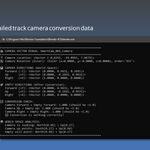
1. **Use "Print Vector Debug Info"** to see console output:
```
CAMERA VECTOR DEBUG: Camera
Camera Location:
CAMERA DIRECTIONS (World Space):
Forward (-Z):
Up (+Y):
Right (+X):
```
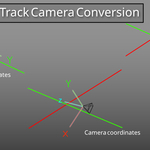
2. **Use "Analyze Coordinates"** to create visual helpers:
- Red arrows: Original DCC coordinate system
- Blue arrows: Blender coordinate system
- Green arrows: Corrected coordinate system
3. **Check conversion accuracy** in console output:
```
CONVERSION CHECK:
DCC Forward → Blender Forward: 1.000 (should be ~1.0)
DCC Up → Blender Up: 1.000 (should be ~1.0)
DCC Right → Blender Right: 1.000 (should be ~1.0)
```
## Best Practices
### Workflow Tips
1. **Test coordinate conversion** with simple camera moves first
2. **Use consistent naming conventions** for imported cameras and converted empties
3. **Backup your scene** before baking (use Clear Existing carefully)
4. **Verify results** with debug tools before attaching rig controls
### SmartCam Rig Integration
1. **Import camera animation** from your DCC application
2. **Convert camera coordinates** using this tool
3. **Constrain rig controls** to the converted empty
4. **Maintain separate layers** for imported data vs. corrected data
5. **Use collections** to organize imported cameras, converted empties, and rig elements
### Performance Optimization
- **Use Matrix Conversion** for standard DCC imports (fastest)
- **Limit frame ranges** to only what you need
- **Clear unused empties** from previous conversion sessions
- **Disable viewport updates** during long baking operations
## API Reference
### Operators
- `smartcam.bake_camera_to_empty` - Main coordinate conversion operator
- `smartcam.debug_camera_vectors` - Debug coordinate differences
- `smartcam.analyze_coordinate_systems` - Create coordinate helpers
- `smartcam.attach_empty_to_control` - Constrain rig to converted empty
### Properties
- `source_camera` - Camera to convert from (imported DCC camera)
- `target_empty` - Empty to bake converted coordinates to
- `bake_method` - Conversion method selection
- `frame_start/end` - Baking range
- `clear_existing` - Remove existing animation
- `create_correction_empty` - Create reference empty
## Version History
**v1.0.0**
- Initial release
- DCC coordinate system conversion
- Matrix conversion method
- World sampling method
- Constraint-based method
- Debug and analysis tools
- Rig attachment system
## Support
For issues, suggestions, or contributions:
- Check the troubleshooting section above
- Use debug tools to understand coordinate differences
- Consider trying different baking methods for your specific DCC workflow
This tool is part of the **Cellador Project** SmartCam ecosystem, designed to bridge coordinate system differences between DCC applications and Blender's rig control systems.
$14.99
Have questions about this product?
Login to message
| Dev Fund Contributor | |
| Published | 11 months ago |
| Blender Version | 4.2 - 4.5 |
| Extension Type | N/A |
| Render Engine Used | Blender-Internal, Cycles, Eevee |
| License | Mit |
Discover more products like this
blender addon previs Motion design camera animation blender 3d layout VFX