 Li Shoujing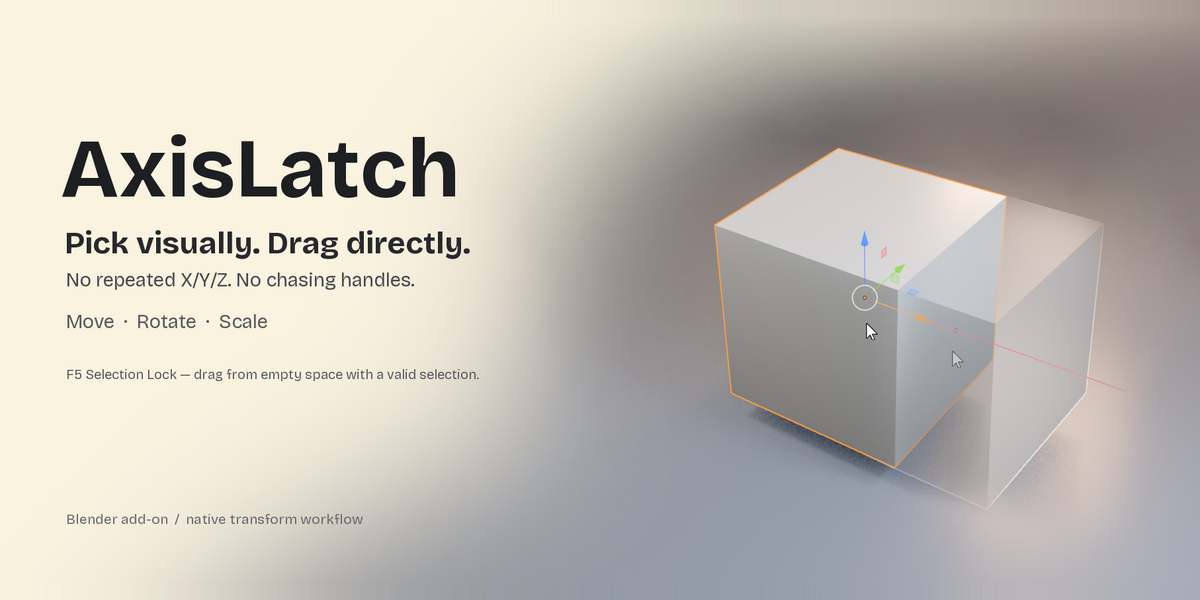
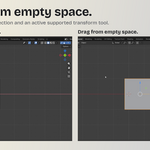
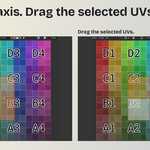
Prefer picking a direction visually to repeatedly pressing X, Y or Z? Choose an AxisLatch public axis or plane handle, then drag your selected object without returning to the handle. Move, Rotate and Scale each remember their own constraint. Enable Selection Lock to drag your selection from empty viewport space, too.
Compatibility: Windows x64 only. AxisLatch checks the platform and allows Blender versions 4.2.19 up to, but not including, 4.3.0, or 5.1.0 up to, but not including, 5.2.0. There is no build-hash lock. These are two separate version ranges, not continuous support from Blender 4.2 through 5.1. Versions outside these ranges and other platforms cannot enable this release.
Tested builds: Blender 4.2.19 LTS (12a2dfa84963) and Blender 5.1.0 (adfe2921d5f3) on Windows x64. Other patch releases within the allowed ranges can enable the add-on but have not each been tested. Please check your platform and Blender version before purchasing.
If you've used 3ds Max, this workflow will be easier to understand: choose an axis or plane first, then drag.
Implementation and stability
AxisLatch 1.0 draws its axis, plane, center and trackball handles through Blender's supported Python/RNA and Gizmo APIs. It uses Blender's documented transform operations and does not read or write process memory, depend on private structure offsets, or modify Blender's installation files.
The platform and version checks cannot guarantee freedom from crashes or display problems in every configuration. A crash can cause unsaved work to be lost. Save frequently and try a non-critical scene copy first, especially on a patch release that has not been individually tested. Contact the creator if you encounter a problem.
See AxisLatch in action
Watch the full AxisLatch demo on YouTube
Pick the direction visually
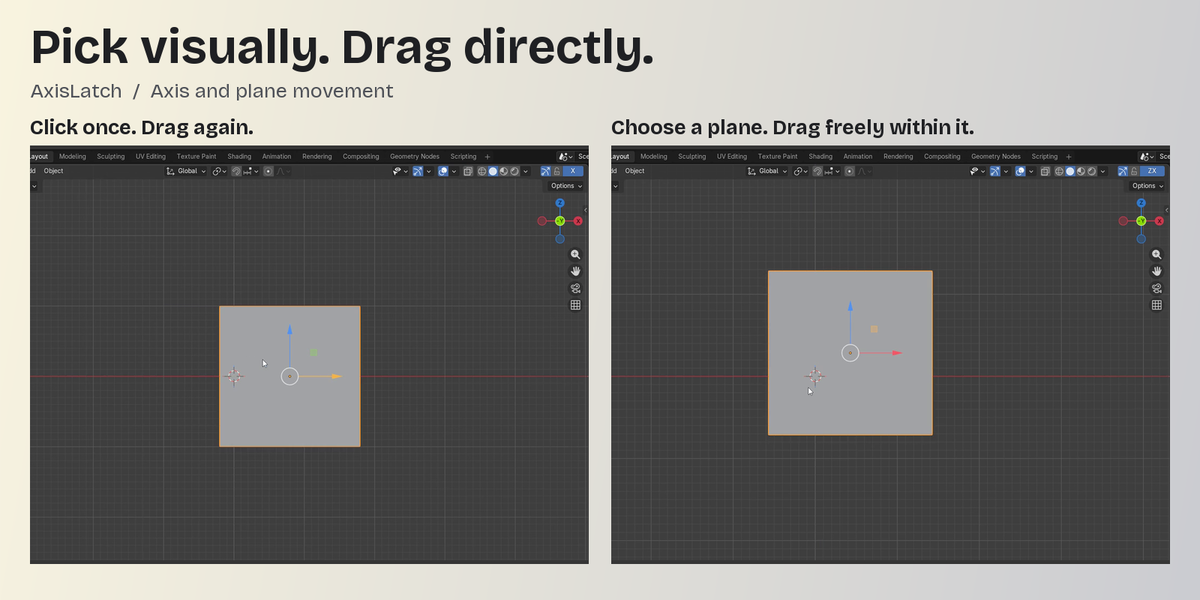
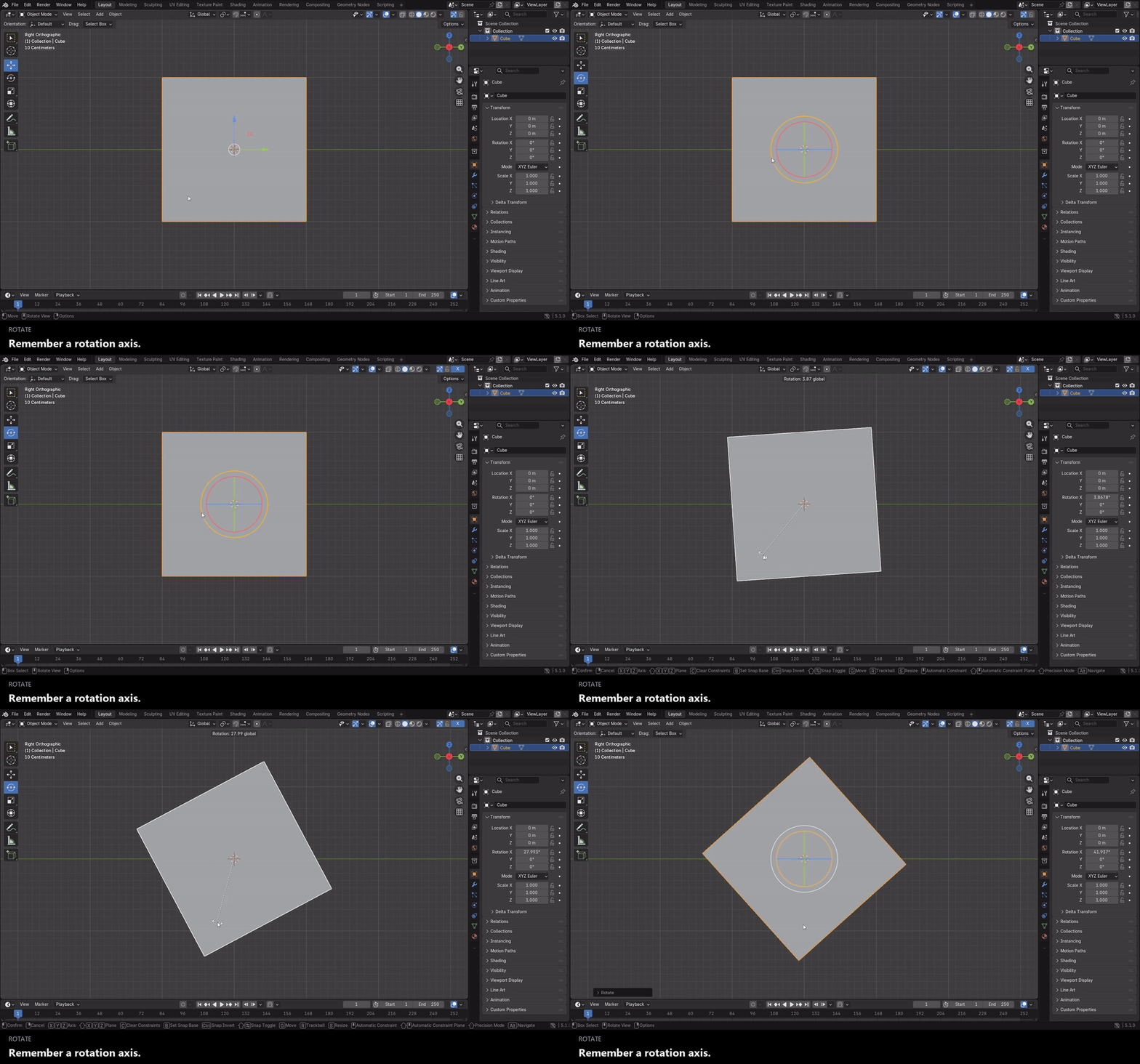
Choose the direction on screen instead of re-entering an axis constraint for every drag. Hover an AxisLatch public handle to preview it in yellow, then click once to remember the constraint—even without moving anything. The chosen handle stays yellow after the pointer leaves, so you can see which constraint is active.
Hovering another handle gives you a temporary preview without replacing the constraint you already chose.
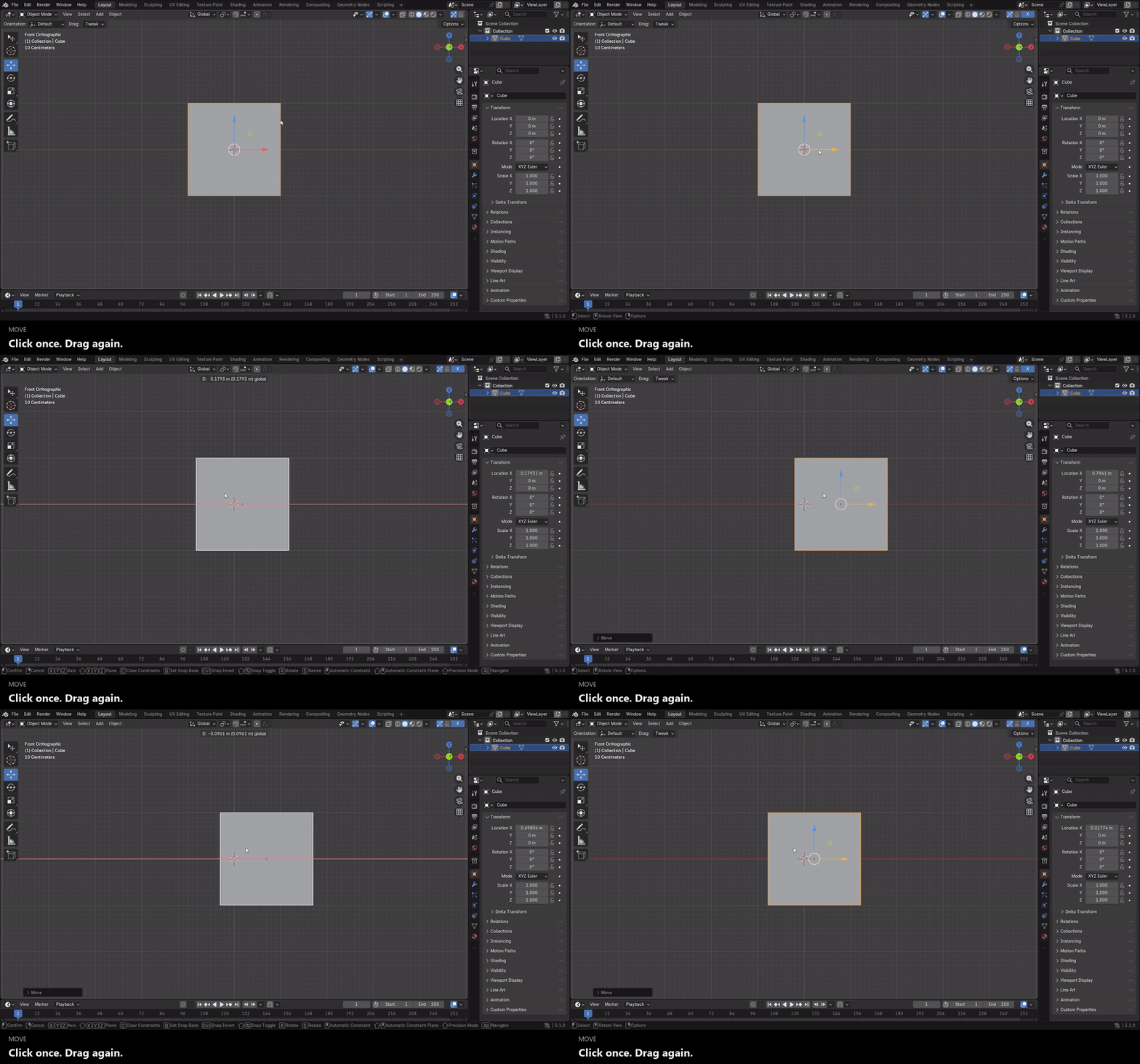
Drag the object, not just the handle
After choosing a constraint, start your next drag directly on your selected object. You do not need to return to the small gizmo handle for every adjustment. This is especially useful when working close up: keep the pointer on the selected object under it and continue using the remembered constraint.
Movement can follow a single axis or stay within a chosen plane. Rotation and scaling use the AxisLatch handles for their respective native transform tools; AxisLatch remembers the constraint, not a previous distance, angle or scale amount.
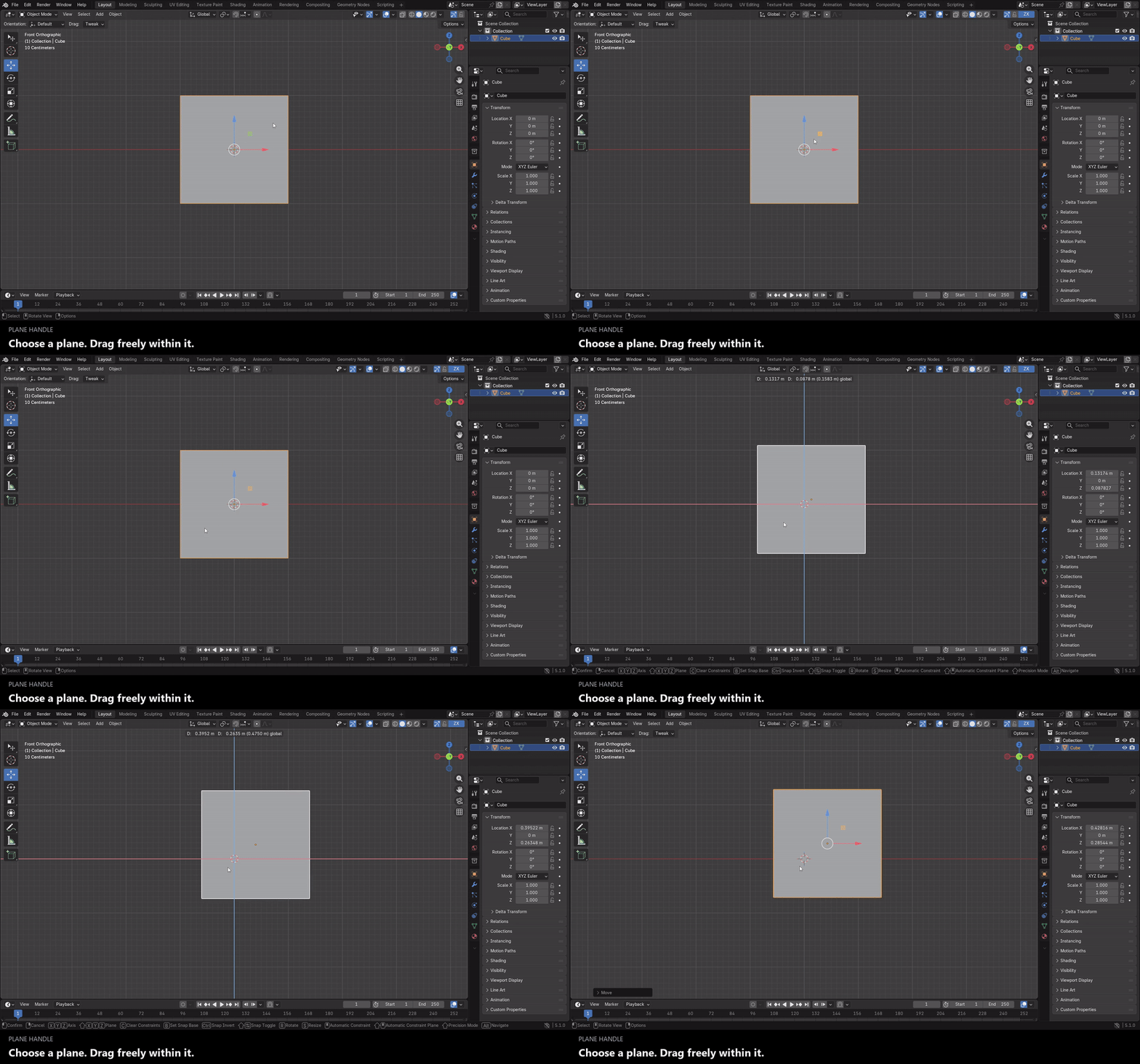
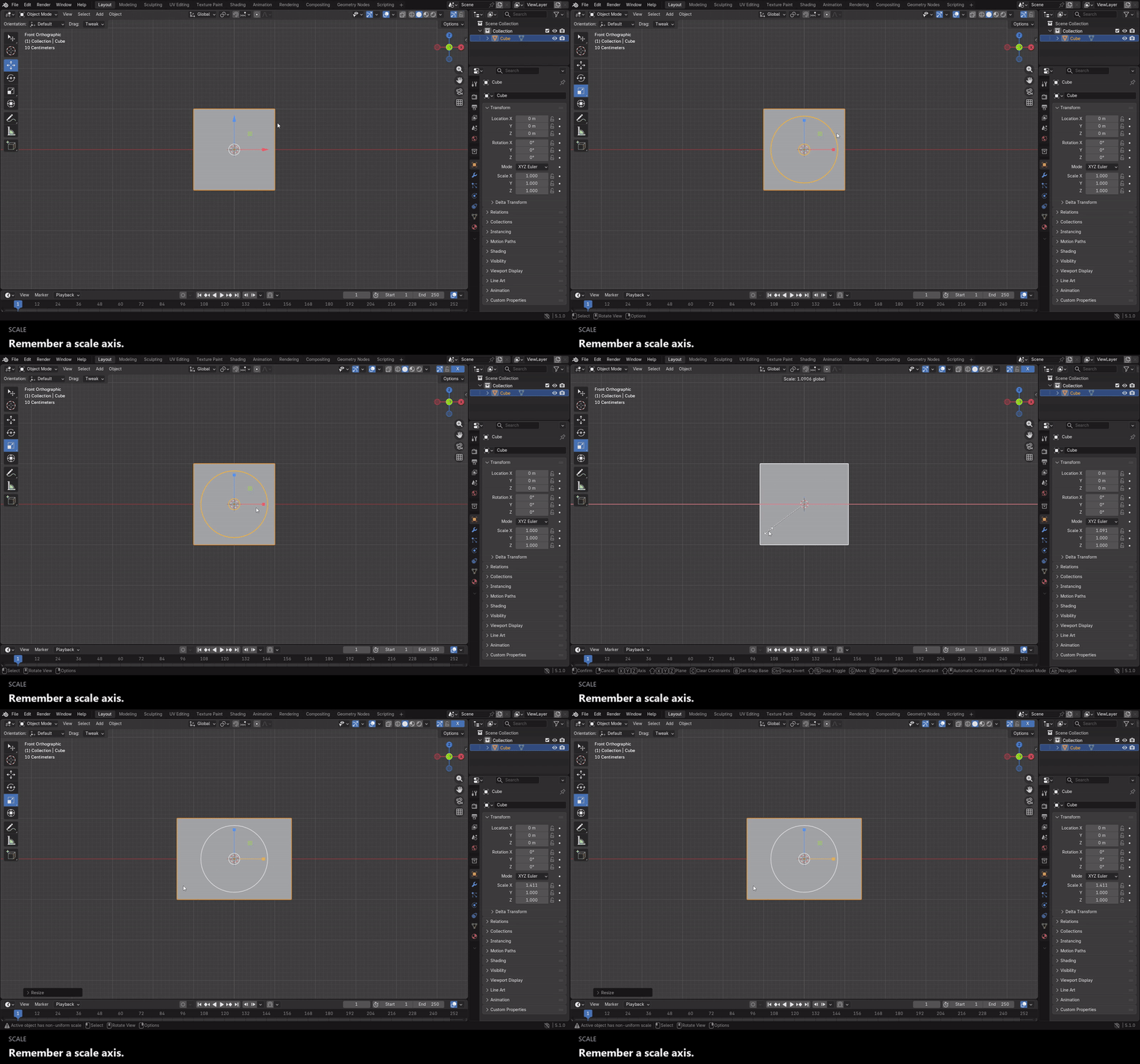
Separate memories for Move, Rotate and Scale
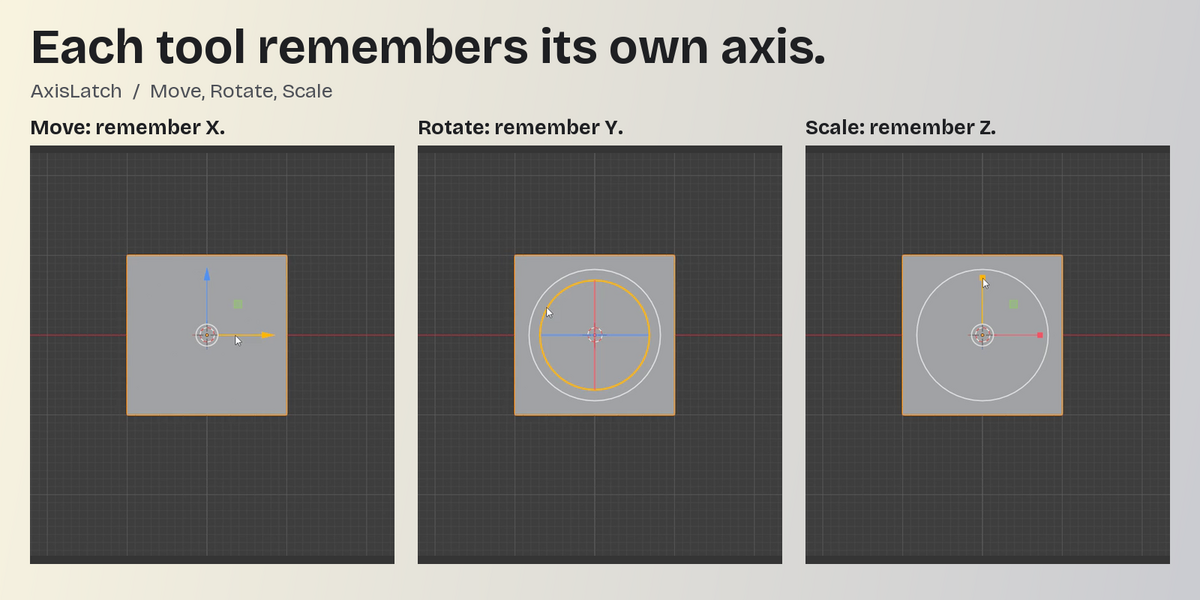
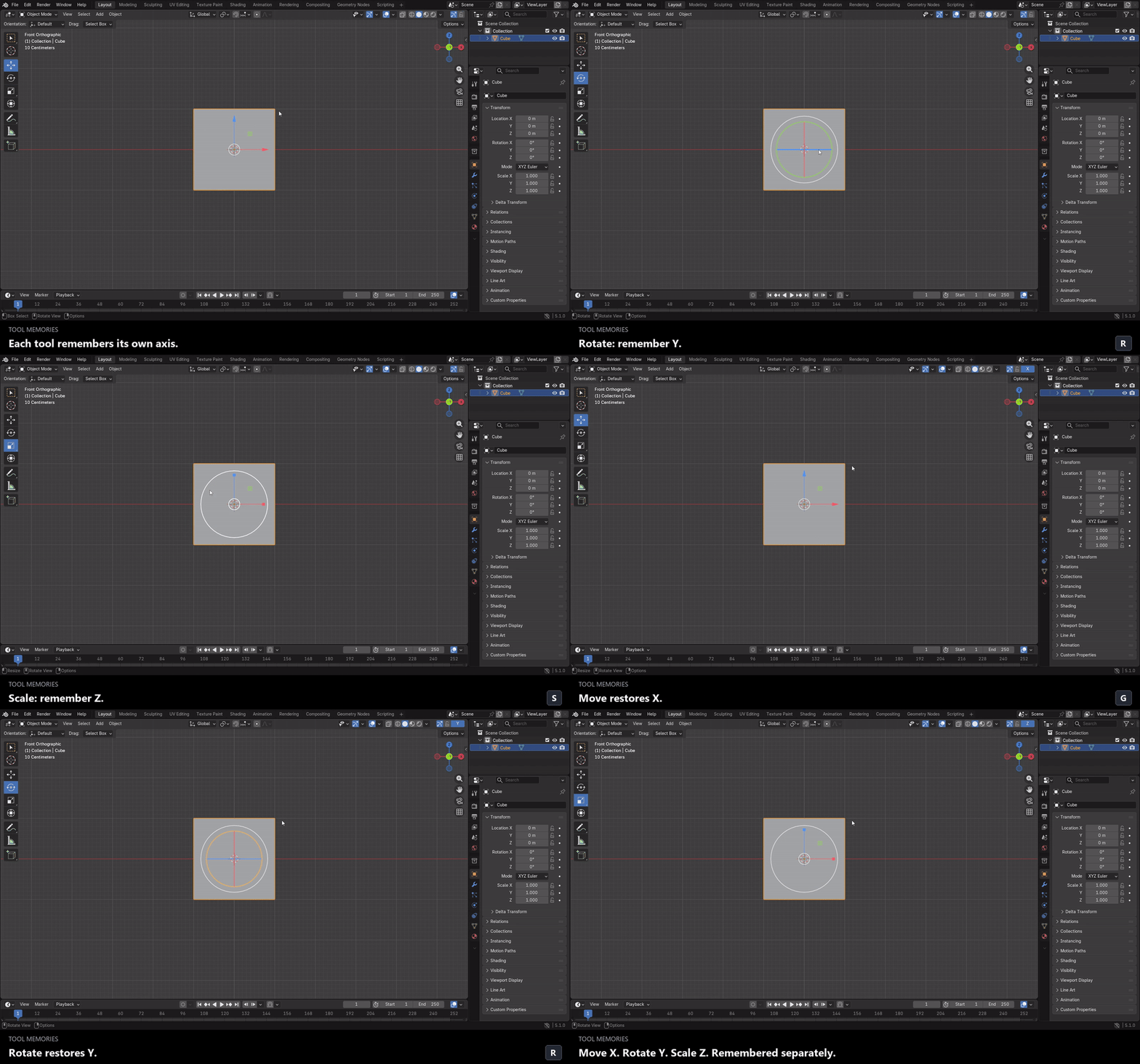
Keep a different remembered handle for each transform tool. Switch between Move, Rotate and Scale and return to each tool's own constraint. Memories are separated by editor and mode.
Use the axes, planes, centers and rotation handles provided by AxisLatch for the active native tool. AxisLatch uses Blender's public Gizmo and transform APIs; it does not add an N-panel workflow.
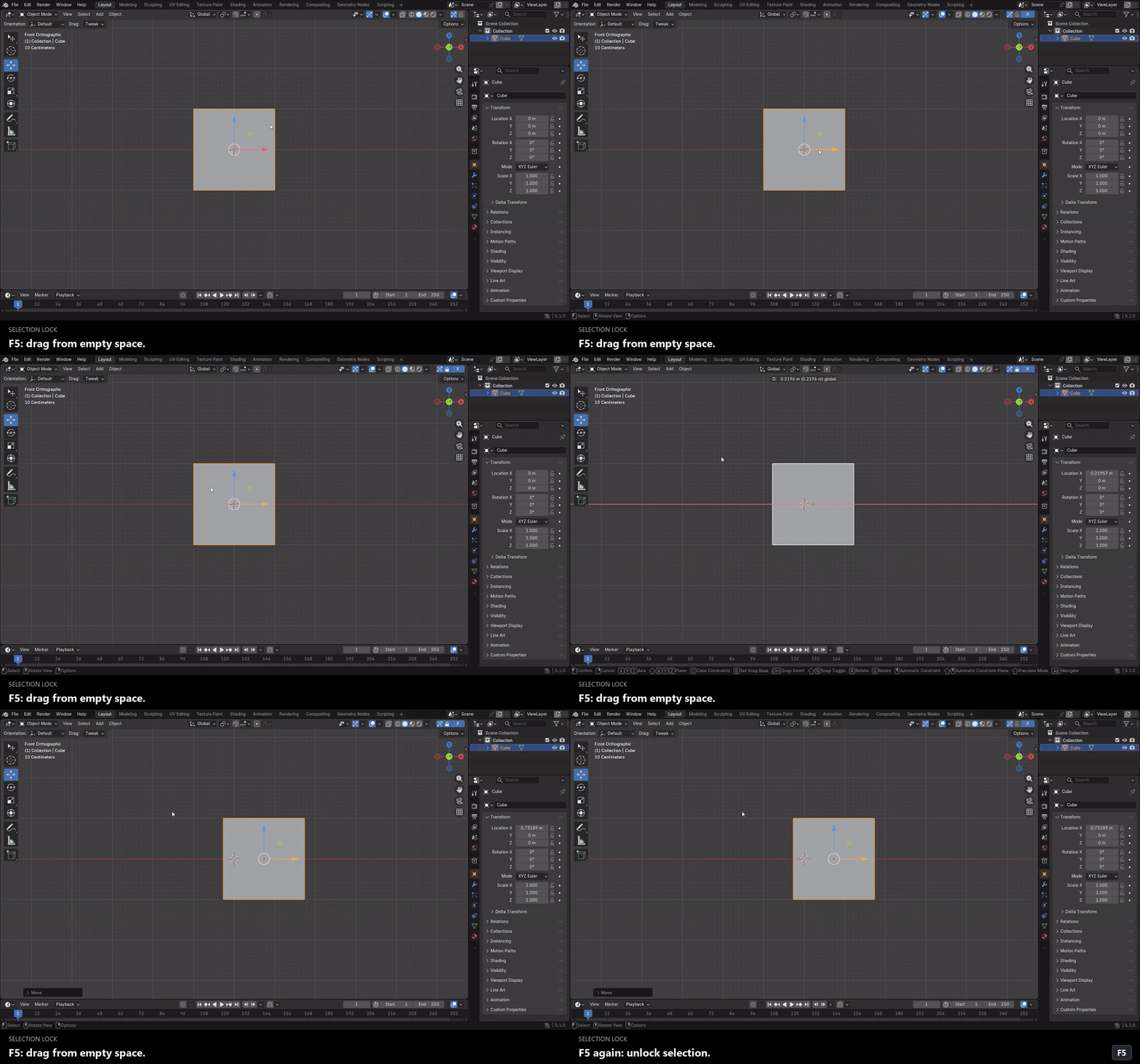
Drag from empty space with Selection Lock
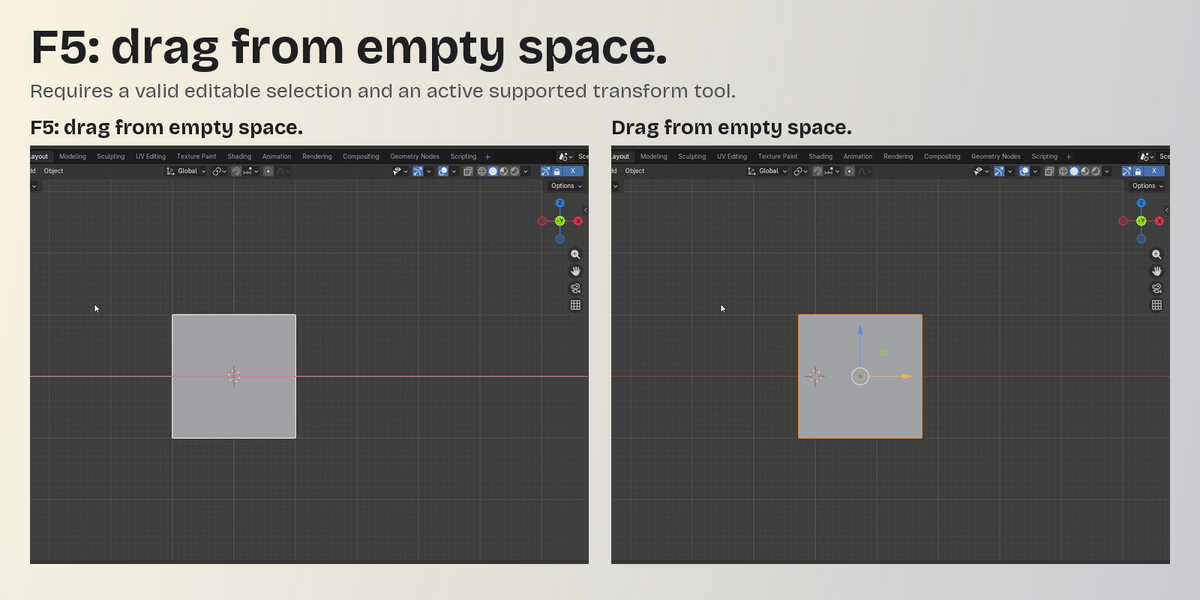
Small or distant objects can be awkward to grab. With your object selected and a constraint chosen, turn on Selection Lock and start your drag from empty viewport space instead. You no longer have to put the pointer on the object or its gizmo to start each adjustment.
Selection Lock keeps clicks from replacing the current selection; it does not freeze the object. It requires a valid editable selection and an active supported transform tool, and empty-space dragging takes place inside the editor's working area—not over menus or outside Blender.
Toggle it with the header lock icon or F5 by default. Change the shortcut in AxisLatch's add-on preferences using Blender's standard keymap controls.
Change, clear or switch off
- Click or drag a different AxisLatch handle to choose a new constraint.
- Click the remembered handle's name in the header to clear it.
- Turn off the top Gizmo toggle to disable AxisLatch interaction and clear its remembered constraint and Selection Lock state.
AxisLatch follows your configured native transform shortcuts to switch and keep the corresponding tools active—G / R / S with Blender's default keymap.
Editors and limits
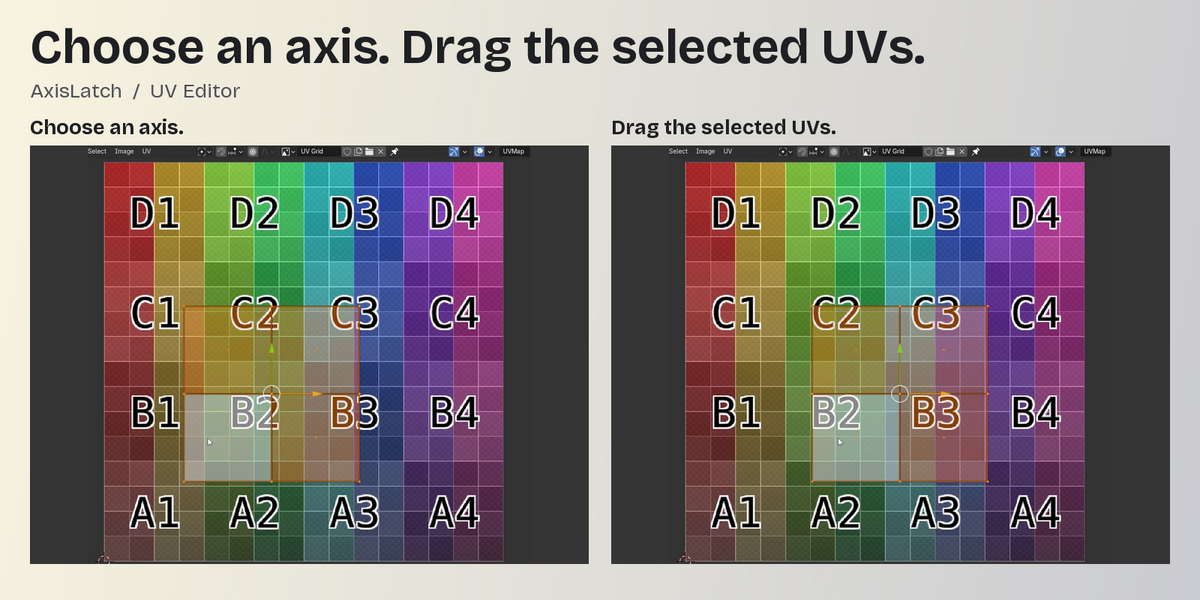
Alongside the 3D View, AxisLatch includes workflows for the UV Editor, Blender 5.1 Mask Editor, and the Sequencer's separate Preview mode. Available handles and behavior depend on the editor and mode.
- Blender 4.2 Mask editing is not supported; AxisLatch stays inactive there.
- The 2D Transform Cage is not included in remembered-handle recognition.
- Mask feather points remain under Blender's native interaction. Deformed or tracking-parented masks do not carry a guarantee of equivalent hit detection.
- Sequencer text uses an estimated hit area rather than pixel-accurate glyph boundaries.
- Non-mesh editing uses conservative selection hit detection. Full interaction coverage is not equivalent across every editor, mode or complex multi-object setup.
- Node editors, graph editors, dope sheets and the sequencer timeline are not replacement transform-tool contexts for AxisLatch.
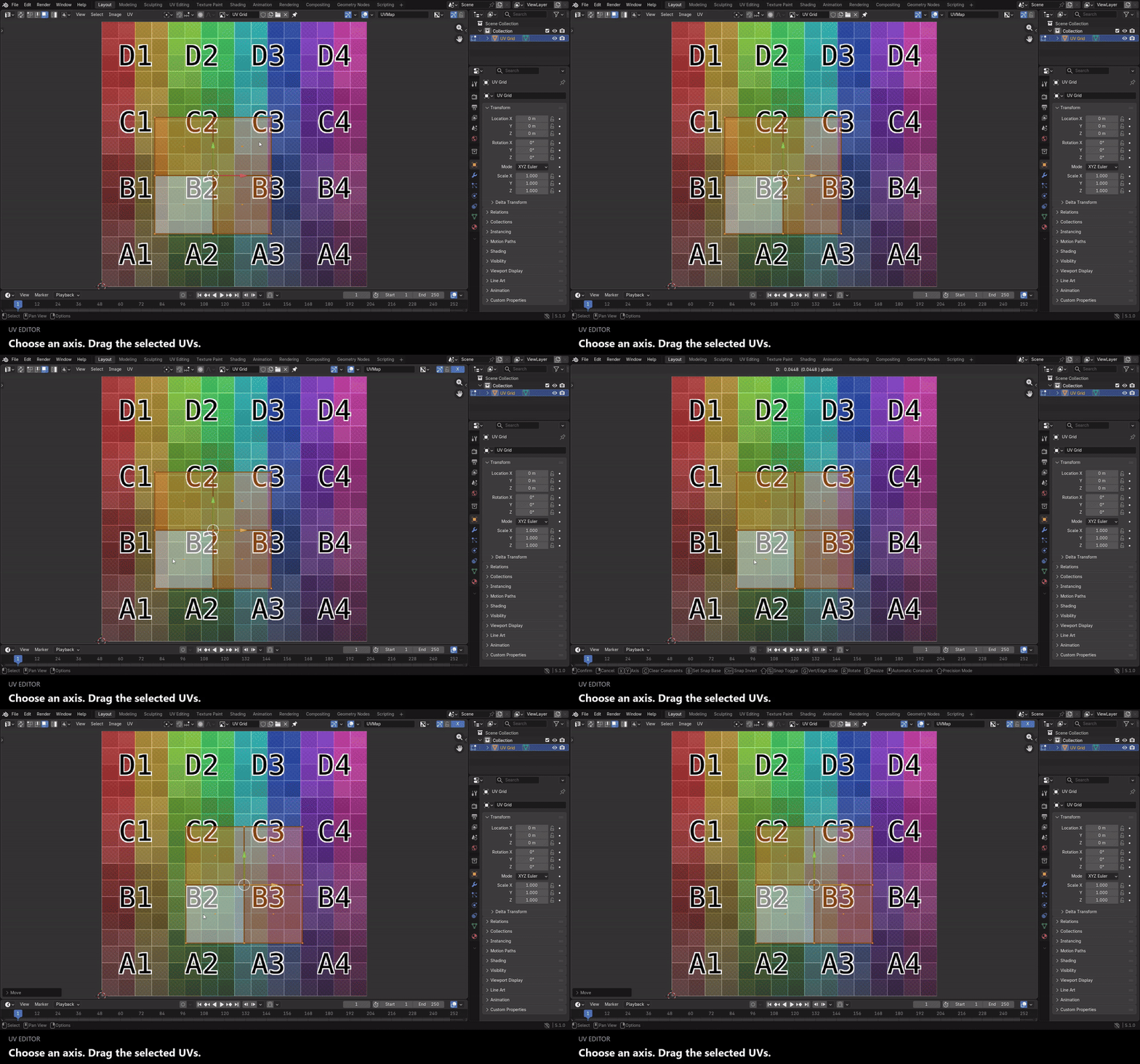
Included
- AxisLatch 1.0.0 installable Blender add-on ZIP
- English quick-start and stability notice, plus a Chinese installation and usage guide
- GNU GPL v2 or later license
- Offline operation, with no third-party dependencies or bundled external binary
Installation
- Check that you are using Windows x64 and that your Blender version falls within one of the two allowed ranges above.
- In Blender Preferences → Add-ons, use Install from Disk to select the ZIP without extracting it.
- Enable AxisLatch. No N-panel setup is required.
If you installed an earlier development test package, disable and uninstall it first. Its settings are not migrated to this release. After an update in an already-open Blender session, re-enable the add-on or restart Blender.
FAQ
Is this for people who prefer visual controls to repeated X/Y/Z key presses?
Yes. Click the AxisLatch handle for the direction you want, then drag your selected content using that remembered constraint. AxisLatch is a visual alternative for this workflow, not a requirement to abandon Blender's keyboard controls.
Do I have to click the gizmo every time?
No. Once a constraint is chosen, drag directly on your selected content. With Selection Lock enabled and a valid editable selection, you can also start from empty editor space.
Does AxisLatch replace Blender's Gizmos?
It draws its own public Gizmo handles and uses Blender's native transform operators, adding handle memory, yellow highlighting and optional Selection Lock.
Can I use another Blender build or operating system?
On Windows x64, other builds within 4.2.19 ≤ version < 4.3.0 or 5.1.0 ≤ version < 5.2.0 are allowed to enable; the build hash is not restricted. Only the two builds listed under “Tested builds” have been tested, so this is not a claim that every allowed patch release has been verified. Versions outside those two ranges, including the intervening Blender release series, and other operating systems are not supported and are blocked at enable time.
Do I need a new set of transform shortcuts?
No separate transform-key configuration is required. AxisLatch follows your configured native transform shortcuts to switch tools. Selection Lock has its own editable shortcut, default F5.
What should I include in a support request?
Please include your Blender version and build, editor and mode, and the steps that reproduce the issue. Share a small example scene or recording when possible, with private material removed.
