 Li Shoujing
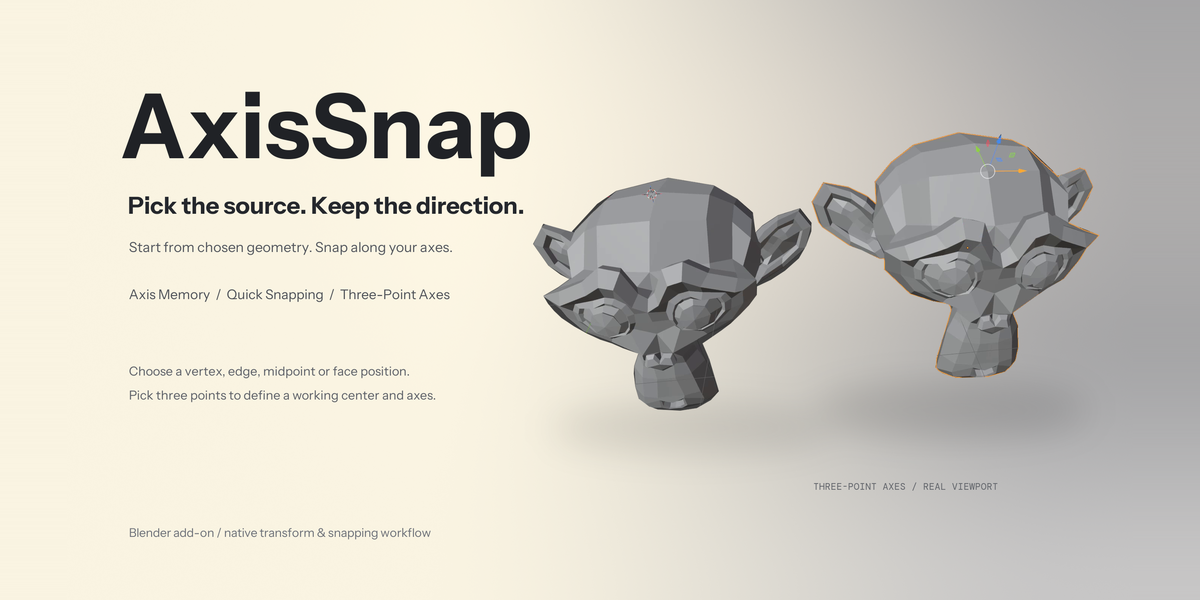
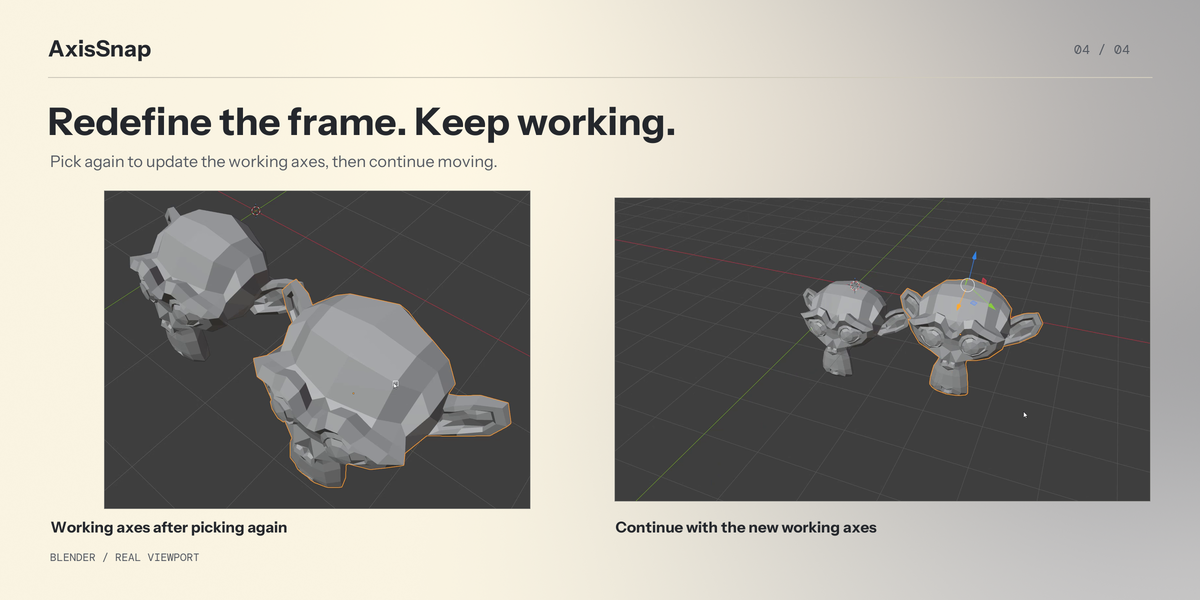
Choose your source. Keep your direction.
AxisSnap brings AxisLatch axis memory and Quick Snap into one Blender add-on. Pick the geometry you want to move from, choose the direction you want to keep, and place your selection using Blender's native transform and snapping tools.
This release is for Windows x64 and Blender 4.0–5.2. Its controls, tooltips and operation messages support English and Simplified Chinese, following Blender’s language and translation preferences. AxisLatch is included; a separate AxisLatch purchase or installation is not required.
1. Quick Snap with axis memory off
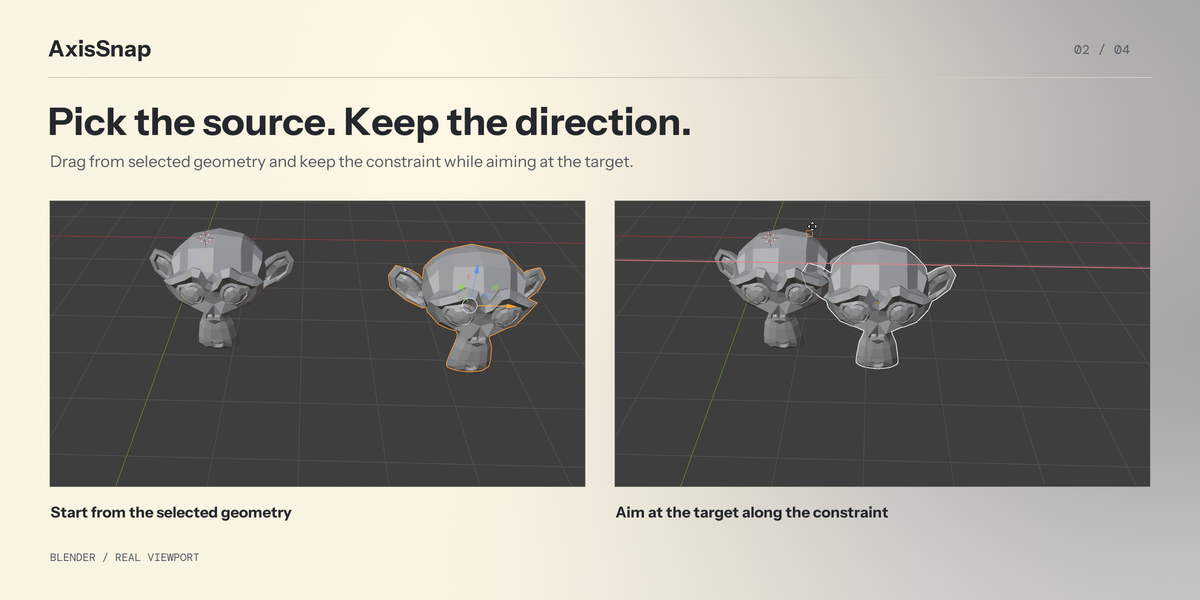
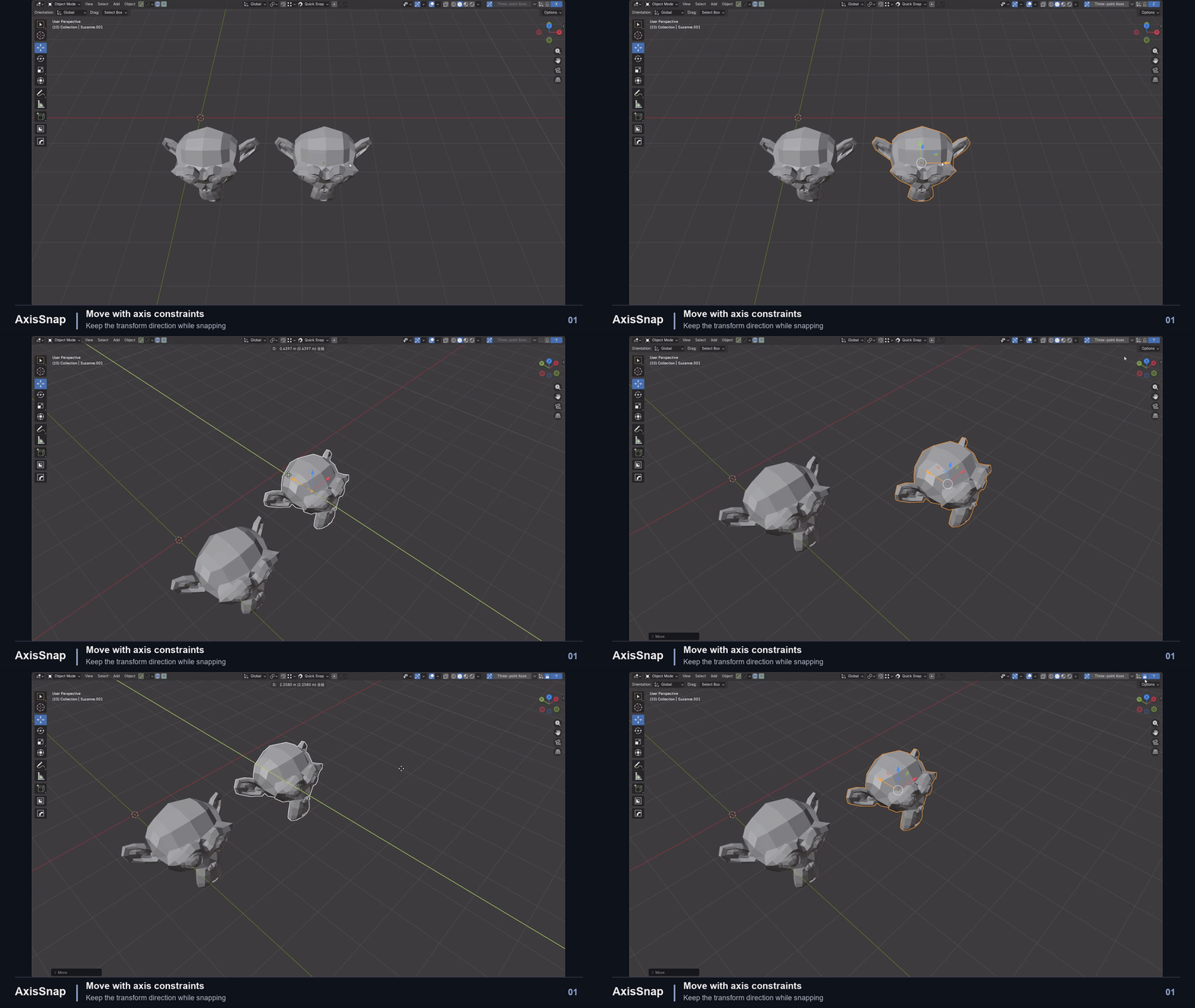
With snapping enabled, press G, pick a source on the selected geometry, then point to a target and click to confirm. With snapping disabled, G first previews a free move. Pressing Ctrl restores that move's starting pose and enters source selection. Once the native transform begins, Ctrl follows Blender's temporary snap-toggle behavior.
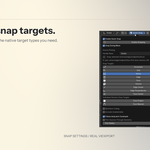
Use X, Y or Z to constrain one axis. Use Shift+X, Shift+Y or Shift+Z for the YZ, XZ or XY plane. You can also drag directly from selected geometry with the Move tool. Escape or right-click cancels the current operation.
Repeat an axis shortcut to cycle the shared orientation, its alternate and no constraint, including before and after source picking. Global alternates with Local; Local, Normal and three-point orientations alternate with Global. Shift+the same axis key cycles the corresponding plane. Once the native transform starts, release Ctrl before an axis shortcut, following Blender's default keymap. Distinct per-tool orientations retain Blender's tool-specific switching behavior.
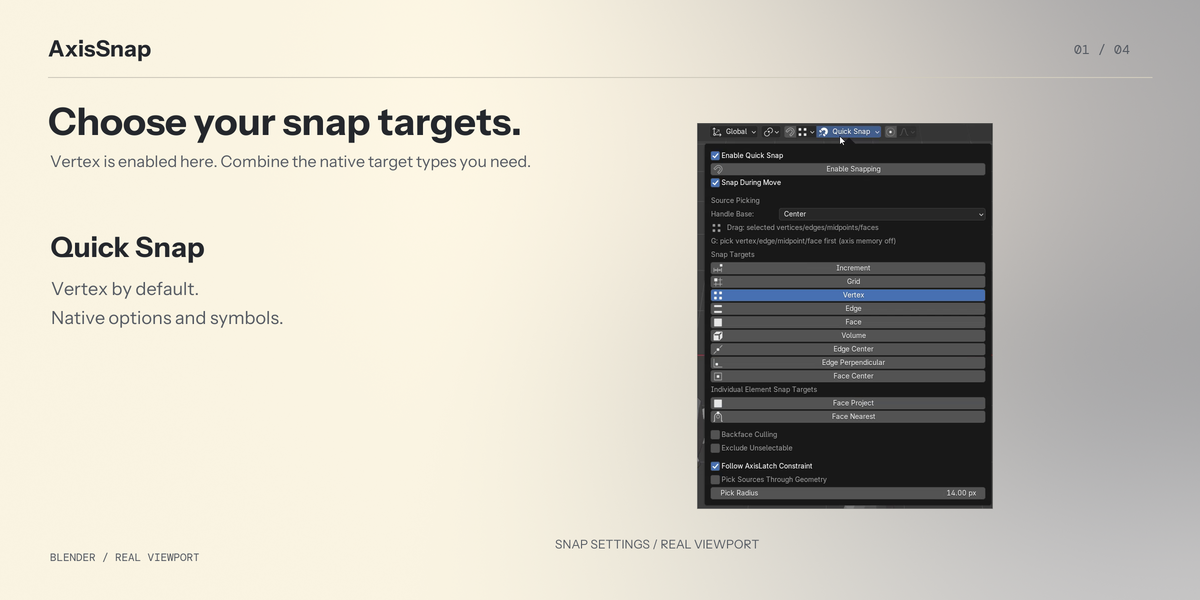
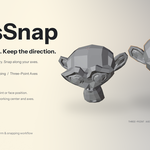
Sources can be vertices, positions on edges, edge midpoints or positions on faces. Enable the source types you need through the corresponding snap choices. Target snapping offers combinable native choices; only Vertex is enabled by default. Additional native target types do not become additional source types.
2. Quick Snap with AxisLatch axis memory on
Press G, R or S to activate the Move, Rotate or Scale tool. Click a native axis or plane handle to remember its constraint. Each tool remembers its own constraint, with separate memories for Object and Edit modes.
With Move active, drag from selected source geometry to snap along the remembered axis or plane. You can turn off Follow AxisLatch Constraint when you want snapping to ignore that memory. In this mode, G activates the Move tool; turn axis memory off to use the G source-selection workflow above.
Dragging a handle uses the Center snap base by default. With a three-point working frame active in Object Mode, this is its first point. In Edit Mode, the center follows the current selection and Blender's pivot rule. Otherwise, for one ordinary object it usually means its origin; multiple objects follow Blender's current pivot. Dragging geometry uses your chosen source position. It does not relocate the object's origin. F5 toggles Selection Lock, and clicking the current-axis header button clears the memory.
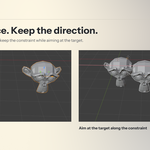
Define working axes with three picks
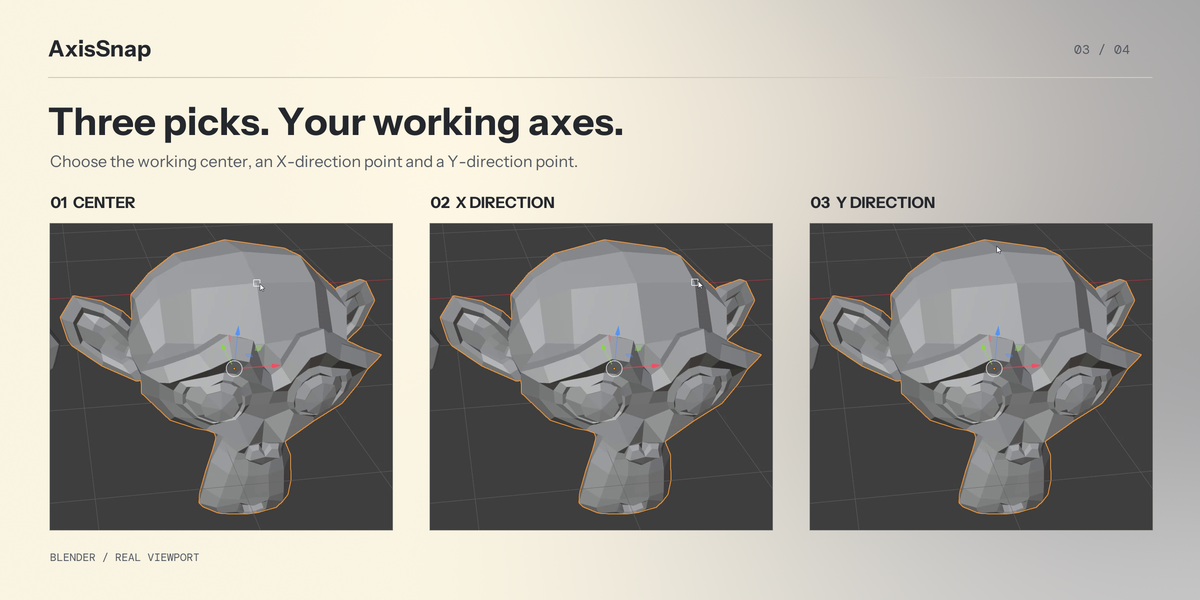
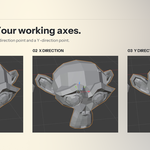
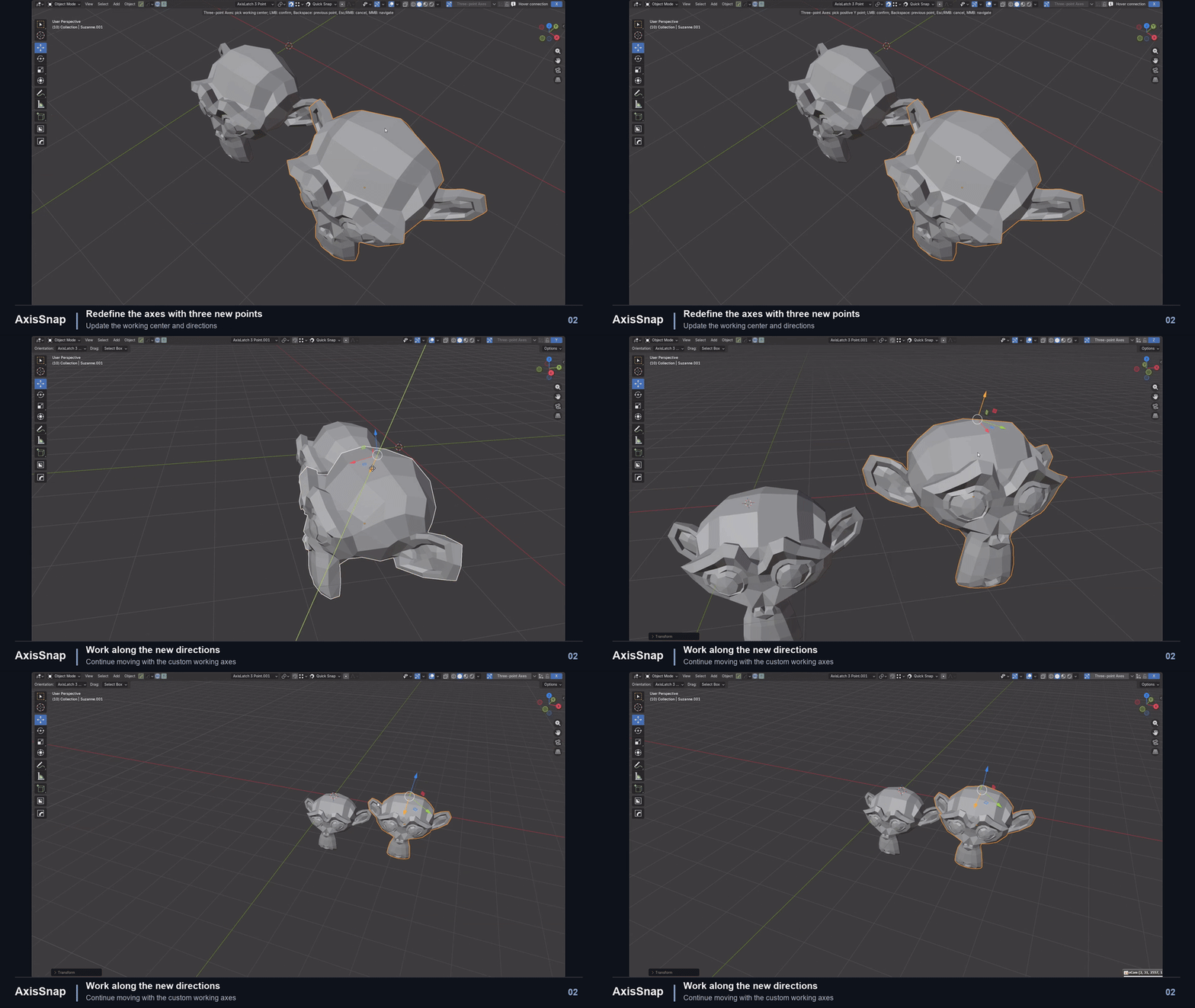
The header's Three-point Axes button starts Dual-edge Alignment picking by default; its adjacent dropdown also offers Orthogonal Axes. For Dual-edge Alignment, pick the center, an X-direction point, then a Y-direction point. X follows the first-to-second-point edge, Y follows the first-to-third-point edge, and Z is perpendicular to their plane. The frame preserves the actual angle between the two edges when defined.
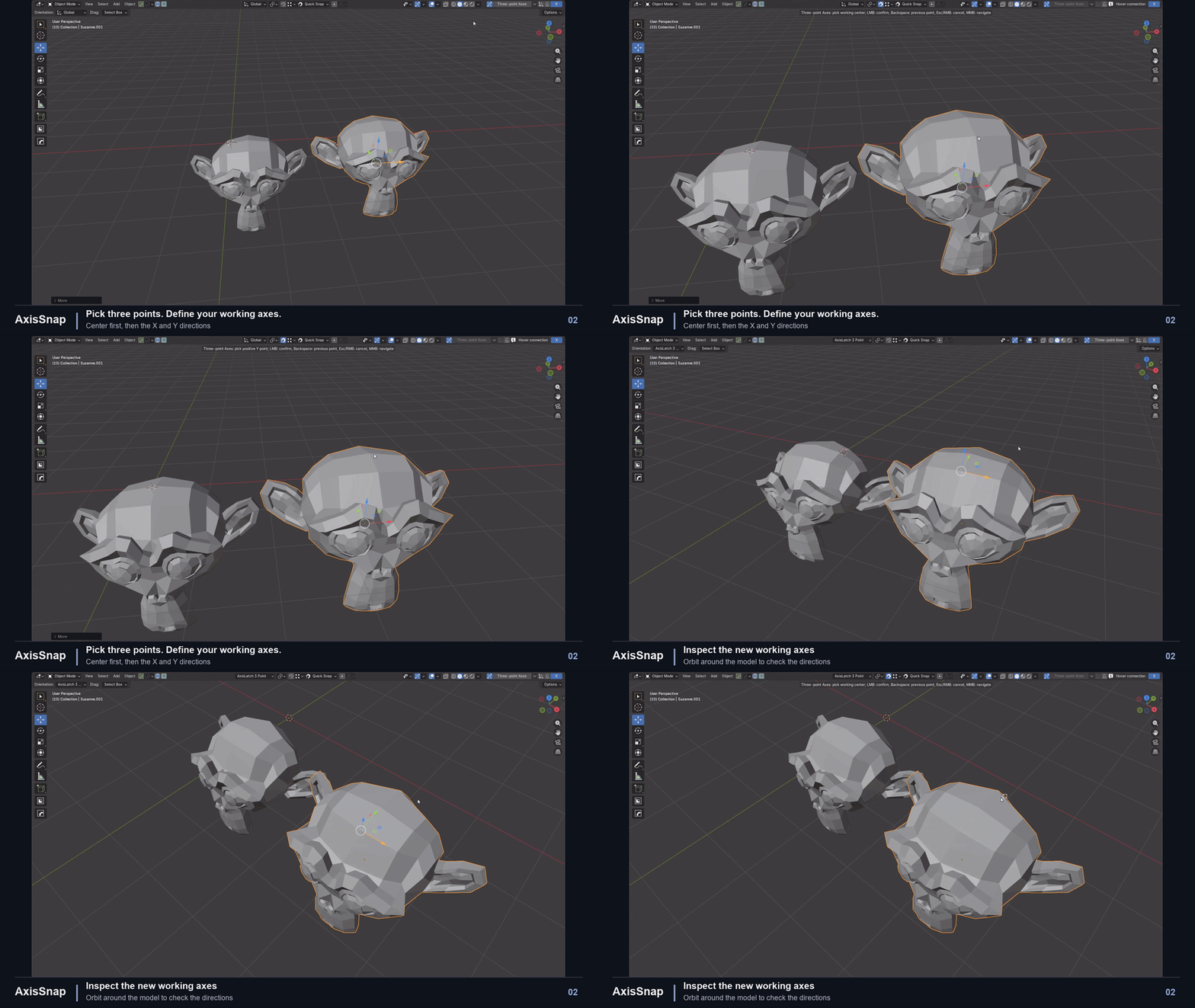
For Orthogonal Axes, pick the center, a positive-X direction point, then an XY-plane point on the positive-Y side. X follows the first-to-second-point direction; Y is perpendicular to X in the plane defined by the three points. This option provides conventional perpendicular working axes.
Both modes create a native custom transform orientation. In Object Mode, the working handles use the first point as their center; in Edit Mode, their center follows the current selection and Blender's pivot rule. Move, Rotate and Scale use that mode-dependent center with a shared pivot. In Mesh Edit Mode, Individual Origins retains Blender's separate element centers for rotation and scaling; the single displayed working handle remains at the selection center. Defining the frame preserves object transforms and origins, geometry, selection, the 3D cursor's location and rotation, the pivot setting and the active tool identity. A geometry drag still uses its explicitly picked source.
In Object Mode, a newly defined center follows the active selected object's actual transform while the three-point direction stays fixed. Deselecting or deleting that object restores the ordinary pivot. Frames saved by earlier builds need three-point definition again to establish this attachment. In Edit Mode, the three points define the direction while the center follows the currently selected vertices, edges or faces, including after selection changes or geometry moves. Median Point, Bounding Box Center and Active Element follow Blender's pivot rules; an explicitly selected 3D Cursor pivot uses the cursor. The pivot setting and cursor are not rewritten.
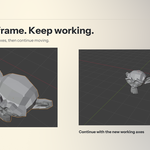
Backspace returns to the previous pick. Escape or right-click cancels. Temporary snapping changes made for picking are restored when the operation ends. Choosing World Axes restores ordinary tool handles.
Three-point Axes and World Axes make Move, Rotate and Scale inherit the shared header orientation, preserving native alternate-direction cycling while dragging a handle. Press its axis key to switch direction; Shift+an axis key selects its plane, and repeating that shortcut switches the plane's direction. Scenes saved with an older build's duplicate tool overrides can be reset by choosing World Axes once or redefining the frame. Independently chosen tool orientations otherwise follow Blender's native behavior.
Nonuniform scaling along oblique, edge-aligned axes can produce shear and change the original edge angles. Edit geometry can undergo that shear. Object Mode follows Blender's native location/rotation/scale (TRS) limits and may not reproduce an arbitrary oblique affine shear exactly, which can also shift the bound reference point and center. Choose Orthogonal Axes when perpendicular-axis scaling is required.
Work with selections and evaluated geometry
In Object mode, translation moves the selected objects together while preserving their relative placement. In Edit mode, it moves selected geometry only.
Object-mode sources can come from evaluated mesh modifiers and mesh Geometry Nodes instances without applying or disabling modifiers. Edit mode uses selected control geometry by default. With On Cage enabled, an object with selected visible geometry can also supply a spatial source from its evaluated result. Generated indices are not written into the original mesh.
Keep the familiar Blender controls
AxisLatch and Quick Snap retain separate header entrypoints, with Quick Snap beside Blender's snapping controls. AxisSnap adds no N-panel tab. Snap markers use Blender's actual native drawing and theme colors. Three-point working-frame handles use Blender's built-in gizmo renderers at the chosen center, retaining the native tool identity and keymap. They follow Blender's Show Gizmos and Active Tool visibility switches.
Included
- One installable add-on containing axis memory, three-point working axes and Quick Snap.
- English and Chinese installation and usage instructions.
- Python source under GPL-2.0-or-later.
Surface alignment, smart surface sliding and batch surface placement belong to the separate QuickAlign add-on and are not included. QuickAlign is optional; AxisSnap works independently.
Compatibility and practical limits
The supported Blender series are 4.0–5.2, on Windows x64 only. Other operating systems and versions are blocked at enable time. Installation and lifecycle checks for the release archive cover 4.0.2, 4.1.1, 4.2.19, 4.3.2, 4.4.3, 4.5.15, 5.0.1, 5.1.0 and 5.2.3. Representative viewport workflow coverage includes 4.0.2, 4.2.19, 5.1.0 and 5.2.3. This is not an every-feature test on every patch release, custom keymap or modifier combination.
With snapping off, the G free-move preview follows Affect Only Parents and mesh edit symmetry. Ctrl restores the complete starting state before source picking, including unselected children and symmetric vertices. This preview does not insert automatic keyframes, merge geometry or correct face attributes; confirmation retains the preview result. After source picking, Blender's native transform handles the final movement and its options. Proportional editing is disabled for Quick Snap movement.
Evaluated sources are position snapshots. Non-rigid modifiers, external references and Mirror clipping may prevent a generated point from landing exactly on the target after the move. Non-mesh outputs, nested instances, zero scale and locked, constrained, driven or linked data have limits. AxisSnap does not automatically remove those user settings.
Dense-scene evaluation and rebuilding after undo can pause. Constant smooth performance at 500,000 or 1,000,000 faces is not promised. Some idle hover hints may be hidden when the public API cannot display the selected filtering combination accurately; actual transforms still use native snapping. Native snap-marker colors follow Blender's theme.
Blender 5.1 issue under investigation: an automated stress sequence involving axis hover, two windows sharing a workspace and a scene switch caused a crash. The same sequence also crashed with no add-ons loaded; its cause remains unresolved.
Installation
Keep the ZIP intact. In Blender Preferences, use Install / Install from Disk as available in your version, choose the ZIP, and enable AxisSnap. Save your scene and finish active operations before switching add-ons. Disable older standalone AxisLatch, Quick Snap or Alignment Suite packages that provide the same functions. Existing standalone preferences are not automatically migrated. QuickAlign may remain enabled.
Support
Use Contact the Creator on this product page. Include your Blender version, Object or Edit mode, whether axis memory is enabled, relevant modifiers and the steps that reproduce the issue. Share a minimal scene only if you are comfortable doing so.
