 RobertRoss_VFX



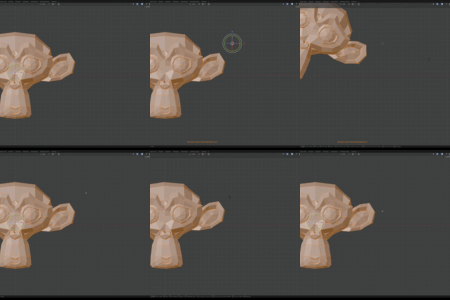
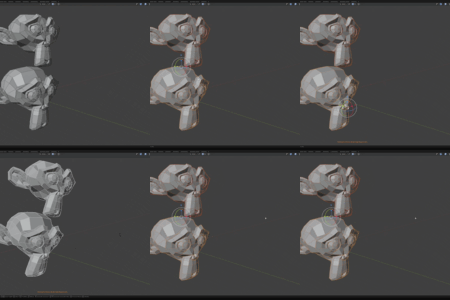
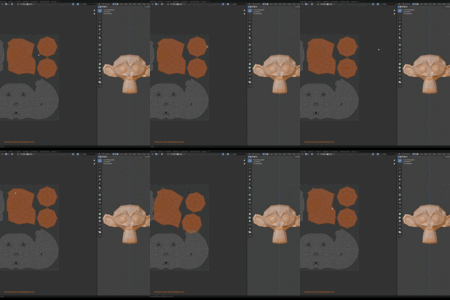
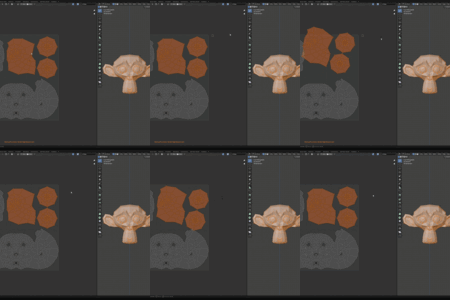
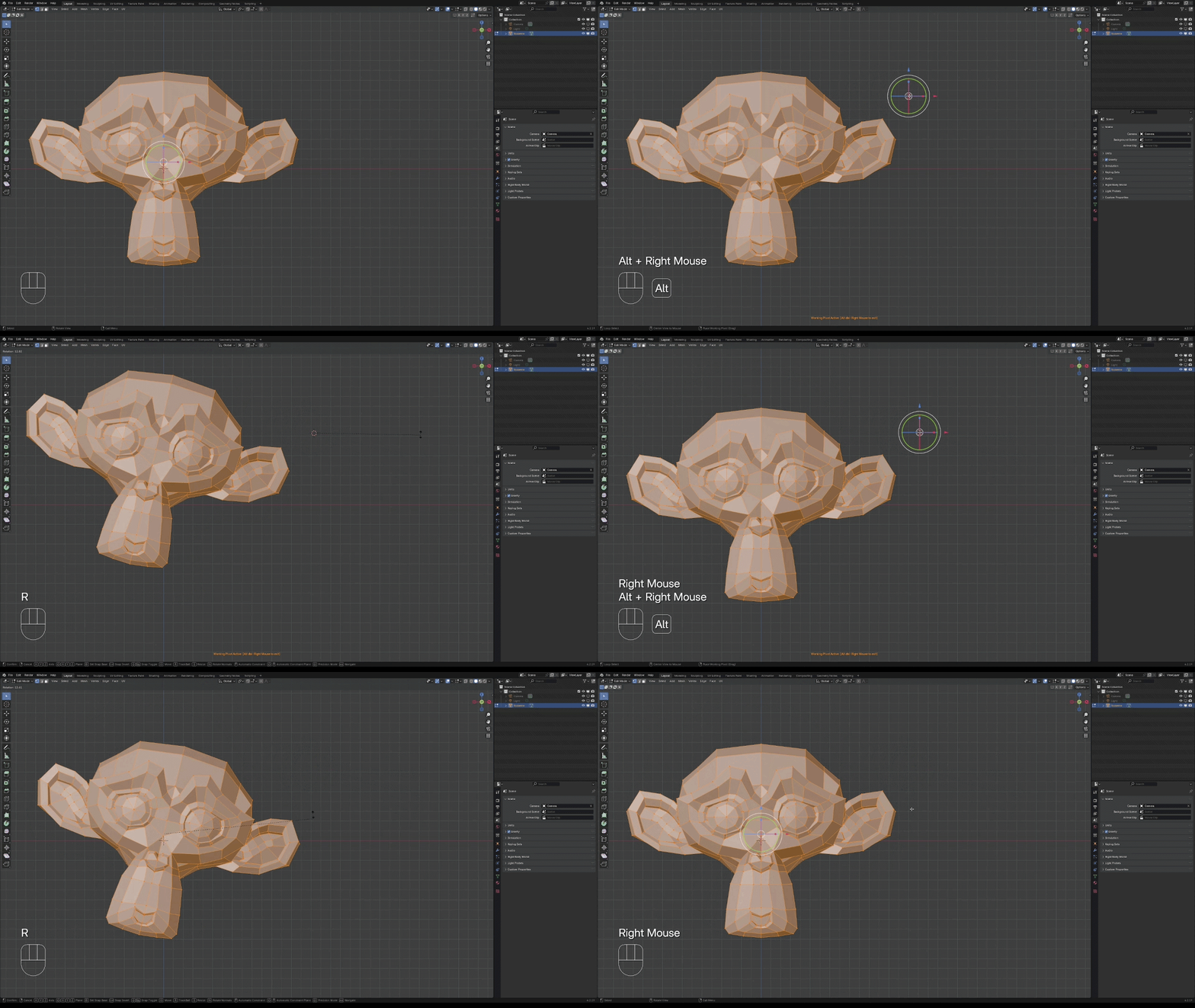
A working pivot, then it is gone.
Hold Alt and drag with the right mouse button. The cursor becomes the transform pivot and follows the mouse. When the edit is done, Alt and a double right-click put the previous pivot and the previous cursor back. The same shortcut works in the UV Editor.
Drag the pivot into place.
Alt + RMB in the 3D Viewport. The pivot tracks the cursor while the button is held. Release, and rotate, scale, and move use that point. Object Mode and Edit Mode.
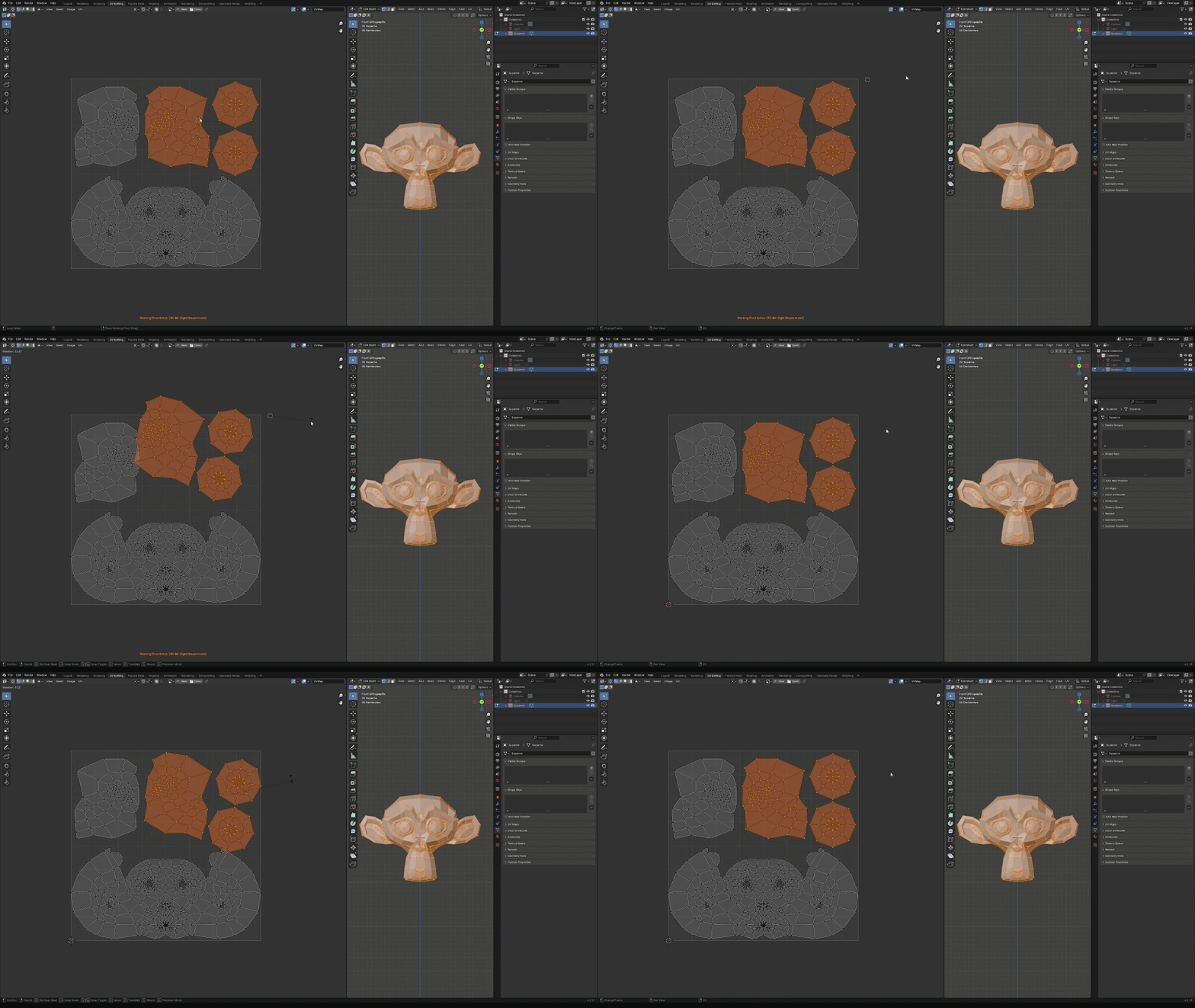
The same drag, on the islands.
The UV Editor takes the same shortcut. The 2D cursor follows the mouse, and the UV pivot switches to it for the edit.
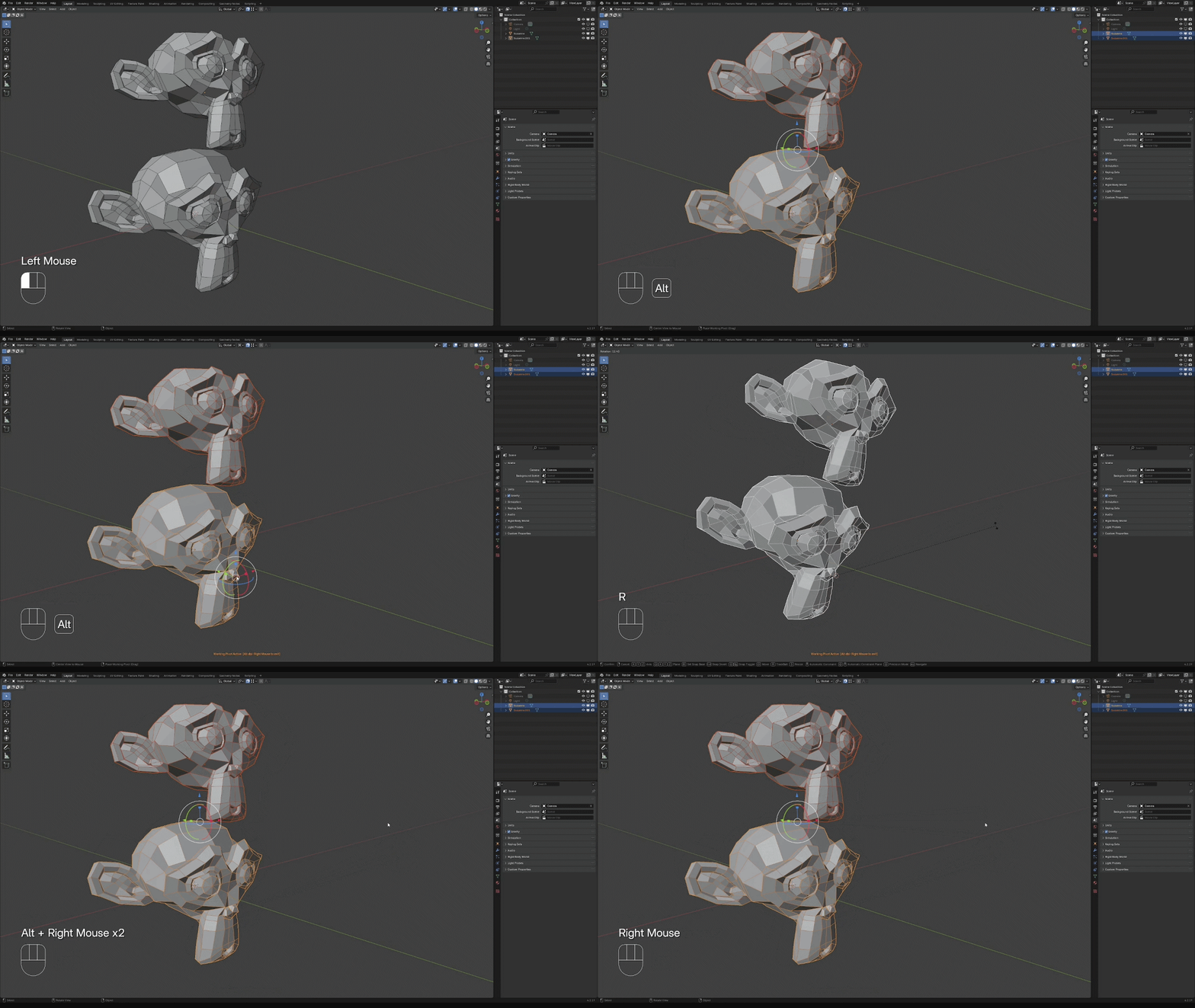
Vertex, or the fine grid.
Turn on Blender's magnet. Vertex drops the pivot on the nearest vertex. Increment drops it on the viewport's fine grid. The setting you already use is the one it reads.
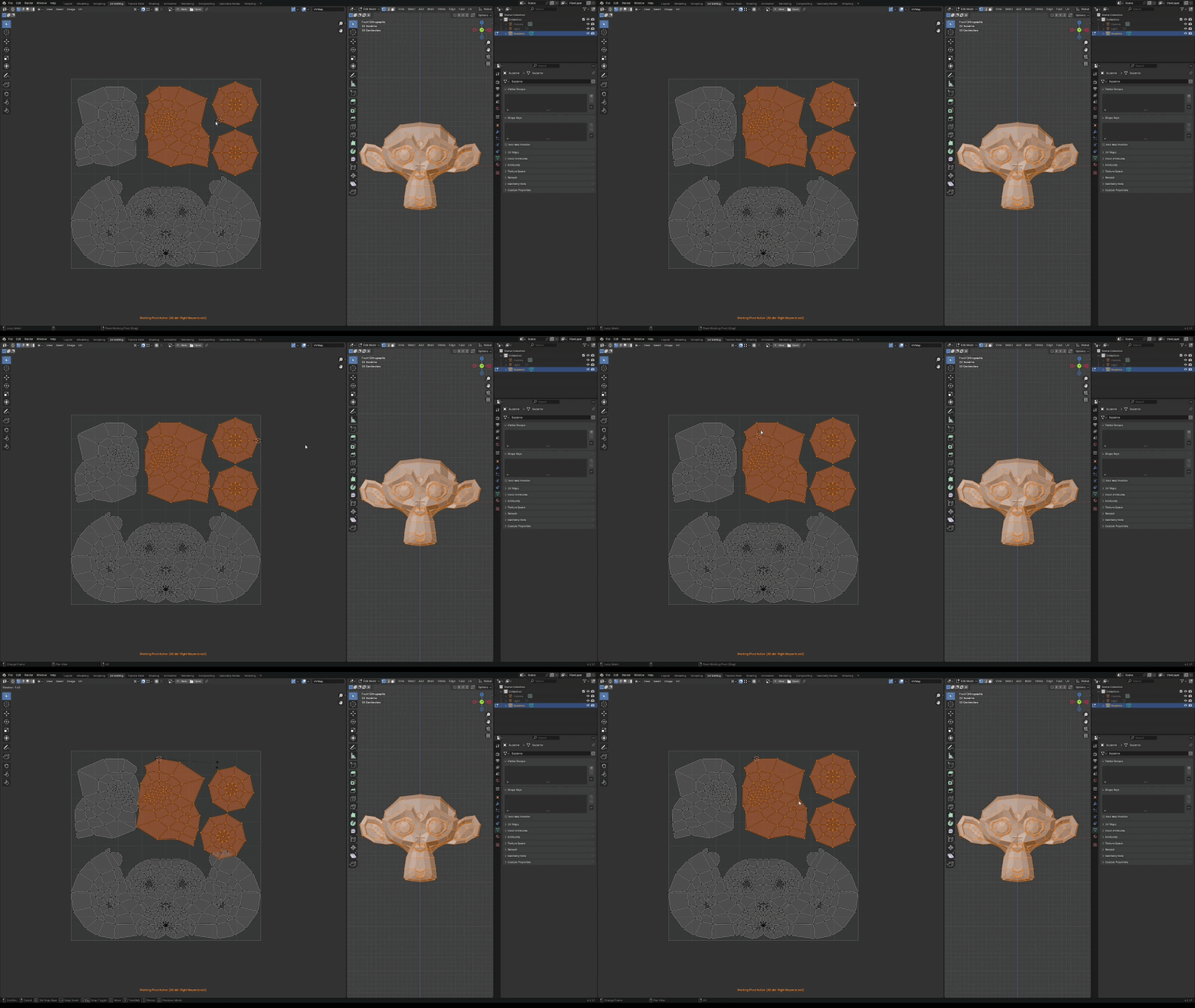
The UV magnet, on its own.
The UV Editor keeps a separate magnet. Vertex snaps to UV vertices. Increment snaps to the UV grid. The 3D Viewport snapping stays as you left it.
How it works
Three steps. The shortcut is the whole interface.
Drag
Hold Alt + RMB. The pivot follows the mouse in the 3D Viewport or the UV Editor. Drag again to move it.
Edit
Rotate, scale, and move from that point. The transform pivot is the cursor until you clear it.
Restore
Alt + double RMB puts back the Transform Pivot Point and the cursor from before you started.
Stays out of the way
A line at the bottom
While the pivot is active, a small HUD sits at the bottom of the view and names the shortcut that clears it. The sidebar and the header stay as they were.
Each editor keeps its own
Clearing the pivot in the 3D Viewport restores that view. The UV Editor keeps its own cursor and its own pivot until you clear it there.
Your keys
Place and clear are both in the add-on preferences. Change them once. They apply in the 3D Viewport and the UV Editor.
What it uses
Blender's cursor, pivot, and magnet. The add-on borrows them for the edit, then hands them back.