Batch FileR
 Dani K Daniel


Batch FileR Documentation
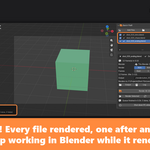
Batch FileR queues your .blend files and renders them one after another in the background, without leaving Blender. This page explains how to install it and how every part of it works. The same guide is included as a PDF: click the ? button in the Batch FileR panel to open it.
Requirements
- Blender 4.2 or newer (tested with Blender 4.3 and 5.2).
- Windows 10/11. Shut down PC when done is a Windows-only option.
- Enough free disk space in your output folders.
Installation
- Download batch_filer-1.0.0.zip. Do not unzip it: Blender installs the zip directly.
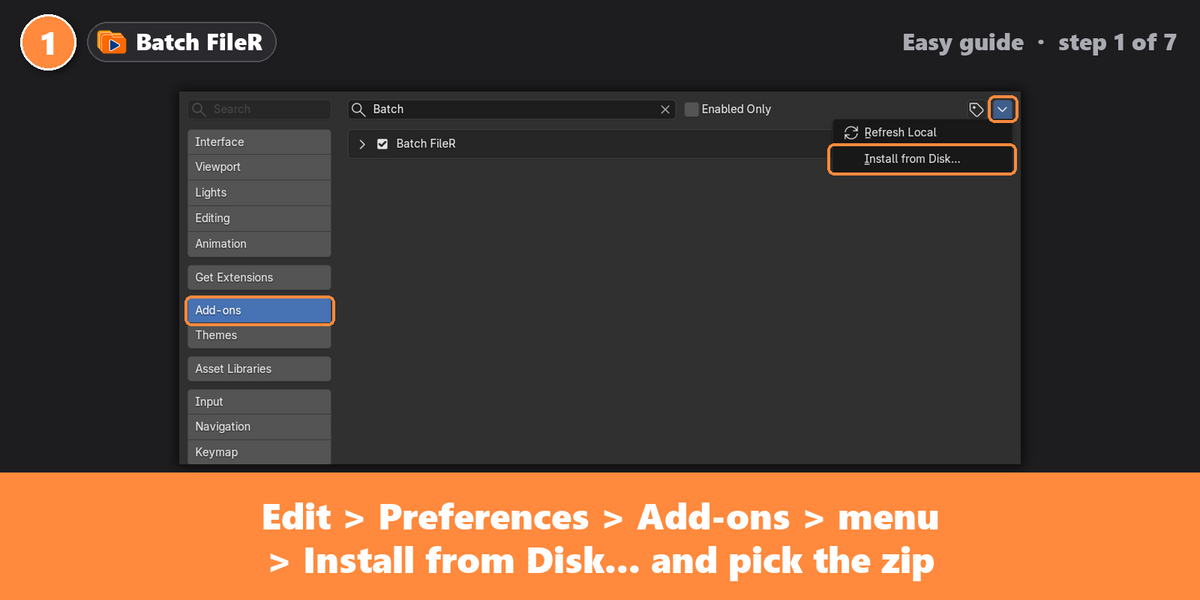
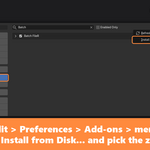
- In Blender, open Edit > Preferences > Add-ons.
- Click the down-arrow menu in the top-right corner and choose Install from Disk...
- Select the zip file and click Install from Disk.
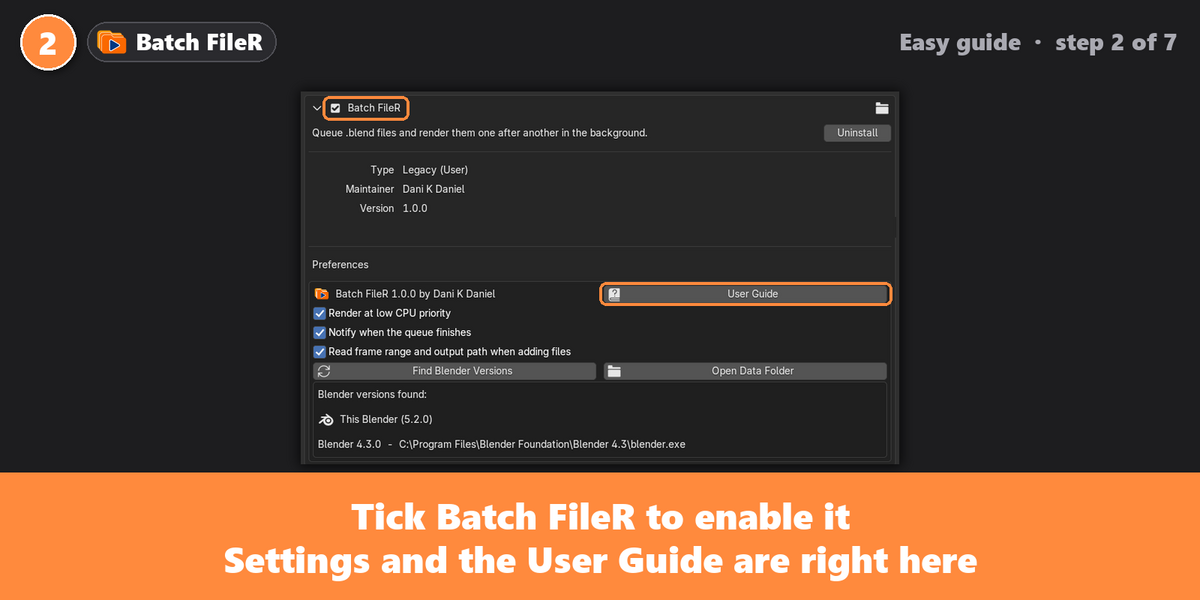
- Make sure Batch FileR is ticked in the add-on list.
Updating to a new version
- In Edit > Preferences > Add-ons, expand Batch FileR and click Remove (Uninstall).
- Close and reopen Blender. This step matters: skipping it can cause a "cannot find the file" error.
- Install the new zip as described above. Your render queue is kept.
Opening Batch FileR
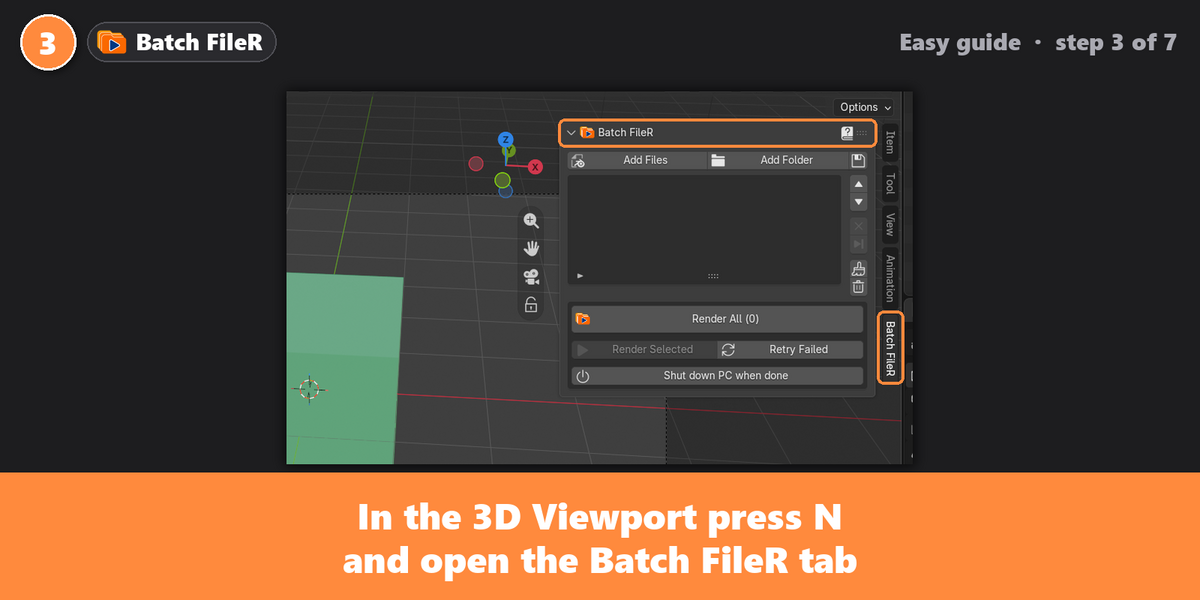
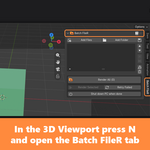
- 3D Viewport: press N to open the sidebar and click the Batch FileR tab.
- Properties editor: open the Output tab and expand the Batch FileR panel.
The panel at a glance
| Part | What it is for |
|---|---|
| Add Files / Add Folder | Add .blend files. The small button next to them adds the file you have open. |
| File list | Your queue, in render order. The checkbox includes or excludes a file from Render All. The right side shows the frame range and the result. |
| Side buttons | Move up or down, remove, skip or un-skip, clear finished files, clear all. |
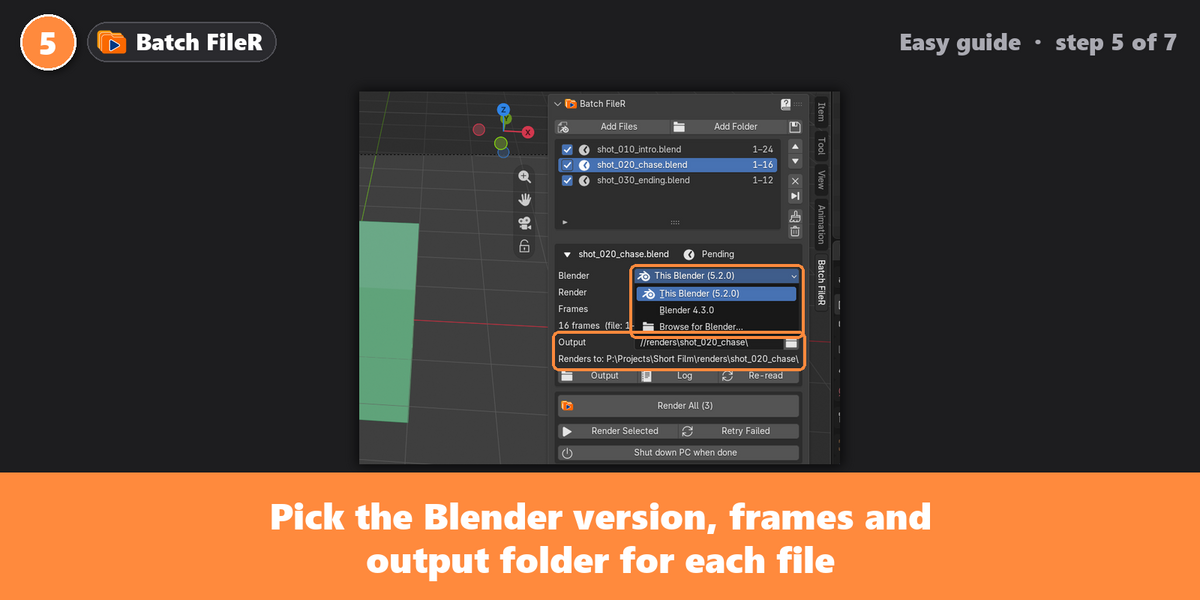
| File details | Settings of the selected file: Blender version, render mode, frames and output. |
| Render buttons | Render All, Render Selected, Retry Failed, and Shut down PC when done. |
Adding files
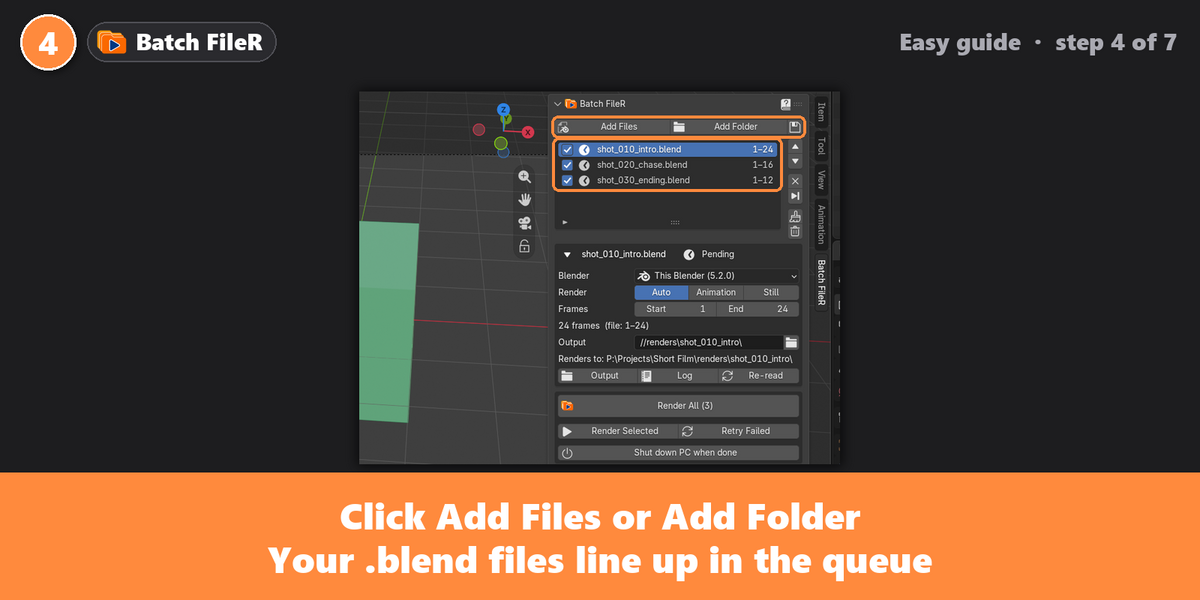
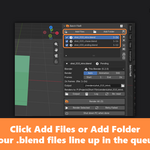
- Add Files opens a file browser. Select one or more .blend files (Shift or Ctrl + click).
- Add Folder adds every .blend file in a folder and all its subfolders. Backup files (.blend1, .blend2 ...) are ignored.
- Add Current File adds the file you have open. Batch FileR renders the saved version, so save your changes first.
- A file that is already in the queue is not added twice.
- After adding, Batch FileR reads each file's frame range and output path in the background. The list shows reading... for a few seconds.
Settings for each file
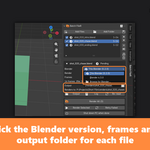
Click a file in the list to see its settings below the list. Changes are saved immediately and only affect the render. Your .blend file is never modified.
| Setting | What it does |
|---|---|
| Blender | The Blender version that renders this file. This Blender is the one you are using. Other versions found on your PC are listed, or choose Browse for Blender.... A file saved in a newer Blender cannot be rendered by an older one. |
| Render | Auto renders an animation if the file has a frame range, otherwise a still. Animation or Still force one or the other. |
| Frames | Start and End for an animation, or the Frame for a still. They start with the values saved in the file. |
| Output | Where the frames are saved. Starts with the path saved in the file; // means "relative to that .blend file". Type a path or click the folder button. Renders to shows the full path. |
| Reset button | The circular-arrow button next to Frames or Output appears when you change a value. Click it to go back to the file's own setting. |
If the output folder is on a drive that is not connected, Batch FileR shows a red warning. Choose another folder before rendering.
Rendering
| Button | What it does |
|---|---|
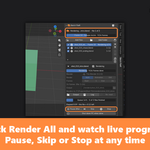
| Render All | Renders every ticked, pending file from top to bottom. The number shows how many files will render. |
| Render Selected | Renders only the selected file. While the queue is running, it is added to the run instead. A finished or failed file is rendered again. |
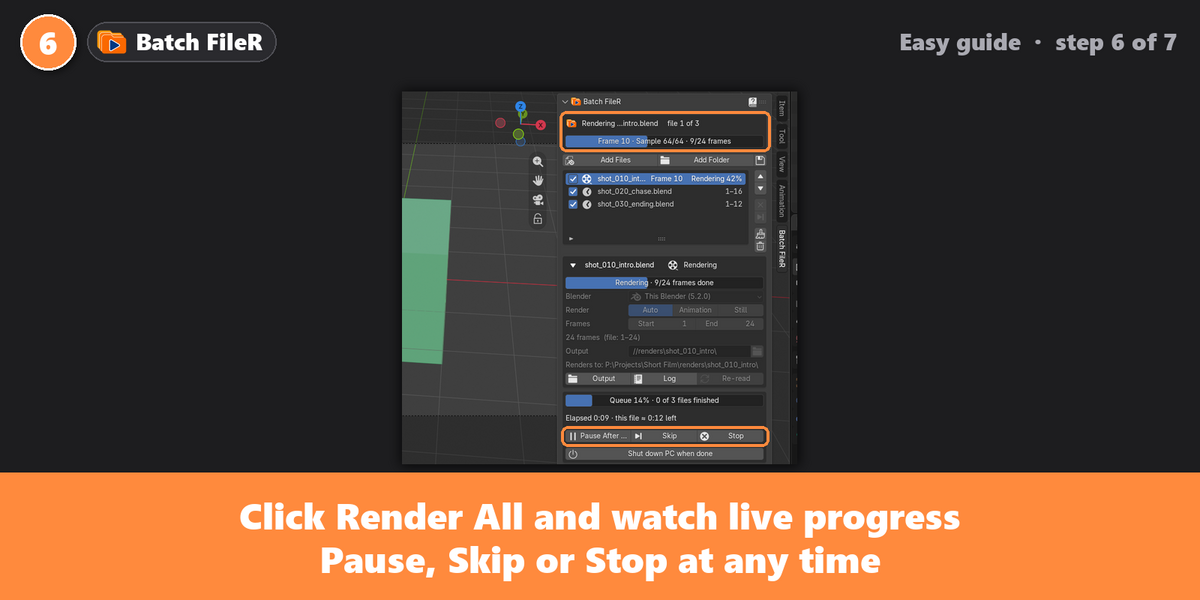
| Pause After Current | Lets the current file finish, then pauses the queue. Click again to cancel. |
| Skip | Cancels the current file and continues with the next one. |
| Stop | Cancels the current file and stops the queue. |
| Retry Failed | Sets failed and stopped files back to pending so they render again. |
While the queue runs
- The banner at the top of the panel shows which file is rendering, its position in the queue, the current frame, samples and frames done.
- That file's row in the list shows Rendering with its percentage, and the selection follows the render from file to file.
- The bottom box shows the progress of the whole queue, the elapsed time and the estimated time left for the current file.
- You can keep working in Blender, or even open other files. Rendering continues in the background.
- The settings of the file that is rendering are locked until it finishes.
Results
| Status | Meaning |
|---|---|
| Pending | Waiting to render. |
| Rendering | Being rendered right now. |
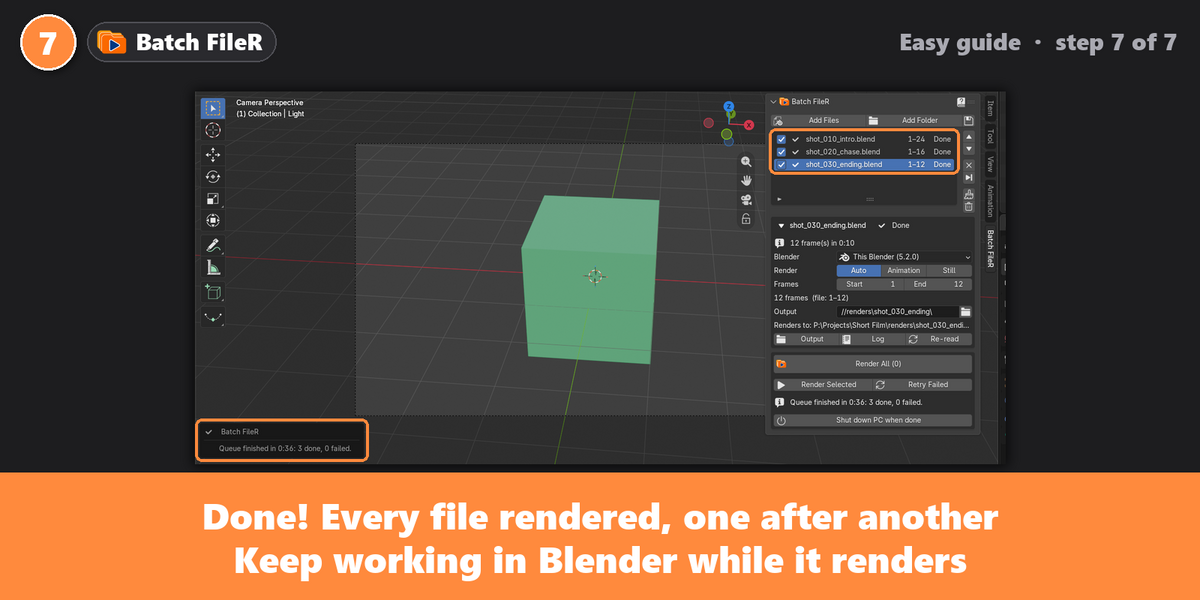
| Done | Finished. The message shows the number of frames and how long it took. |
| Failed | Blender reported an error, or no frames were rendered. The message shows Blender's reason; open the Log for details. |
| Skipped | Skipped by you. Click the skip button again to un-skip it. |
| Stopped | Cancelled by Stop. Retry Failed renders it again. |
Below the file settings:
- Output opens the folder with the rendered frames.
- Log opens Blender's full console output for the last render of that file.
- Re-read reads the frame range and output path from the file again. Use it after you change and save the .blend.
When the queue finishes
- A sound and a popup tell you how many files are done and how many failed.
- Shut down PC when done (Windows) shuts the computer down 60 seconds after the queue finishes, if at least one file rendered. A Cancel Shutdown button appears so you can stop it. Stopping or pausing the queue never shuts the PC down.
Preferences
Open Edit > Preferences > Add-ons and expand Batch FileR:
| Option | What it does |
|---|---|
| Render at low CPU priority | Keeps Blender and your PC responsive while rendering (on by default). |
| Notify when the queue finishes | Plays a sound and shows the popup (on by default). |
| Read frame range and output path | Reads each file's settings when you add it (on by default). When off, each file renders its own saved frame range. |
| Find Blender Versions | Searches your PC again for installed Blender versions. |
| Open Data Folder | Opens the folder with the saved queue and the render logs. |
| User Guide | Opens the PDF guide. |
Troubleshooting
| Problem | Solution |
|---|---|
| A file fails with "newer version of Blender" | The file was saved in a newer Blender. Pick that version in the file's Blender setting. |
| A file fails with "Can't create output folder" | The drive or folder isn't available. Choose another output folder with the folder button. |
| A file fails with "No camera" | Set an active camera in that file's scene and save it. |
| My latest changes are not in the render | Batch FileR renders the saved file. Save the .blend, then click Re-read. |
| The frames or output path look wrong | Click Re-read, or use the reset buttons to go back to the file's settings. |
| Another Blender version is missing from the list | Click Find Blender Versions in the preferences, or use Browse for Blender... |
| Error "cannot find the file ... batch_filer.py" when installing | An older version was still loaded. Close Blender completely, open it again, and tick Batch FileR in the add-on list. |
| Rendering is slow | Each file uses the render settings saved in it (samples, resolution, devices). Turn off Render at low CPU priority for maximum speed. |
Uninstalling
In Edit > Preferences > Add-ons, expand Batch FileR and click Remove. To also delete the saved queue and render logs, click Open Data Folder first and delete the batch_filer folder.
Support
Questions, bugs or feature ideas? Message me through Superhive. Including the Log of a failed render helps me find the problem quickly.
Have questions about this product?
Login to message
| Published | about 6 hours ago |
| Blender Version | 4.2 - 5.2 |
| Extension Type | N/A |
| Render Engine Used | Cycles |
| License | GPL |
Discover more products like this
render manager eevee render queue Render Farm background render Batch rendering animation render Cycles batch render Render Automation Blender Render multiple blend files