 blenderVfxMaster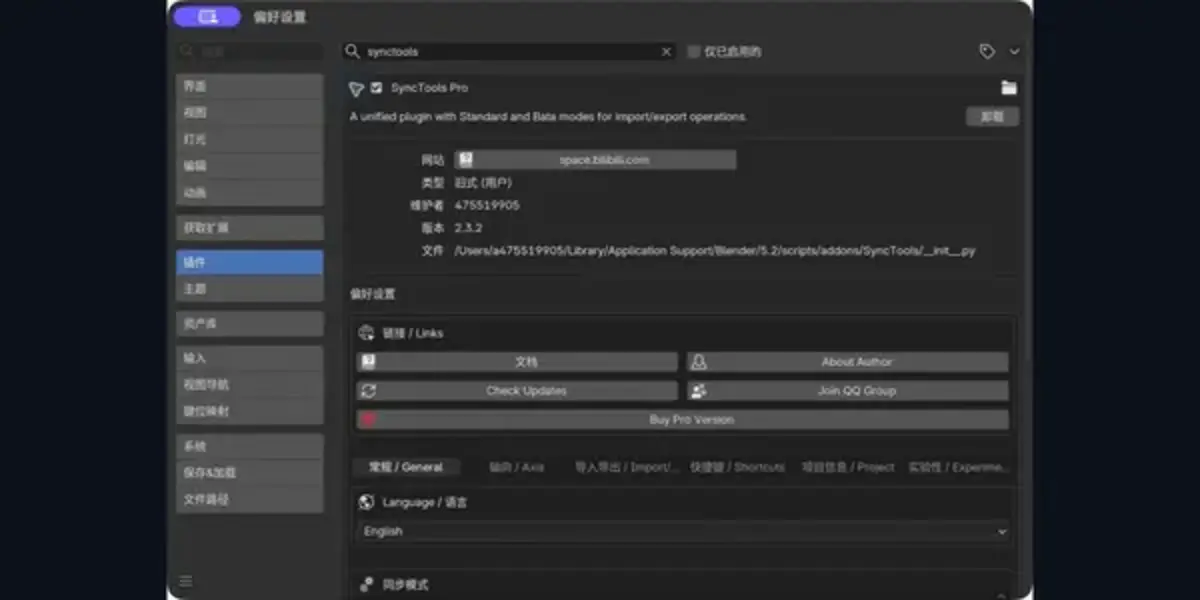
Move Plasticity models into Blender without repeating export dialogs
Use the familiar SyncTools Copy/Paste workflow to exchange selected Plasticity CAD bodies or polygon meshes with Blender and other supported DCC connectors.
|
Plasticity × Blender workflow
SyncTools for Plasticity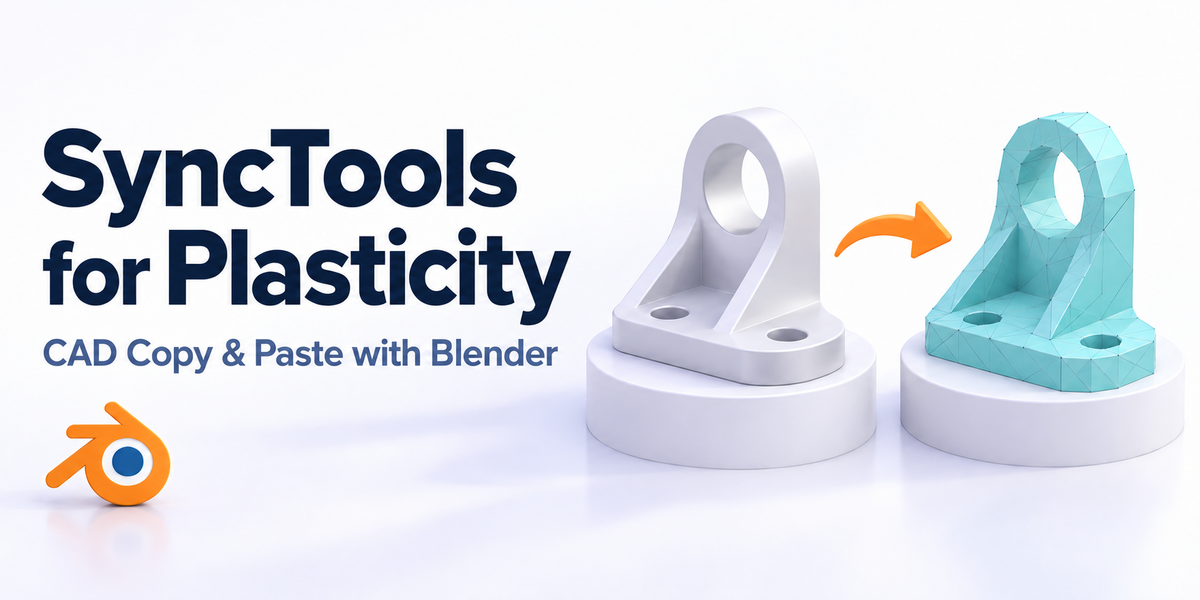
Copy selected CAD bodies and meshes, paste them into Blender or another SyncTools DCC, and send edited assets back through a fast local FBX workflow.
|
|
Overview
Copy. Paste. Keep Creating.SyncTools for Plasticity removes the repetitive export-dialog/import-dialog loop from everyday CAD-to-DCC iteration. Select a body or mesh in Plasticity, click Copy, then use the matching SyncTools command in Blender or another supported DCC. To send an asset back, copy it from the DCC and click Paste in Plasticity. The workflow uses a local shared FBX cache by default, so there is no cloud upload, account login, or manual path management during normal use. Enable Use Dialog whenever you want to choose an explicit FBX file instead. |
|
Features
Highlights
|
|
Package
What is included
|
|
Gallery
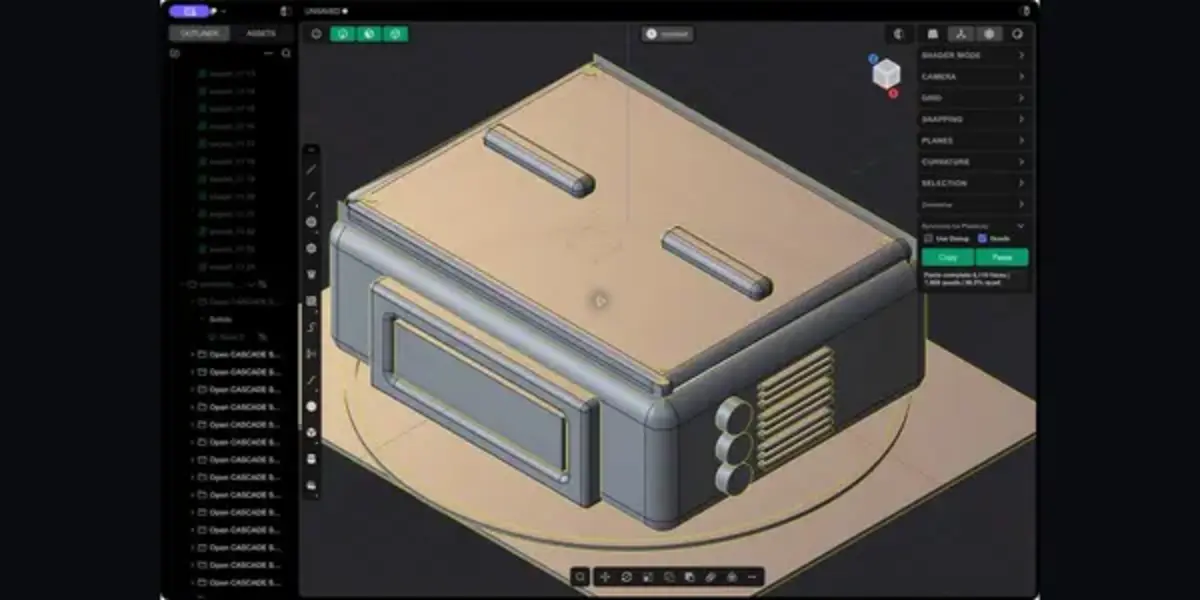
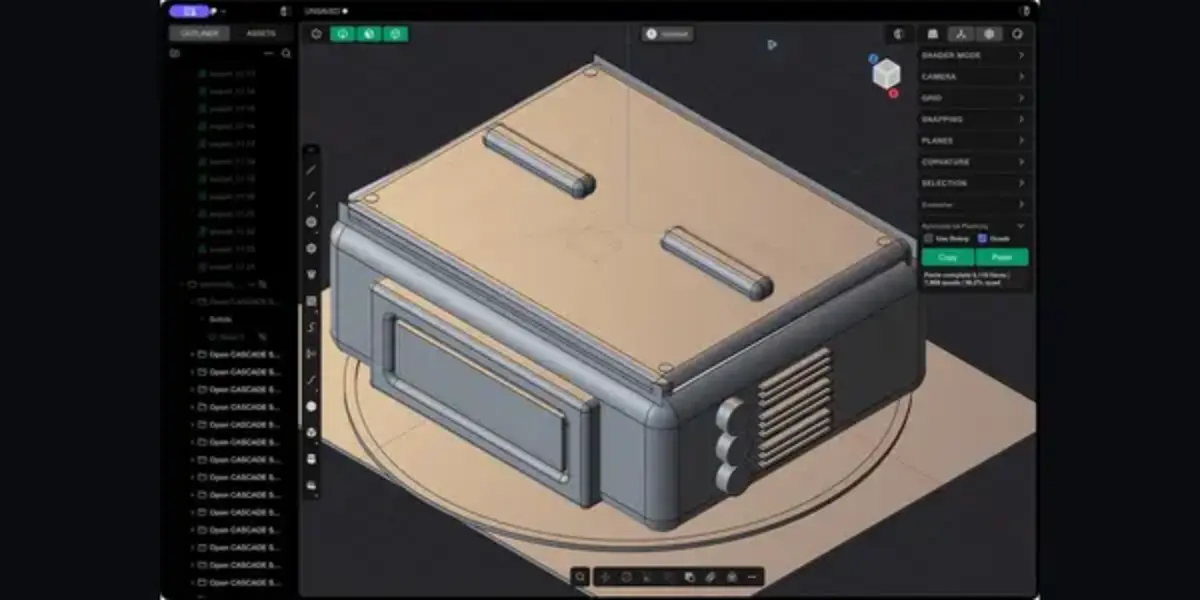
Interface & workflow screenshotsThe following screenshots show the real SyncTools panels in Plasticity and Blender, including matching models and a completed local Paste operation. |
|
Plasticity Screenshot
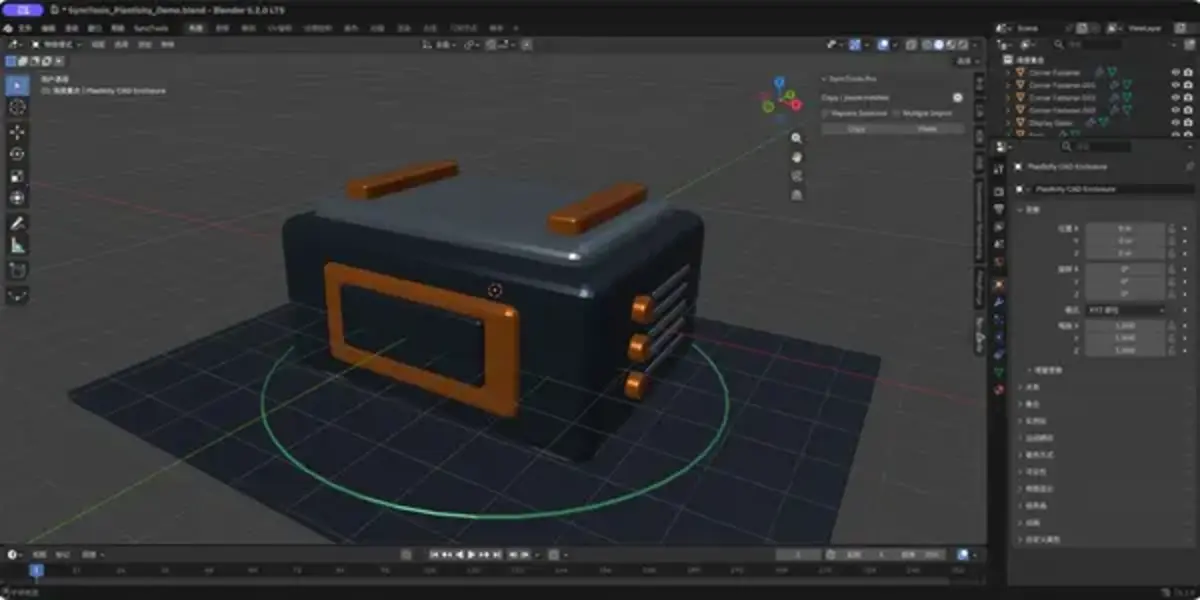
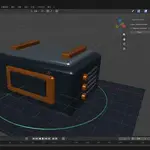
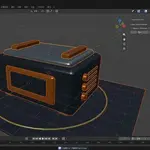
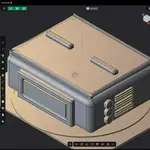
Matching Plasticity model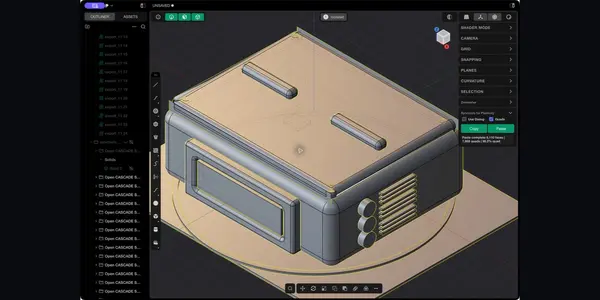 The same enclosure model is shown in Plasticity and Blender, making the cross-application workflow easy to compare. The same enclosure model is shown in Plasticity and Blender, making the cross-application workflow easy to compare. |
|
Plasticity Workflow
Paste completed in Plasticity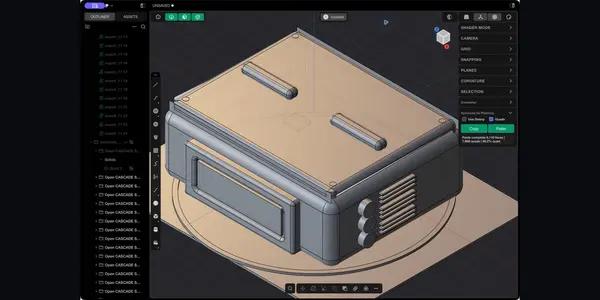 The matching CAD enclosure after a successful Paste operation, with face and quad statistics shown in the SyncTools panel. The matching CAD enclosure after a successful Paste operation, with face and quad statistics shown in the SyncTools panel. |
|
Blender Screenshot
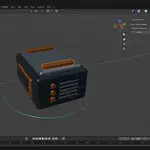
Blender connector panel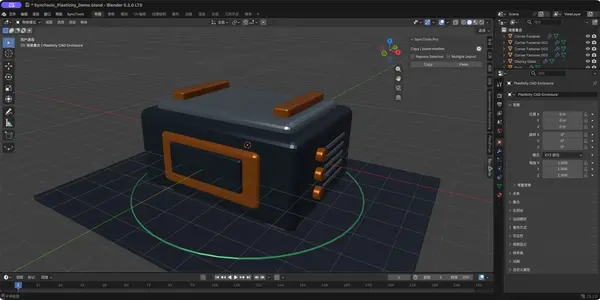 The Blender N-panel provides matching Copy and Paste controls for the shared SyncTools workflow. The Blender N-panel provides matching Copy and Paste controls for the shared SyncTools workflow. |
|
Blender Workflow
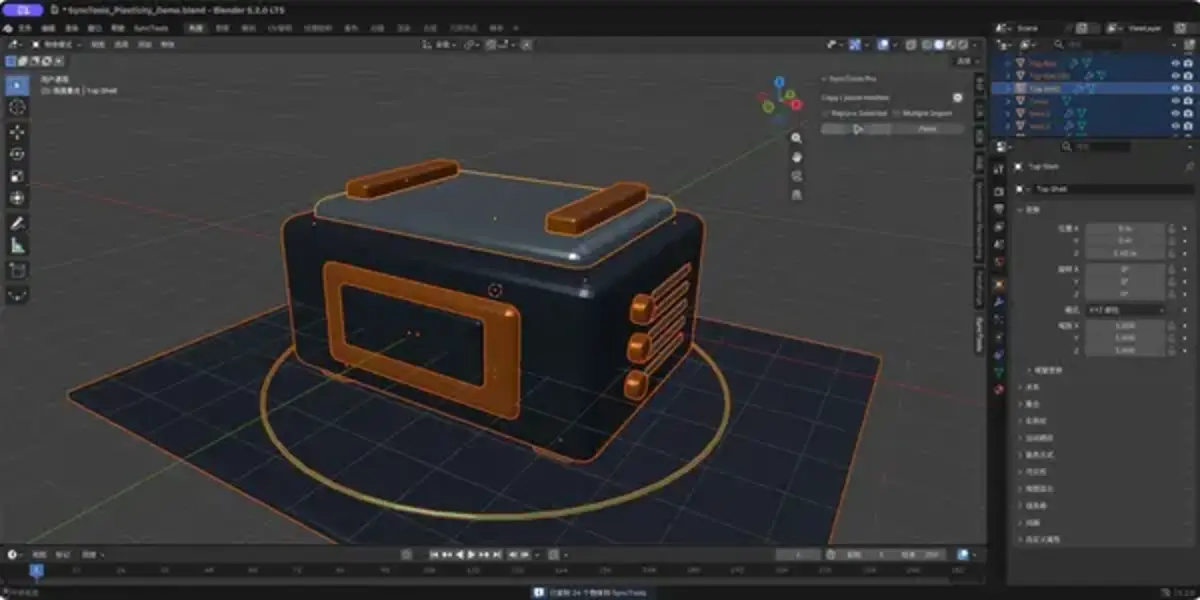
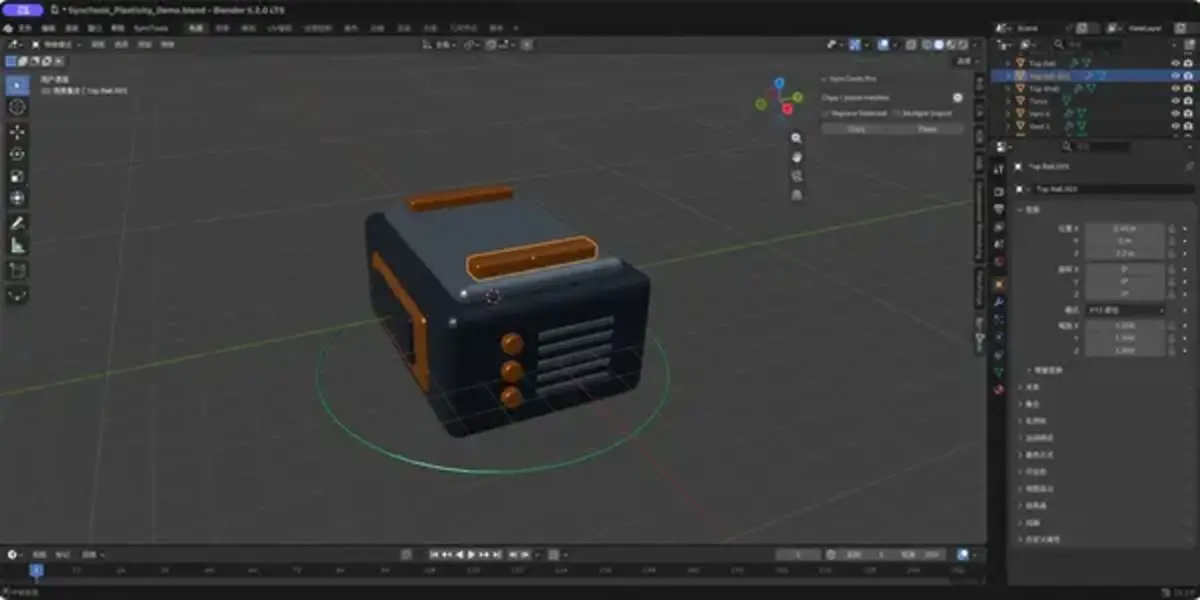
Copy and Paste workflow in Blender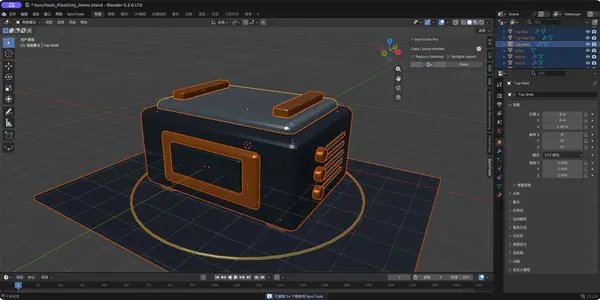 Copy the selected Blender objects to the local SyncTools cache. Copy the selected Blender objects to the local SyncTools cache.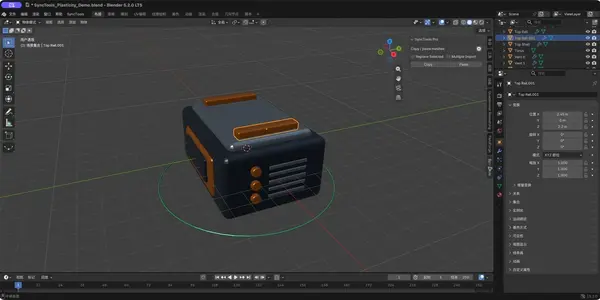 The pasted result in Blender, ready for normal mesh editing. The pasted result in Blender, ready for normal mesh editing. |
|
Blender Settings
Blender add-on preferences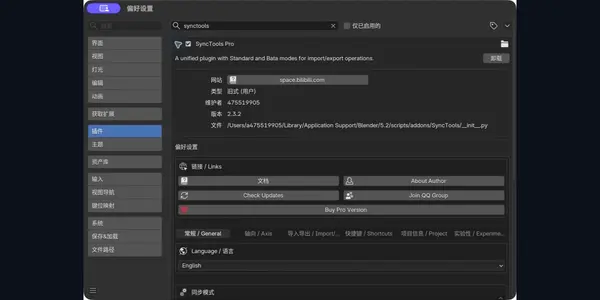 SyncTools Pro settings in Blender Preferences. SyncTools Pro settings in Blender Preferences. |
|
Workflow
Supported workflowCopy a Plasticity CAD body
The exported FBX represents the selected body’s current Plasticity tessellation. CAD edits such as booleans, fillets, extrusions, and shape changes are reflected the next time you copy. Paste from Blender or another DCC
SyncTools imports the newest compatible FBX from the shared cache. Use a custom FBX fileEnable Use Dialog before clicking Copy or Paste. SyncTools opens the native save/open dialog and bypasses the shared cache for that operation. Export fresh quads with ZRemesher
SyncTools triggers a new ZRemesher operation, waits for the new result, and exports that result. It does not silently reuse an older remesh. |
|
SyncTools Protocol
Shared cache compatibilityThe default Copy/Paste mode follows the SyncTools shared-cache convention in the user’s Documents folder. New exports use the next available numbered FBX file and do not overwrite earlier cache files. Paste chooses the newest compatible numbered export. This makes SyncTools for Plasticity compatible with the broader SyncTools ecosystem, including Blender and other supported DCC connectors. |
|
Compatibility
RequirementsWindows
macOS
Companion DCCTo use one-click Copy/Paste with Blender or another DCC, install the corresponding SyncTools connector in that application. SyncTools for Plasticity can also work with manually selected FBX files using Use Dialog. |
|
Before You Buy
Important limitations
|
|
FAQ
FAQ |
|
FAQ
Is this live sync?No. SyncTools provides a fast local Copy/Paste workflow backed by FBX files and a shared cache. It does not continuously mirror every edit in real time. |
|
FAQ
Does it modify Plasticity.app?No. The product uses an external local service and runtime injection/launch integration. The macOS build creates a separate Plasticity SyncTools.app launcher, while the Windows installer integrates with the current user’s Plasticity shortcut and preserves backups for uninstall. |
|
FAQ
Do I need Blender?Blender or another supported SyncTools DCC connector is required for cross-application one-click Copy/Paste. On macOS, Blender 5.2 LTS is also used by the bundled FBX conversion worker. |
|
FAQ
Where is the SyncTools panel?After a successful installation and launch, Plasticity displays a collapsible Synctools for Plasticity panel near the other application panels. If it does not appear, fully quit Plasticity and relaunch it using the installer-created/updated launcher. |
|
FAQ
What does Use Dialog do?It switches an individual Copy or Paste operation from the automatic shared cache to a native FBX save/open dialog. Canceling the dialog safely ends the operation. |
|
FAQ
What does Quads do?When enabled, SyncTools asks the separately installed ZRemesher for Plasticity plugin to generate a fresh remesh using its current settings, then exports that result while preserving its quad polygon loops. |
|
FAQ
Is ZRemesher included?No. ZRemesher for Plasticity is a separate product. SyncTools works without it for normal Copy/Paste operations. |
|
FAQ
Will CAD solids remain editable CAD solids in Blender?No. Blender receives tessellated mesh data. Plasticity remains the CAD authoring application. |
|
FAQ
Are quads guaranteed for ordinary CAD bodies?No. Ordinary |
|
FAQ
Does SyncTools overwrite existing cache files?No. Automatic Copy chooses the next unused numbered FBX file. Paste reads the newest compatible numbered export. |
|
FAQ
Is any project data uploaded to a server?No. Transfer files and the local service stay on your computer. |
|
FAQ
Why does Plasticity show a mesh as triangles after import?Plasticity may triangulate mesh display data. SyncTools keeps the original polygon source separately when available, allowing supported quad sources to be exported again without rebuilding them from the triangulated display mesh. |
|
FAQ
What happens if I edit an imported mesh in Plasticity?SyncTools prioritizes the current visible geometry when the preserved source is no longer valid for the edited object. This ensures the next export reflects the edited result, though the topology may differ from the original polygon source. |
|
FAQ
Can I use it with other SyncTools products?Yes. The default shared-cache convention is designed for the SyncTools ecosystem. Install the appropriate connector in each DCC you want to use. |
|
FAQ
How do I uninstall it?Use the included uninstaller for your platform. The uninstall process removes SyncTools components and restores backed-up launch integration where applicable; it does not uninstall Plasticity. |
|
FAQ
What should I include in a support request?Include your operating system, Plasticity version, SyncTools version, the selected object type, whether Use Dialog or Quads was enabled, and the relevant local log files. Do not publish project files or private paths unless support specifically requests them. |
|
Part of the SyncTools ecosystem
A shared Copy/Paste workflow across DCC applicationsInstall the corresponding SyncTools connector in Blender or another supported DCC to exchange assets through the same local cache convention.
|
2026 SyncTools for Plasticity — part of the SyncTools DCC family |