Synctools For Plasticity — Fast Copy/Paste With Blender
 blenderVfxMaster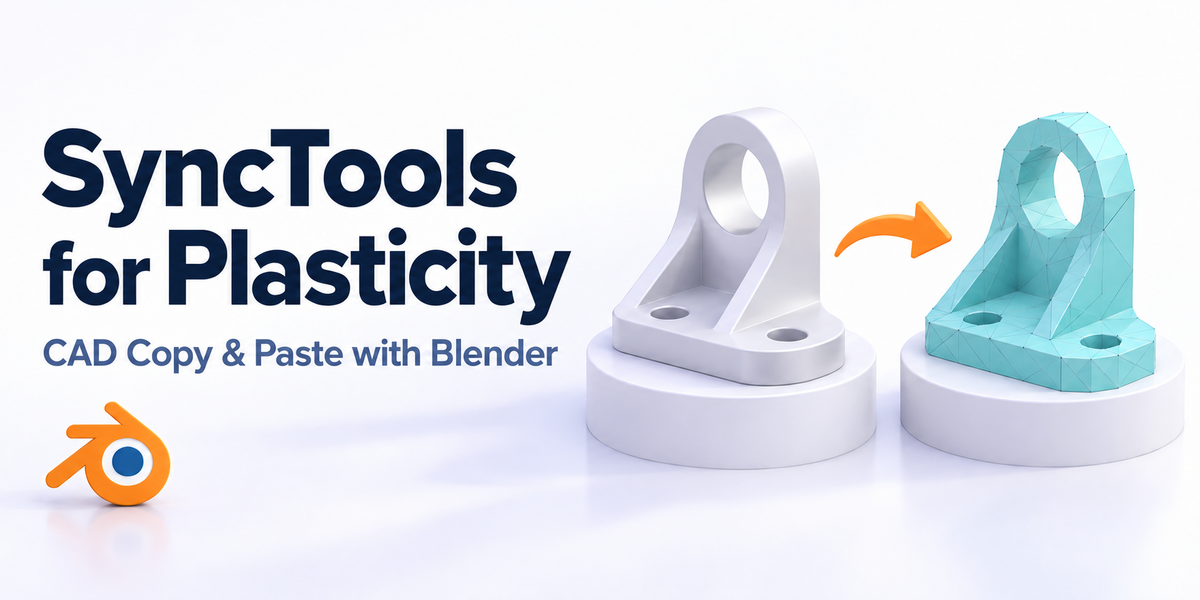
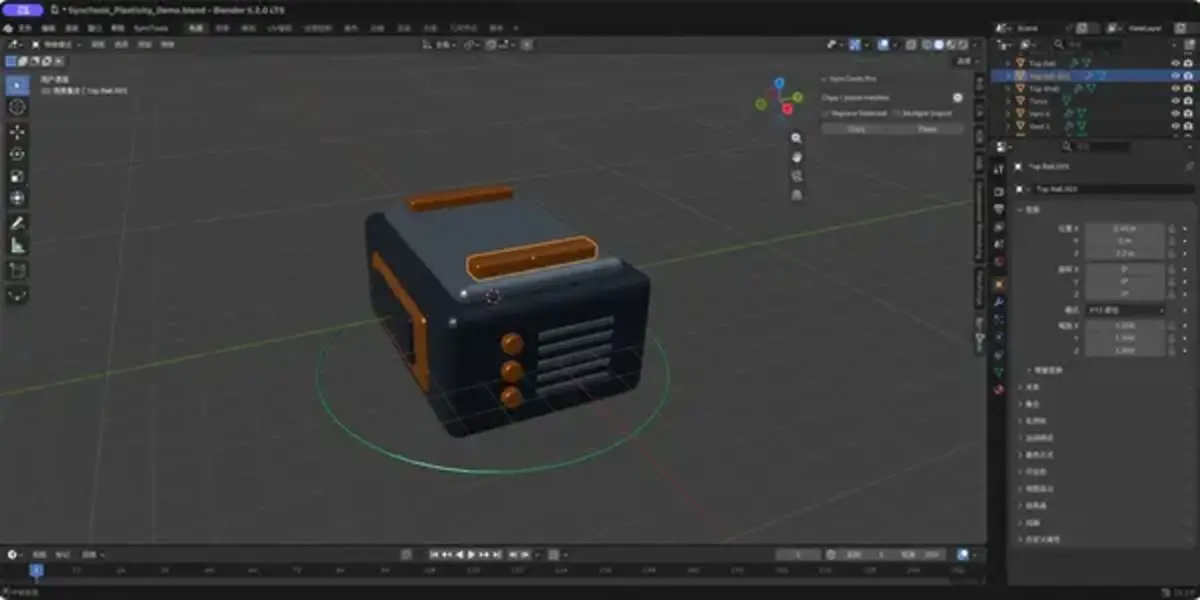
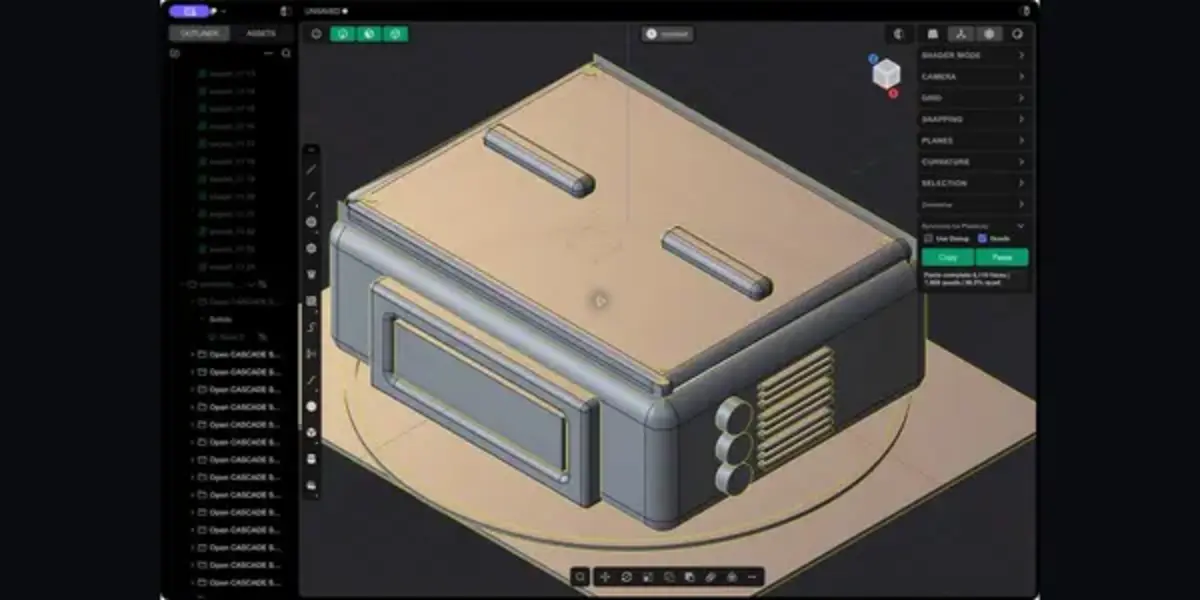
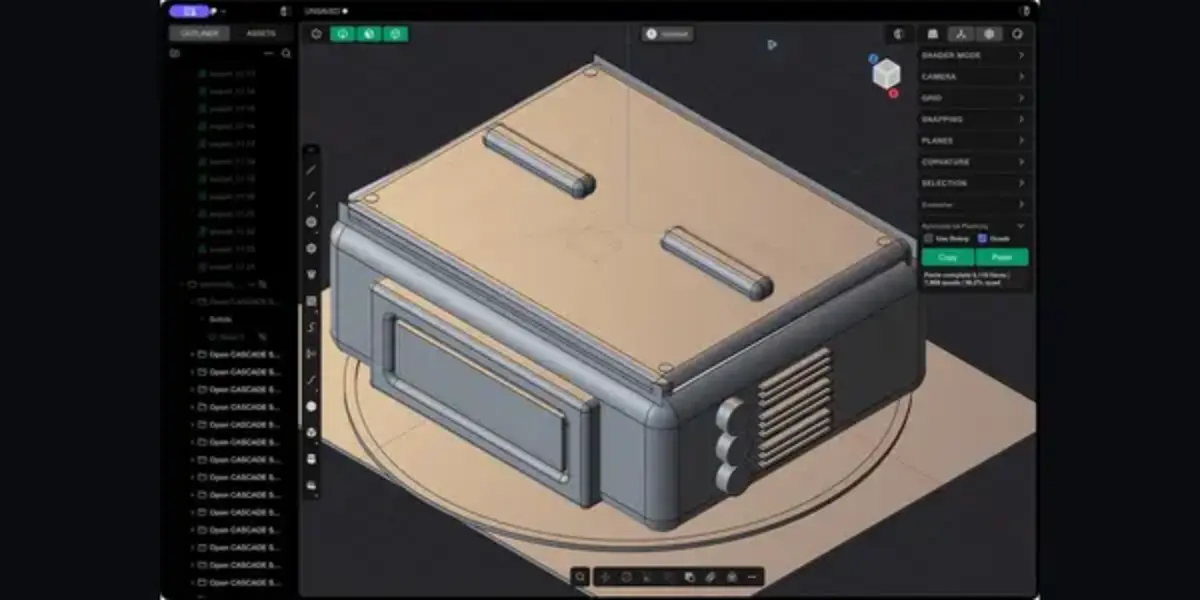
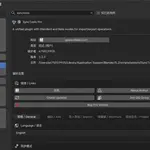
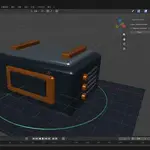
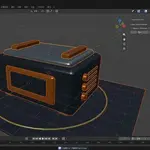
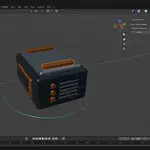
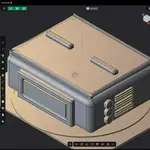
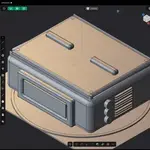
SyncTools for Plasticity
Short description
Move selected CAD bodies and polygon meshes between Plasticity, Blender, and other SyncTools-enabled DCC applications with a fast Copy/Paste FBX workflow.
Product page
Copy. Paste. Keep Creating.
SyncTools for Plasticity removes the repetitive export-dialog/import-dialog loop from everyday CAD-to-DCC iteration. Select a body or mesh in Plasticity, click Copy, then use the matching SyncTools command in Blender or another supported DCC. To send an asset back, copy it from the DCC and click Paste in Plasticity.
The workflow uses a local shared FBX cache by default, so there is no cloud upload, account login, or manual path management during normal use. Enable Use Dialog whenever you want to choose an explicit FBX file instead.
Highlights
- Fast Copy/Paste exchange between Plasticity and SyncTools-enabled DCC applications.
- Reads the current selected Plasticity
Solid,Sheet, orShellusing its current tessellation. - Preserves polygon loops when copying supported imported polygon meshes.
- Optional Quads workflow integrates with ZRemesher for Plasticity and exports the newly generated quad result.
- Optional native file dialogs for choosing custom FBX locations.
- Progress, completion, cancellation, and error feedback inside the Plasticity panel.
- Local-only workflow: files remain on your computer.
- Does not patch or replace the Plasticity application.
What is included
- SyncTools for Plasticity 1.0.7 for Windows 10/11 x64.
- SyncTools for Plasticity 1.0.7 for macOS Apple Silicon.
- Windows installer and uninstaller.
- macOS installer and uninstaller.
- English quick-start guide, detailed documentation, and FAQ.
Supported workflow
Copy a Plasticity CAD body
- Select a
Solid,Sheet, orShellin Plasticity. - Open the Synctools for Plasticity panel.
- Leave Use Dialog disabled for the shared-cache workflow.
- Click Copy.
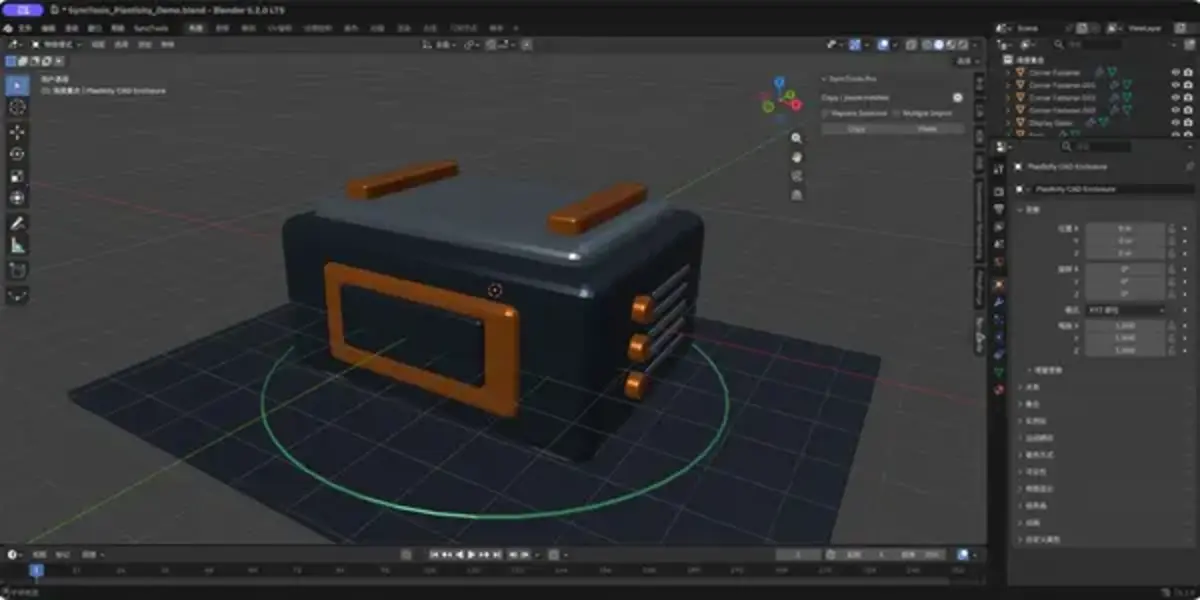
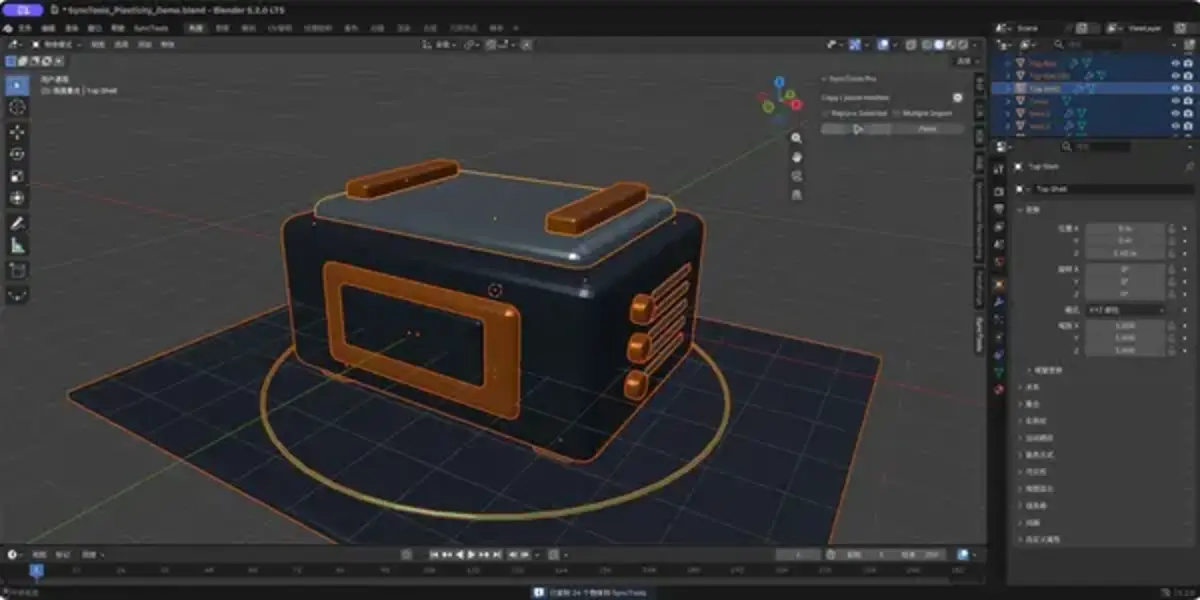
- In Blender or another supported SyncTools DCC, run its Paste/Import command.
The exported FBX represents the selected body’s current Plasticity tessellation. CAD edits such as booleans, fillets, extrusions, and shape changes are reflected the next time you copy.
Paste from Blender or another DCC
- Use the other DCC’s SyncTools Copy/Export command.
- Return to Plasticity.
- Click Paste.
SyncTools imports the newest compatible FBX from the shared cache.
Use a custom FBX file
Enable Use Dialog before clicking Copy or Paste. SyncTools opens the native save/open dialog and bypasses the shared cache for that operation.
Export fresh quads with ZRemesher
- Install and start ZRemesher for Plasticity.
- Configure the desired ZRemesher parameters.
- Select one or more Plasticity CAD bodies.
- Enable Quads and click Copy.
SyncTools triggers a new ZRemesher operation, waits for the new result, and exports that result. It does not silently reuse an older remesh.
Shared cache compatibility
The default Copy/Paste mode follows the SyncTools shared-cache convention in the user’s Documents folder. New exports use the next available numbered FBX file and do not overwrite earlier cache files. Paste chooses the newest compatible numbered export.
This makes SyncTools for Plasticity compatible with the broader SyncTools ecosystem, including Blender and other supported DCC connectors.
Requirements
Windows
- Windows 10 or Windows 11, x64.
- Plasticity 26.1.3.
- No separate Python installation is required.
- The package includes its isolated runtime and Autodesk FBX SDK components.
macOS
- Apple Silicon Mac.
- Plasticity 26.1.3 installed at
/Applications/Plasticity.app. - Blender 5.2 LTS installed at
/Applications/Blender.app(used for the bundled FBX conversion worker).
Companion DCC
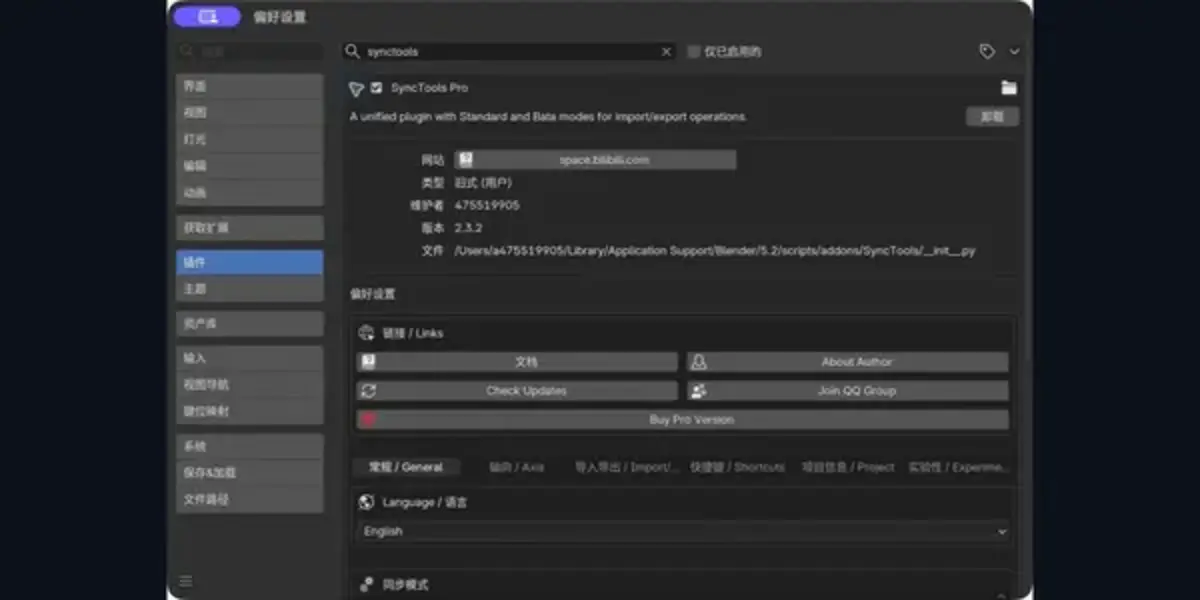
To use one-click Copy/Paste with Blender or another DCC, install the corresponding SyncTools connector in that application. SyncTools for Plasticity can also work with manually selected FBX files using Use Dialog.
Important limitations
- This is fast file/cache-based transfer, not continuous live synchronization.
- Native CAD features and construction history are not recreated in Blender; Plasticity CAD bodies are transferred as tessellated mesh data.
- Standard Plasticity CAD-body exports use the current tessellation and are normally triangulated.
- True quad polygon loops are preserved for supported polygon sources and fresh ZRemesher results.
- Materials, modifiers, constraints, simulations, and application-specific data may require manual adjustment after transfer.
- The Quads option requires ZRemesher for Plasticity; it is not bundled with this product.
- Windows and macOS installation procedures are different. Use the installer for your operating system.
Quick FAQ
Is this live sync?
No. Transfers use local FBX cache files; they are not continuous live synchronization.
Is ZRemesher included?
No. The Quads option integrates with the separately sold ZRemesher for Plasticity. Standard Copy/Paste works without it.
Is project data uploaded?
No. The service and transfer files remain on your computer.
Where can I find more help?
See the detailed FAQ on the product page and the full PRODUCT_DOCUMENTATION_AND_FAQ.md included in the download.
-
$15
Have questions about this product?
Login to message
| Published | over 1 year ago |
| Blender Version | 5.2 |
| Extension Type | N/A |
| License | GPL |