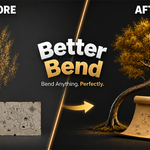
Better Bend - Geometry Nodes Bend Modifier With Intuitive Controls
 blenderustad




How to Use Better Bend
Installation
- Download
better_bend.zip - Open Blender 4.2 or newer
- Go to Edit → Preferences → Get Extensions
- Click the dropdown arrow next to Refresh and choose Install from Disk
- Select the ZIP file — the addon enables itself instantly
Quick Start
- Select any mesh object in the 3D viewport
- Press N to open the sidebar and click the Better Bend tab
- Click Add Better Bend
- Under Bend Along, pick the axis your geometry runs along (X, Y, or Z)
- Drag the Bend Amount slider to bend
That is all it takes for a basic bend.
Bend Style
Choose how the deformation is applied:
| Mode | What It Does |
|---|---|
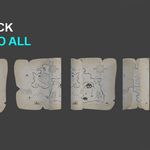
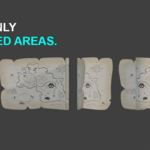
| Both Sides | Both ends curl symmetrically toward each other |
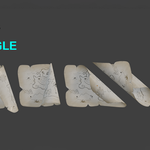
| + Side | Only the positive half of the mesh bends |
| - Side | Only the negative half of the mesh bends |
Limits
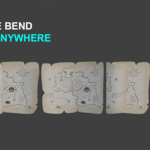
Control exactly which portion of the mesh gets deformed.
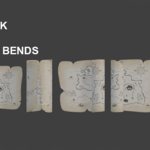
- Limit Effect on — set Start and End manually using real Blender units
- Limit Effect off — limits are derived automatically from the bounding box
- Style buttons set Start and End for you automatically — you can override them anytime
Pivot and Rotation
Need the bend to arc around a point other than the object origin?
- Open the Pivot and Rotation sub-panel
- Enter Center values to offset the bend pivot in object-local space
- Use Rotation to tilt the entire bend frame
- Click Recenter to snap the pivot back to the bounding box center in one click
Applying to Multiple Objects
- Select all target objects
- Make the configured object the active one
- Open the Manage sub-panel
- Click Apply Settings to Selected
All selected objects receive the same Better Bend configuration instantly.
Performance Tip
Working with a high-poly mesh? Turn off Live Update in the Manage sub-panel and use the Update button manually to push changes only when you are ready. This keeps the viewport fast during heavy scenes.
Removing the Modifier
Open the Manage sub-panel and click Remove. The modifier is deleted and the mesh returns to its original shape.
Frequently Asked Questions
Q1. Why does my bend look wrong after I scale or rotate the object in Object Mode?
Better Bend, like every Blender modifier, operates in the object's local coordinate space. If you scaled or rotated the object without applying transforms, the modifier sees a mismatched coordinate frame and produces unexpected results. The fix is simple: select the object, press Ctrl+A, choose Rotation and Scale, then re-adjust the bend. This is a one-time step and the result will be correct from that point forward.
Q2. Can I stack Better Bend with other modifiers like Subdivision Surface, Mirror, or Array?
Yes, fully. Better Bend sits in Blender's standard modifier stack as a Geometry Nodes entry and is compatible with all native modifiers. A common and recommended setup is Subdivision Surface placed before Better Bend for denser deformation geometry, and Mirror or Array placed after it to tile or mirror the bent result. Stack order matters the same way it does with any Blender modifier — what is higher in the stack runs first.
Q3. Is there a limit to how far I can bend? Can I make coils or spirals?
The Bend Amount slider is capped at ±360 degrees for drag input, but there is no hard limit on the value itself. To go beyond 360 degrees — for coils, springs, helices, or multi-turn spirals — simply double-click the Bend Amount field and type the value directly. 720 degrees gives two full turns, 1080 gives three, and so on. The modifier handles any value you enter.
Have questions about this product?
Login to message
| Blender Extension Compatible | Yes |
| Sales | 10+ |
| Published | 3 months ago |
| Blender Version | 3.0 - 5.2 |
| Extension Type | Add-on |
| Render Engine Used | Blender-Internal, Blender-Game-Engine, Cycles, Eevee |
| License | GPL |

Discover more products like this
deformer blender addon non-destructive mesh deformer one side bend bend modifier hard surface modifier stack pivot offset procedural modeling geometry nodes