Better FBX Importer & Exporter
 Mesh Online

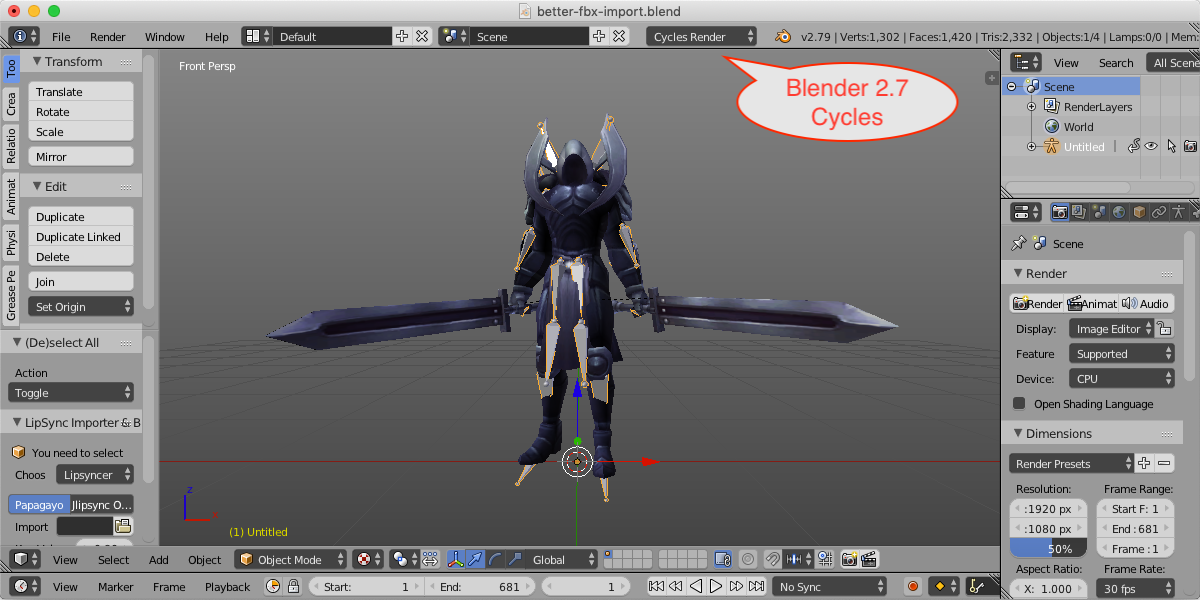
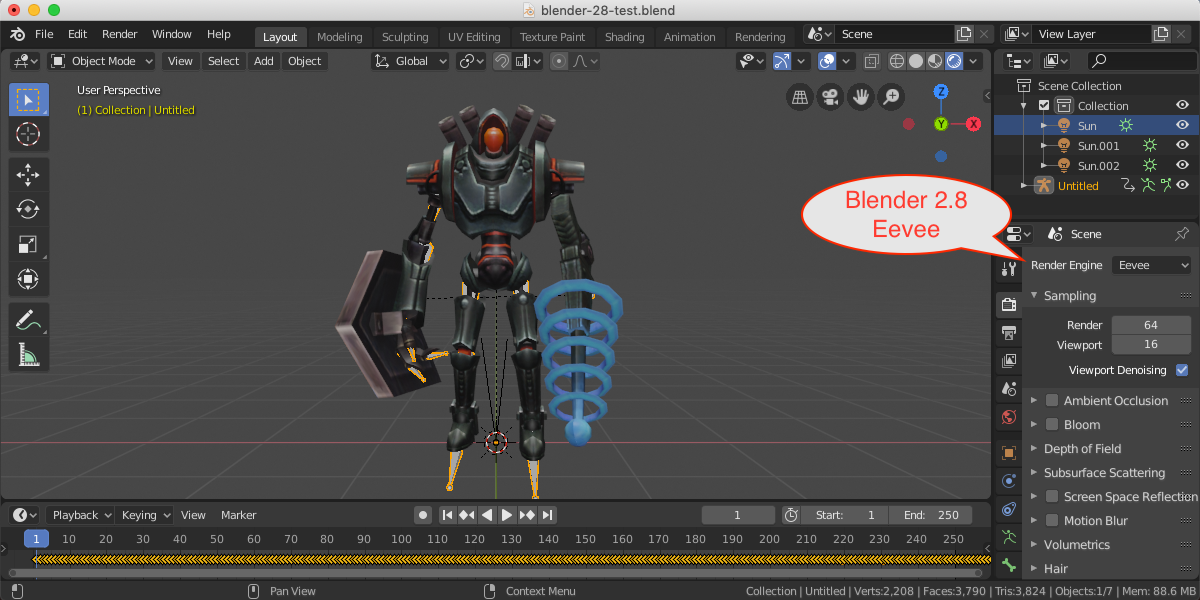
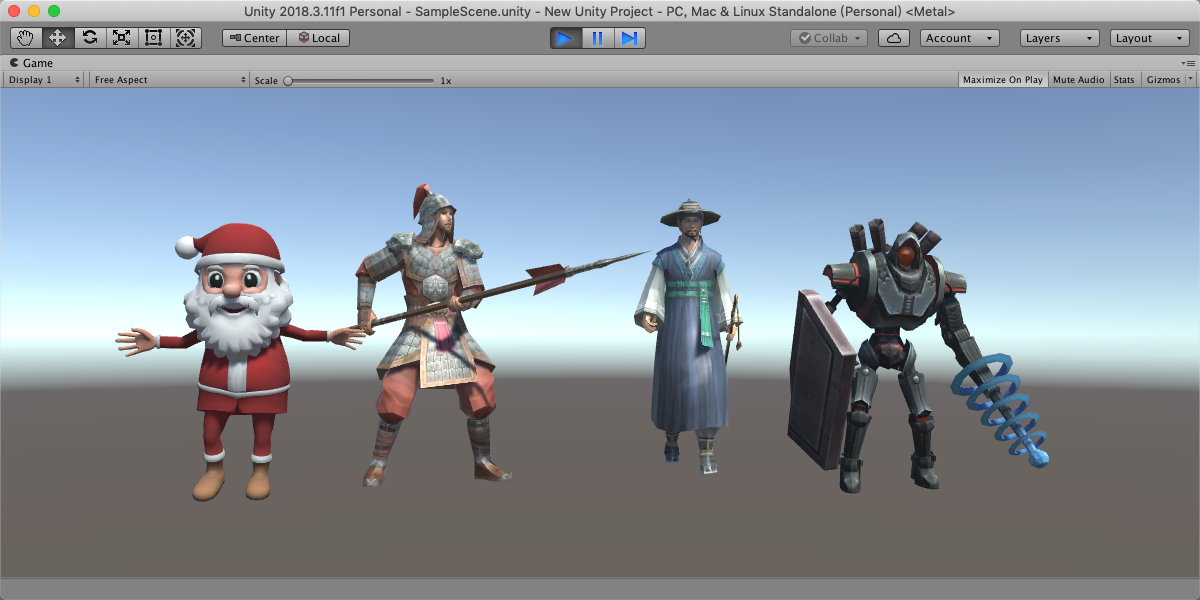
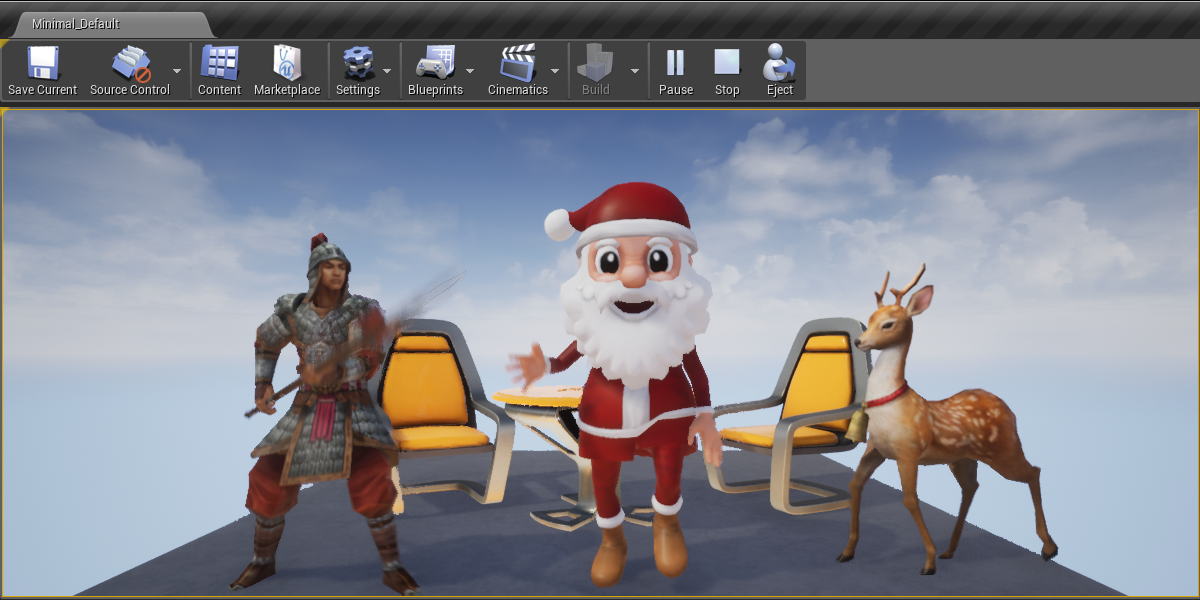

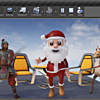
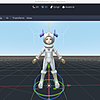
Version 6.2.0 supports exporting mesh LODs for Unreal Engine & Unity Engine.
To export mesh LODs for Unreal Engine, create an empty node, add a custom property of 'fbx_type' = 'LodGroup', then move all the mesh LODs with suffix names of '_LOD0', '_LOD1', etc. into this empty node.
You can also export skinned mesh LODs for Unreal Engine, create an empty node, add a custom property of 'fbx_type' = 'LodGroup', move the empty node into the armature node, and move all skinned mesh LODs with suffix names of '_LOD0', '_LOD1', etc. into this empty node.
To export mesh LODs for Unity Engine, simply rename the mesh LODs with suffix names of '_LOD0', '_LOD1', etc.
Version 6.1.0 has implemented the 'Drag & Drop' feature and the 'Collection Exporters' feature.
If you are using Blender 4.2+, you can drag & drop one 3d model file (.fbx/.dae/.obj/.dxf/.3ds) into the 3D View to import the 3d model.
You can also add the add-on to the 'Collection Exporters' list, then you can export your 3d models silently in one click, this feature is very useful if you need to frequently modify your 3d models.
There are five 'FBX Axis' types: 'MayaZUp', 'OpenGL', 'Unity', 'Unreal1', and 'Unreal2'.
'MayaZUp' is Blender compatible.
'OpenGL' is Game compatible.
'Unity' is Unity Editor compatible, rotate all contents 180 degrees around the vertical axis, let the character face to you in Unity Editor.
'Unreal1' is Unreal Editor compatible, rotate all contents -90 degrees around the vertical axis, let the character face to you in Unreal Editor.
'Unreal2' is Unreal Editor compatible, rotate all contents 90 degrees around the vertical axis, let the character back to you in Unreal Editor.
Yes, you can invoke the operator via script, to obtain the full API, switch to ‘Python Console’ windows.
Type ‘bpy.ops.better_export.fbx’ and type the ’Tab’ key, Blender will auto-complete the full API of the exporter.
Type ‘bpy.ops.better_import.fbx’ and type the ’Tab’ key, Blender will auto-complete the full API of the importer.
There are two examples:
bpy.ops.better_import.fbx(filepath="/Users/your name/Desktop/untitled.fbx", filter_glob="*.fbx;*.dae;*.obj;*.dxf;*.3ds", files=[{"name": "untitled.fbx", "path": "/Users/your name/Desktop/untitled.fbx"}], use_auto_bone_orientation=True, my_calculate_roll='None', my_bone_length=10, my_leaf_bone='Long', use_fix_bone_poses=False, use_fix_attributes=False, use_only_deform_bones=False, use_single_armature=True, primary_bone_axis='Y', secondary_bone_axis='X', use_vertex_animation=True, use_animation=True, use_raw_keyframe=False, use_attach_to_selected_armature=False, my_animation_offset=0, use_animation_prefix=False, use_pivot=False, use_triangulate=False, my_import_normal='Import', use_auto_smooth=True, my_angle=60, my_shade_mode='Smooth', my_scale=1, use_optimize_for_blender=False, use_reset_mesh_origin=True, use_reset_mesh_rotation=True, use_edge_crease=True, my_edge_crease_scale=1, my_edge_smoothing='FBXSDK', use_detect_deform_bone=True, use_import_materials=True, use_rename_by_filename=False, use_fix_mesh_scaling=False, my_vertex_color_space='sRGB', my_rotation_mode='QUATERNION', my_fbx_unit='cm', use_separate_collection=False)
bpy.ops.better_export.fbx(filepath="/Users/your name/Desktop/untitled.fbx", check_existing=True, filter_glob="*.fbx;*.dae;*.obj;*.dxf", my_file_type='.fbx', my_fbx_format='binary', my_fbx_version='FBX201800', my_fbx_axis='MayaZUp', my_fbx_unit='cm', use_selection=False, use_active_collection=False, use_visible=False, use_only_deform_bones=False, use_only_selected_deform_bones=False, use_vertex_animation=False, use_vertex_format='mcx', use_vertex_space='world', my_vertex_frame_start=1, my_vertex_frame_end=10, use_animation=True, use_raw_keyframe=False, use_timeline_range=False, my_animation_offset=0, use_apply_modifiers=True, use_include_armature_deform_modifier=False, use_triangulate=False, use_tangents=False, use_export_materials=True, use_raw_normals_and_raw_tangents=False, use_vertex_color=True, my_vertex_color_space='sRGB', use_driver_based_shape_key=False, my_animation_type='Active', my_interpolation_type='Linear', use_concatenate_all=False, my_max_bone_influences='Unlimited', primary_bone_axis='Y', secondary_bone_axis='X', use_rigify_armature=False, use_rigify_root_bone=True, my_scale=1, use_optimize_for_game_engine=True, use_reset_mesh_origin=True, use_reset_mesh_rotation=True, use_only_root_empty_node=True, use_ignore_armature_node=True, use_edge_crease=True, my_edge_smoothing='FBXSDK', my_edge_crease_scale=1, use_separate_files=False, use_separate_collection=False, use_move_to_origin=False, my_material_style='Blender', use_embed_media=False, use_copy_texture=False, my_texture_subdirectory="textures", my_simplify_algorithm='0', my_simplify_keyframe_factor=1, use_unroll_filter=False, use_independent_animation_stack=False)
Blender installed from Microsoft Store uses special add-on directories, which will cause the add-on always can't find some files and keep crashing.
Please download and install Blender from the official website (www.blender.org) or other mirror websites.
BTW. One user told me that he created the missing add-on directory manually, and the issue disappeared.
Please restart Blender to let the new version take effect.
No, the add-on does not support virtual drives, such as iCloud, Dropbox, etc., please copy the FBX files to local drives, such as the "Desktop" directory, then import the FBX files.
The current user is lack of write privilege, please launch Blender with 'run as administrator'.
Seats means persons, how many persons may use the add-on, if you are an individual user, you can install the add-on on your Linux, Windows, and macOS, since there is only one person may use the add-on.
They are different licenses for different teams. For example, if a small team which has up to 20 artists who need to install the add-on, the team should purchase one license for 20 seats, it is much cheaper than purchasing 20 indie licenses, and the team shouldn't purchase only one indie license and distribute the add-on to all their artists, for it is illegal in law.
Daz Studio will export the default pose instead of armature animation if you don't set pose on the timeline.
Please set at least two poses on the timeline, Daz Studio will export armature animation instead of the default pose.
The add-on does not support importing poses.
Yes, it is the greatest feature of this add-on.
Because many other 3d softwares use different joint systems from Blender, when you import these FBX files to Blender, the bones orientations often look very ugly, it is really a nightmare.
This is the reason why I made this add-on, I can't bear it any more.
This add-on will automatically corrects the bones orientations by default, while remain the armature deform animations correctly.
The feature is quite reliable, so I leave it as the default feature.
The add-on supports Cycles Renderer and Eevee Renderer.
Please read the contents in the 'Cycles/Eevee Material' section to learn more details.
Usually you can export directly when you have finished your job.
But if you found that the exported animation looks different from that in Blender, bake the animation manually before exporting might fix the issue.
The add-on supports exporting parts of deform bones for Rigify Auto-Rigging System.
Select the 'rig', reveal the deform bones layer, enter 'EDIT' mode, select all the deform bones you want to export, quit 'EDIT' mode, export the rigged character and the armature, when exporting, enable both the 'Rigify Armature' option and the 'Only Selected Deform Bones' option.
This feature is very useful for game engines, for Rigify armature has up to 160 deform bones, usually we don't need all of them in game engines.
You can select necessary deform bones in 'EDIT' mode, then export, the unused vertex weights will be merged to the used deform bones automatically, so you don't need to re-skin your character.
I recommend that all Auto-Rig Pro users export FBX from its own exporter, the exported armature is optimized and retarget-able for Unity and Unreal Engines.
Have questions about this product?
Login to message
| Blender Extension Compatible | Yes |
| Sales | 12900+ |
| Rating | 127 ratings |
| Dev Fund Contributor | |
| Published | over 7 years ago |
| Blender Version | 3.6 - 5.2 |
| Extension Type | Add-on |
| Render Engine Used | Cycles, Eevee |
| License | GPL |
