Better Oceans & Water
 Edin Spiegel


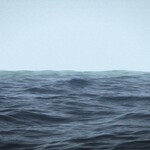
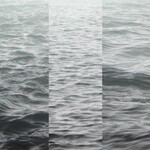
(Video Tutorial Coming Soon)
1. Append the Better Water & Ocean Object into your Project
2. The Wave Height is the Amplitude / Height of the Waves
2. Adjust the Viewport Resolution to Adjust the Max Subdivisions in the Viewport
3. Adjust the Render Resolution to Adjust the Max Subdivisions in the Render
4. Tweak the Base Resolution, to tweak the Minimum Resolution for the Entire Ocean
5. The Resolution Falloff Distance, is the Distance from the Camera, over which the resolution will drop from the increased render / viewport resolution, to just the base resolution.
6. Wave Iterations, is how many layers of waves get mixed together for each Wave Spectrum (f.e the Wave Spectra could be Large, Medium and Small Waves)
7. Wave Spectrum 1,2 and 3 Frequency are the individual Frequencies of the different Wave Spectra - a good amount of variation here can reduce or almost eliminate repetition.
Larger Values = Smaller Waves
8. The Wave Spectrum Scalar, Scales the Frequencies of All Wave Spectra Together.
9. Wave Spectrum 1,2 and 3 Amplitude Settings, change the height & influence of each wave spectrum.
10. If you want Foam, then you will have to check the Bake Checkbox, which will load the final render resolution for baking, after which you'll have to locate the bake node in the node tree (Easy with Ctrl+F - then searching for "Bake"), then click bake - which might take a while.
Have questions about this product?
Login to message
| Sales | 100+ |
| Rating | 4 ratings |
| Dev Fund Contributor | |
| Published | 11 months ago |
| Blender Version | 4.5 |
| Render Engine Used | Cycles, Eevee |
| License | Royalty Free |
