hodgson3d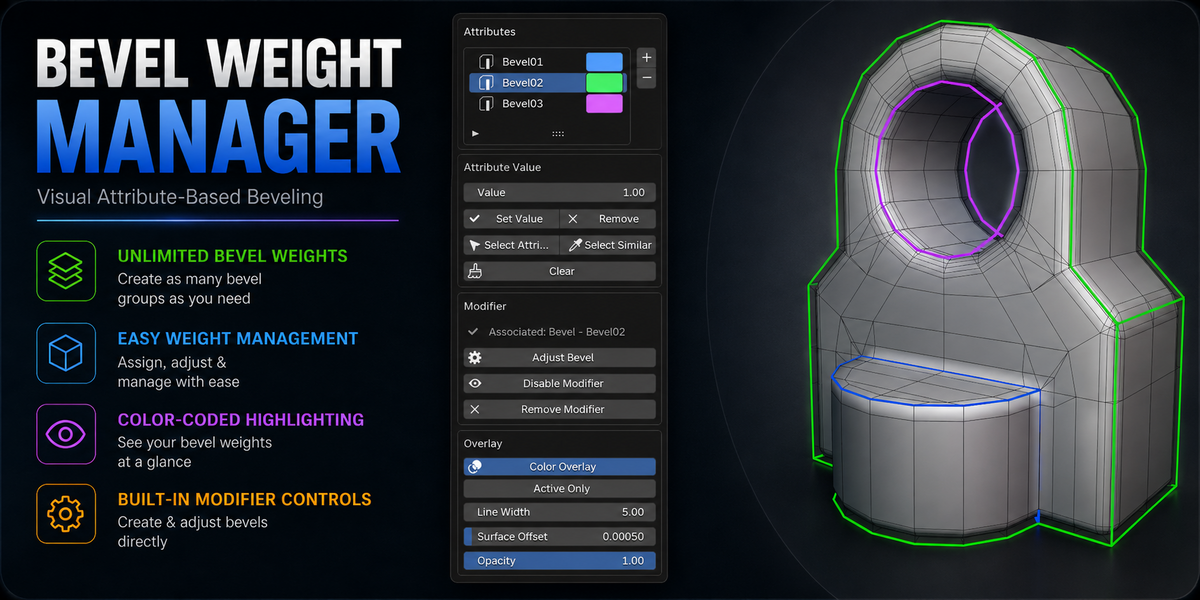
Bevel Weight Manager makes it easy to create, assign, preview, and manage custom bevel attributes for both Blender’s Bevel Modifier and Shader Bevels.
Instead of manually creating attributes and jumping between different parts of Blender to manage them, Bevel Weight Manager brings the entire workflow together in one simple interface.
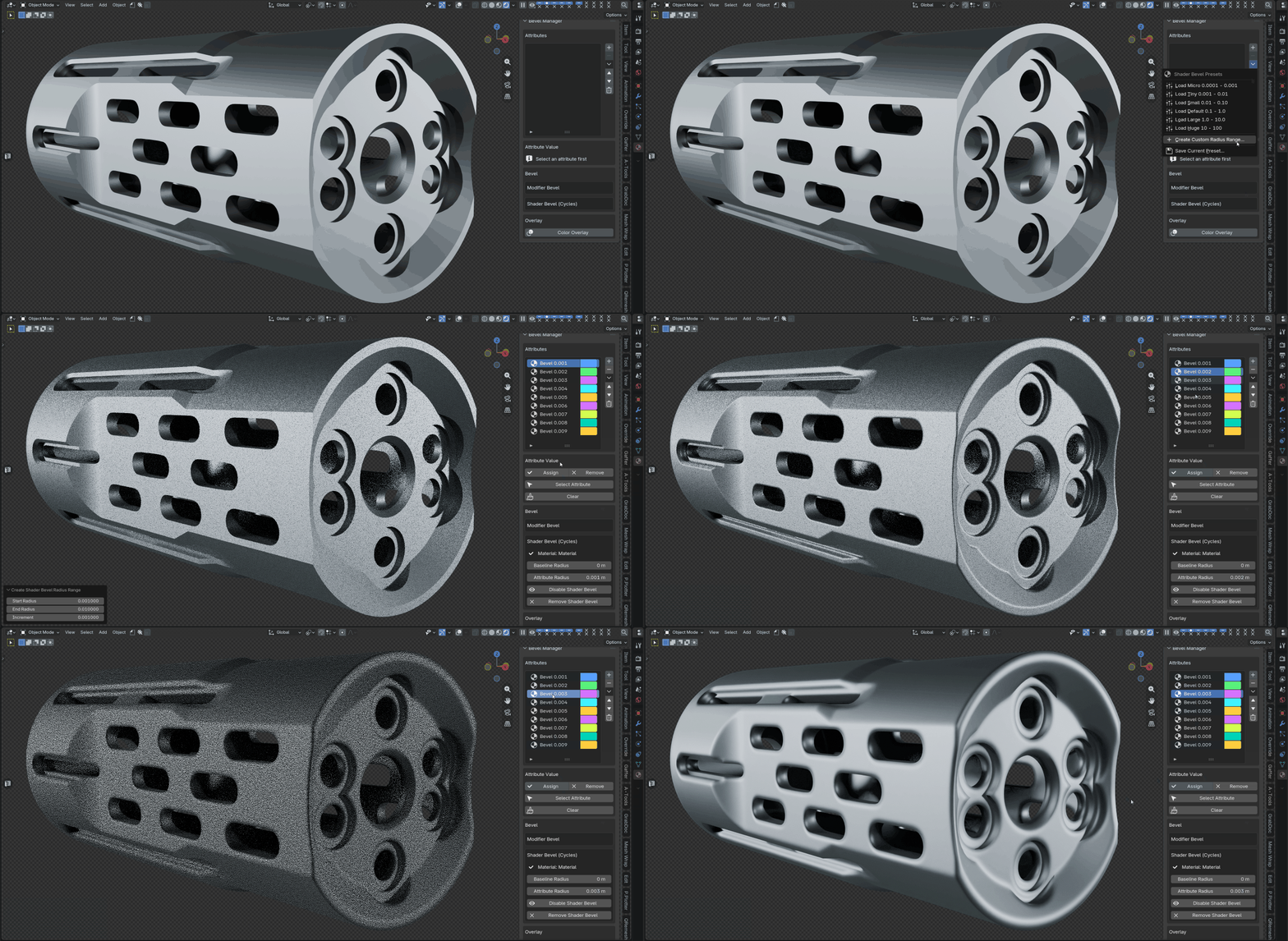
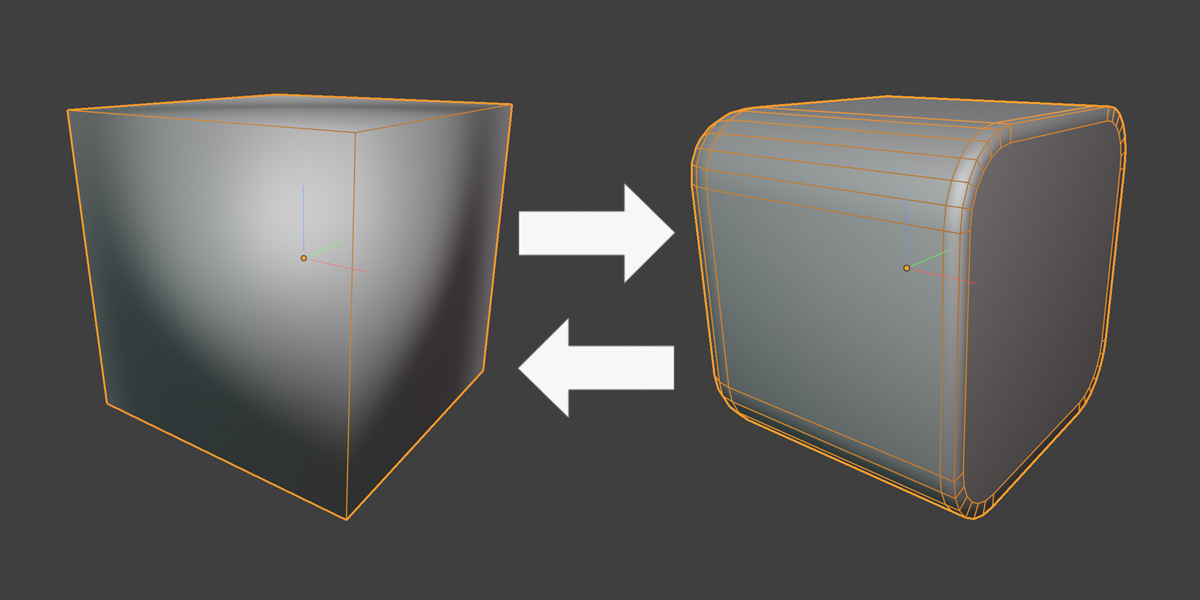
Break free from Blender’s single built-in bevel weight and create as many independent bevel attributes as you need. Stack multiple Bevel Modifiers with different widths, or use Shader Bevel attributes to assign different bevel radii across a single material — without adding any extra geometry.
Shader Bevel presets make it easy to build a ready-to-use library of bevel sizes, while color-coded viewport overlays let you clearly see exactly where each bevel is assigned.
Create. Assign. Adjust. Everything stays organized and synchronized automatically.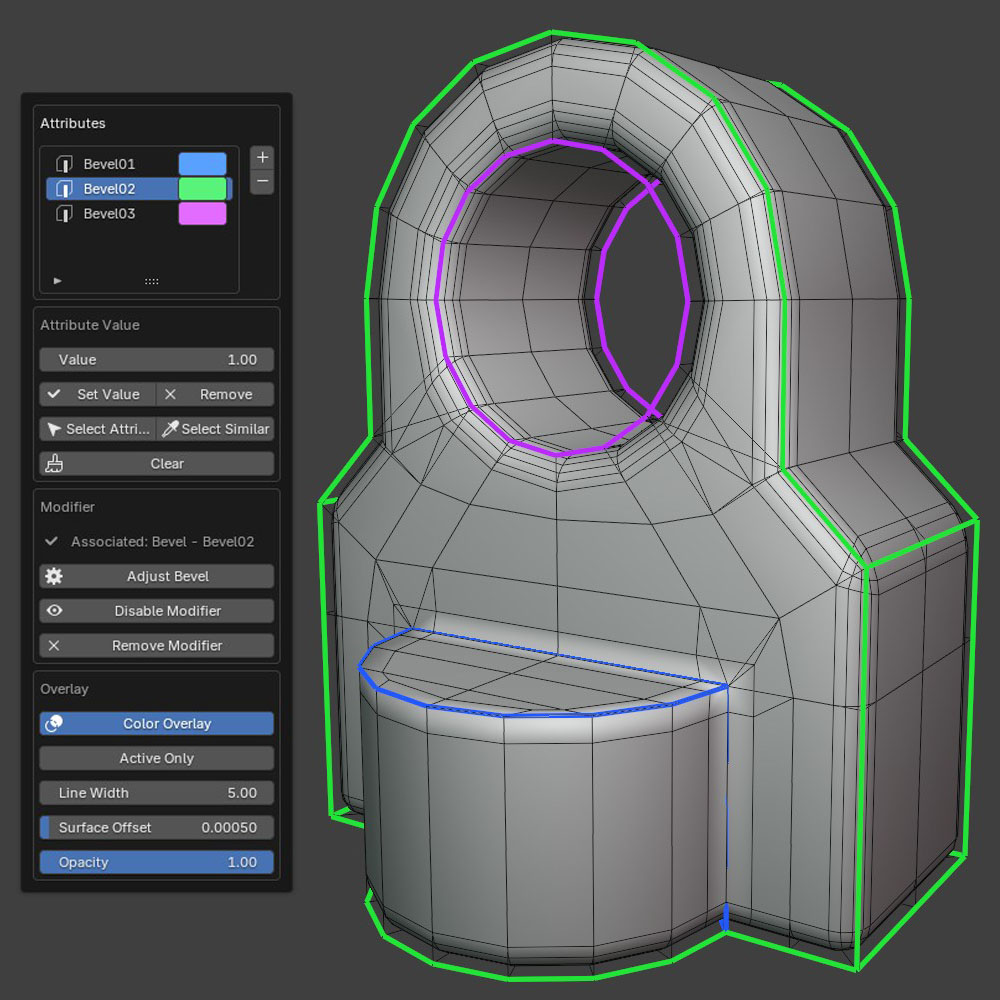
Visualize Your Attributes
One of the biggest problems with attribute-based bevels is that it can be difficult to see which edges belong to which attribute.
Bevel Weight Manager adds a colored edge overlay directly in the 3D viewport.
Each attribute receives its own clearly separated color, making it easy to identify different bevel groups at a glance. Colors can also be changed manually to suit your preference.
You can display all attributes together or isolate only the currently selected attribute.
Simple Attribute Management
Create and manage your bevel attributes from a compact list.
Features include:
- Create, delete and rename attributes for both Modifier Bevels and Shader Bevels.
- Assign and remove weights
- Colored viewport previews with vustom colors for each attribute
- Selection tools.
- Multi-object editing.
- Automatically set up shader nodes and modifiers with a single click.
- Adjust modifiers Or shader bevels and modifiers directly from the UI.
How to Use
- Create an Attribute — Select some edges and click + and choose Modifier or Shader Bevel. Users have access to a range of built-in Shader Bevel presets, making it quick and easy to create and assign a variety of bevel radii. You can also create, save, and delete your own custom presets to suit your workflow.
- Tweak Tagged Edges — If you want to add/subtract tagged edges in Edit Mode and click Assign/Remove. Use the Value input to assign a custom weight to selected edgescreate variable bevel widths within the same modifier. By default when you create an attribute all selected edges get a value of 1.
- Assign Custom Values (Modifier only) — Use the Value input to assign a custom weight to selected edges to create variable bevel sizes within the same modifier/attribute. By default when you create an attribute all selected edges get a value of 1.
- Create the Bevel — Add either a Modifier Bevel or Shader Bevel depending on what active attribute is selected.
- Adjust the Bevel — Control the modifier or shader bevel width/radius directly from Bevel Weight Manager.
- Add More Bevels — Create additional attributes for different bevel sizes and areas.
- Visualize Your Bevels — Use the color overlay to clearly see each bevel attribute on your model.
- Transfer Bevels — Save out presets or use the 'Transfer From Active' operator to quickly assign setups between scenes/objects.
PRESETS (Modifier/Shader Bevel)
MODIFIER BEVEL PRESETS
- Modifier Bevel presets allows users to save attributes and the associated bevel modifiers/settings out to be used on other objects/scenes.
SHADER BEVELS PRESETS
- Optional premade bevel size presets (micro,tiny,small,default,large,huge).
- Save out any bevel radius presets you want to keep and reuse for other projects.
- Users alternatively can create a custom range radius that allows them to set a start/end which an increment amount which will create a bevel radius attribute per increment. Very handy if you you the general spread of bevel radius required for the asset.
-