bevelLAB Transformers
 VIDARIA DESIGNS

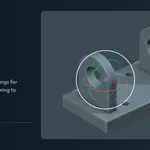
Install and find the gizmo
Use Blender 5.3.x on an Apple Silicon Mac or a 64-bit Windows PC with an x64 processor. Download the installer ZIP with macOS-arm64-Windows-x64 in its filename and leave it zipped. The same installer works on both platforms. The optional source ZIP is for reading or building the code. If you used the private beta, disable the old bevelLAB Transformers add-on in Preferences before installing the extension. In Blender, open Edit > Preferences > Get Extensions, open the menu in the upper right and choose Install from Disk. Select the ZIP and enable bevelLAB Transformers.
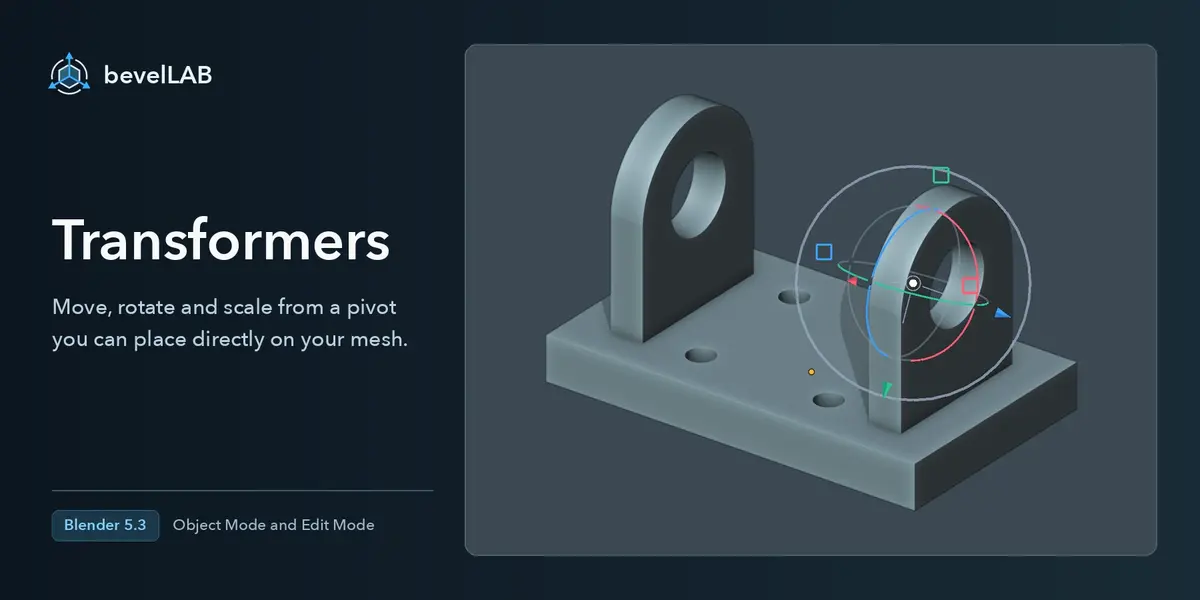
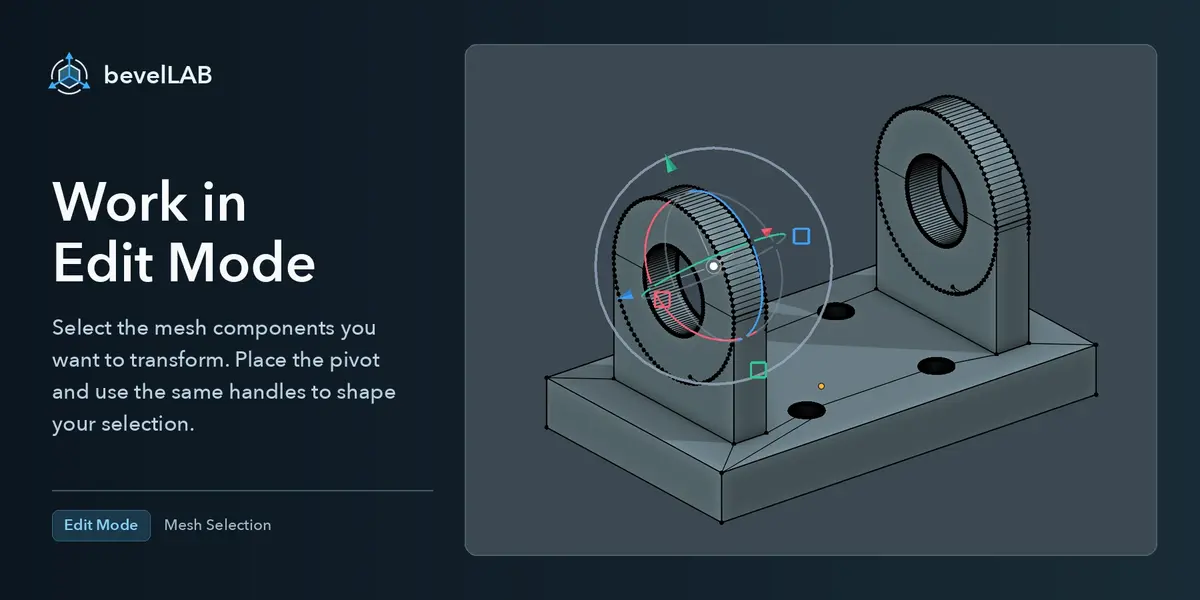
In the 3D Viewport, select a mesh and choose bevelLAB Transformers from the toolbar. Press T if the toolbar is hidden. In Object Mode, the handles transform the object. In Edit Mode, select the vertices, edges or faces you want to transform.
Place the pivot
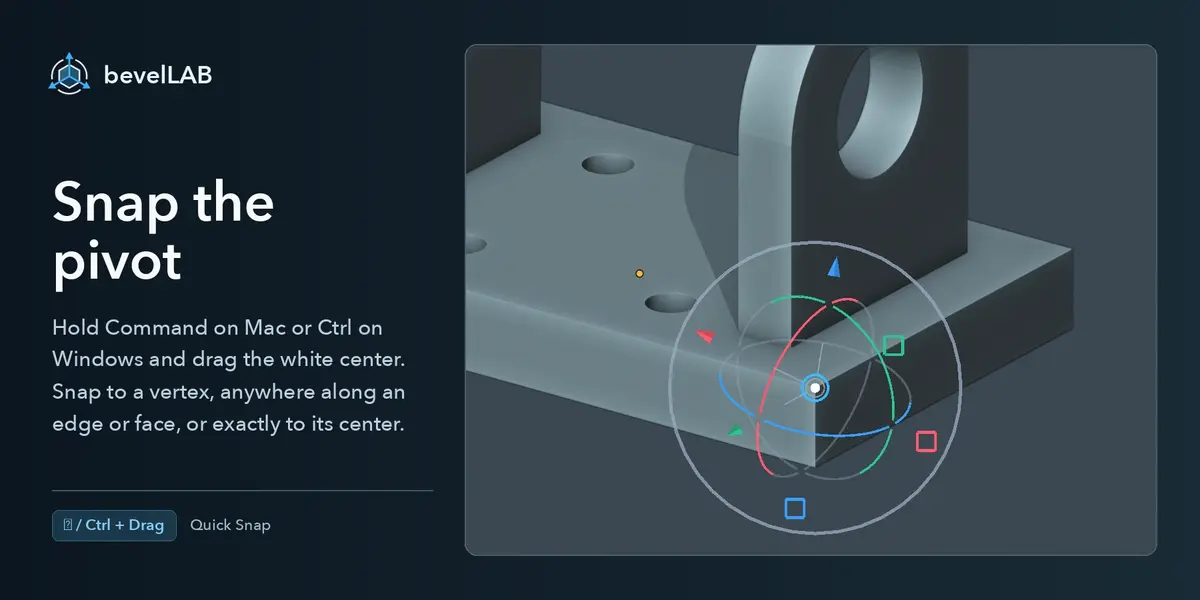
Drag the white center onto your mesh. The gizmo takes its position and orientation from the surface under the pointer. Hold Command on Mac or Ctrl on Windows during the drag for precise placement. When more than one target is close enough, the add-on checks the vertex first, then the edge center, along the edge, the face center and along the face. Release to keep the pivot there. Choose Reset Pivot to return to the selection center and world axes.
Use the handles
- Move by dragging a colored arrow.
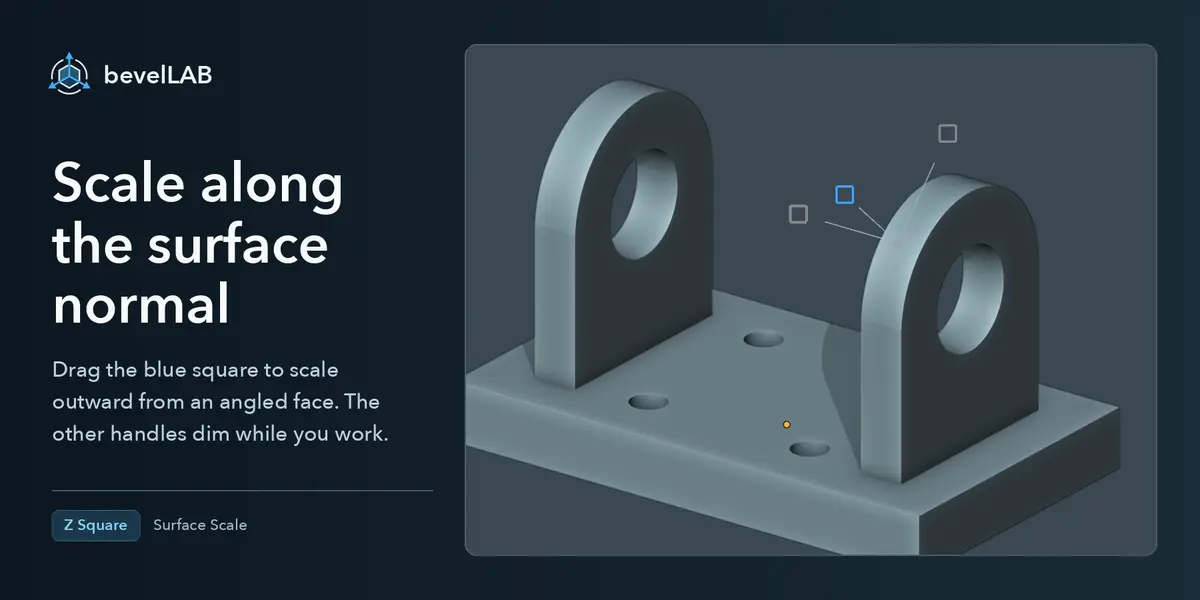
- Scale by dragging a square. To scale a part outward from an angled face, place the white center on that face and drag the blue Z square.
- Use a plane by holding Command on Mac or Ctrl on Windows as you start dragging an arrow or square. For example, use the Z arrow with this modifier to move in the gizmo’s X/Y plane.
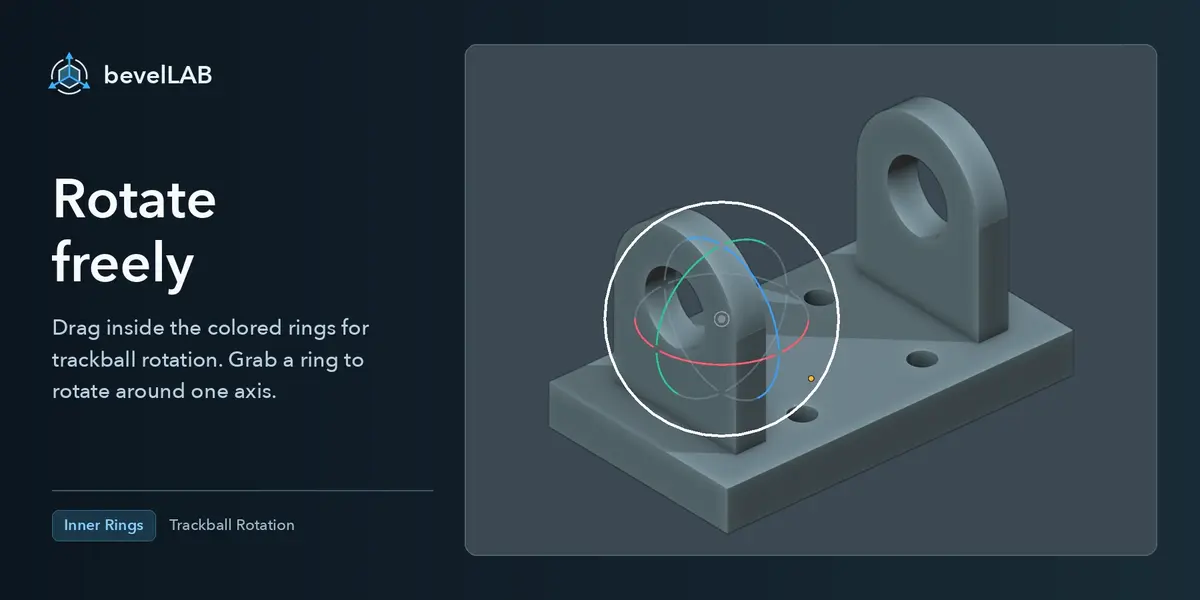
- Rotate by dragging a colored ring. Drag the outer rim to rotate around the view direction. Drag open space inside the inner rings for free trackball rotation.
Release the mouse to finish. Press Esc or right-click to cancel an active drag. Blender’s Undo command reverses a finished transform.
Scaling a linked mesh
The gizmo uses Blender’s object scale when it can follow the chosen axis. An off-axis scale can require changing vertex positions. In that case, objects sharing the same mesh also show the change. To keep a duplicate independent, make its mesh single-user before scaling. The add-on creates no modifiers or helper objects. Your existing modifiers stay in the stack.
Have questions about this product?
Login to message
| Blender Extension Compatible | Yes |
| Published | 1 day ago |
| Blender Version | 5.3 |
| Extension Type | Add-on |
| License | GPL |
Discover more products like this
transform gizmo snapping pivot trackball Surface Alignment viewport tools mesh modeling