Blend Mol
 Hugu's Works
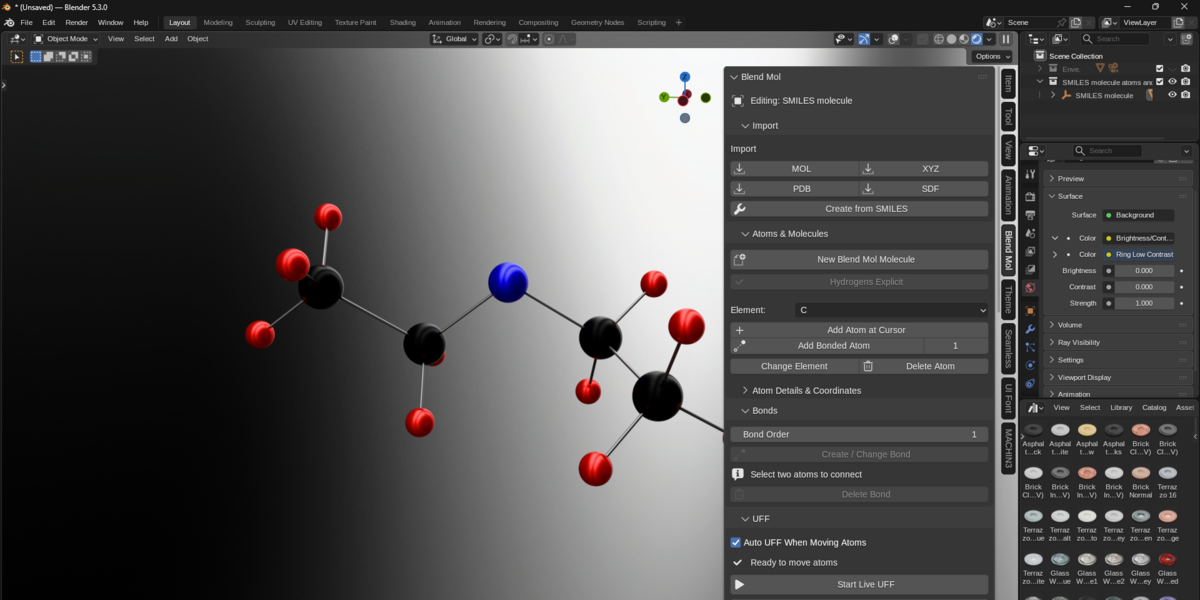


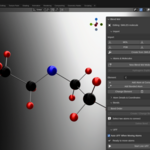
1. Installation (Blender 5.2+)
- Download the All-in-One ZIP (
blend_mol-0.1.92.zip) or the ZIP specific to your OS. - Open Blender 5.2 or newer and go to Edit → Preferences → Get Extensions.
- Click the top-right drop-down arrow and select Install from Disk..., then choose the downloaded ZIP file.
- Make sure the Blend Mol add-on is enabled.
- In the 3D Viewport, press
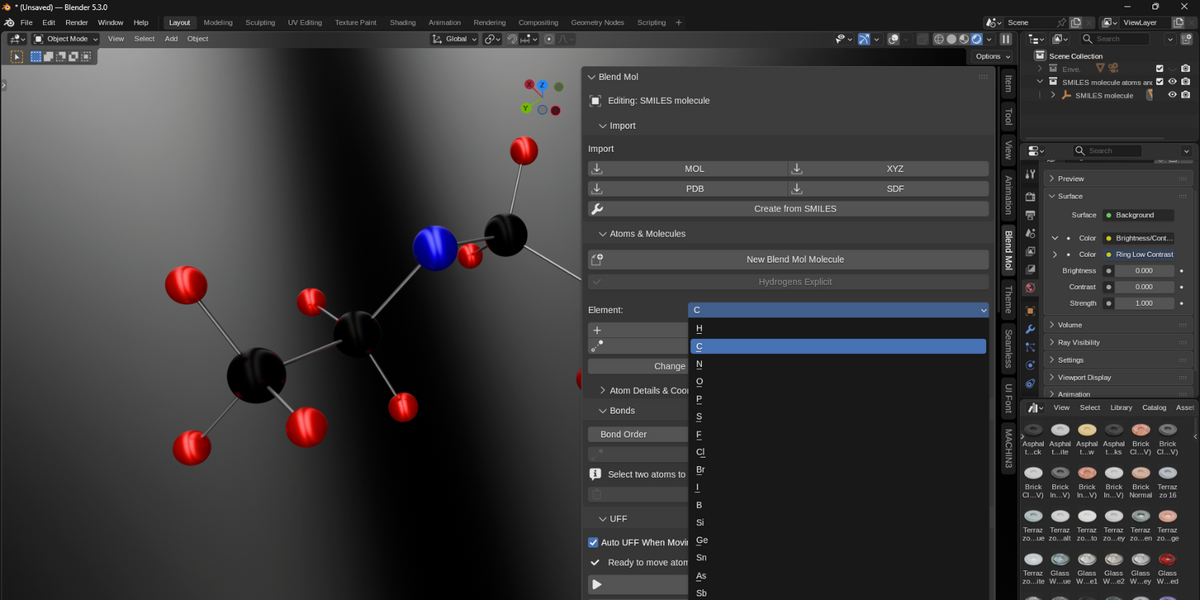
Nto open the sidebar and select the Blend Mol tab.
2. Quick Start Workflow
-
Create or Import a Molecule:
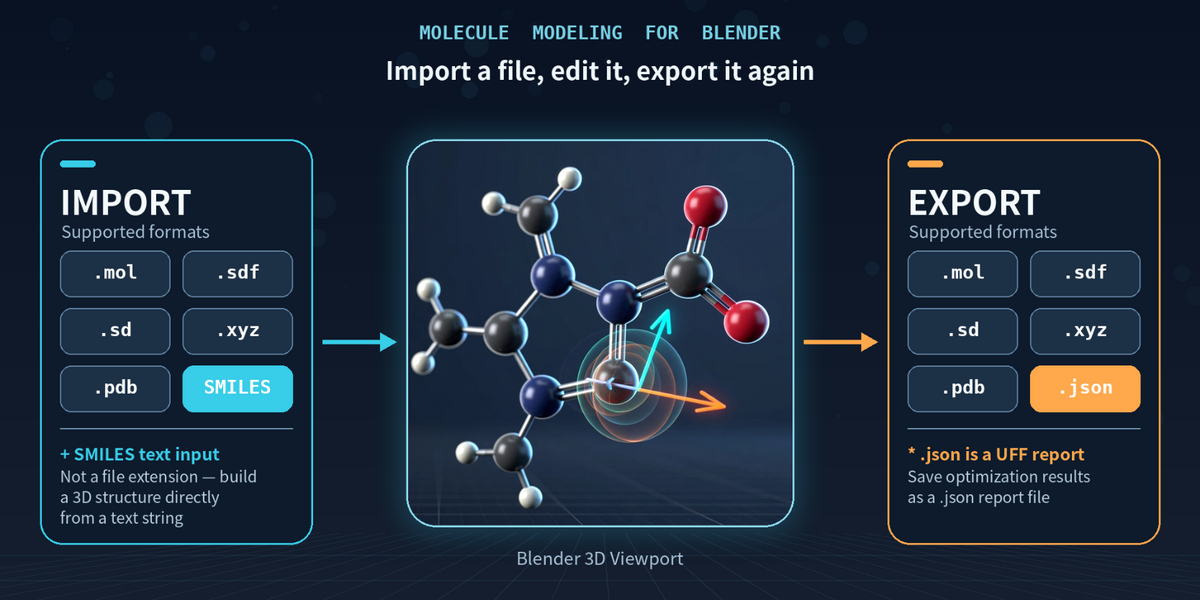
- Open Import to load a file (
MOL,XYZ,PDB,SDF) or generate a 3D structure via Create from SMILES. - Or click New Blend Mol Molecule under Atoms & Molecules to start from a single atom at the 3D cursor.
- Open Import to load a file (
-
Build & Edit:
- Pick an Element, then use Add Atom at Cursor or select an existing atom and click Add Bonded Atom (with the adjacent Bond Order set to 1, 2, or 3).
- To connect two existing atoms, select both and use Create / Change Bond in the Bonds panel.
-
Prepare Hydrogens for Auto Live UFF:
- If the Make Hydrogens Explicit button is highlighted in red, click it before dragging atoms with automatic Live UFF. When complete, it turns into a checkmark (Hydrogens Explicit).
-
Interactive UFF Relaxation:
- With Auto UFF When Moving Atoms enabled (on by default), select an explicit atom and move it (
G). Surrounding atoms relax automatically and stop once settled. - For continuous manual sessions, click Start Live UFF. To minimize the entire molecule in one pass, click Minimize UFF.
- With Auto UFF When Moving Atoms enabled (on by default), select an explicit atom and move it (
-
Style & Export:
- Adjust colors, materials, and mesh settings under Display, then save your work under Export.
3. Panel Reference
Import
- MOL: Imports MDL MOL files in both V2000 and V3000 formats. Aromatic bonds (order 4) are automatically converted to alternating single/double (Kekule) bonds.
- XYZ: Imports Cartesian coordinates. With Perceive Bonds enabled (default), single bonds are added between atoms within their covalent radii + 0.45 Å.
-
PDB: Imports
ATOM/HETATMcoordinates andCONECTsingle bonds. If a file has noCONECTrecords, Perceive Bonds Without CONECT (default on) infers single bonds from distances. - SDF: Imports multi-record SD files (V2000/V3000), creating one molecule per record up to Max Records (default 100). Optional Skip Invalid Records and Arrange in a Row prevent overlap while keeping stored atom coordinates intact. SD data items are preserved for re-export.
-
Create from SMILES: Generates a 3D starting conformation using built-in distance geometry (or a flat 2D layout if 3D Starting Geometry is unchecked). Supports
@/@@/@TH1/@TH2,//\, aromatic rings, isotopes (e.g.,[13CH4],[2H]O[2H]), bracketed silicon ([SiH4]), and wildcard placeholders (*).
Atoms & Molecules
- New Blend Mol Molecule: Creates a new molecule with one atom at the 3D cursor.
- Make Hydrogens Explicit: Converts displayed implicit hydrogens into editable explicit atom/bond objects (required before automatic Live UFF on atom move).
- Add Atom at Cursor / Add Bonded Atom: Adds an atom of the chosen Element. When adding a bonded atom to an already-saturated atom, Blend Mol automatically replaces as many spare explicit hydrogens as needed for the requested bond order.
- Change Element / Delete Atom: Changes the active atom's element (dropping any old isotope label) or batch-deletes all selected explicit atoms and remaps constraints automatically.
- Atom Details & Coordinates (collapsed by default): Set Formal Charge (-3 to +3), inspect atom index/isotope info, or run Sync Edited Atom Positions after manually transforming atom objects.
Bonds
- Bond Order / Create / Change Bond / Delete Bond: Create or update single/double/triple bonds between two selected explicit atoms, or delete the active bond. Edits that would introduce or worsen an invalid valence excess are prevented with a warning.
- Valence warnings: Displays any over-valence or unruled atoms detected in the stored structure.
UFF (Force Field & Optimization)
- Auto UFF When Moving Atoms: Automatically triggers Live UFF when you move an explicit atom and stops after settling.
-
Start Live UFF / Stop Live UFF: Runs interactive background relaxation while holding the selected atom fixed. Press
Escor right-click to cancel and restore the session's starting coordinates. Manual start also makes any remaining implicit hydrogens explicit. - Minimize UFF: Runs full partial UFF minimization on the molecule (explicitating any remaining hydrogens automatically).
UFF Settings & Diagnostics (collapsed by default)
- Atom Typing & Energy Breakdown: Inspect assigned UFF types and toggle Show Energy Breakdown to view Bond Stretch, Angle Bend, Torsion, Out-of-Plane, and van der Waals energies (kcal/mol).
-
Solver Settings: Configure UFF Iterations, UFF Max Atom Step, Gradient Tolerance, Energy Tolerance, and UFF Optimizer (
L-BFGSdefault,FIRE2, orSteepest Descent). -
UFF Compute Backend: Switch between
Auto(uses native Rust library when available, otherwise Python),Python, orRust. - Interactive Diagnostics & Benchmark: Run a single manual relaxation step (Relax Around Selected Atom), tune Live UFF chunk budget/interval/settle updates, run Benchmark 1 UFF Step, or toggle Show Before / Show After coordinates from the last minimization.
UFF Constraints (collapsed by default)
- Fixed Atoms: Select an explicit atom and click Toggle Fixed Selected Atom to pin it during UFF and display relaxation.
- Distance Constraint: Select 2 explicit atoms, enter Target Distance (Å) or click Use Current, then Set Target.
- Angle Constraint: Select 3 explicit atoms with the center atom active, then set a degree target or capture the current angle.
- Dihedral Constraint: Select 4 explicit atoms forming one unambiguous bonded path, then set a signed degree target (-180° to 180°) or capture the current dihedral.
Display
- Element Colors: Live CPK color pickers for every element present in the scene, plus Reset to CPK Colors.
- Geometry: Adjust Atom Scale, Bond Radius, and Show Implicit Hydrogens, then click Rebuild Selected Molecule to apply.
- Material: Roughness and Metallic sliders update the shared atom/bond materials immediately.
- Mesh Detail (collapsed by default): Configure sphere/cylinder segments and apply non-destructive Add Subdivision Surface modifiers.
- Coordinates & Recovery (collapsed by default): Run non-UFF Relax Display Geometry, save/restore a Position Snapshot, or apply Jitter All Atom Positions.
Export
- MOL: Exports the active molecule as V2000, V3000, or Auto (switches to V3000 above 999 atoms/bonds).
-
XYZ / PDB: Exports Cartesian coordinates (XYZ) or
HETATM/CONECTrecords (PDB; note that PDBCONECThas no bond-order field). - SDF: Exports all selected molecules (or only the active one) into one SD file, preserving SD data items.
- Export Partial UFF Report: Saves a JSON report with atom types, energy terms, constraints, minimization history, and benchmark results.
4. Troubleshooting & FAQ
Q: Why does Auto Live UFF say "make implicit hydrogens explicit first"?
A: Making hydrogens explicit rebuilds the atom/bond objects in Blender. Doing that while Blender's move operator (G) is active on an atom would invalidate the dragged object. Click Make Hydrogens Explicit (red button in Atoms & Molecules) once, or click Start Live UFF manually.
Q: UFF stopped with a "collinear atoms have no stable angle gradient" warning.
A: If three bonded atoms on a non-linear center start at an exact 180° line (for example from a flat 2D layout or symmetric edit), the angle gradient is singular. Click Jitter (shown right below the warning, or under Display → Coordinates & Recovery) to nudge atoms slightly off the line, then run UFF again.
Q: How do I undo a Live UFF drag?
A: Pressing Esc or right-clicking while Live UFF is active cancels the session and restores all atoms to the coordinates from when the Live UFF session started. Undo/Redo (Ctrl+Z) also safely stops any background worker before changing history.
Q: What if the native Rust library fails to load on my OS (especially macOS)?
A: When UFF Compute Backend is set to Auto (default), Blend Mol automatically falls back to the built-in pure-Python UFF solver. You can check the active backend under UFF Settings & Diagnostics. (macOS builds are currently unsigned and awaiting user feedback.)
Q: Which elements and force-field terms are supported?
A: Blend Mol v0.1.92 supports 18 main-group elements (H, C, N, O, F, P, S, Cl, Br, I, B, Si, Ge, Sn, As, Sb, Se, Te) and five Partial UFF terms (bond stretch, angle bend, torsion, out-of-plane, van der Waals). Electrostatic terms and transition metals are planned for future releases.
Have questions about this product?
Login to message
| Blender Extension Compatible | Yes |
| Published | about 19 hours ago |
| Blender Version | 5.0 - 5.3 |
| Extension Type | Add-on |
| License | GPL |