 TSDesign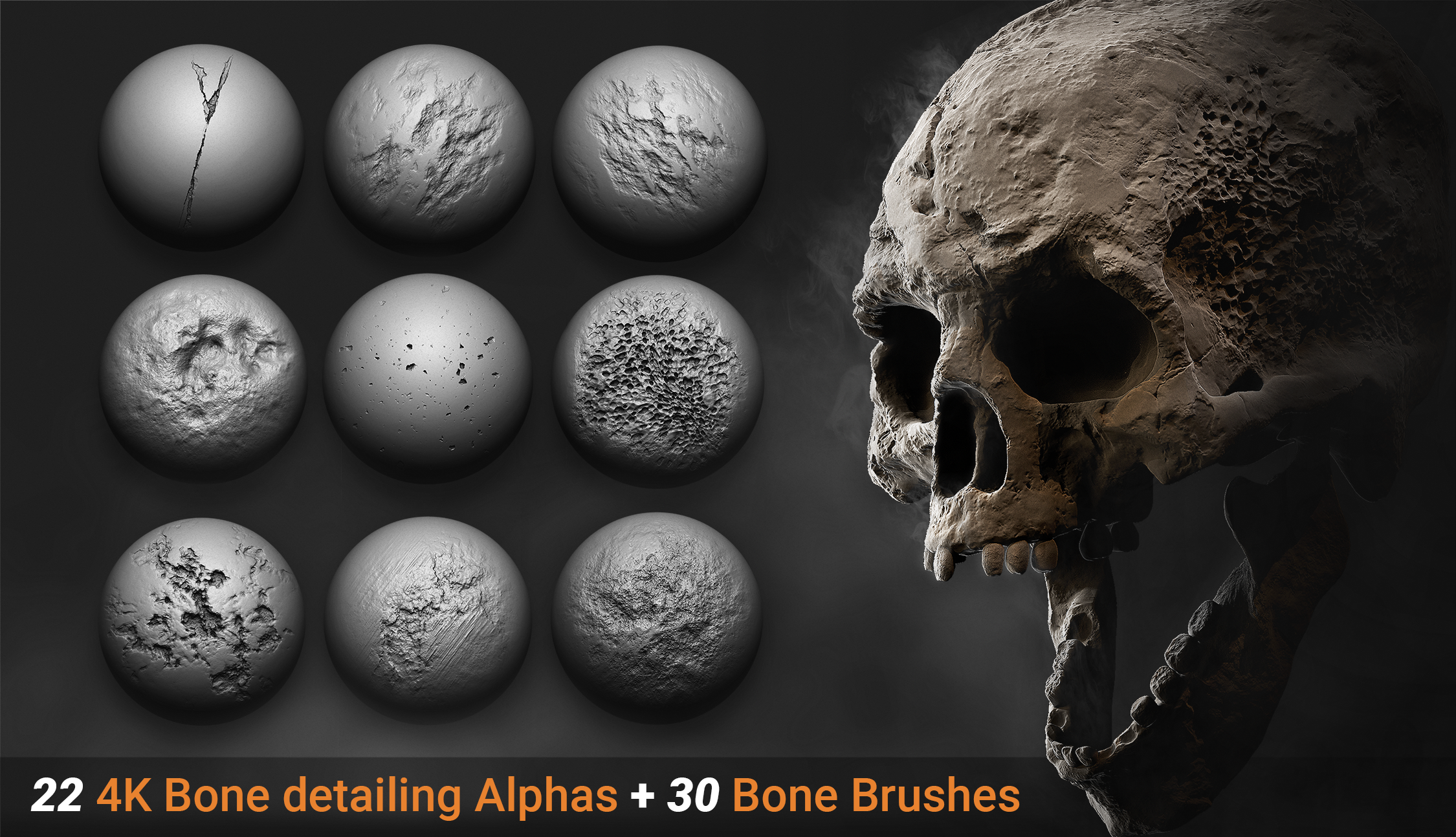
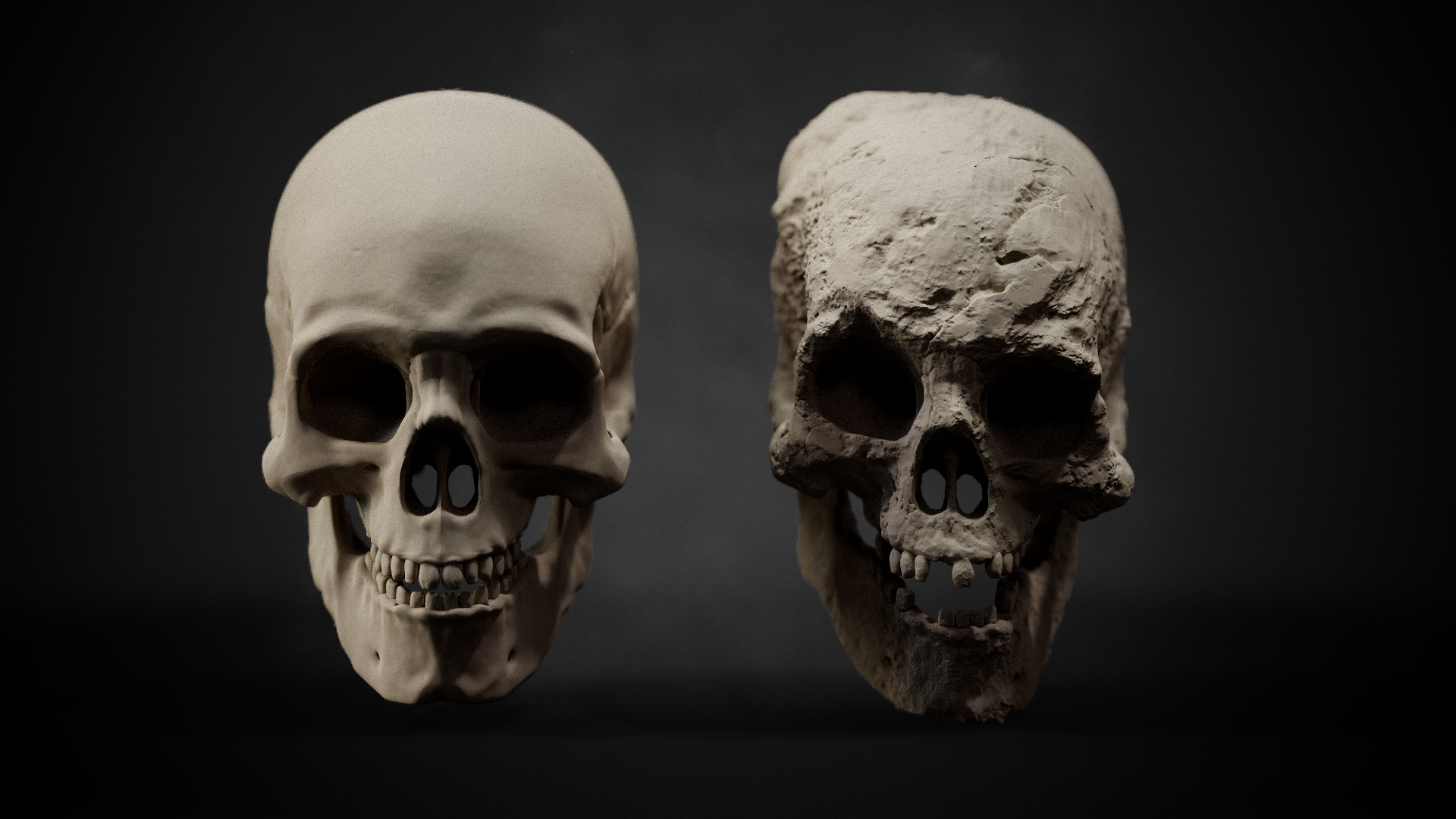
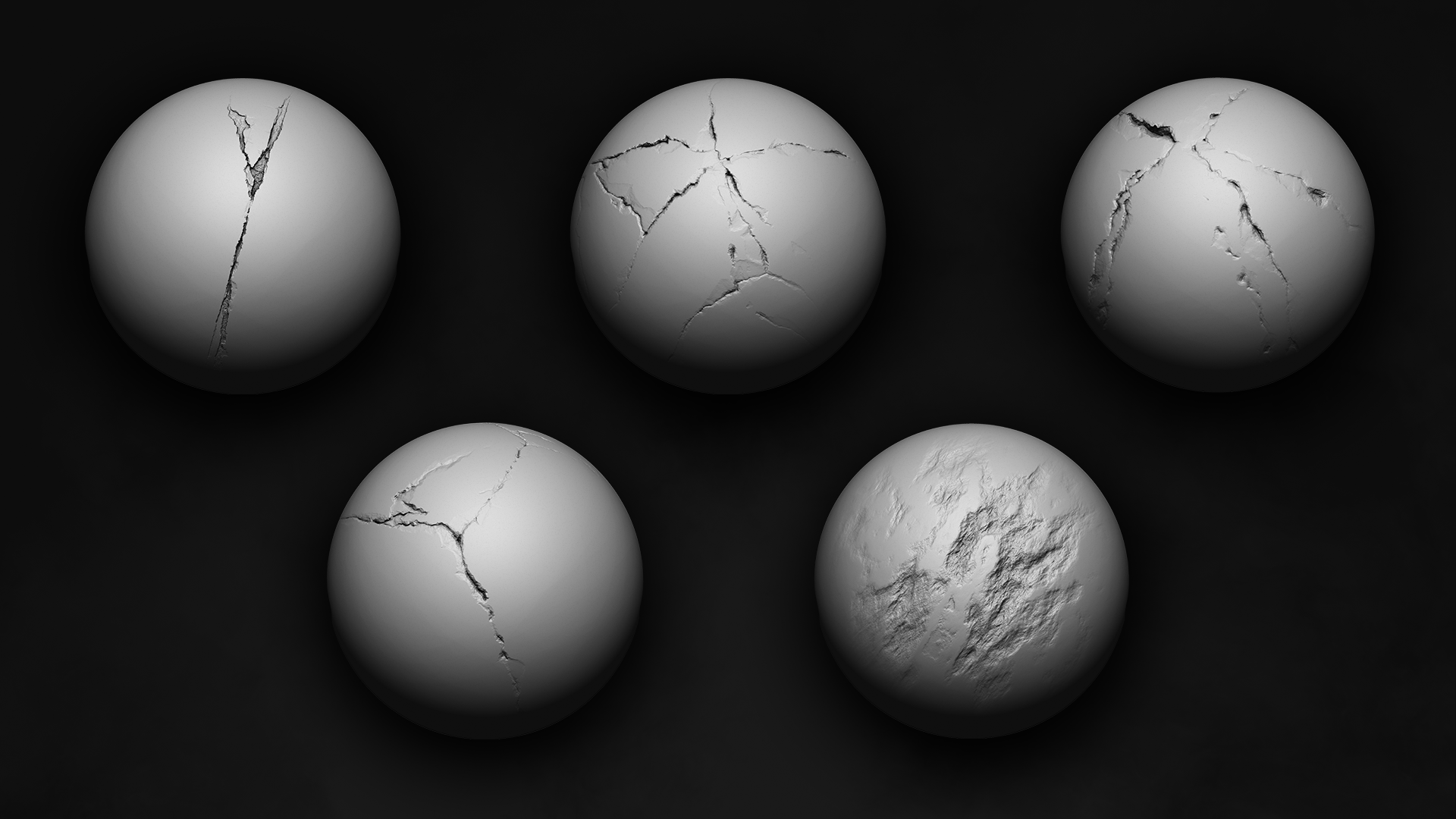
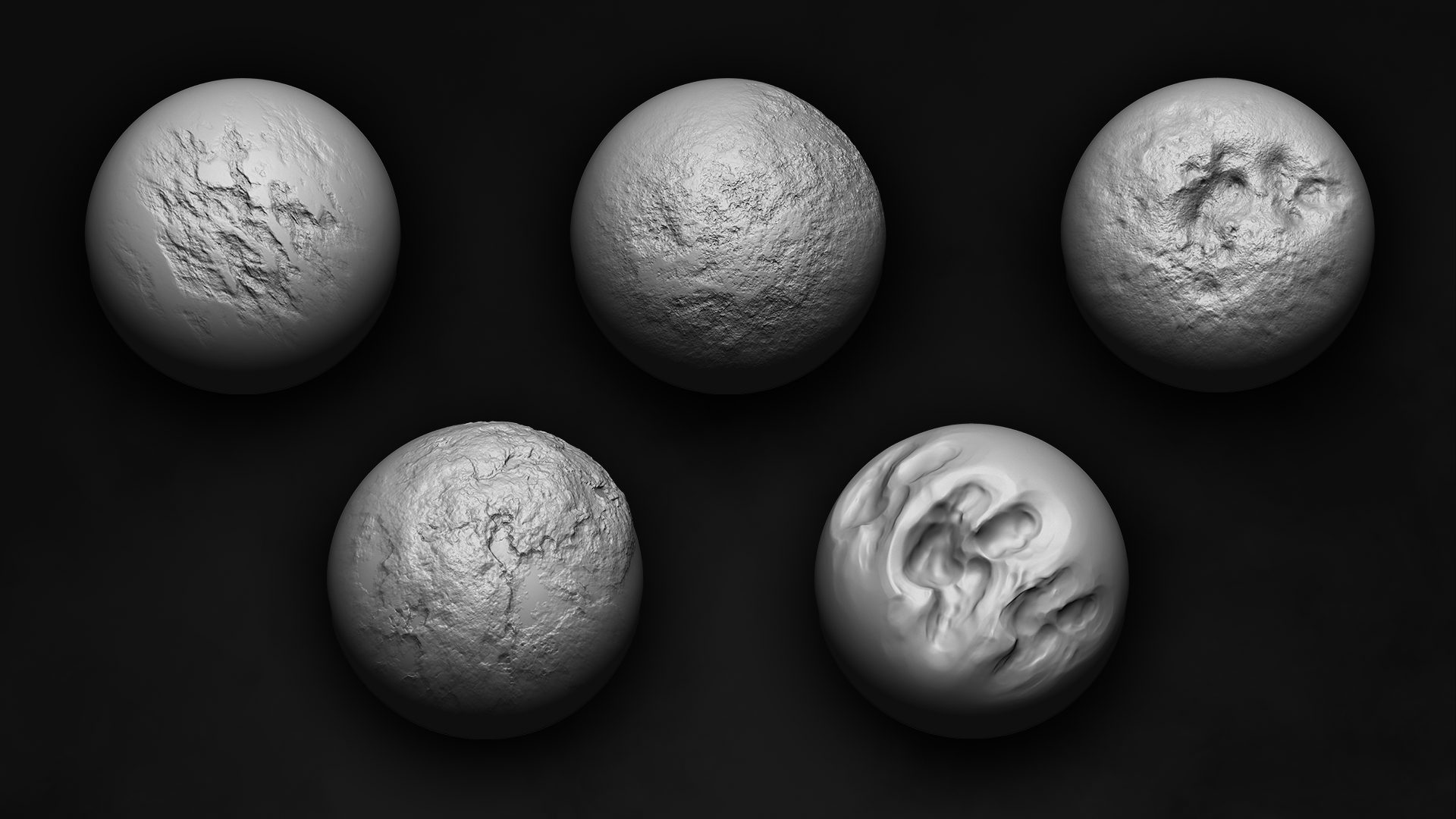
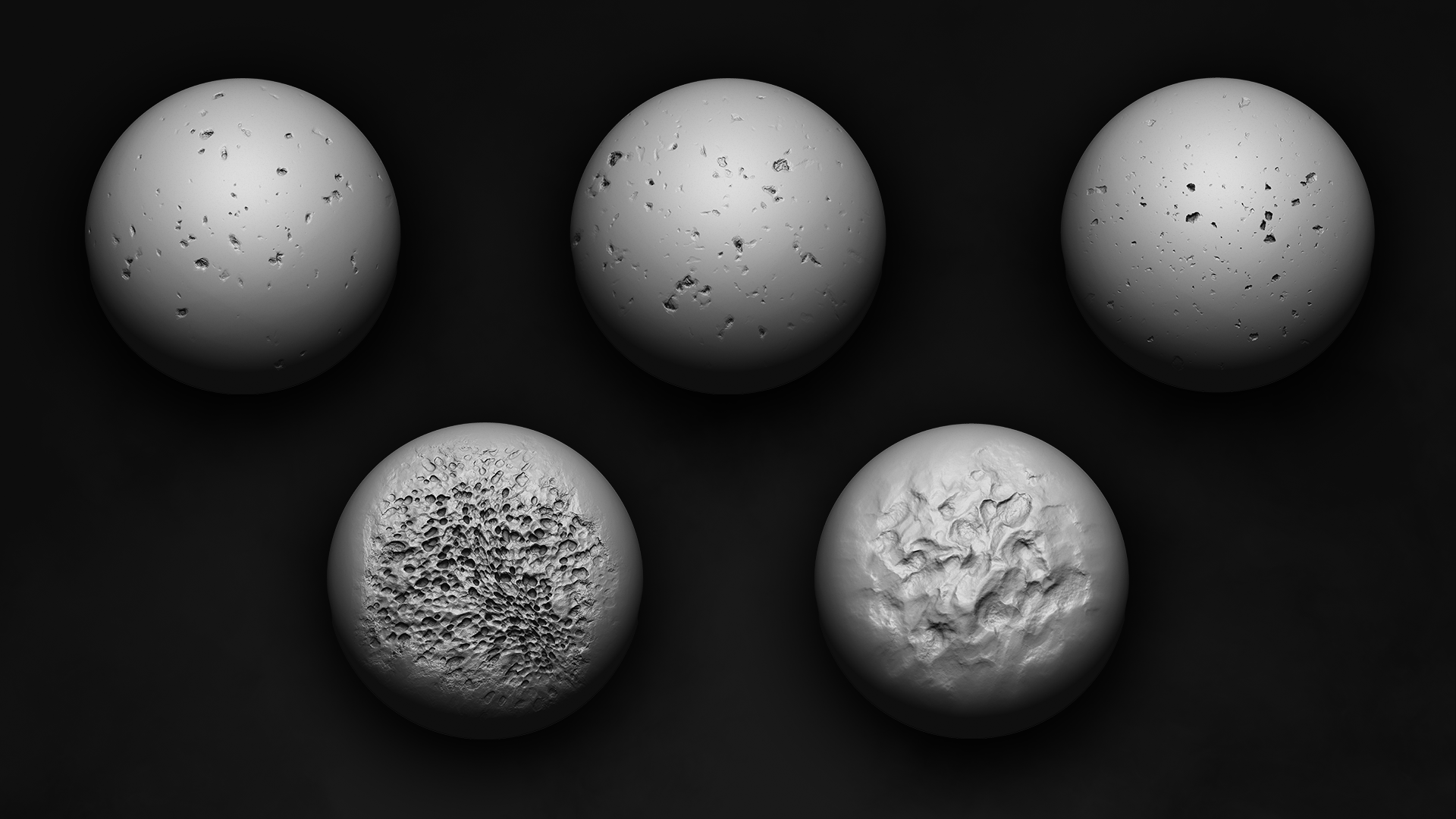
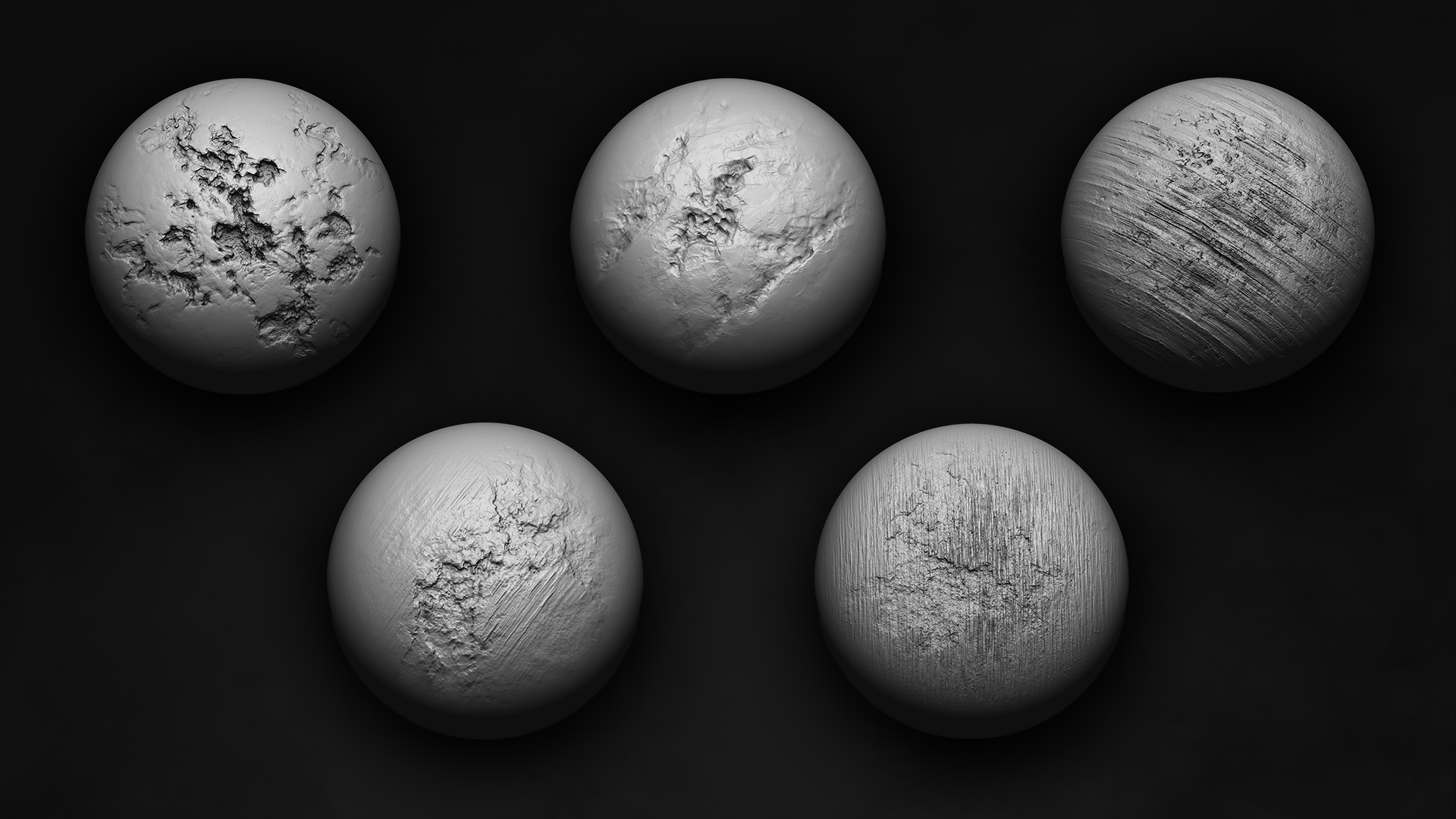
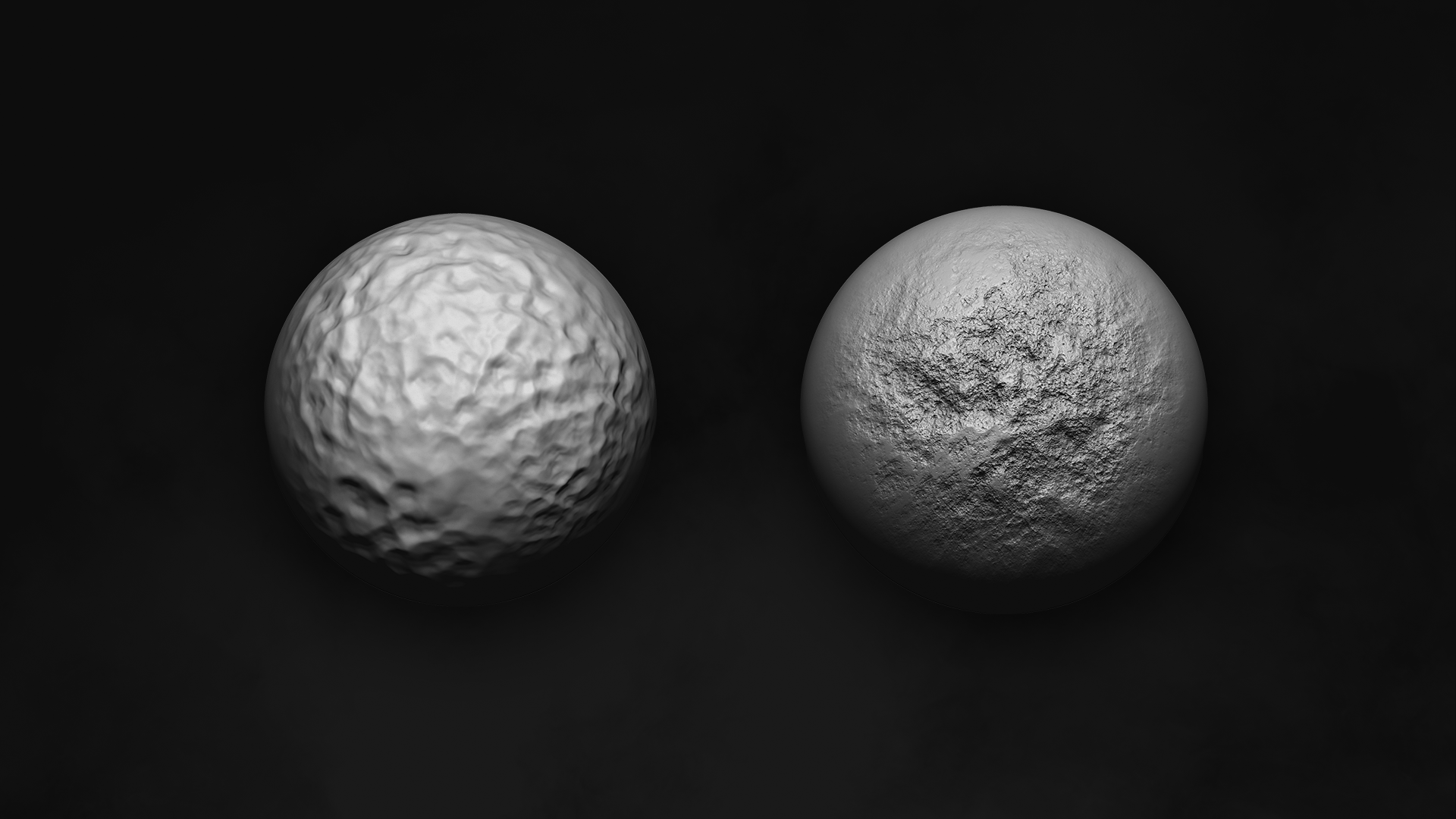
Documentation installation screenshots available in the product file
- Access the Append Function: Navigate to the "File" menu located at the top left corner of the Blender interface. Click on "File" to reveal a dropdown menu. From the dropdown menu, select "Append".
- Upon selecting the Append option, a file browser window will appear. Use this window to navigate to the Blender file containing the brushes you want to append.
- Double-click on the Blender file containing the brushes to open it. Within the file, you'll see various directories such as "Brushes," "Objects," "Materials," etc. Select the "Brushes" directory to access the brushes stored in the file.
- Within the "Brushes" directory, you'll find a list of brush files (.blend files) or a collection of brushes. Click on the brush files or individual brushes you wish to append. You can select multiple brushes by holding down the Shift key while clicking.
- Once you've selected the brushes to append, click on the "Append" button located at the top right corner of the file browser window. Blender will then import the selected brushes into your current Blender file.
- After the appending process is complete, you can access the newly imported brushes by opening the "Brush" menu in the toolbar or by pressing the F5 key to bring up the Brush panel. The appended brushes will appear alongside the default brushes available in Blender.
Support available : [email protected]
BLENDER 4.3 Update notes
- Brushes must be marked as assets in Blender 4.3 to be recognized and used. This is done by opening the file with the old brushes, selecting each brush in the Outliner (set to Blender File view), and registering it as an asset manually
- After registering brushes as assets, save the file in your user asset library folder. Brushes saved this way will appear in the Asset Browser and be available in new projects without reloading
- You can also append old brushes into your startup.blend file, register them as assets, and then save startup.blend. This restores a workflow similar to Blender 4.2, where brushes are always available on startup
- Sometimes, after registering and saving brushes as assets, you must close and reopen Blender to have the brushes fully recognized and usable
Here are examples of appending the brushes with the new system if needed.
Have questions about this product?
Login to message
| Sales | 70+ |
| Published | over 2 years ago |
| Blender Version | 4.1, 4.0, 3.6 |
| License | Royalty Free |

Discover more products like this
alpha brushes 3DDetails organic brushes Skeleton detail 3dalpha Organic design 3D Sculpting displacement 3D model detailing 3d brushes gameart horror texture add surface detail 3dsculpt bones tools heightmaps bone alphas