Blender 4-1 Vertex Color & Vertex Alpha Gradient Maker and Visualizer
 Luke Adwick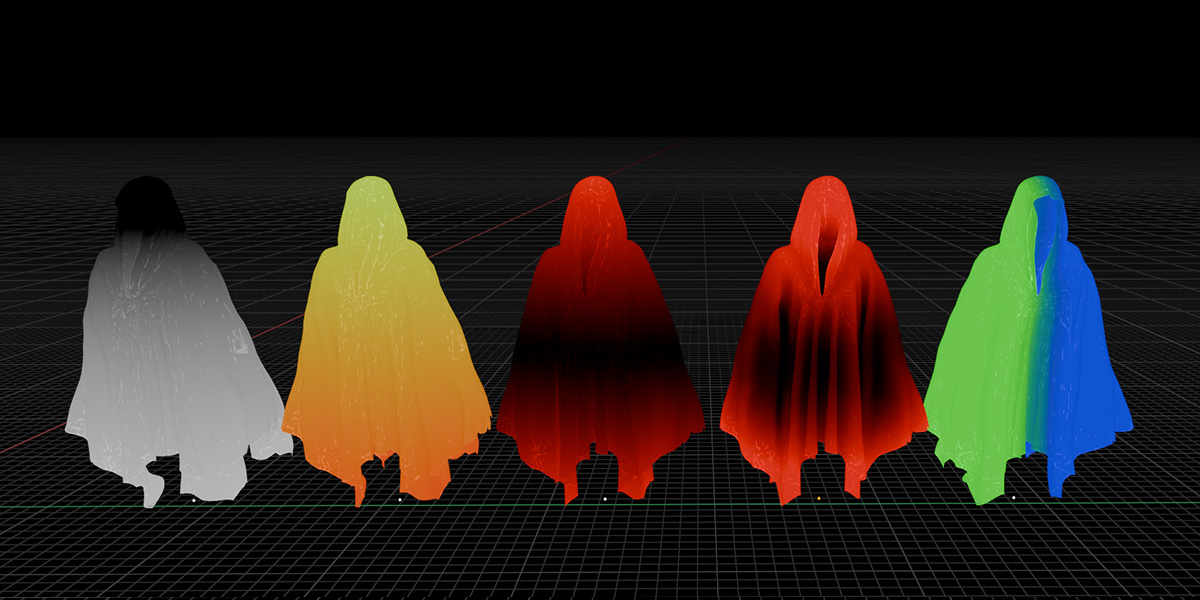
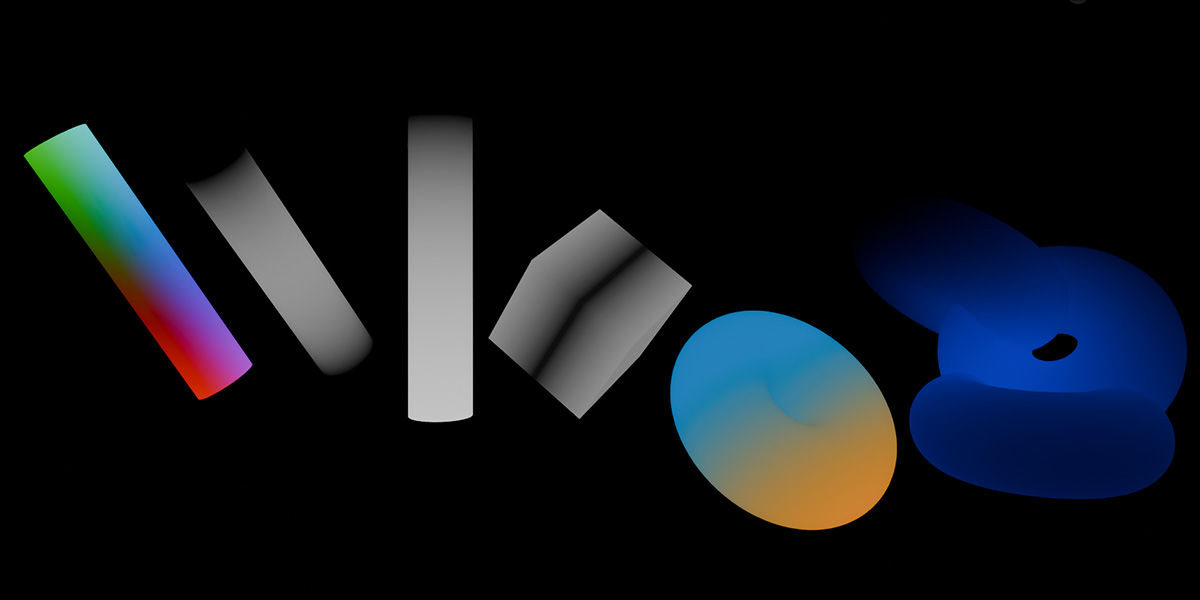
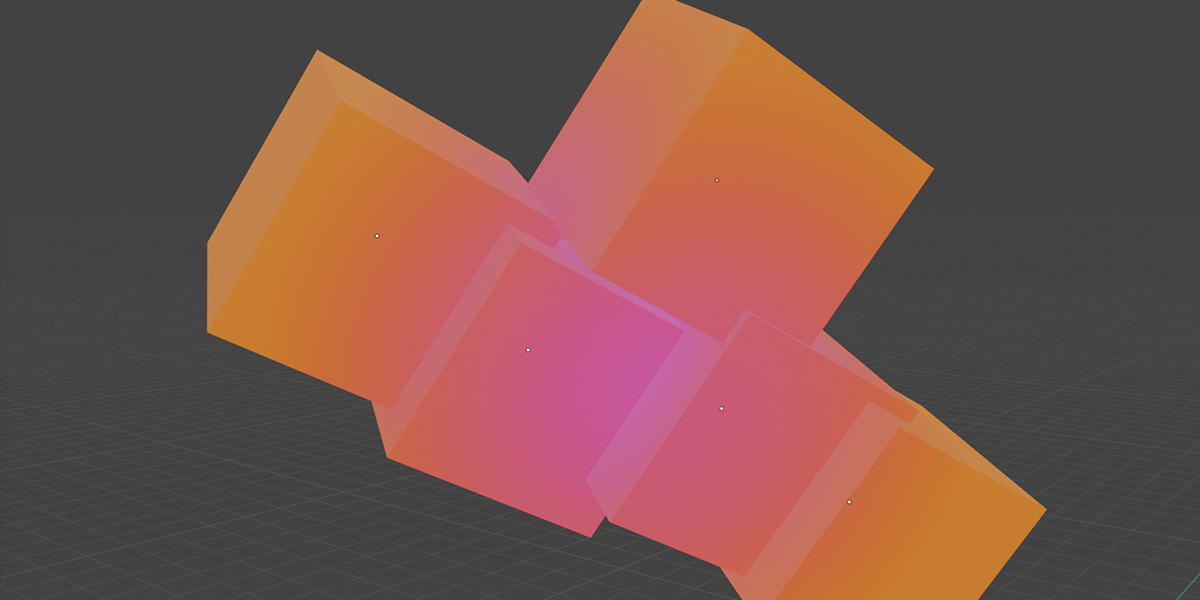
Installation
- Open Blender.
- Go to
Edit > Preferences > Add-ons > Install. - Select the script file (
LA-Vertex-CA-Gradients.zip). - Enable the add-on by checking the box next to it.
Using the Script
-
Open the Custom Panel:
- In the 3D Viewport, navigate to the right-hand toolbar and find the
LA-Vertex CA Gradientstab.
- In the 3D Viewport, navigate to the right-hand toolbar and find the
-
Set Alpha Values:
- Select the mesh object(s) you want to modify.
- Click
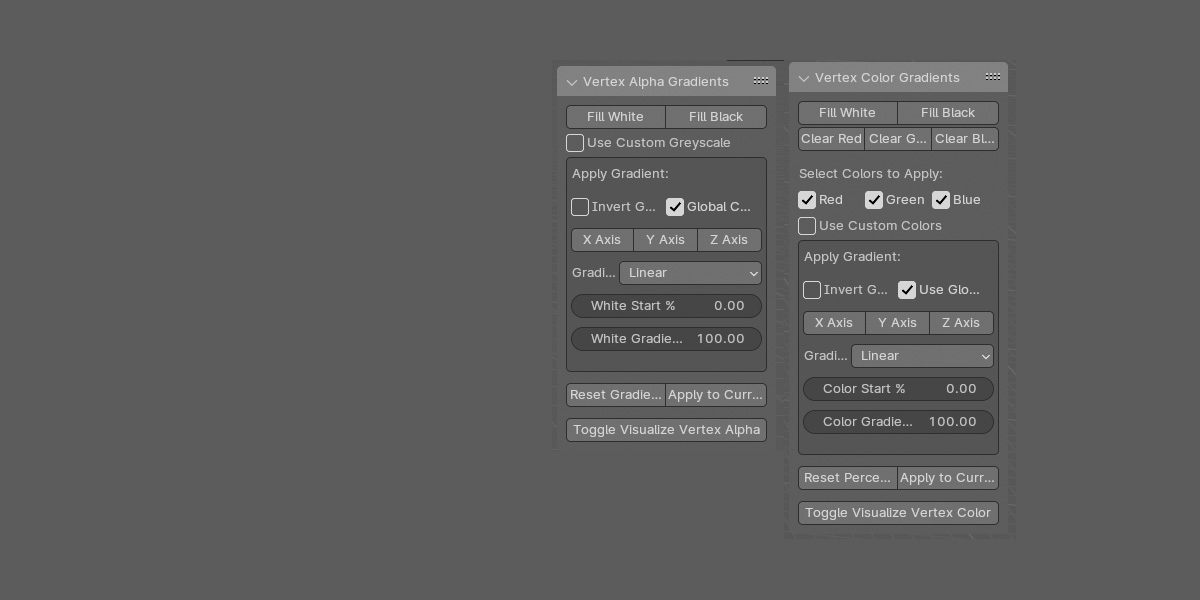
Fill WhiteorFill Blackto set all vertex alpha values to white or black.
-
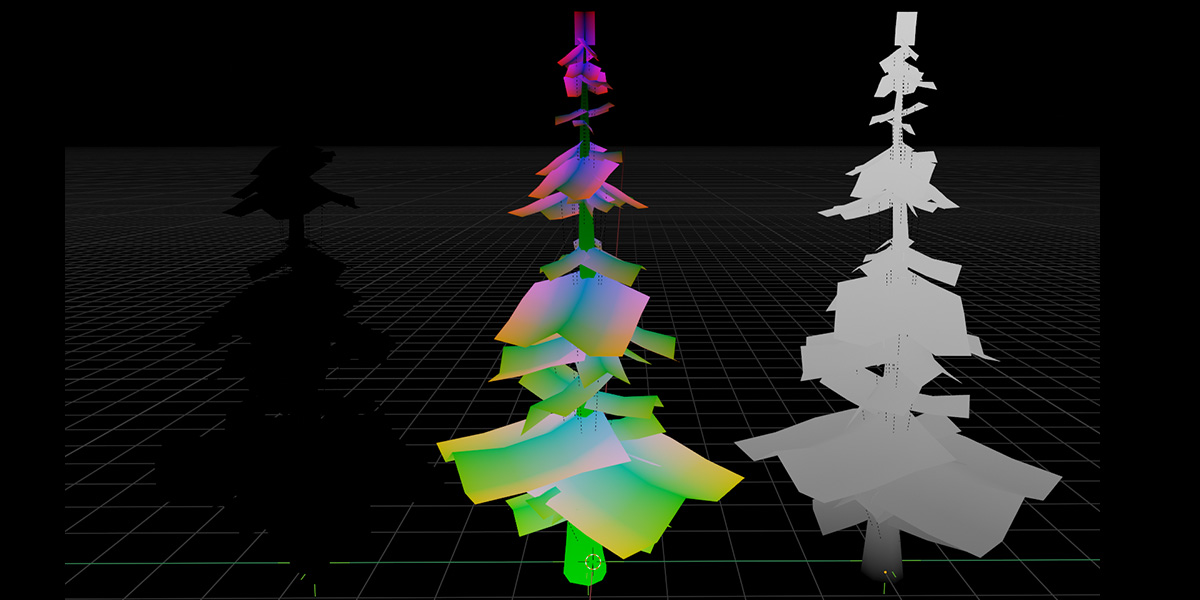
Fill Vertex Colors:
- Select the mesh object(s) you want to modify.
- Click
Fill WhiteorFill Blackto fill vertex colors with white or black.
-
Clear Vertex Color Channels:
- Select the mesh object(s) you want to modify.
- Click
Clear Red,Clear Green, orClear Blueto clear the respective color channel.
-
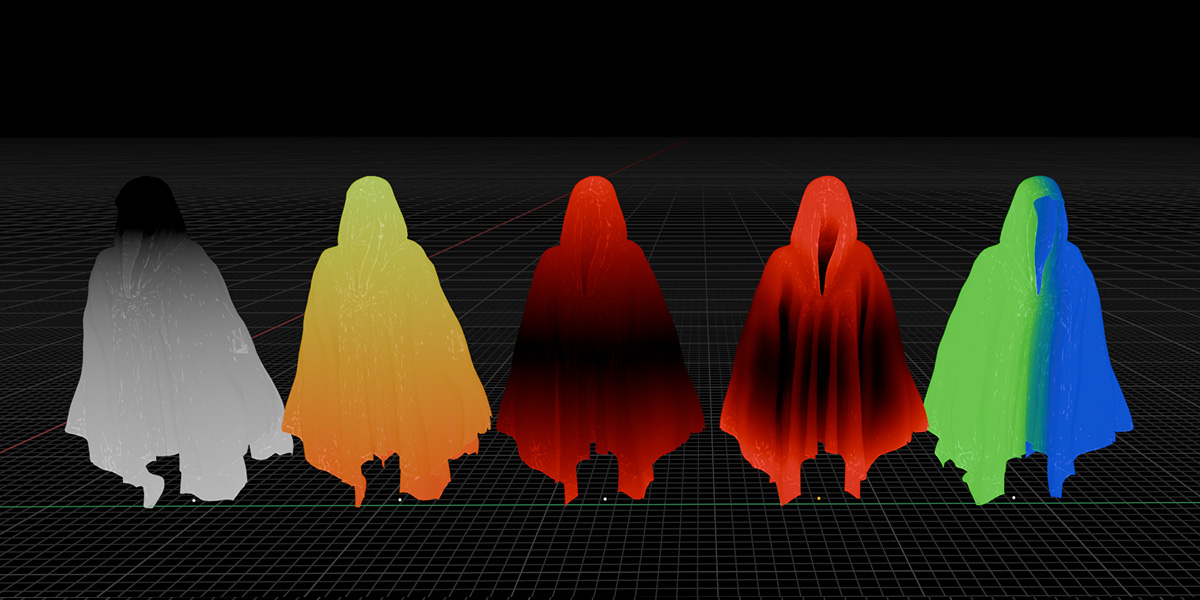
Apply Gradients:
- Select the mesh object(s) you want to modify.
- Choose the direction for the gradient (
X Axis,Y Axis, orZ Axis). - Adjust the gradient settings as needed:
-
Invert Gradient: Invert the gradient direction. -
Use Global Coordinates: Apply the gradient based on global coordinates. -
Gradient Type: Choose betweenLinear,Reflected, orRadial. -
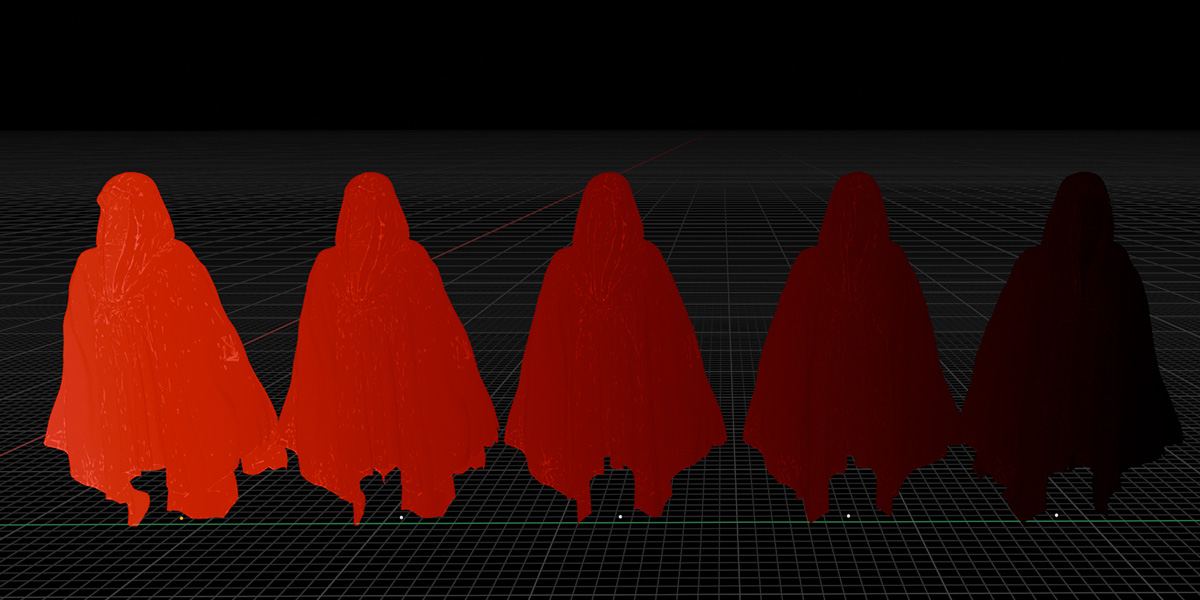
Color Start %andColor Gradient %: Set the start and end percentages of the gradient. -
Use Custom Colors/Greyscale: Enable and set custom colors or greyscale. -
Radial Offset (X, Y, Z): Adjust the center of the radial gradient.
-
-
Visualization:
- Select the mesh object(s) you want to visualize.
- Click
Toggle Visualize Vertex ColororToggle Visualize Vertex Alphato switch between visualizing and original materials.
-
Reset Settings:
- Click
Reset Percent Valuesto reset gradient start and end percentages to default. - Click
Reset Radial Offsetsto reset radial offsets to 0.
- Click
-
Apply Current Settings:
- Click
Apply to Current Selectionto apply all current settings to the selected mesh object(s).
- Click
