 NineLine


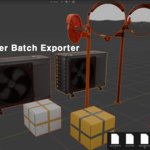
# Blender Batch Exporter Manual
## 1. Product Overview
Blender Batch Exporter is a Blender Extension that simplifies exporting multiple objects as separate files using Blender's native export system.
In addition to batch exporting, the extension provides tools for object renaming, mesh cleanup, and origin adjustment.
Main Features
* Batch Export Using Blender's Native Exporter
* Batch Rename with Digits
* Object Cleanup Tools
* Set Origin to Bottom Center
---
## 2. Installation
1. Go to Edit > Preferences.
2. Open the Get Extensions tab, click the menu button in the upper-right corner, and select Install from Disk.
3. Select the extension archive file.
4. After installation, the Batch Exporter tab will appear in the right sidebar of the viewport.
If the sidebar is not visible, press N in the viewport to show it.
---
## 3. Main Functions
### 3.1 Open Native Exporter & Batch Export
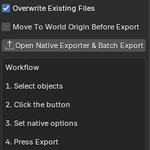
Opens Blender's native export window and prepares batch export for all selected objects.
Each selected object is exported as an individual file using its object name as the file name.
Currently, FBX, OBJ, and GLB export formats are supported. Additional formats may be added in future updates based on user feedback and the export formats available through Blender's native exporter.
Move To World Origin Before Export:
When enabled, each selected object is temporarily moved to the world origin before being exported. After export is complete, the object is restored to its original transform.
Workflow
1. Select the objects to export.
2. Enable "Move To World Origin Before Export" if you want each object to be exported from the world origin.
3. Click "Open Native Exporter & Batch Export".
4. Adjust export settings if necessary.
5. Click "Export".
*A temporary collection named "BBE_OPTION_CAPTURE_DELETE_ME" is created during batch export; please do not modify or delete it, as it will be removed automatically after export.
Result
* One exported file is created per selected object.
* File names match object names.
* Blender's native export settings are used.
---
### 3.2 Rename Selected Objects with Digits
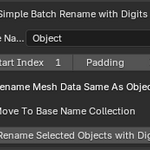
Renames all selected objects using a sequential numbering system.
Options
Base Name:
Defines the base name used for all selected objects.
Start Index:
Defines the first number used in the sequence.
Padding:
Defines the number of digits used in numbering.
Rename Mesh Data Same As Object:
When enabled, mesh data names are renamed to match the object names.
Move To Base Name Collection:
When enabled, a collection using the Base Name is created or reused, and the renamed objects are moved into that collection.
Example
Base Name: Object
Start Index: 1
Padding: 3
Result:
Object_001
Object_002
Object_003
---
### 3.3 Clean Selected Objects
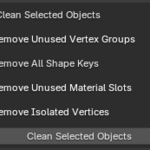
Removes unnecessary data from selected mesh objects.
Options
Remove Unused Vertex Groups
Removes vertex groups that do not affect any vertices.
Remove All Shape Keys
Removes all shape keys from selected objects.
Remove Unused Material Slots
Removes material slots that are not assigned to any polygons.
Remove Isolated Vertices
Removes vertices that are not connected to any geometry.
Purpose
Helps reduce unnecessary data and keeps mesh assets clean before export.
---
### 3.4 Set Origin to Bottom Center
Moves the object origin to the bottom-center position of the object's bounding box.
The visible position of the object remains unchanged.
Purpose
Useful for game assets, props, and modular assets that require a consistent pivot location.
Result
* Origin moves to bottom center.
* Object position remains visually unchanged.
* Supports batch processing of multiple selected objects.
Have questions about this product?
Login to message
| Blender Extension Compatible | Yes |
| Published | 4 months ago |
| Blender Version | 5.1 - 5.2 |
| Extension Type | Add-on |
| Render Engine Used | Blender-Internal |
| License | GPL |