 OtakuWorks


Version : 1.0
Blender Compatibility: 3.6+
Platform: Windows, macOS, Linux
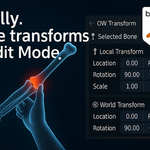
Revolutionize your Blender rigging workflow with precise numerical control in Edit mode!
🎯 Product Overview
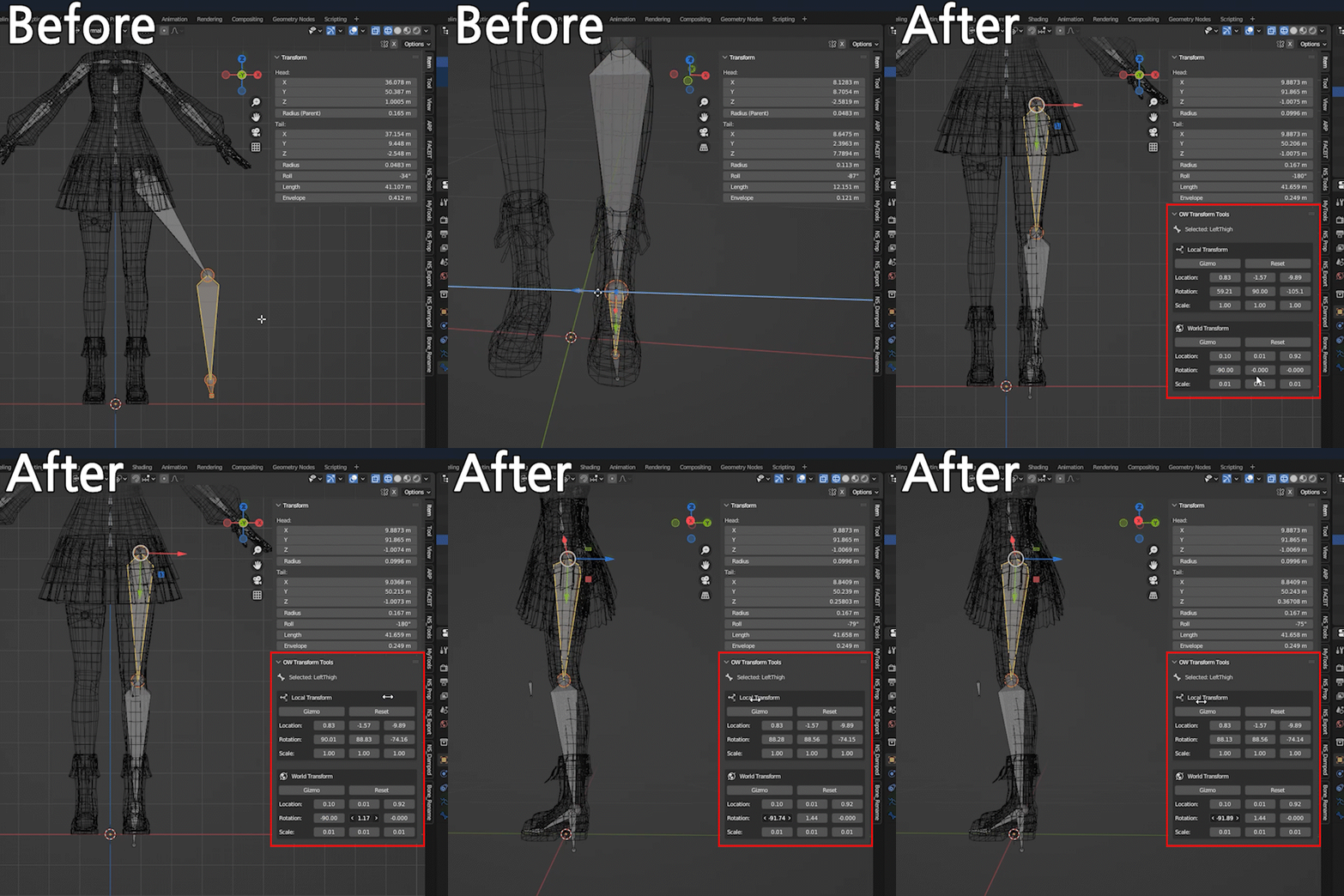
OW View Transform is a professional add-on designed to solve a fundamental limitation in Blender's Edit mode: the inability to input precise numerical values for bone hierarchies. This tool bridges the gap between rigging freedom and technical precision, making it an essential tool for professional riggers working on characters, mechanical rigs, and precision rigging tasks.
Core Problem Solved
- Issue: Blender's default Transform panel doesn't work for bones in Edit mode
- Solution: Provides real-time Local/World Transform UI in Edit mode
- Result: Early prevention of rigging errors and precise bone alignment
Key Features
- ✅ Edit Mode Numerical Input: Direct X/Y/Z coordinate and rotation control
- ✅ Dual Coordinate System: Local/World space switching
- ✅ Real-time Updates: Immediate visual feedback in 3D viewport
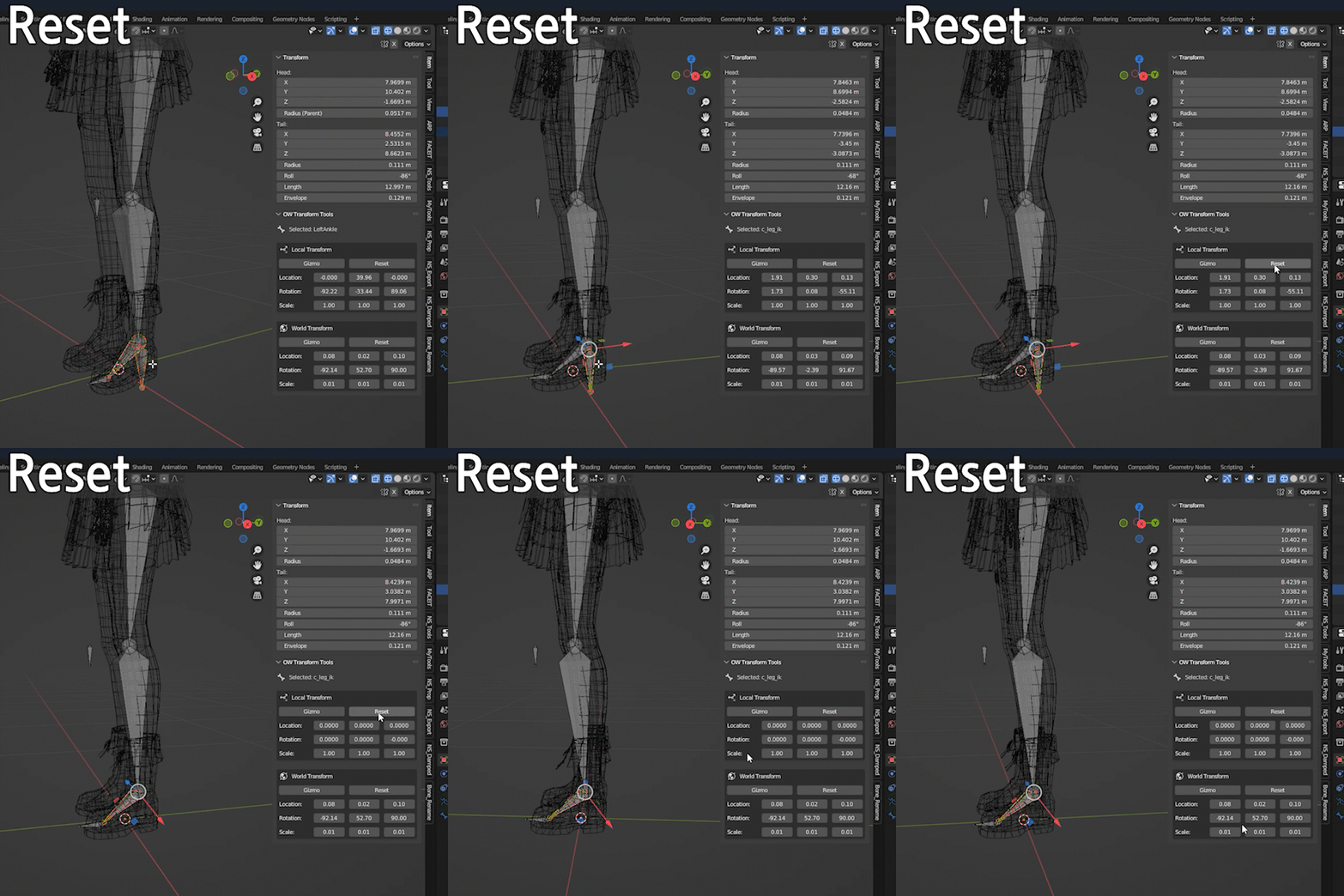
- ✅ Reset Function: Individual or batch transform initialization
- ✅ Gizmo Mode Switching: Local/World based gizmo changes
- ✅ Undo Support: Full integration with Blender's undo system
- ✅ Child Bone Handling: Automatic hierarchical transform management
🧩 Installation Guide
Step 1: Download and Extract
-
Download the purchased
ow_view_transform.pyfile
Step 2: Install in Blender
- Launch Blender
-
Menu:
Edit → Preferences(Shortcut:Ctrl+Alt+U) -
Select
Add-onstab in the left sidebar -
Click
Install...button in the top right -
Find and select the
ow_view_transform.zipfile -
Click
Install Add-on
Step 3: Activation
- Select an Armature and enter Edit mode
- Select a bone and check the OW Transform tab in the sidebar (N key)
🎛️ Interface Overview
Panel Location
-
Access Path:
3D Viewport → Item → OW_Transform Tool Tab - Display Condition: Only visible in Edit mode with Armature selected
- Panel Name: "Transform Controls"
UI Components
| Element | Function | Location |
|---|---|---|
| Bone Name | Shows currently selected bone | Top |
| Local/World Transform Fields | Location, Rotation, Scale in order X/Y/Z value input |
Middle |
| Reset Buttons | Initialize Local/World transforms | Each section |
| Gizmo Buttons | Change Local/World gizmos | Each section |
Keyboard Shortcuts
-
Enter: Confirm numerical input -
Ctrl+Z: Undo -
Ctrl+Shift+ZorCtrl+Y: Redo
🛠️ Basic Usage
Step 1: Setup
- Select Armature object in 3D viewport
-
Press
Tabto enter Edit mode - Select bone to transform
-
Press
Nto open sidebar - Click "OW Transform" tab
Step 2: Transform
- Choose Local/World coordinate system
- Input position/rotation values
-
Press
Enterto apply - Check results in 3D viewport
Step 3: Finish
- Repeat on other bones as needed
- Use Reset buttons for quick initialization
-
Press
Tabto exit Edit mode
💡 Primary Use Cases
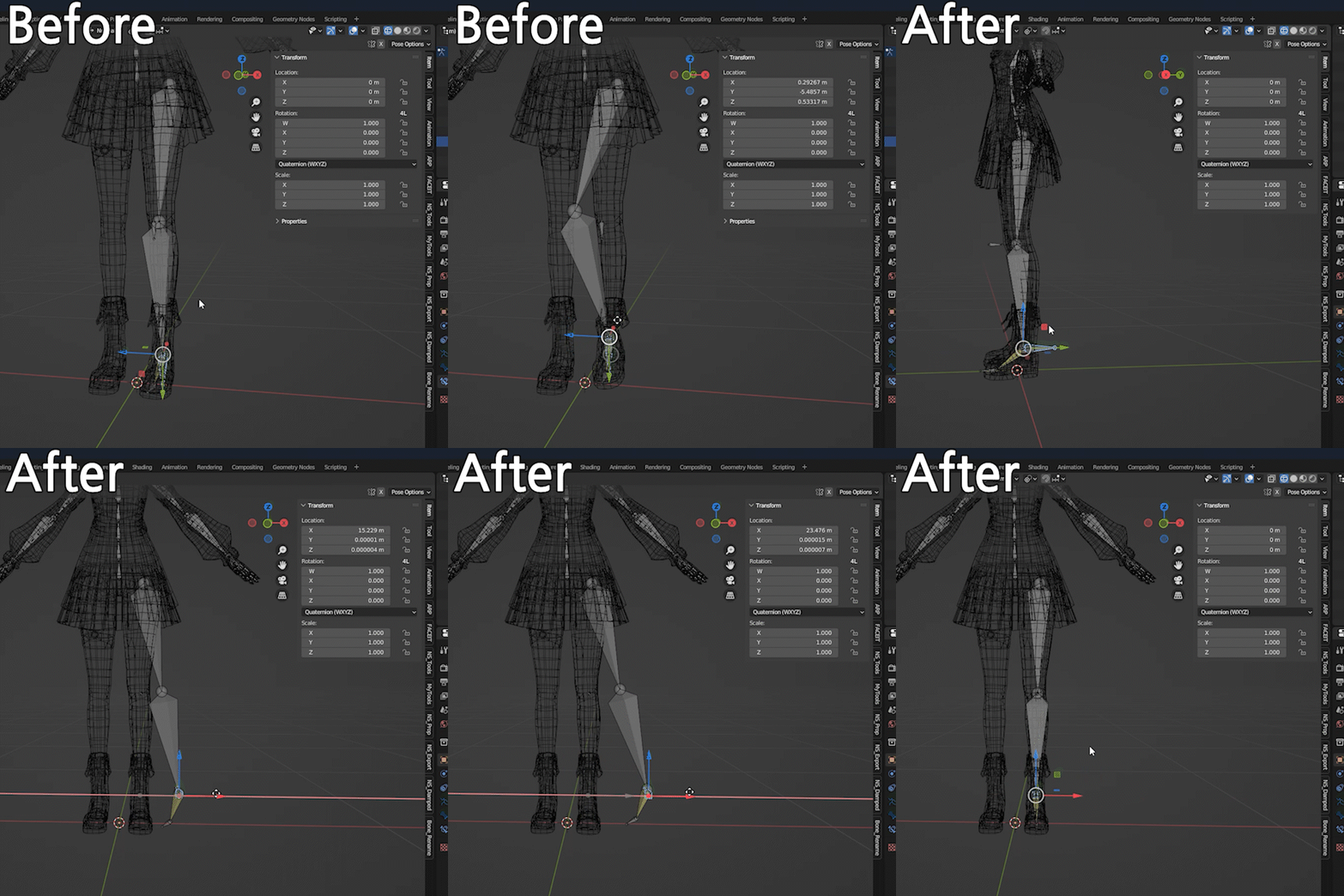
🎯 IK/FK Switching Optimization
Problem: Inaccurate bone alignment causing popping during IK/FK transitions
Solution:
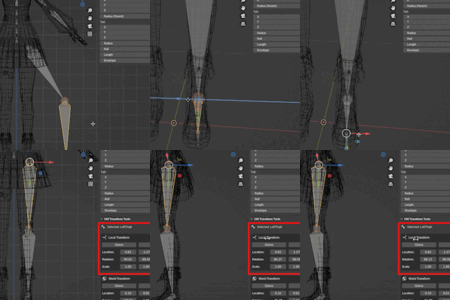
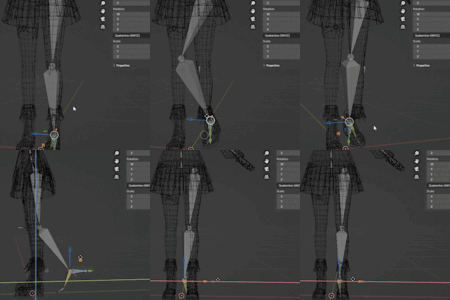
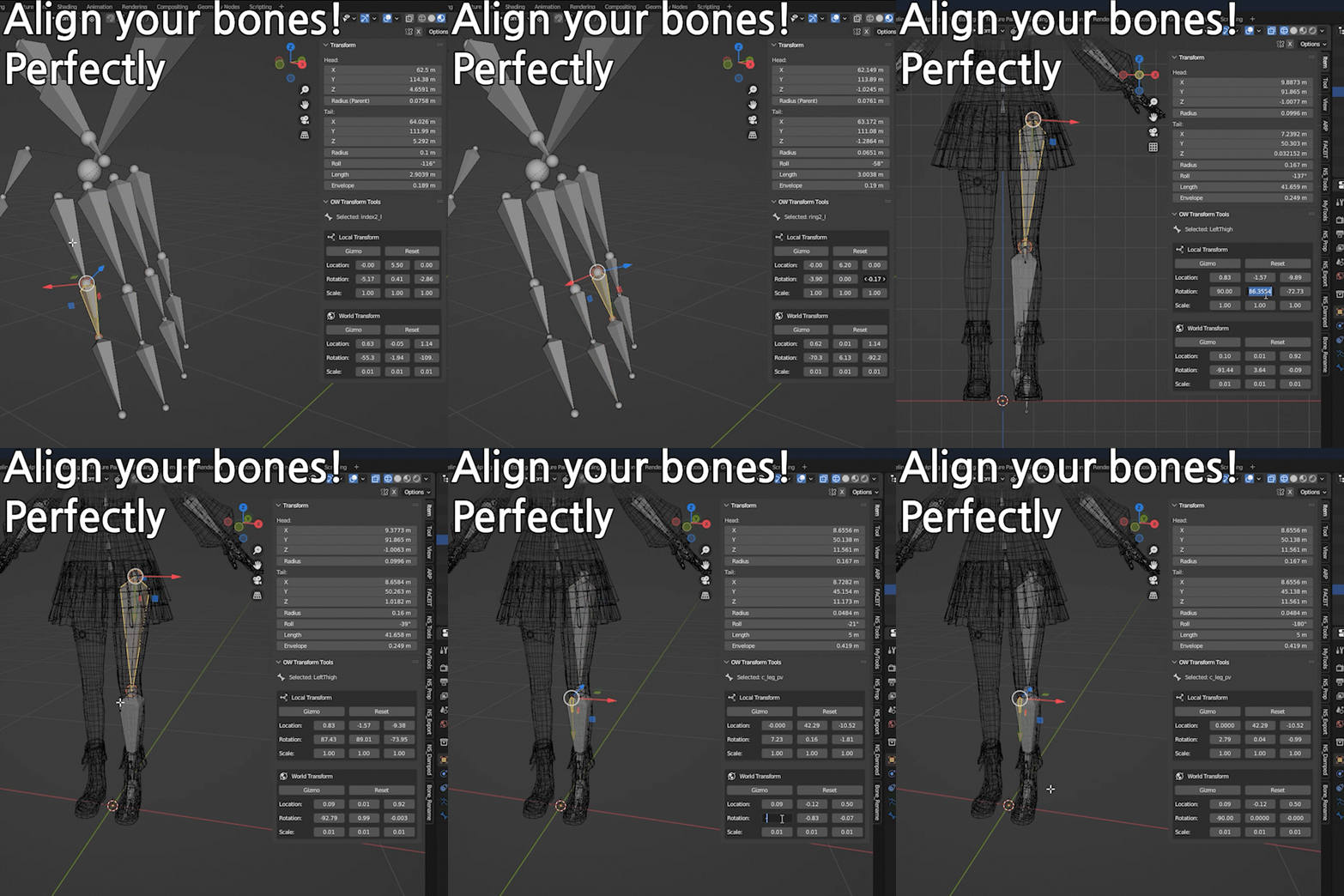
- Precise Knee Alignment: Perfect alignment along Y-axis
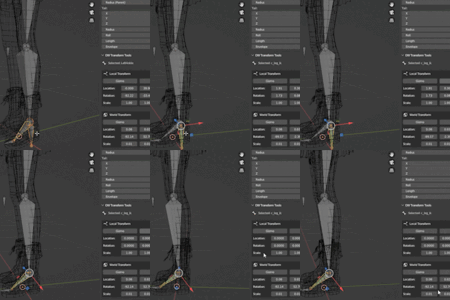
- Ankle Angle Adjustment: Set with exact rotation values
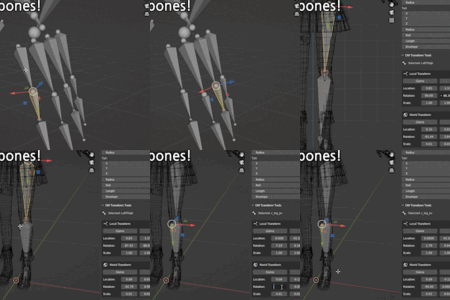
- Result: Natural IK/FK transitions
⚙️ Mechanical Rigging
Problem: Inaccurate gear or hinge angles causing awkward animations
Solution:
- Precise 90° Rotations: Exact angles for gear meshing
- Axis Alignment: Perfectly aligned rotation axes for hinge structures
- Result: Smooth mechanical animations
🧍 Character Symmetry
Problem: Subtle differences between left/right bones causing asymmetric animations
Solution:
-
Mirroring: Set left side, then apply exact
-Xcoordinates to right - Consistent Rotations: Set identical rotation values for both sides
- Result: Perfect symmetric animations
🔧 Advanced Tips
📌 Coordinate System Strategy
- Local Mode: Relative positioning based on parent bone - suitable for character rigging
- World Mode: Absolute positioning - suitable for mechanical rigging
- Usage: Switch between modes to choose optimal working environment
📌 Multi-bone Control Based on Parent
- Selection Order: Select child bones first → select parent bone last
- Advantage: Simultaneous control of entire hierarchy based on parent bone
- Usage: Useful for batch alignment of complex bone chains