 Skava
Skava



Overview
Blender Collab Pro is a real-time collaboration addon for Blender 4.0+. It allows multiple users to work on the same scene simultaneously, seeing each other's changes in real-time.
Installation
Requirements
- Blender 4.0 or newer
- Local network connection (for multi-user sessions)
Steps
1. Download blender_collab_pro.zip
2. Open Blender → Edit → Preferences → Add-ons
3. Click "Install..." and select the ZIP file
4. Enable "Blender Collab Pro" checkbox
5. Restart Blender
Quick Start
Hosting a Session
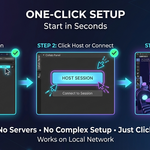
1. Open the Collab panel (3D View → Sidebar → Collab tab)
2. Click "Host Session"
3. Enter your username
4. Share your IP address with teammates
Joining a Session
1. Open the Collab panel
2. Click "Connect"
3. Enter host's IP address and port (default: 5555)
4. Enter your username
5. Click OK
Features
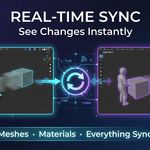
Real-Time Synchronization
All changes sync automatically between users:
- Object transforms (move, rotate, scale)
- Mesh edits
- Material assignments
- Modifier changes
- Object creation and deletion
Changes appear for all users within milliseconds.
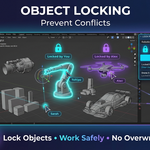
Object Locking
Prevent conflicts by locking objects you're working on:
1. Select an object
2. Click "Lock Object" in the Collab panel
3. Object is now protected from other users' edits
4. Click "Unlock" when finished
Locked objects show a lock icon and the owner's name.
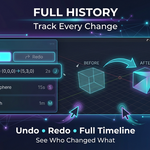
History & Undo
Track all changes with full history:
- View recent actions in the History panel
- See who made each change
- Timestamps for every action
- Undo - revert your last action
- Redo - restore undone action
History format example: Cube (0.0,0.0,0.0)→(5.0,3.0,1.0)
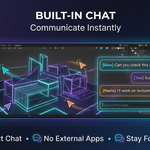
Built-in Chat
Communicate without leaving Blender:
1. Open Chat panel
2. Type message
3. Press Enter or click Send
All connected users see messages instantly.
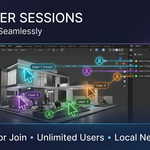
User Presence
See who's working on what:
- Colored cursors show user positions
- Selection highlights per user
- User list shows all connected users
- Follow mode - watch another user's view
Panel Reference
Connection Panel
- Host Session - Start a new collaboration server
- Connect - Join existing session
- Disconnect - Leave current session
Users Panel
Shows all connected users with username, role (Host/Guest), color indicator, and kick button (host only).
Object Locks Panel
- Lock Object - Lock selected object
- Unlock Object - Release lock
- Force Unlock - Host can unlock any object
History Panel
- Undo - Revert last action
- Redo - Restore undone action
- Clear History - Remove all history
- Statistics - View session stats
Chat Panel
- Message list with usernames
- Input field
- Send button
Settings
Preferences
Access via Edit → Preferences → Add-ons → Blender Collab Pro
- Default Port - Network port for connections (default: 5555)
- Username - Your display name (default: User)
- Auto-connect - Connect on startup (default: Off)
- Show Cursors - Display other users' cursors (default: On)
- Sync Interval - Update frequency in milliseconds (default: 50)
Session Settings
- Password - Protect session with password
- Max Users - Limit connected users
- Auto-resolve Conflicts - Automatic conflict handling
Keyboard Shortcuts
- Ctrl+Shift+H — Host Session
- Ctrl+Shift+J — Join Session
- Ctrl+Shift+L — Lock Selected Object
- Ctrl+Shift+U — Unlock Selected Object
Troubleshooting
Cannot Connect
- Check IP address is correct
- Ensure port 5555 is not blocked by firewall
- Verify host session is running
- Try disabling VPN
Changes Not Syncing
- Check connection status in panel
- Verify "Connected" indicator is green
- Try disconnect and reconnect
- Restart Blender if issue persists
High Latency
- Use wired network connection
- Reduce Sync Interval in settings
- Close bandwidth-heavy applications
- Check network congestion
Object Lock Issues
- Only owner can unlock their objects
- Host can force unlock any object
- Locks clear when user disconnects
Network Requirements
- Protocol: TCP
- Default Port: 5555
- Bandwidth: ~100 KB/s per user
- Latency: <100ms recommended
Firewall Configuration
Allow incoming connections on port 5555 (or custom port).
macOS: System Preferences → Security & Privacy → Firewall → Allow Blender
Windows: Windows Defender Firewall → Allow an app → Add Blender
Best Practices
1. Lock before editing - Always lock objects you're working on
2. Communicate - Use chat to coordinate with team
3. Save regularly - Host should save the file periodically
4. Assign areas - Divide scene into sections per user
5. Check history - Review changes before major edits
Limitations
- Maximum recommended users: 10
- Large mesh edits may have delay
- File must be saved by host
- No internet relay (local network only)
- Animation playback not synced
Support
For bugs and feature requests, contact the developer.
Version History
v1.0.0
- Initial release
- Real-time synchronization
- Object locking
- History & undo system
- Built-in chat
- Multi-user sessions
License
Blender Collab Pro is licensed for personal and commercial use. Redistribution prohibited.
Have questions about this product?
Login to message
| Sales | 10+ |
| Published | 9 months ago |
| Blender Version | 4.0 - 5.0 |
| Extension Type | N/A |
| Render Engine Used | Cycles, Eevee |
| License | Mit |
Discover more products like this
live editing network remote work multiplayer sync multi-user Studio collaboration team real-time