Blender Notepad 2
 Spencer Shade (shade.who)


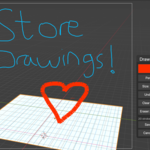
Default Hotkey Shift+N. Please check back for updates.
Installation: Like any other addon, install the addon in Blender. Edit > Preferences > Top right corner install from disk > Find and select Blender Notepad 2
Use: See preferences for global settings. Default hotkey is Shift+N. This will trigger the notepad popup. If you choose to change the hotkey it must not interfere with existing hotkeys or the notepad will not work.
Notepad: Once you have the notepad open you will see the top bar as seen below.
In the top right you will see options choose your relative notepad size; small, medium and large which are displayed by 1,2 or 3 respectively. You will see a +/- icon which temporarily maximizes the notepad space to give you the most room possible relative to your Blender window size. Finally you will see the 'X' which is the main close button. You can also close the app by pressing your main hotkey again or clicking offscreen.
Below the top bar is your main notepad settings and navigation as seen below. 
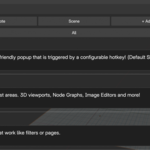
In the top left (Labelled "Draw") is a dropdown to select either notes, todo, or drawing mode. These are your main content buckets for the addon. In the middle (Labelled "Global") is your storage/context preference for how you want to store your item. Choose either Global or Scene. For example, if you watch a tutorial on 3D modelling and you want to save a note, it would be best to put it in the global storage so you can access it at any time. If you want to create a to-do list for a simple 3D model it would be best to put it in "Scene" storage since you won't need it across all Blend files. In the top right you will see "+Add". This button is simple, it adds your items such as notes or drawings. Finally at the bottom you will see "All". This is a popup for tags. Tags are user created filters/pages that act as contextual buckets for any content item type. For example you can add a tag called "Texture Paint" and assign all three content types (note, to-do, drawings) to that tag, so when you browse your notepad you will only see items related to texture painting.
Reorder lists and edit tags. See image below.

You will see 4 buttons on this item. In the top left is your tag display. There is no tag, so it will appear as the default '+' indicating to add a new tag or assign it to an existing tag. The next 2 buttons are to reorder notes up or down in the list to help you organize for your needs. The final button is the 'X' in the top right corner, which is the delete button, it will ask you to confirm your deletion for safety.
Drawing. See image and text below.
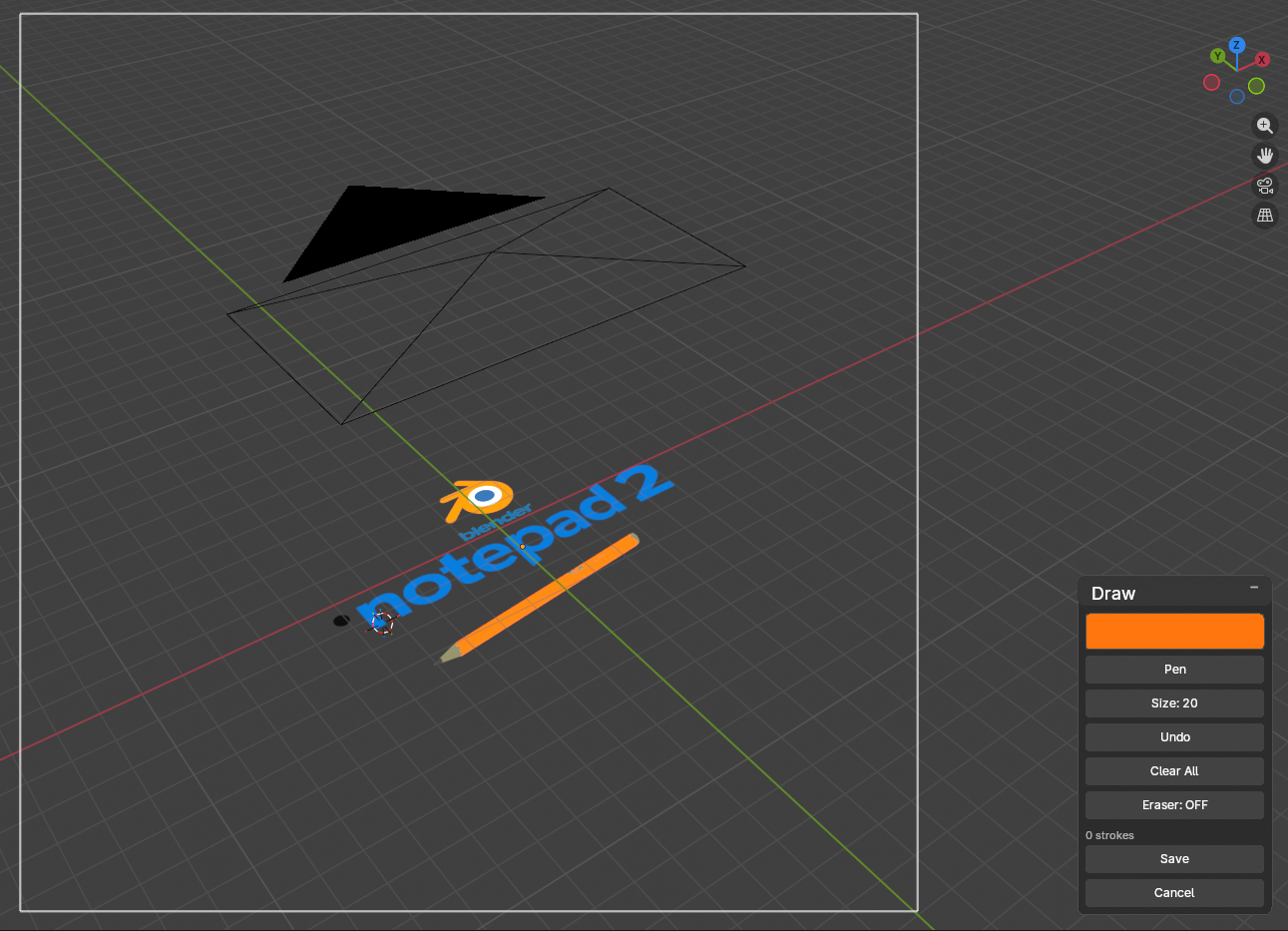
Drawing is a separate "mode" and will enable a small drawing toolbox popup and a canvas. It is similar to a sketchpad or sticky note. All drawings are limited to the square canvas bounds. The canvas is needed to ensure that any area size, any screen size and any resolution is compatible with the drawing sketchpad. You can change the background color of drawings to any color or transparency level you want (Click the color box, select 'Canvas'). Drawing comes with a basic set of shape tools, line tools and line size. Eraser erase entire strokes, not exact pixel data. Be sure to check your transparency levels if you are having any trouble with colors.
To-Do's. Reference image below.

To-Do's are simple. Create a to-do with the +Add button, and type your text content. The 'Show Done" filter is a tool to help you enable/disable to-do's that are completed.
Be sure to utilize the maximize area utility in the the top bar! It is extremely useful for viewing your notes with the most area.
Happy Blending!
Please reach out for additional features or bug reports!
Have questions about this product?
Login to message
| Sales | 10 |
| Published | 9 months ago |
| Blender Version | 4.0 - 5.0 |
| Extension Type | N/A |
| Render Engine Used | Blender-Internal, Cycles, Eevee |
| License | GPL |
