Blender Pixel Kit
 SouthernShotty LLC
Blender Pixel Kit Documentation
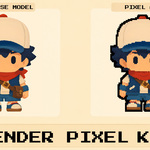
Blender Pixel Kit is a lightweight workflow addon for setting up pixel-art and low-resolution renders inside Blender.
Installation
- Open Blender.
- Go to Edit > Preferences > Add-ons.
- Click Install.
- Select the blender_pixel_kit.zip file.
- Enable Blender Pixel Kit.
- Open the 3D View sidebar with N, then select the Pixel Kit tab.
Quick Start
- Open the Pixel Kit tab in the 3D View sidebar.
- Choose a resolution preset, such as 64 px or 128 px.
- Click Set up Render Settings.
- Create a Pixel Camera or Isometric Camera.
- Click Set up Viewport Preview to preview the chunky pixel look in the viewport.
- Optionally add Outlines or create a pixel-art material.
Render Settings
The Render Settings section prepares your scene for crisp pixel-art output.
- Set up Render Settings: Applies pixel-friendly render settings.
- Resolution Presets: Choose 16, 32, 64, 128, or 256 px.
- Custom: Enter your own custom X and Y render resolution.
This setup uses Blender's existing render system. Pixel Kit is not a separate render engine.
Cameras
The Cameras section creates pixel-ready cameras for your scene.
- Pixel Camera: Creates a front-facing camera for pixel-art renders.
- Isometric Camera: Creates an angled isometric-style camera.
- Orthographic / Perspective: Choose the camera projection type.
- Distance: Adjusts the camera distance.
- Orthographic Scale: Controls the scale for orthographic cameras.
- Create Camera: Creates a new camera using the selected settings.
- Update Selected Camera: Updates the active camera to match the current Pixel Kit settings.
Camera Grid
Pixel Kit can add a grid background to generated cameras to help frame low-resolution scenes.
- Grid Opacity: Adjusts how visible the camera grid is.
- Clear Grid Backgrounds: Removes generated grid backgrounds from cameras.
Viewport Preview
The Viewport Preview section creates a viewer-only compositor pixel preview so you can check the chunky pixel look while working.
- Update Preview Resolution: Matches the preview resolution to the current camera size in the viewport.
- Preview Resolution: Controls how chunky the viewport preview appears.
- X / Y Offset: Nudges the preview alignment.
- Set up Viewport Preview: Creates the compositor nodes needed for the pixel preview.
- Remove Viewport Preview: Removes the generated preview nodes.
- Toggle Viewport Overlay: Shows or hides viewport guides like grid and axis overlays.
If the preview cannot be created, make sure you are running the tool from a 3D View and that your camera is visible in the viewport.
Outlines
The Outlines section creates a simple compositor-based alpha outline.
- Line Thickness: Controls the outline thickness.
- Line Color: Sets the outline color.
- Background Color: Sets the color composited behind the outline.
- Set up Outline: Creates the outline compositor setup.
- Remove Outline: Removes the generated outline nodes.
Materials
The Materials section creates simple pixel-art material starters and assigns them to selected objects.
- Flat: Creates a basic flat color material.
- Flat UV: Creates a palette-based UV material using the included default palette.
- Toon: Creates a toon-style material with stepped lighting.
- Image to Pixel: Creates an image-based material with pixel cell and color snap controls.
To create a material, select one or more objects that can receive materials, choose the material type, choose the assignment mode, then click Create Material.
Material Assignment
- Add New Slot: Adds the created material as a new material slot.
- Replace Active: Replaces the active material slot on the selected object.
Pixie Status
Pixie is the small status message at the top of the Pixel Kit panel. It gives short feedback after actions, warnings, and setup steps.
Troubleshooting
Viewport preview does not work:
Make sure you are in a 3D View, have a scene camera, and can see the camera frame in the viewport.
Camera update does nothing:
Select a camera object first, then click Update Selected Camera.
Material is not created:
Select an object that supports materials, such as a mesh object.
Render does not look pixelated:
Make sure you have applied Set up Render Settings and are rendering at a low resolution such as 64 px or 128 px.
Important Notes
- Pixel Kit is a workflow utility, not a render engine.
- It uses Blender's existing cameras, render settings, compositor, and materials.
- The addon is intentionally lightweight and focused on practical pixel-art setup tools.

Discover more products like this
pixel camera outline isometric materials stylized pixel render blender addon low poly game-art low resolution compositor eevee retro viewport-preview pixel art