TACHYON STUDIO
Blender Preview — Documentation
Capture, save and browse clear viewport previews.
Version 0.5.1 · Windows x64 · Legacy + Extension installers
Overview and requirements
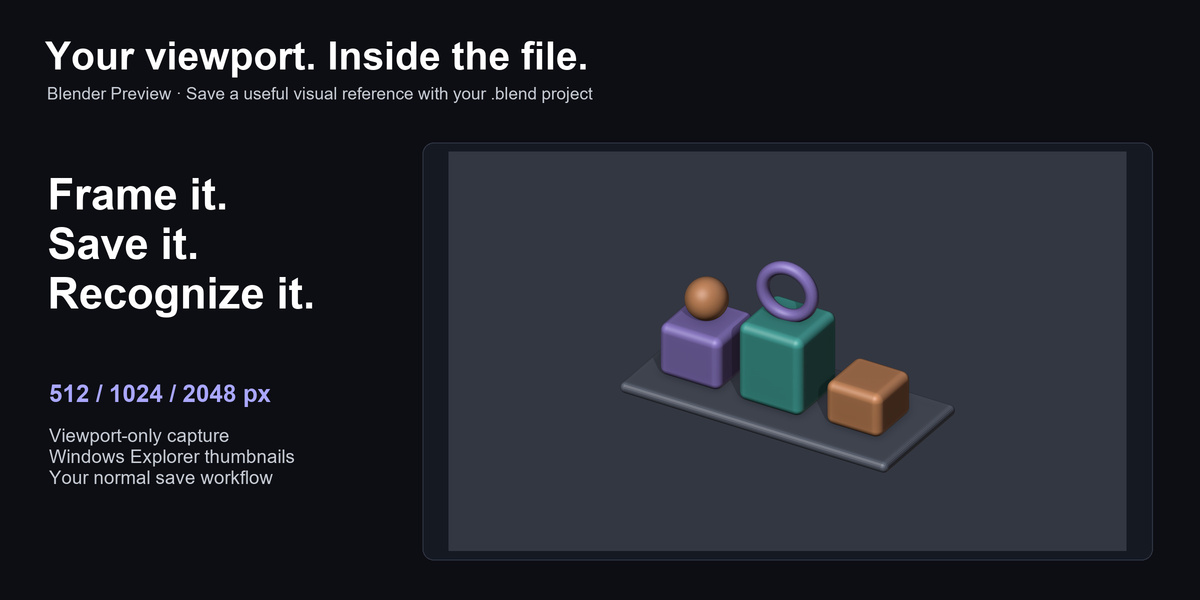
Blender Preview captures your current 3D viewport when you save a .blend file and embeds the image in that file. Its Windows setup action registers the BlendThumb.dll supplied with your Blender installation so Explorer can read those embedded previews.
Blender 3.0–5.2 on Windows x64. Tested builds: 3.0.1, 3.1.2, 3.2.2, 3.3.21, 3.4.1, 3.5.1, 3.6.23, 4.0.2, 4.1.1, 4.2.23, 4.3.2, 4.4.3, 4.5.13, 5.0.1, 5.1.2, 5.2.0. Testing covers one patch build from every minor series in this range; other patch builds and future versions have not been individually verified.
Use the legacy installer for Blender 3.0–4.1 and the native Extension for Blender 4.2–5.2. Windows 10/11 x64 is the intended platform; the recorded tests ran on Windows 11 Pro. macOS, Linux and Windows ARM64 are not supported by this release.
You need a working graphics driver, a 3D Viewport, a writable save folder, and the BlendThumb.dll from a standard Windows Blender installation. No separate account or internet connection is needed for capture or Explorer registration. Zstandard dependencies are bundled in the ZIP. Discord is optional help.
Choose your download
-
blender-preview-0.5.1-extension-blender-4.2-5.2-windows-x64.zip — the complete native Extension for Blender 4.2–5.2. Install this ZIP directly; do not extract it first.
-
blender-preview-0.5.1-legacy-blender-3.0-4.1-windows-x64.zip — the same complete add-on in legacy format for Blender 3.0–4.1. Install this ZIP directly through Add-ons > Install.
-
blender-preview-0.5.1-documentation.zip — quick start, full offline manual, FAQs, release notes, illustrations and license notices. Extract this separately; it is not an installer.
- Install only one of the two installers, choosing it for your Blender version. Both purchase options include both formats and the documentation. No separate Pro build, bundled asset library or demo scene is included.
Install and check the version
The documentation archive is not an installer. Install the ZIP matching your Blender version. If a dependency error appears, reinstall the complete correct ZIP rather than copying individual Python files.
- Open Edit > Preferences > Add-ons in Blender.
- Blender 3.0–4.1: click Install at the top and select the legacy ZIP. Blender 4.2–5.2: use the menu at the upper right, choose Install from Disk and select the Extension ZIP.
- Enable Blender Preview if it was not enabled automatically, then expand its entry.
- Check that the maintainer is Tachyon Studio and the version is 0.5.1.
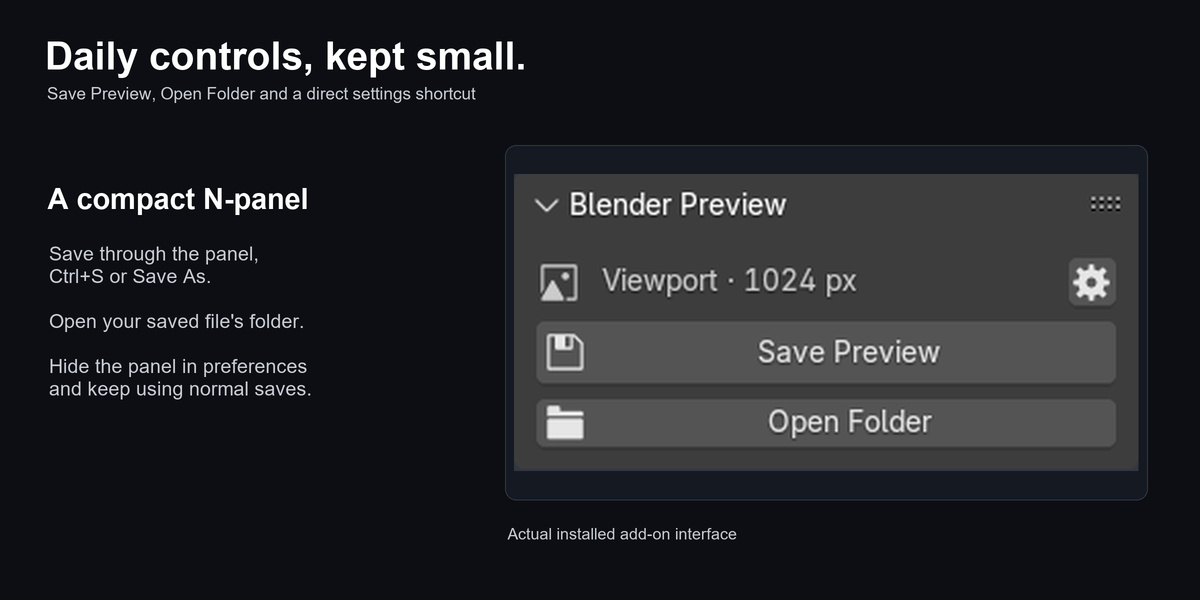
- Open a 3D Viewport, press N and choose the Preview tab. The settings gear opens the add-on's preferences directly.
First viewport thumbnail
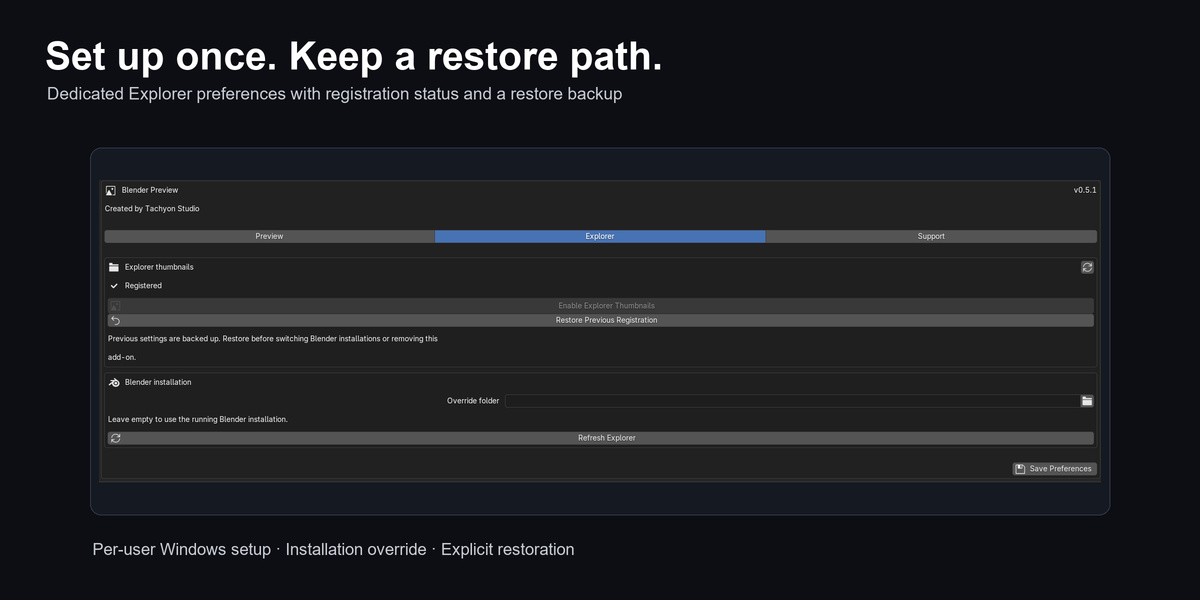
- Start with the default scene or a small scene you can save. In add-on Preferences > Explorer, click Enable Explorer Thumbnails if setup is needed. This stores a restore backup and changes registration for your Windows user.
- In Preferences > Preview, leave Viewport on save enabled and Resolution at 1024 px — High.
- Return to the 3D Viewport and frame your subject. Select your preferred shading. Turn overlays off if you do not want grids, selection outlines or other visible overlays in the image.
- Click N > Preview > Save Preview, or press Ctrl+S. For a new scene choose its filename and folder in Save As. Wait for saving to finish.
- Click Open Folder. In Explorer choose Large icons or Extra large icons, then press F5. You should see the viewport image instead of an editor-wide preview.
- If Explorer still shows an old image, reopen the folder and see the troubleshooting section. In Preferences > Support, Last capture reports whether the new image was embedded.

Where to find the controls
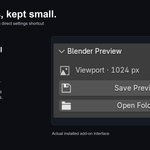
The 3D Viewport's N > Preview panel is deliberately compact: capture mode and resolution, settings gear, Save Preview and Open Folder. Open Folder is disabled until the current scene has a saved filepath. In native mode the save button reads Save File.
All settings live in Edit > Preferences > Add-ons > Blender Preview. Preview controls capture and interface behavior; Explorer contains Windows setup; Support contains help, diagnostics, local documentation and the Discord link.
If Show sidebar panel is disabled, the Preview panel disappears. Ctrl+S and Save As still capture previews. Re-enable the panel from the add-on's preferences.
Capture behavior and viewport selection
Capture follows the active 3D Viewport when possible. Otherwise, the largest 3D Viewport in the current window is preferred, followed by one in another open window. Keep the intended view active before saving when working with multiple editors.
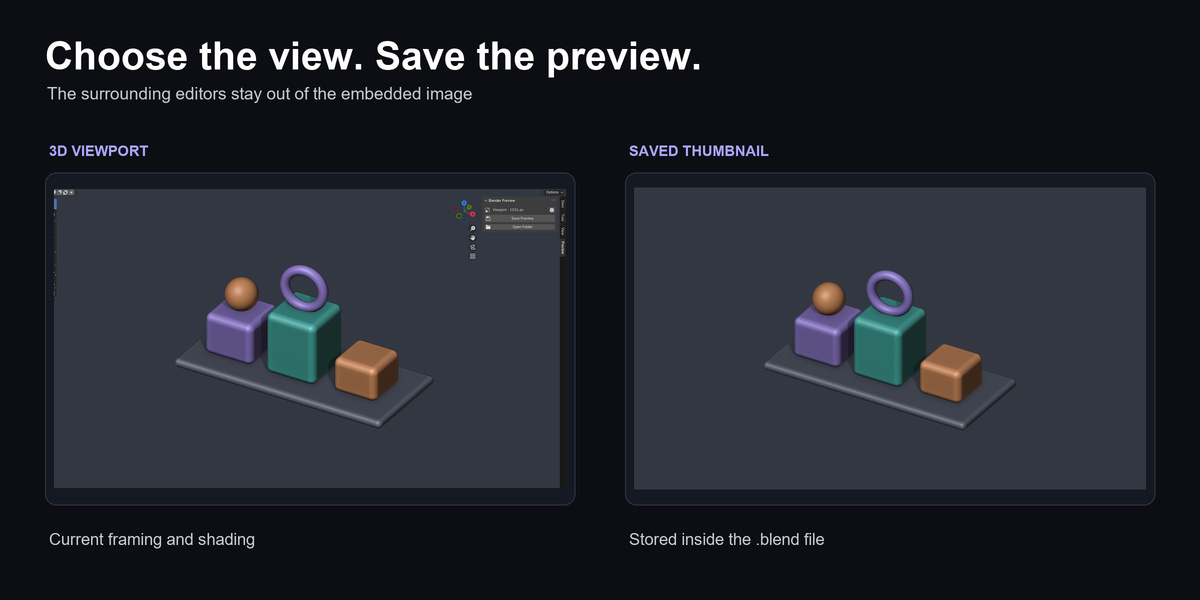
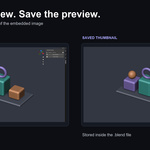
The image includes the visible scene, viewport shading and supported visible overlays. It excludes the Outliner, Properties editor, timeline, sidebar and toolbar. The presence of a scene camera does not force a camera thumbnail; your current view determines framing.
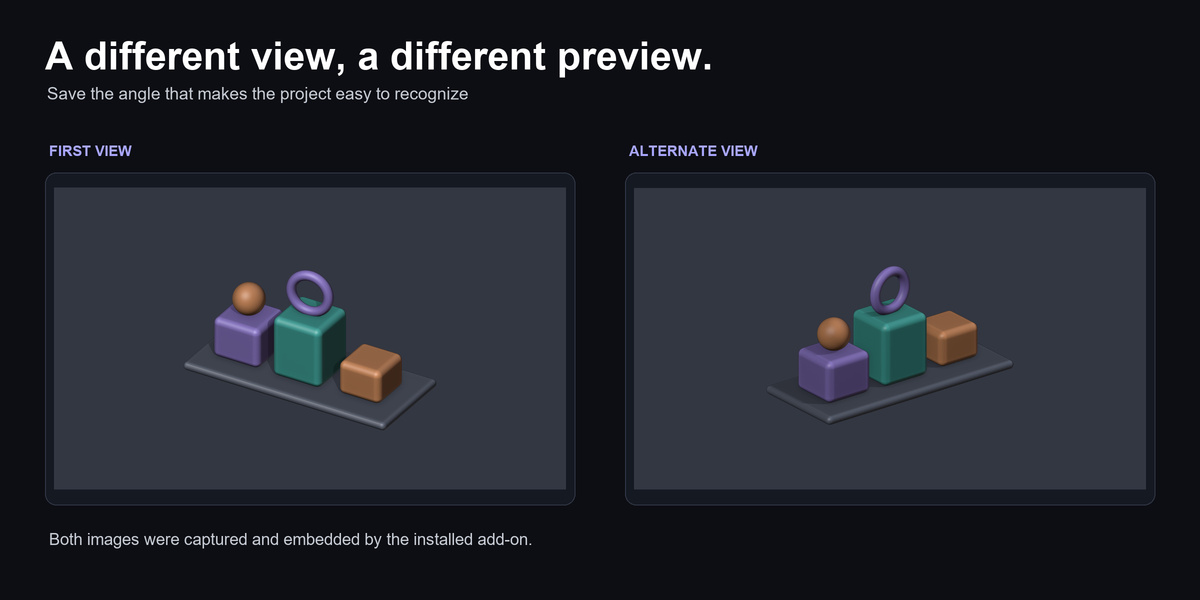
The add-on does not add cameras or modify object geometry, transforms, selection or editor layout during capture. It saves your scene normally and then replaces its embedded thumbnail. Save and registry changes are not scene Undo operations. To replace a preview, frame a different view and save again.
Background/headless saves use native Blender behavior. Automatic recovery saves, quad view, linked-data scenes, network folders and expensive material/rendered viewport modes have not been separately verified. Use the tested manual save workflow for predictable results.
Resolution and image quality
Resolution is the longest edge of the image stored inside the file; the viewport aspect ratio is preserved. Geometry is drawn at twice the selected dimensions and averaged down for smoother edges.
A square 512, 1024 or 2048 preview adds about 1, 4 or 16 MiB of uncompressed pixel data. Wide previews use less. Higher settings also increase temporary GPU memory and save time. Frame the subject closer if it occupies only a small part of the view.
Explorer controls the size shown on screen and its thumbnail cache. Choosing Ultra cannot force Explorer to display a 2048-pixel image in a small icon view.
- 512 px — Compact: smallest embedded preview.
- 1024 px — High: default resolution.
- 2048 px — Ultra: maximum embedded detail and larger file size.
Native preview mode
Turn off Viewport on save in Preview preferences to use Blender's native source control. Native Auto can include the whole workspace; Camera View uses the scene camera when present. This mode is useful if you deliberately want Blender's normal saved-preview behavior.
Switching the mode does not regenerate older files by itself. Save a file again to replace its preview. Save Preferences keeps the chosen mode if automatic preference saving is disabled.
Explorer setup and restoration
Enable Explorer Thumbnails discovers BlendThumb.dll beside the running Blender executable and registers it for the current Windows user. Administrator access is not required for this per-user operation. Enabling the extension alone does not change the registry.
The add-on saves the previous registration in %LOCALAPPDATA%\BlendPreviewBridge\registration-v1.json. Do not delete this backup while the managed registration is active. Restore Previous Registration uses it to undo the setup action.
Before switching the registered Blender installation or removing the add-on, use Restore Previous Registration. If another application has changed a managed value, restoration stops and preserves the backup so the newer value is not overwritten. Copy Diagnostics and contact support in that case.
The optional Override folder must contain BlendThumb.dll. Leave it empty to use the running installation. Keep the registered installation on disk. A DLL from an older Blender release may not read files saved by a newer release; choose the newer installation after restoring the old registration.
Refresh Status rereads the registration and DLL checks. Refresh Explorer notifies Windows of a change; it does not clear every cached thumbnail. These operations do not change your default .blend opening application.
Compressed files and save safety
Uncompressed, gzip and Zstandard .blend files are supported by the thumbnail writer. Compressed files are decoded and recompressed after Blender's normal save completes. The writer preserves non-thumbnail scene blocks.
A temporary file is written beside the saved file and replaces it only after successful completion. The folder needs extra free disk space approximately equal to the resulting file size. Large compressed scenes can take longer to save; no fixed performance gain is promised.
If capture fails, Blender can still save with its native preview. If embedding fails, the native saved file is kept. The sidebar provides an error shortcut and Support > Last capture shows details. Unknown future file formats and symbolic-link targets are left unchanged. Keep normal project backups as you would for any save workflow.
Updates and preferences
When moving from Blender 3.x/4.0/4.1 to Blender 4.2 or newer, note your preview resolution, viewport mode, sidebar and Override folder settings. Disable the legacy copy before enabling the Extension and reapply those settings manually; automatic transfer between formats is not provided. The add-on rejects a second enabled installation. The Windows registration backup is shared and must not be deleted.
An in-place Extension upgrade preserves saved preferences. Disabling and re-enabling an add-on explicitly resets its Blender AddonPreferences to defaults. Restart after replacing a legacy package before judging its version or settings.
Support > Documentation opens the included offline manual. Discord Support opens the optional community link in your browser. No custom shortcut is installed; Ctrl+S remains Blender's normal save shortcut.
- Save your work and close other Blender instances using this add-on.
- Install the newer ZIP in the same format using Install (legacy) or Install from Disk (Extension), then restart Blender.
- Confirm the new version and review Preview preferences. Existing viewport, resolution, sidebar and installation-override properties retain their identifiers.
- Save each .blend file that needs an updated thumbnail. Existing registration and its restore backup remain compatible; do not restore solely to update the same add-on installation.
Removal
Disabling or uninstalling the add-on does not automatically restore Windows registration. Thumbnails already embedded in your saved files remain in those files, and scene content is retained. Restoration may leave previews working if Blender's own handler was registered before this add-on was used.
- In the Explorer preferences tab, click Restore Previous Registration if you want to undo this add-on's Windows registration.
- Disable the add-on in Blender preferences. Use Remove for the legacy package or the Extension's uninstall control for the modern package, then restart Blender.
- Refresh Explorer or reopen its folder to inspect the previous behavior.
Troubleshooting
- No Preview tab: use a 3D Viewport, press N, check that the extension is enabled and Show sidebar panel is on. Preferences remain available even with the panel hidden.
- Open Folder unavailable: save the scene to disk first.
- Whole editor appears: enable Viewport on save, keep the intended 3D Viewport active, save again and refresh Explorer. Native Auto may show the workspace.
- Thumbnail looks soft: frame the subject closer, select 1024 or 2048, save again and use larger Explorer icons. The old cache may still be visible.
- Only an icon appears: check registration status, use Large/Extra large icons and refresh the folder. If diagnostics reports Always show icons, never thumbnails, turn that option off in Explorer Folder Options > View. Organization policies may need your administrator.
- DLL unavailable: select a standard Windows x64 Blender installation containing BlendThumb.dll. Restore before changing a currently managed registration. Microsoft Store packages have not been tested.
- Compressed preview dependency error: reinstall the ZIP matching your Blender version. The legacy package contains private dependencies for Python 3.9, 3.10 and 3.11; the Extension lets Blender install its included wheels locally. No pip command or PyPI account is required.
- Capture or embedding error: read Support > Last capture; check free disk space, folder write access, open viewport and selected resolution. Reduce resolution for GPU allocation errors.
- Restore conflict: keep the backup, copy diagnostics and contact Tachyon Studio. Do not delete registry entries or the backup as a shortcut.
Known limits
This is a Windows Explorer icon-thumbnail workflow. It does not provide an interactive 3D Preview pane, batch-convert an existing library, create an asset catalog, or replace a renderer. Existing files only gain a new preview after saving them again.
The exact tested Blender builds are listed above. Very large production scenes, network shares, quad view, other operating systems and architectures, Microsoft Store installations and organization-managed PCs are not verified. Windows 10 has not been tested separately from Windows 11.
License, purchase options and credits
Created by Tachyon Studio. The add-on source is included and licensed under GPL-3.0-or-later; read LICENSE for the full terms. Individual and Business / Studio purchase options include the same complete software and documentation. Their labels do not add seat restrictions or remove rights granted by the GPL. No additional support entitlement is attached to the Business option.
Bundled python-zstandard and Zstandard components carry their own BSD notices in THIRD-PARTY-NOTICES.txt and the wheel. Blender's DLL and NumPy are used from your existing Blender installation and are not redistributed. Demonstration images show original test scenes, not included model assets.
Support
Message Tachyon Studio through Superhive or visit Discord support. Discord is optional. This product does not enroll in Superhive's paid support-period program; no guaranteed response time, lifetime updates or future-version support is promised.
Include the add-on version, exact Blender version, Windows version, reproduction steps and error text. Copy Diagnostics includes local installation paths; review it and remove private details before sharing. If needed, supply a minimal non-confidential scene rather than a production project.
 Tachyon Studio