Blender Ruler: Measure Distance, Angles & Area in Blender
 Egon Castle


# Blender Ruler 0.15.0 documentation
## Requirements
- Blender 4.2 or later
- A 3D View area
- No external Python packages
The current package has been tested with Blender 5.0.1.
## Installation
1. Download `blender_ruler-0.15.0.zip`. Do not extract it.
2. In Blender, open **Edit > Preferences > Extensions**.
3. Open the menu in the upper-right corner and choose **Install from Disk**.
4. Select the ZIP and confirm the installation.
5. In a 3D View, press **N** to open the sidebar.
6. Select the **Blender Ruler** tab.
## Interactive measurement tools
### Distance
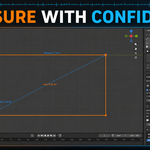
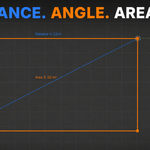
Choose **Measure Distance** or press **Shift + Alt + D**. Left-click the first point, then left-click the second point. The finished measurement is saved to the scene.
### Angle
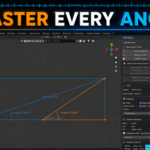
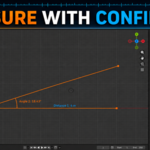
Choose **Measure Angle** or press **Shift + Alt + A**. Left-click the first leg point, the angle vertex, and the second leg point. The overlay includes the angle legs, arc, and value.
### Area
Choose **Measure Area** or press **Shift + Alt + R**. Left-click at least three boundary points. Press **Enter**, **Numpad Enter**, or right-click to finish.
Press **Esc** to cancel an active tool. Right-click also cancels Distance and Angle before completion.
## Object and Edit Mode measurements
The sidebar also provides:
- **Selected Object Bounds** for a combined bounding box
- **Dimensions X / Y / Z** for selected-object dimensions
- **Distance Between Objects** for selected objects
- **Selected Edge Length** in Edit Mode
- **Selected Face Area** in Edit Mode
Unavailable operations are disabled until the required mode and selection are active.
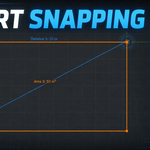
## Snapping
Base snapping can target:
- vertices
- edge midpoints
- face centers
- object origins
- a configurable world-space grid
Use **Snap Radius** to control the maximum screen-space distance for geometry snapping. Use **Grid Size** to set the world-space grid increment.
Modifier overrides temporarily force a snap target while measuring. The defaults are:
- **Shift:** Vertex
- **Ctrl:** Grid
- **Alt:** Object Origin
Each modifier can be remapped to Vertex, Edge Midpoint, Face Center, Object Origin, Grid, or Disabled. Holding multiple configured modifiers combines their targets and chooses the closest valid candidate.
## Units
Choose the display format from the **Units** section:
- Scene Units
- Blender Units
- Meters
- Centimeters
- Millimeters
- Feet
- Inches
- Feet + Inches
Scene Units respect the scene's unit system and scale. Area values use squared units.
## Measurement manager
Every completed measurement becomes a saved scene record. In the **Measurements** list you can:
- select a measurement
- rename it
- show or hide it
- change its overlay color
- review its type and formatted value
- remove it with the X control
Measurements store world-space points. They do not remain linked to mesh topology after an object or vertex moves; create a new measurement when the geometry changes.
## Real Geometry
### Create Geometry
Enable any combination of:
- **Curve Lines**
- **Text Labels**
- **Point Empties**
Enable **Visible Only** to process only visible ruler records. **Replace Generated** removes previously generated Blender Ruler curves, labels, and point objects before rebuilding them. Click **Create Geometry** to place the results in the **Blender Ruler Measurements** collection.
### Convert to Mesh
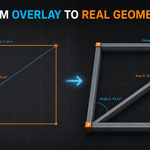
Choose **Selected Measurement** or **All Measurements**, then click **Convert to Mesh**. Blender Ruler creates editable beveled mesh copies of the ruler paths in the same collection.
Distance paths, angle legs and arcs, area boundaries, and bounding boxes are supported. The source ruler records remain intact. Converted meshes are independent objects and do not update automatically if the source record changes.
## Export and import
### JSON
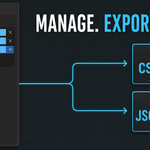
Use **Export JSON** for a versioned, lossless record of measurement values, colors, visibility, and geometry. Use **Import JSON** to append measurements to the current scene. Enable **Replace Existing** before import to clear the current list first.
### CSV
Use **Export CSV** for a tabular file suitable for spreadsheets and reports. CSV is export-only; use JSON when you need to import measurements again.
Enable **Visible Only** to export only measurements currently shown in the overlay.
## Appearance preferences
Open Blender's add-on preferences for Blender Ruler to configure:
- default measurement color
- selected-measurement highlight color
- snapping indicator color
- viewport font size
- line thickness
- point size
- welcome-message behavior
These settings affect new measurements or viewport display as described by each control.
## Troubleshooting
### The Blender Ruler tab is missing
Confirm that the extension is installed and enabled, then open a 3D View and press **N**. Sidebar tabs are specific to the current editor.
### A measurement tool will not start
Move the pointer over the 3D View and try again. Object/Edit measurement buttons also require a compatible mode and selection.
### Snapping does not choose the expected point
Check the enabled base targets, the active modifier override, and **Snap Radius**. When grid snapping is involved, also verify **Grid Size**.
### Imported JSON is rejected
Blender Ruler validates imported records. Use JSON created by Blender Ruler and avoid manually changing its schema or point data.
### Converted meshes did not refresh
Mesh conversion creates independent editable copies. Delete or edit the existing mesh, then convert again if you need a fresh copy.
## Version and license
- Blender Ruler 0.15.0
- GPL-3.0-or-later
- Maintainer: Egon Castle
Have questions about this product?
Login to message
| Blender Extension Compatible | Yes |
| Published | about 2 months ago |
| Blender Version | 3.0 - 5.2 |
| Extension Type | Add-on |
| Render Engine Used | Blender-Internal, Cycles, Eevee |
| License | GPL |
Discover more products like this
angle viewport area distance ruler architecture measurement snapping dimensions precision