Blender 2 Clicks 2 Import
 Ares Tech

Installation Guide - Version 2.0
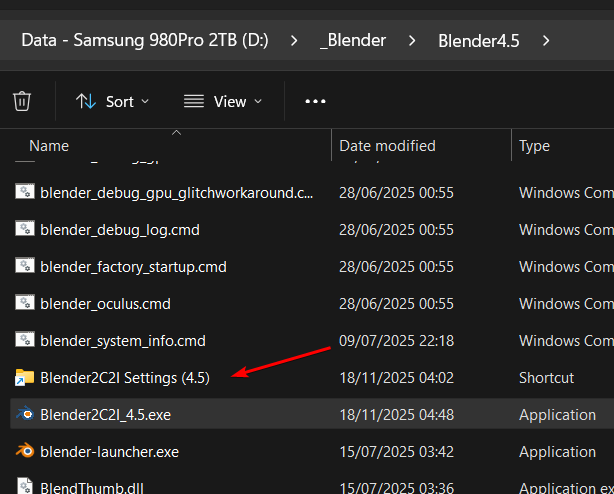
- Drag the Blender2C2I.exe file in the root folder of your Blender installation
- Rename the Blender2C2I.exe file to something like Blender2C2I_4.5.exe (Optional, but fundamental if you have multiple Blender installations and you want to be able to choose among them)
- Run the file for the first time (a shortcut to the settings should appear)
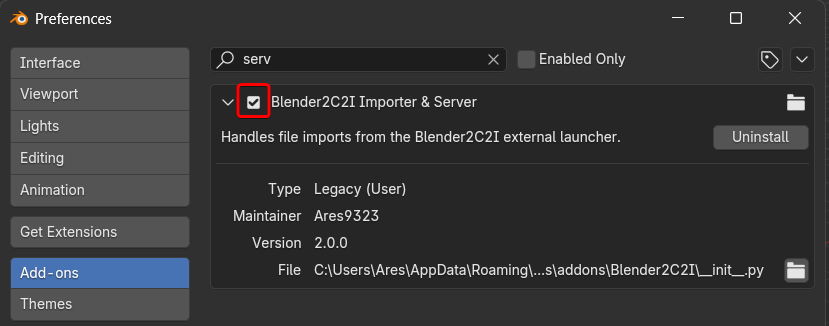
- Open the Addons tab on blender and enable the addon:
- Close Blender
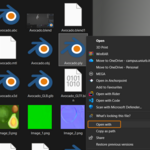
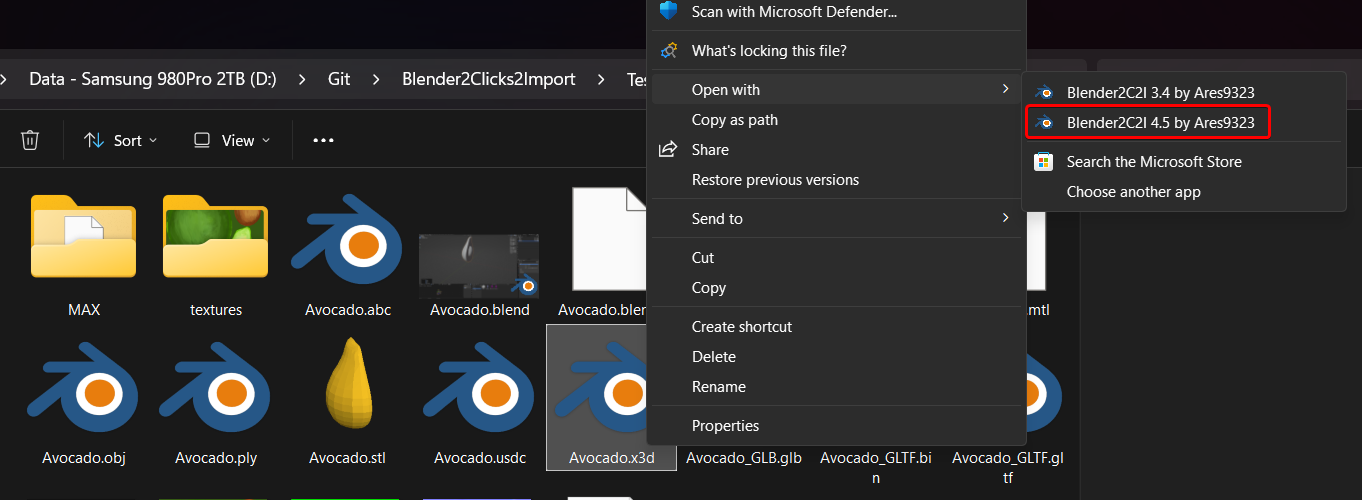
- Right click a compatible file and choose the version of Blender that you want to open it with (you can also set it as default)
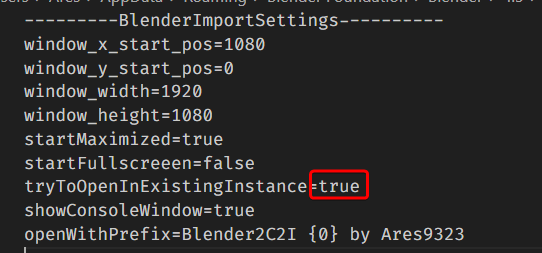
- Double click a file to open it with Blender, by default, if you click multiple files they will be imported in the same Blender instance, to disable this you have to edit the Blender2C2I.config inside the "AppData\Roaming\Blender Foundation\Blender\X.X\scripts\addons\Blender2C2I" folder and set tryToOpenInExistingInstance to false
- If you want to disable hide the console window you have to set showConsoleWindow to false
- If you want to change how the app name appears in your context menu you can modify the openWithPrefix value to something you like, where {0} is the version number (automatically detected by the program)
- The other settings are pretty self-explanatory, for window_start_pos, the origin is the bottom left corner of the screen, you can use these values to fix the issue that Blender has with multi-monitor setups and always start it in a specific monitor
Installation Guide - OLD VERSION < 2.0
- Choose the version you want to install (Default or Debug) and copy the contained files in the blender directory. It's really important to place them in the correct folder because python is read from this directory.
You can copy it to several version of blender and each one will work independently, you can also drag files on the Blender2C2I.exe file to open them.
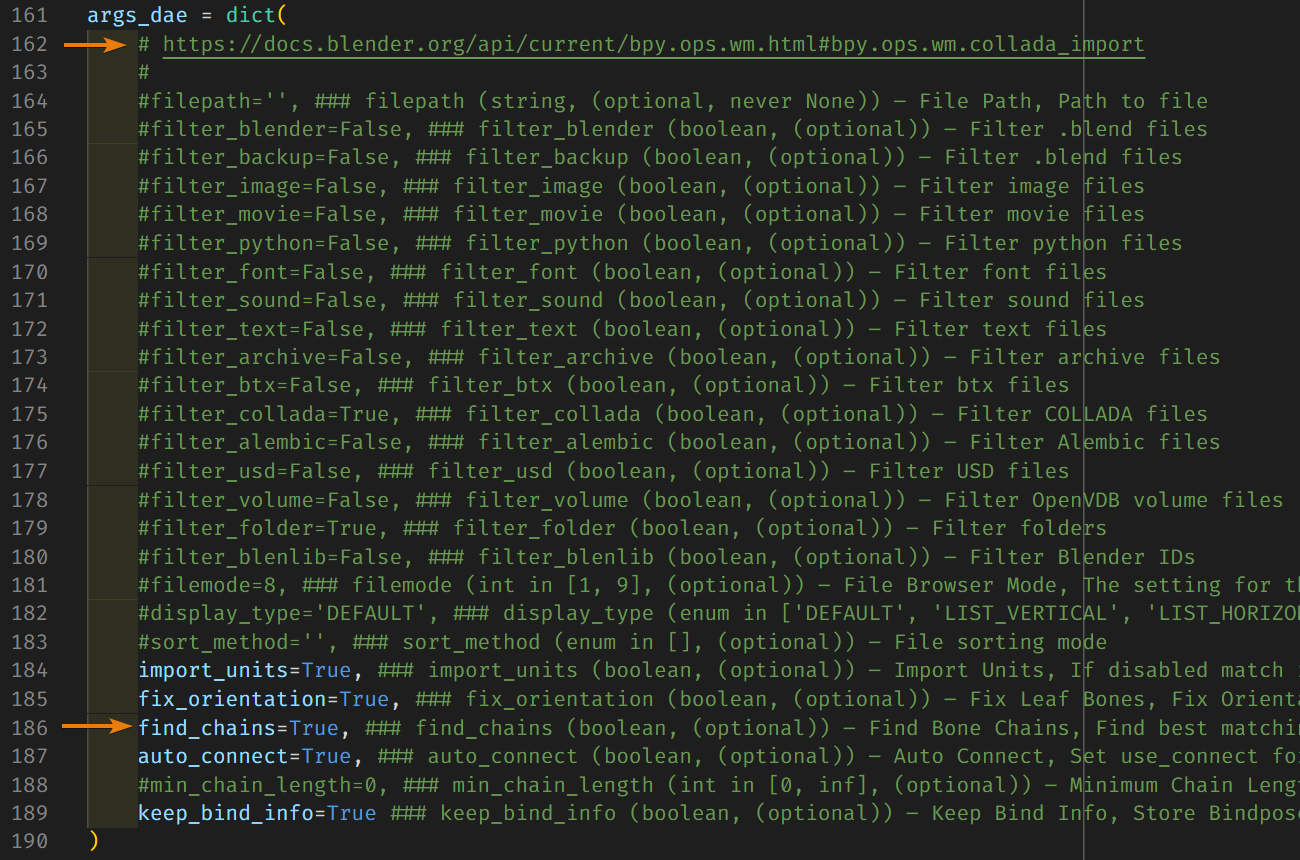
- Customize the Blender2C2I.py file with a text editor (every line is well commented and each extension has a link to the official documentation), you just have to remove the first "#" and set the parameters you need.
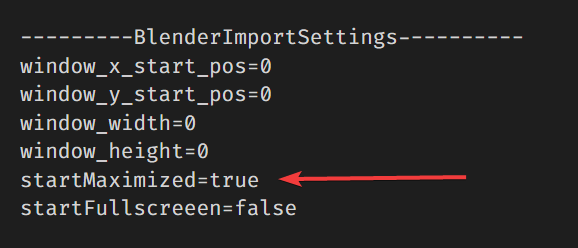
- Configure the Blender2C2I.config (I need it because I have 3 monitors and without this settings blender opens in the wrong one, it's a fix for the regular blender too), by default it starts Blender maximized, if you don't like it or you want to start it fullscreen just set startMaximized to false.
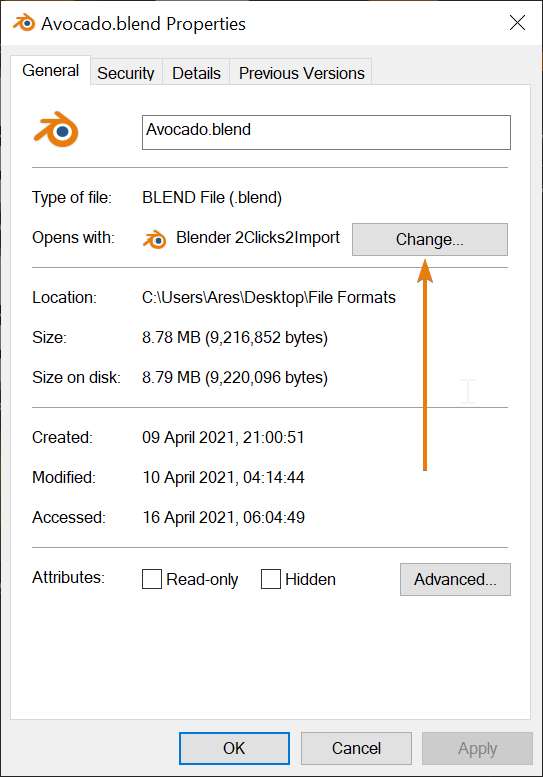
- Set Blender2C2I as default program for the file types you need or as an "open with" option, you can also set it for .blend files if you want to open these files with your layout instead of the contained one
- Enjoy the time you saved ❤
* .3ds file importer only works with Blender <2.79 because the import addon has been removed since 2.80
