BlenderMCP Ultra — AI Pipeline Orchestration for Blender
 Anvil Interactive Solutions


BlenderMCP Ultra — Documentation
Version 3.2.0 | Blender 4.2+ | Anvil Interactive Solutions
1. Overview
BlenderMCP Ultra is an AI assistant built directly into Blender. It creates, edits, and refines your scene through natural conversation, and — unlike a generic AI connector — it learns and enforces how your project actually works: naming conventions, poly budgets, material rules, and facts about the project that persist across sessions.
Ultra also runs a local MCP (Model Context Protocol) server, so external AI apps — Claude Desktop, Cursor, Windsurf — can connect to and control Blender directly, in addition to the built-in chat panel.
2. Requirements
- Blender 4.2 or newer (Windows, macOS, Linux)
- An API key for at least one supported AI provider, or a local model via Ollama (no key required)
- Internet connection (except when using Ollama fully offline)
Supported AI providers
| Provider | Vision support | Notes |
|---|---|---|
| Claude (Anthropic) | Yes | Recommended for reliability and tool-use accuracy |
| Gemini | Yes | Free tier available |
| GPT-4o-mini (OpenAI) | Yes | |
| DeepSeek | No | Chat, missions, and profile inference only — not render critique |
| Groq | No | Fast, free tier available |
| Ollama (local) | No | Runs fully offline, no API key, weaker tool-calling reliability |
3. Installation
- Download the
.zipfrom your Superhive/TheAnvilStore purchase. - In Blender: Edit > Preferences > Get Extensions (or Add-ons on older 4.2 builds) > Install from Disk, and select the zip.
- Enable BlenderMCP Ultra in the extensions list.
- Open the 3D Viewport sidebar (press
Nif it's not visible) — you'll see a new ★ MCP ULTRA tab.
If you're upgrading from BlenderMCP Pro, Ultra installs alongside it as a completely separate add-on — the two do not conflict and can run at the same time.
4. Getting Started
4.1 Add your API key
Go to Edit > Preferences > Add-ons > BlenderMCP Ultra, expand the preferences panel, choose your AI provider from the dropdown, and paste in your API key. Each provider has a direct link to where you get a key.
4.2 Try the chat
Open the ★ MCP ULTRA tab in the sidebar, switch to the Chat tab, and type something like:
"Create a low-poly chair from primitives."
The AI will use Blender's tools directly to build it in your scene.
4.3 Connect an external AI client
If you'd rather use Claude Desktop, Cursor, or Windsurf instead of the built-in chat panel:
- Go to the Main tab.
- Click Start Server.
- Under AI Client Connection, choose your client app and click the connect/write-config button.
- Restart the client app. It will now have direct tool access to your open Blender scene.
5. Interface Tour
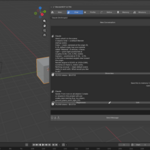
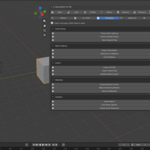
The sidebar is a single tabbed panel rather than a stack of sections.
| Tab | What it's for |
|---|---|
| Main | Server status, connecting external AI clients, recent tool-call log |
| Chat | Conversational AI assistant, with regenerate/edit/expand controls and per-message cost |
| Profile | Studio Profiles — pipeline rules the AI enforces |
| Refine | Render critique (one-shot) and closed-loop auto-refinement |
| Memory | Facts the AI has learned about this project, persisted across sessions |
| Missions | Multi-agent task planning, background job queue, and Mission History |
| More | History, Co-Pilot, Prompt Templates, Meshy AI, Macros |
6. Studio Profiles
A Studio Profile is a set of pipeline rules — naming conventions, unit scale, per-asset-class polygon budgets, material rules, and free-form custom rules — that gets checked against everything the AI creates, in chat, in missions, and during validation.
6.1 Creating one manually
In the Profile tab: New Profile, give it a name, then Edit in Text Editor to adjust the JSON directly (naming prefixes, poly budgets, etc.), then Save from Text Editor.
6.2 Inferring one from your existing scene
Instead of writing a profile from scratch, click Infer from Existing Work. Ultra analyzes your current scene's actual object names, polygon counts, and material assignments, and drafts a profile based on real evidence — it will not invent a naming convention that isn't actually present. The draft opens in the Text Editor for your review; nothing is saved or activated automatically. Review it, adjust as needed, and use Save from Text Editor when you're happy with it.
6.3 Activating a profile
Only one profile can be active at a time per Blender session. Select it from the dropdown and click the activate (▶) button. The Main tab and Chat tab both show which profile is currently active.
7. Persistent Memory
The Memory tab shows facts the AI has learned about the current project. These are scoped to the project folder, not the individual file — meaning a fact learned while working in one .blend file is available when you open a different .blend file in the same folder, and it survives closing and reopening Blender entirely.
You can:
- Ask the AI in chat to remember something ("Remember that all UI meshes use the
ui_prefix") - Type a fact directly into the Memory tab's input field
- Delete any individual fact with the X button next to it
If your file has never been saved to disk, memory falls back to a generic "unsaved" bucket shared by all unsaved files — save your file to get proper per-project isolation.
8. Render Refinement
8.1 Quick Check
A one-shot render + AI critique. Pick a focus (Full, Lighting, Composition, Materials, Technical), click, and get a scored critique with strengths, issues, and a specific top-priority fix. Requires a vision-capable provider (Claude, Gemini, or GPT-4o-mini).
8.2 Auto-Refine Until Target Score
Set a goal, a max number of passes, and a target score. Ultra will render, critique, apply the top-priority fix, and repeat automatically until it hits your target score or runs out of passes. A cancel button stops it cleanly between (or during) passes.
If an active Studio Profile exists, the auto-fix step also corrects any profile violations it finds, not just visual quality issues.
9. Agent Missions
9.1 Running a mission
In the Missions tab, describe a larger goal (e.g. "Build a small kitchen scene with a table, four chairs, and appropriate lighting"). A planning agent breaks it into tasks and dispatches them across specialist agents (layout, modeling, materials, lighting, rigging, geometry nodes, rendering, and — if a cross-DCC bridge is connected — cross-DCC) running in parallel where possible. When it finishes, a validator checks the result against your goal and your active Studio Profile, and auto-fixes issues it finds (if auto-fix is enabled).
9.2 Mission History
Every mission is logged: every task, every tool call made (with arguments), the validator's verdict, and the estimated cost — persisted per-project, same as Memory. Expand any past mission in the Mission History section to see the full breakdown of what happened, task by task, tool call by tool call.
9.3 Background task queue
You can also queue a single-agent task to run in the background while you keep working, optionally as a full team mission instead of a single agent.
10. Cross-DCC Bridge (Unreal Engine / Unity)
If you also own UnrealMCP Pro and/or MCP Pro for Unity, Ultra can detect and route work to them.
10.1 Enabling it
In Edit > Preferences > Add-ons > BlenderMCP Ultra, under Cross-DCC Bridges, enable the toggle for Unreal and/or Unity and confirm the port matches what that plugin is running on (default 7845 for Unreal, 7846 for Unity). The Main tab will show "Connected" once detected.
10.2 Using it
Once connected, ask about it directly in chat ("what tools do you have for Unreal?") or describe a mission that spans both applications ("model this prop and hand it off to Unreal"). Missions automatically route cross-application tasks to the cross-DCC specialist.
10.3 Unit and axis conversion
Before any export/handoff, the cross-DCC specialist calls a tool that computes the exact scale factor and axis correction needed, based on your scene's actual unit settings — not a guess. For example, with Blender's default 1 unit = 1 meter, it correctly computes a 100× scale factor for Unreal (centimeters) and flags Blender's Z-up vs. Unity's Y-up.
Note: the level of detail available depends on what the connected plugin reports. If it only reports tool names (not full parameter schemas), the AI works from the task description rather than a strict spec.
11. Troubleshooting
"No response" or the AI says it doesn't have a tool it should have. Restart Blender fully (not just disable/re-enable the extension) after any update — some features require a clean reload to register correctly.
Chat costs seem high. Check Edit > Preferences > Add-ons > BlenderMCP Ultra for a Quality/Economy mode setting. Economy mode routes to lower-cost models where possible.
Quick Check or Auto-Refine says vision isn't supported. Switch your provider to Claude, Gemini, or GPT-4o-mini for render-review features — Groq, Ollama, and DeepSeek don't support image input.
Cross-DCC tools aren't showing up in chat. Confirm the bridge is enabled in preferences with the correct port, and that the other plugin (UnrealMCP Pro / MCP Pro for Unity) is actually running in that application at the same time.
Memory doesn't seem to persist.
Make sure your .blend file has actually been saved to disk — unsaved files share a generic memory bucket rather than a per-project one.
12. FAQ
Do I need to write a Studio Profile by hand? No — use Infer from Existing Work in the Profile tab to draft one from your current scene's real conventions, then review before saving.
Does memory survive closing Blender? Yes. It's stored per-project-folder on disk, not in the Blender session, so it survives closing Blender entirely and applies across every file in that folder.
Can I use more than one AI provider? Yes, switch anytime in preferences. Different features have different provider requirements (see the vision-support table in section 2).
Do I need UnrealMCP Pro or MCP Pro for Unity to use Ultra? No. Ultra works fully standalone in Blender. The cross-DCC bridge is an additional capability that only activates if you separately own and run those plugins.
Can BlenderMCP Ultra and BlenderMCP Pro be installed at the same time? Yes. They're built as fully separate add-ons — different identifiers, different MCP server ports, different session storage — so there's no conflict running both.
What happens if I cancel a mission or an auto-refine loop partway through? Work already completed stays as-is; nothing is rolled back automatically. The cancel button stops further passes/tasks from starting.
Is there a cost to using this beyond the purchase price? The add-on itself is a one-time purchase. Ongoing AI usage costs depend on your chosen provider's API pricing (or $0 if you use a free-tier provider or a fully local Ollama model).
What Blender versions are supported? 4.2 and newer, on Windows, macOS, and Linux.
What if something doesn't work as expected? Contact support with what happened, your Blender version, and which AI provider you were using — that combination usually identifies the issue quickly.
 Included
Includes 12 months of
- Support from Anvil Interactive Solutions
- Product updates
Extend this product’s Support Period +12 months: 50% of product price
Have questions before purchasing?
Login to message
| Blender Extension Compatible | Yes |
| Sales | 10+ |
| Dev Fund Contributor | |
| Published | 4 months ago |
| Blender Version | 4.2 - 5.2 |
| Extension Type | Add-on |
| Render Engine Used | Cycles, Eevee |
| License | GPL |
Discover more products like this
MCP llm Scripting pipeline claude ollama Workflow ai-assistant automation chatgpt productivity deepseek